How to fix
Windows Defender Error Code 0x80029c4a
on Windows
Resolve Windows Defender Error Code 0x80029c4a on Windows 10 effortlessly and ensure your PC's security is intact. Expert-tested solutions await!


What causes How to Fix Windows Defender Error Code 0x80029c4a on Windows 10 V1709?
- Error occurs when checking the History tab in Windows Defender
- Old Windows Defender interface is no longer supported in Windows 10 V1709
- The issue is related to the usage of the classic Windows Defender GUI
- The error is a consequence of the new feature establishment in Windows 10 V1709
- Windows Defender error 0x80029c4a is not classified as a bug in Windows 10 V1709
Repairs Windows system files, removes malware, and restores a clean OS state — without reinstalling.
Since upgrading to Windows 10 V1709, Windows Defender started delivering an error code 0x80029c4a when checking history. That makes me nervous as I can’t see the history of scans or blocked sites and, in general, I can’t be sure if it’s doing anything at all. Do you have a fix?
Many Windows 10 users expressed skepticism about the Fall Creators Update (V1709). Many postponed the installation; the others disabled the metered connection and, therefore, blocked the feature update completely.
Many experts recommend Windows users to postpone the installation[ref en-1] of the Fall Creators Update until Microsoft patches most of the bugs. Naturally, thousands of people did not refrain from installing it and, consequently, ran into the errors like 0x80029c4a.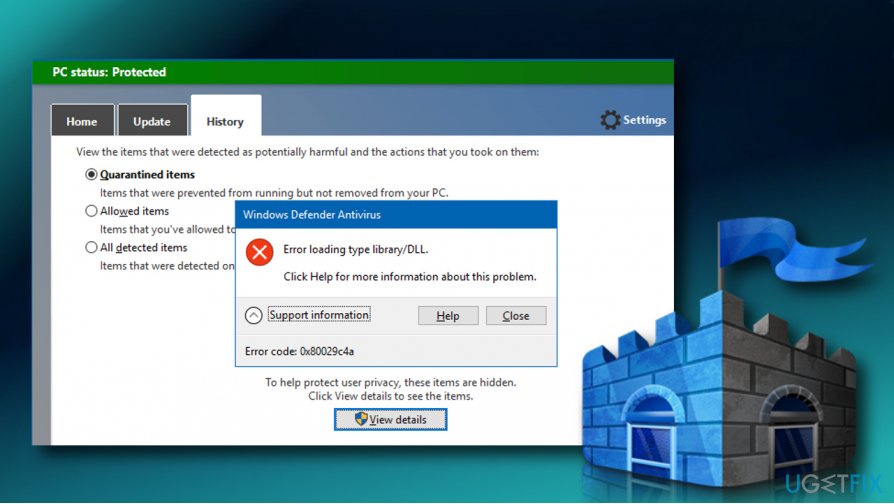
While 0x80029c4a error is a minor malfunction if comparing to Windows Start problems, it makes people confused about the performance of Windows Defender.[ref en-2]
Error loading type library/DLL.
Click Help for more information about this problem.
Error code: 0x80029c4a
The Error code 0x80029c4a started harassing people who upgraded Windows 10 to Fall Creators Update and who uses Windows Defender as default antivirus software. It occurs on the classic Windows Defender Gui[ref en-3] (MSASCui.exe) when checking the History tab and clicking on View details.
That’s an issue known and already addressed by Microsoft on Feedback Hub. One of the engineers explained that the culprit of the issue is related to the usage of the old Windows Defender interface on Windows 10 V1709.
The new Windows Defender interface, known as Windows Defender Security Center, has been introduced with Windows 10 Creators Update, though the V1703 did not end the support of the old interface. However, the old UI from version 1703 is no longer supported in version 1709.
Fix Windows Defender Error Code 0x80029c4a
In a nutshell, Windows Defender error 0x80029c4a does not fall into the list of Windows 10 V1709 bugs. It’s rather a consequence of the new feature establishment.
Those who are used to the old Windows Defender interface (msascui.exe) can work around the error by simply following these steps:
1. Navigate to the C:\\Program Files\\Windows Defender directory. For that, you can press Windows key + R, paste the C:\\Program Files\\Windows Defender patch, and click OK.
2. Right-click on the MSASCui.exe and select Run as Administrator. 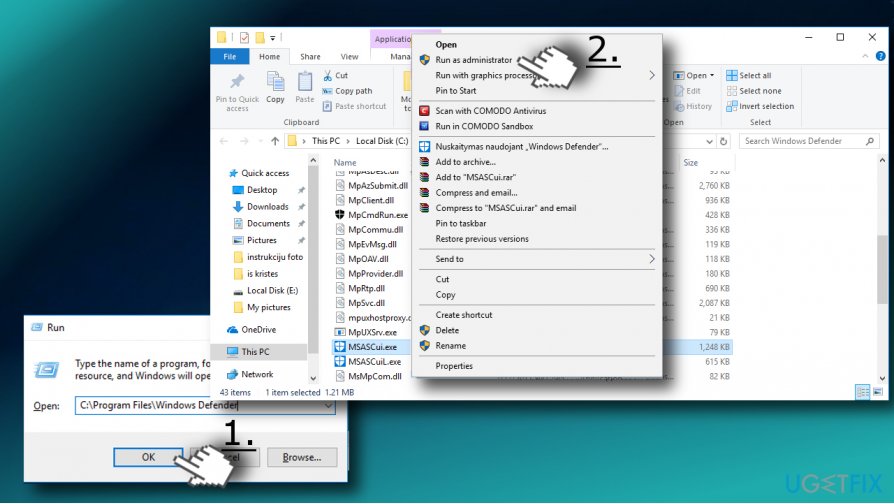
3. Now click on View details option and you should get the list of quarantined and allowed items.
IMPORTANT: despite the fact that the classic Windows Defender interface keeps working, Microsoft recommends using the new Windows Defender Security Center. It’s just a matter of time when Microsoft decides to phase out the old interface.
In order to be able to follow Windows Defender activities, we would recommend you to remove the shortcut that you have previously used for launching Windows Defender and create a new one. To put it clearer, follow these steps:
1. Find the Windows Defender shortcut on your desktop or Start menu and remove it.
2. Now press Windows key + S and type Windows Defender Security Center.
3. Right-click in it and select Pin to Start.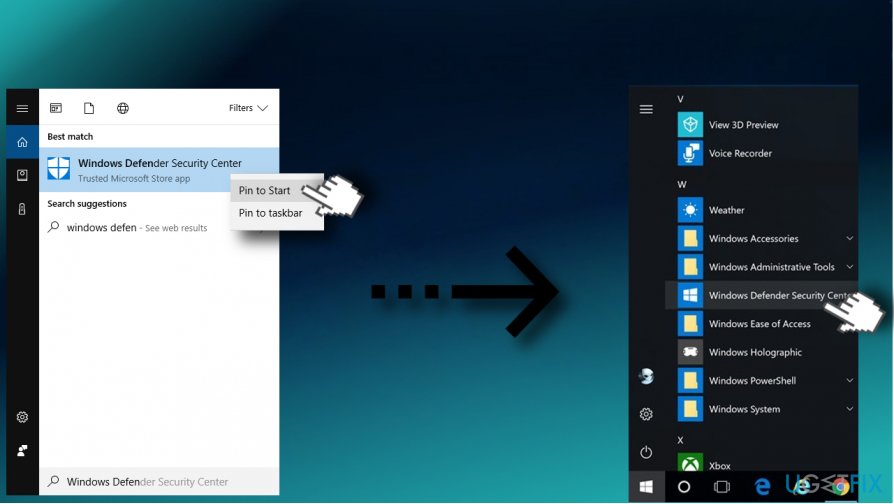
4. To check the history of quarantined items, select the Virus & Threat Protection on the new interface.
5. Click Scan History and opt for Full History.
Bottom line
To fix the Windows Defender error code 0x80029c4a, users can navigate to the C:\Program Files\Windows Defender directory and utilize the new Windows Defender Security Center. If these steps do not resolve the issue, users may need to consider reinstalling Windows Defender or seeking further assistance.
Frequently asked questions
This error typically indicates a problem with the Windows Defender service or corrupted files affecting its functionality. It can prevent users from accessing essential security features.
You can resolve this error by running the System File Checker tool and ensuring that your Windows Defender service is running properly. Additionally, consider updating Windows to the latest version to fix any underlying issues.
Yes, ensure that Windows Defender is enabled in the Security settings and check for any conflicting antivirus software that may disrupt its operation. Disabling third-party antivirus temporarily can help identify if they are causing the error.




Report an issue
What's wrong with this guide? We review every report and update or remove content.
Report received — thank you. We'll review and fix it.
You need a free account to submit a report.
Be the first to comment