How to fix
“Windows Firewall settings make your device unsafe” error
on Windows
Resolve the “Windows Firewall settings make your device unsafe” error quickly and ensure your Windows 10/11 security is intact. Expert-tested solutions …

What causes How to fix “Windows Firewall settings make your device unsafe” error?
- Windows Firewall is turned off due to Group Policy settings
- Installation of the latest Windows updates
- Installation of third-party antivirus software
- Third-party security tools activate their own Firewall
- Windows Firewall settings are misconfigured
Repairs Windows system files, removes malware, and restores a clean OS state — without reinstalling.
Windows Firewall is off, but it won't let me turn it on. When I try to turn it on, it gives me this message: "Windows Firewall is using settings that may make your device unsafe." Need your help.
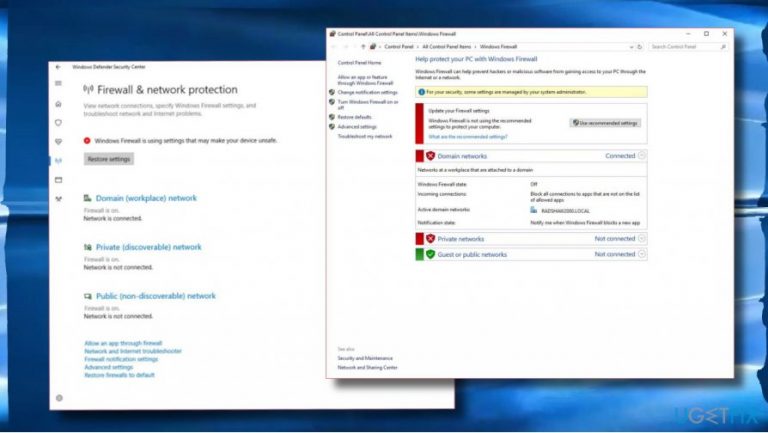
"Windows Firewall is using settings that may make your device unsafe" is an official alert generated by Windows OS. It is generated by Windows Actions Center or Windows Notifications Center[ref en-1] in the form of a pop-up window. It contains a red X button, which once opens a new pop-up saying "Actions Needed." Then the user is informed that GPO set Firewall off because it uses settings that may put the device at risk.
What makes all of the Windows users that ran into this error is the fact that clicking the X button, which usually allows closing the message, redirects to a new pop-up saying "Restore settings." However, clicking on it won't work either, except that UAC dialogue occurs and the warning remains.
The error indicates the fact that Windows Firewall was turned off and will not be turned on until the user changes its settings. That's a big problem since Firewall[ref en-2] is an essential player in keeping Windows OS protected. It's responsible for monitoring the outgoing network traffic and blocking unsolicited network traffic.[ref en-3] Besides, it is capable of blocking certain types of traffic or log suspicious traffic.
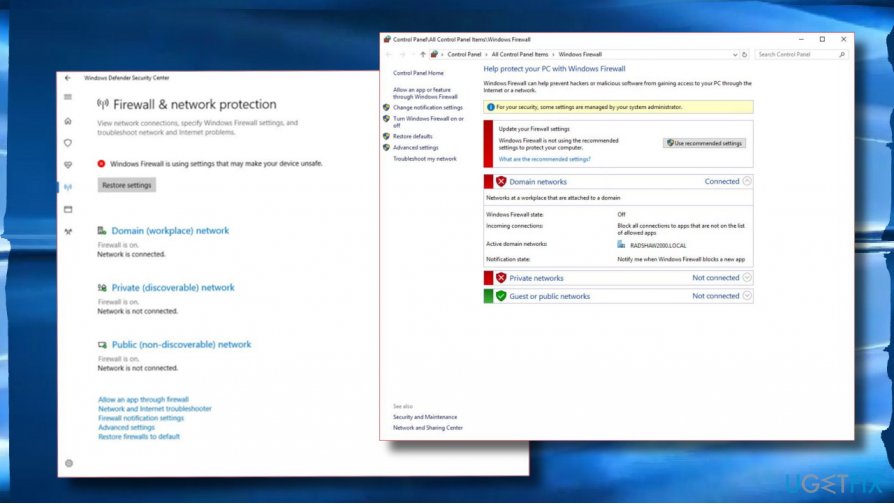
However, Windows Firewall is rather vulnerable and often fails to work properly or stops working entirely. This may happen due to various reasons, for instance, installation of the latest Windows updates (e.g., 1607 or 1709). Many people reported that the "Windows Firewall is using settings that may make your device unsafe" error started right after installing third-party antivirus (e.g., Emsisoft, ESET, Trend Micro, Avast).
The bulk of Windows Firewall settings make your device unsafe error victims started getting this error after installation of third parties. That's because third-party security tools activate their own Firewall pushing Windows Defender Firewall away. If you prefer using third-party security tool, one of the solutions would be to turn off Windows Security Center Notifications.
IMPORTANT: Microsoft has patched the "Windows Firewall is using settings that may make your device unsafe" last year, but the increasing number of people reporting about this malfunction let us guess that Microsoft has changed some essential settings lately. It is expected to release Windows Firewall error patch in the nearest future, so don't forget to install the latest Windows Updates regularly. (Windows key + I -> Update & Security -> Check for Updates)
If, however, you are not using a third-party antivirus and can't remember initiating large system's changes,[ref en-4] the following methods can be used when fixing "Windows Firewall is using settings that may make your device unsafe" error on Windows.
Restart Windows Firewall Service
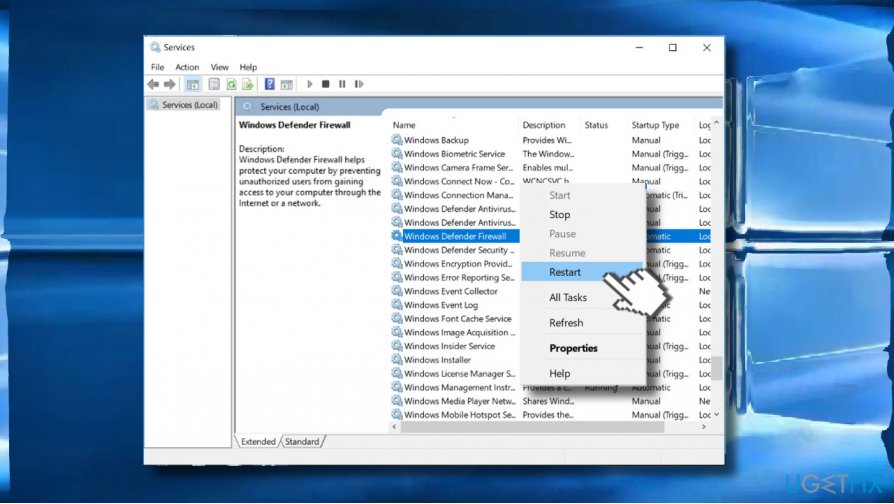
- Press Windows key + R, type services.msc, and hit Enter.
- Find Windows Defender Firewall and right-click on its entry.
- Select Restart.
- Then right-click on Windows Firewall entry and open Properties.
- Set Startup type to Automatic.
Use Registry Editor
If the previous method did not work, try to initiate a rather simple registry tweak:
- Press Windows key + R, type regedit, and press Enter.
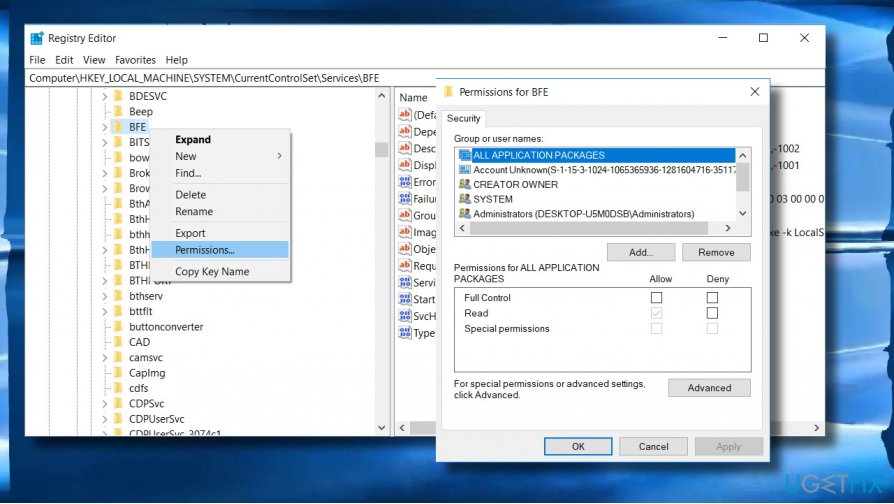
- Navigate to the HKEY_LOCAL_MACHINE/SYSTEM/CurrentControlSet/Services/BFE path.
- Right-click on BFE entry and select Permissions.
- Then click ADD and type Everyone.
- Click OK and then click on Everyone entry that you've just created.
- Mark the Full Control option under Permissions for Everyone.
- Finally, restart your PC.
Reset Windows Firewall
- Open Windows Search and type Firewall.
- Select Windows Defender Firewall entry and double-click it to open.
- Click the Restore defaults button positioned in the left pane.
- Finally, click on Restore defaults one more time to approve the choice.
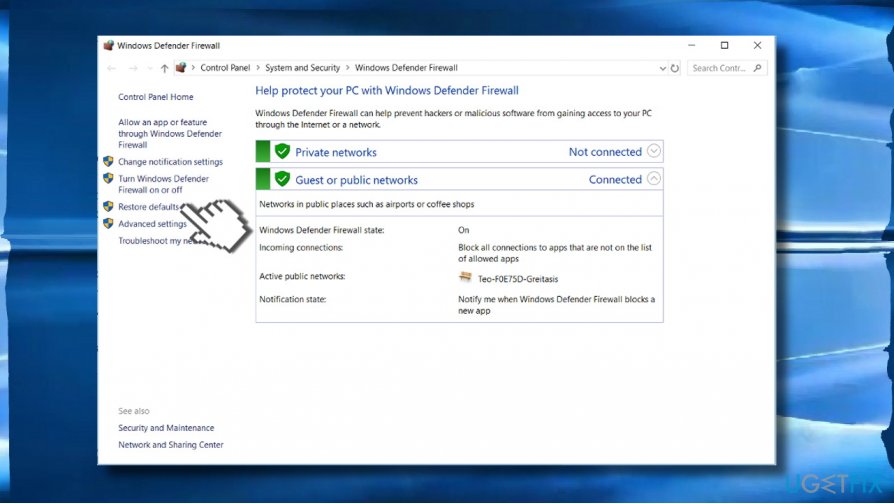
If this option did not work, try to reset Firewall via Command Prompt:
- Right-click on Windows key and select Command Prompt (Admin).
- Alternatively, you can type Command Prompt in Windows search, right-click on it, and select Run as administrator.
- When the command line window opens, copy and paste the netsh firewall set opmode mode=ENABLE exceptions=enable command.
- Press Enter to execute and close Command Prompt.
Roll back security updates
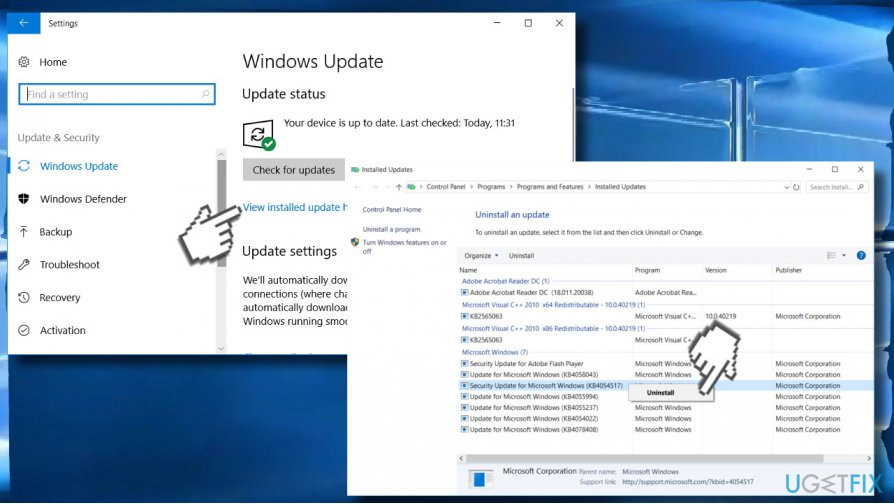
If this problem started soon or right after the installation of Window Updates, it might be that Windows rolled out a corrupted security update that might have been installed on your PC. To remove irrelevant security update and fix Windows Firewall error, you should:
- Press Windows key + I and select Update & security.
- Click on View installed update history link.
- Now select Uninstall updates and check what updates were installed on your PC before the problem started.
- If you see a security update on the list, click on it, and select Uninstall.
Bottom line
To fix the error, you can try turning off Windows Security Center Notifications, adjusting the Windows Firewall settings, or uninstalling conflicting third-party antivirus software. If none of these solutions work, further troubleshooting may be required to identify the underlying issue.
Frequently asked questions
This error typically occurs due to misconfigured firewall settings, corrupted system files, or conflicts with third-party security software in Windows 10.
You can restore the default settings by opening Command Prompt as an administrator and running the command 'netsh advfirewall reset' to reset the Windows Firewall settings.
While disabling the Windows Firewall may temporarily stop the error message, it is not recommended as it leaves your device vulnerable; it's better to troubleshoot and fix the underlying settings.




Report an issue
What's wrong with this guide? We review every report and update or remove content.
Report received — thank you. We'll review and fix it.
You need a free account to submit a report.
Be the first to comment