How to fix
Windows host process (Rundll32.exe) high CPU usage
on Windows
Resolve high CPU usage caused by Rundll32.exe in Windows 10 or Windows 11 effortlessly. Expert-tested solutions to optimize your PC's performance, fixed…


What causes How to fix Windows host process (Rundll32.exe) high CPU usage in Windows?
- Malfunctioning software
- Corrupted DLL files
- Malicious programs disguising as Rundll32.exe
- Abnormal resource consumption by processes
- Inefficient performance of the operating system
Repairs Windows system files, removes malware, and restores a clean OS state — without reinstalling.
Most of the time, the Windows host process (Rundll32.exe) uses around 80% of the CPU, which results in my PC running slow and being loud. If I kill the process, the resource usage returns to normal, although the Windows host process simply restarts, and the same problem persists. How do I tackle this?
Every computer system running the Windows operating system is composed of a myriad of individual processes that facilitate its smooth functioning. These processes are integral to the system, allowing software to run, hardware to operate, and users to interact with their machines seamlessly. As with any operating system, these processes use various computer resources, such as memory, disk space, and CPU power. Ideally, their consumption of these resources is proportionate to their functionality and occurs optimally.
However, abnormal resource consumption by certain processes can be a concern. One such notable process is the Windows host process (Rundll32.exe), which, in some instances, has been observed to use a disproportionate amount of CPU power. The implications of such irregularities can range from a mild increase in CPU usage to it being pegged at 100%. Such high CPU usage by this process can significantly hamper the performance of a computer, making it nearly impossible for users to conduct their regular activities on the machine.
The Windows host process (Rundll32.exe) is an integral part of the Windows operating system. Its primary function is to launch 32-bit DLL (Dynamic Link Library) files as an executable, allowing certain functionalities embedded in these files to run as applications. Under regular conditions, the CPU usage by Rundll32.exe should be minimal, ensuring efficient performance without hogging computer resources.

However, scenarios can arise wherein the Windows host process (Rundll32.exe) uses high CPU. This could be due to a variety of reasons, including malfunctioning software, corrupted DLL files, or even malicious programs disguising themselves under the Rundll32.exe name.
Addressing such concerns necessitates diagnostic procedures and troubleshooting steps, which will be elaborated upon in subsequent sections of this article.
While the efficient functioning of Windows processes is paramount, any anomalies, especially concerning the Windows host process (Rundll32.exe) high CPU usage, should be promptly addressed. To ensure optimal performance and safeguard against potential issues, consider using a [d1] PC repair tool.
Fix 1. Disable Telemetry
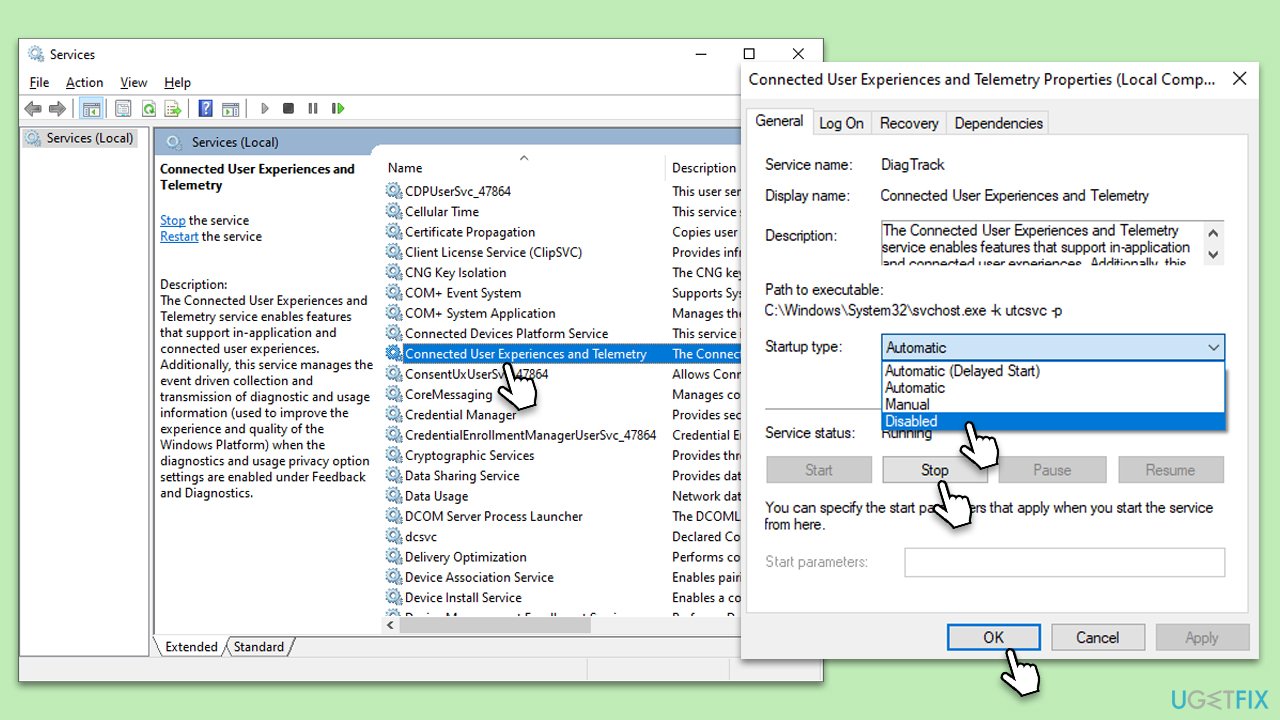
Telemetry is a feature in Windows that collects and sends data to Microsoft, aimed at enhancing user experience. However, it can sometimes lead to Windows host process high CPU usage. Disabling it can potentially resolve this issue.
- Press Win + R to open the Run dialog.
- Type "services.msc" and press Enter.
- Locate Connected User Experiences and Telemetry in the list.
- Right-click on it and select Properties.
- Set 'Startup type' to Disabled, then click Stop.
- Click Apply and then OK.
Fix 2. Perform Clean Boot
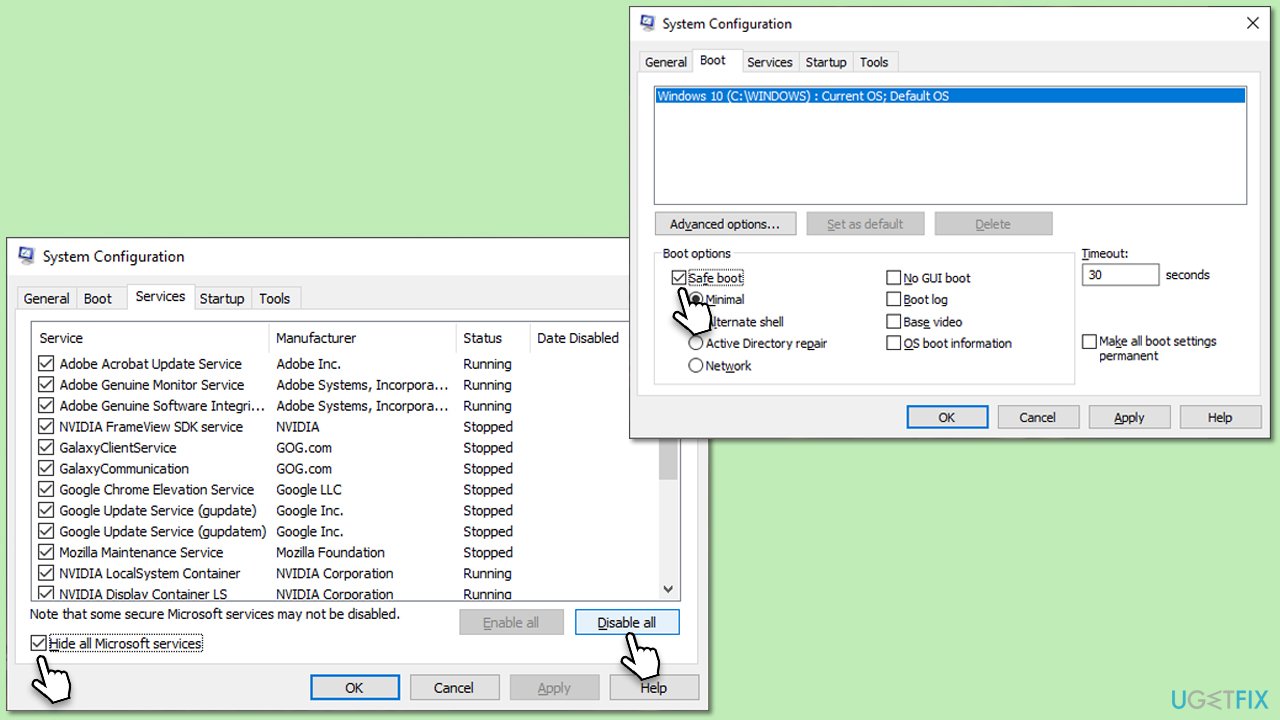
A clean boot ensures that the system starts with a minimal set of drivers and services. This can help pinpoint software conflicts causing high CPU usage.
- Press the Win + R to open the Run dialog.
- Type "msconfig" and press Enter.
- Pick the Services tab.
- Mark Hide all Microsoft services and select Disable all.
- Select the Startup tab and click Open Task Manager.
- In the Task Manager, right-click on each of the items and select Disable, then close the Task Manager.
- Go to the Boot tab, mark the Safe Boot option, then click Apply and OK.
- Once restarted, your PC will be in clean boot mode, only loading necessary drivers and services.
- If the high CPU usage issue is resolved, one of the disabled third-party services or startup items is the culprit. You can determine which one by enabling them one by one and restarting until the problem reappears.
Fix 3. Uninstall Lenovo Dependency Package
On Lenovo computers, the Lenovo Dependency Package can sometimes cause high CPU usage.
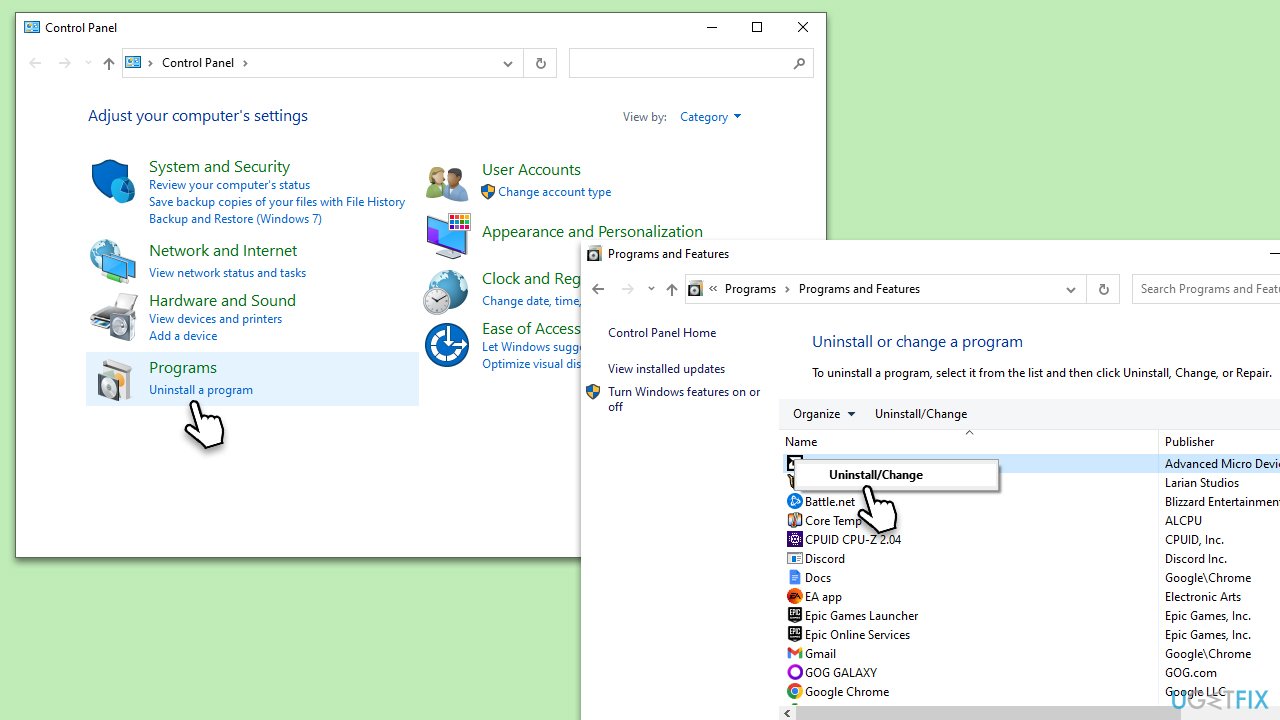
- Type Control Panel in Windows search and hit Enter.
- Navigate to Programs and Features.
- Locate the Lenovo Dependency Package from the list.
- Right-click on it and select Uninstall.
- Follow the on-screen instructions and restart your computer once completed.
Fix 4. Uninstall Google App Engine
Google App Engine has been reported in some cases to cause high CPU usage.
- Open Control Panel.
- Navigate to Programs and Features.
- Find Google App Engine from the list.
- Right-click and choose Uninstall.
- Complete the uninstallation process and reboot your PC.
Fix 5. Disable Inventory Collector in Local Group Policy
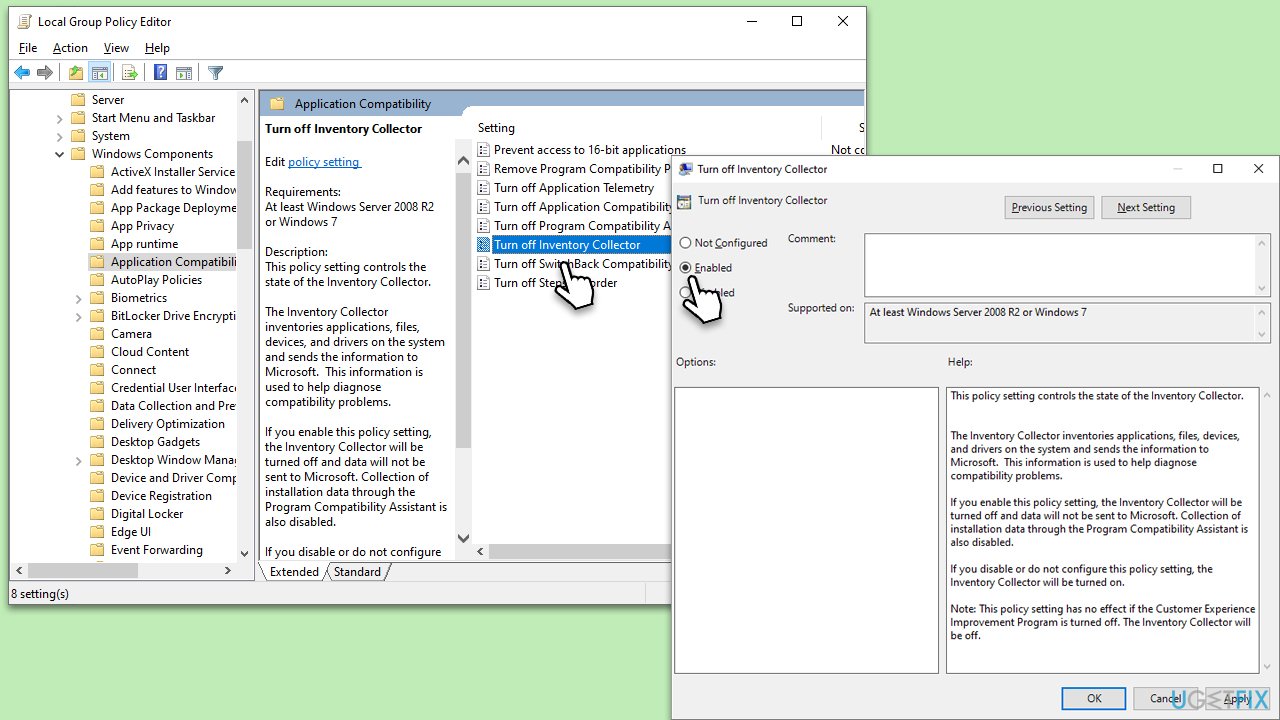
The Inventory Collector gathers data on user experience but can sometimes lead to high CPU usage.
- Press Win+ R, type "gpedit.msc" and press Enter.
- Navigate to the following location:
Computer Configuration > Administrative Templates > Windows Components > Application Compatibility - Find Turn off Inventory Collector and double-click on it.
- Select Disabled, click Apply, then OK.
- Restart your computer to apply the changes.
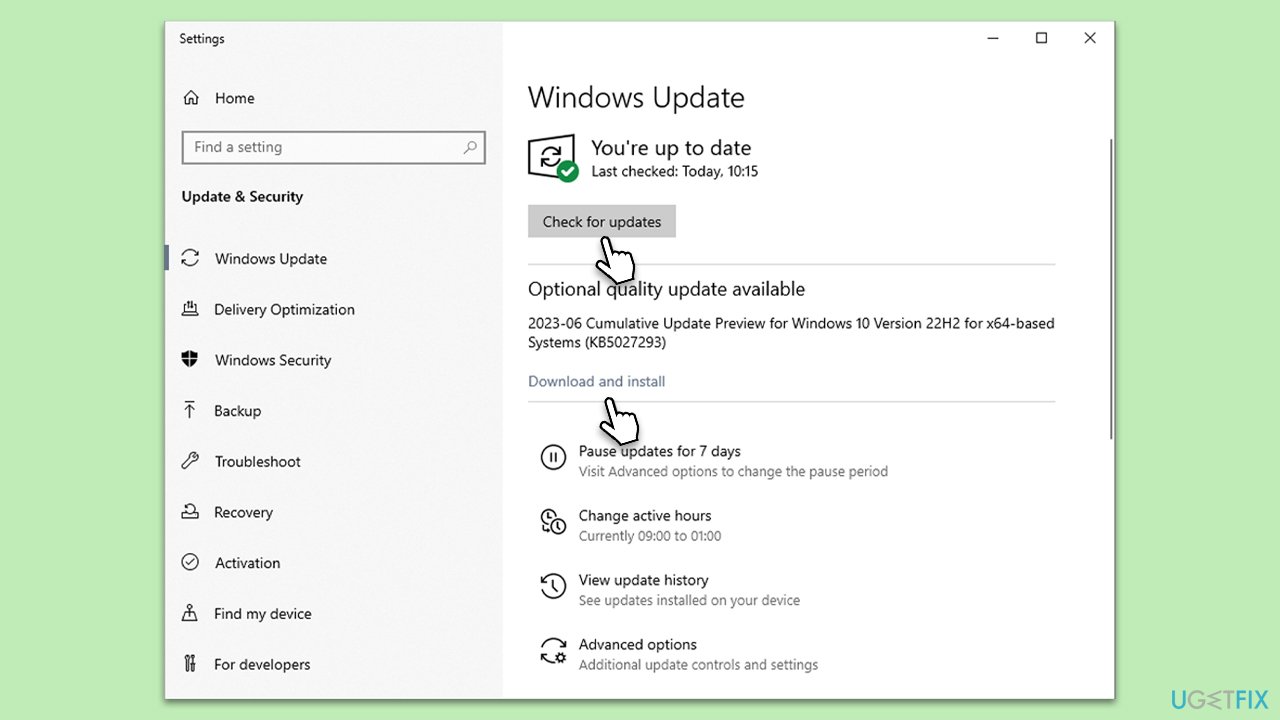
Fix 6. Check for system updates
Ensuring that your Windows operating system is up-to-date can help fix known bugs and issues.
- Type Updates in Windows search and press Enter.
- In the new window, click Check for updates.
- Wait till all the files are downloaded and installed.
- If optional updates are available, install them as well.
- Restart your device when done to implement all the changes.
Fix 7. Perform a System Restore
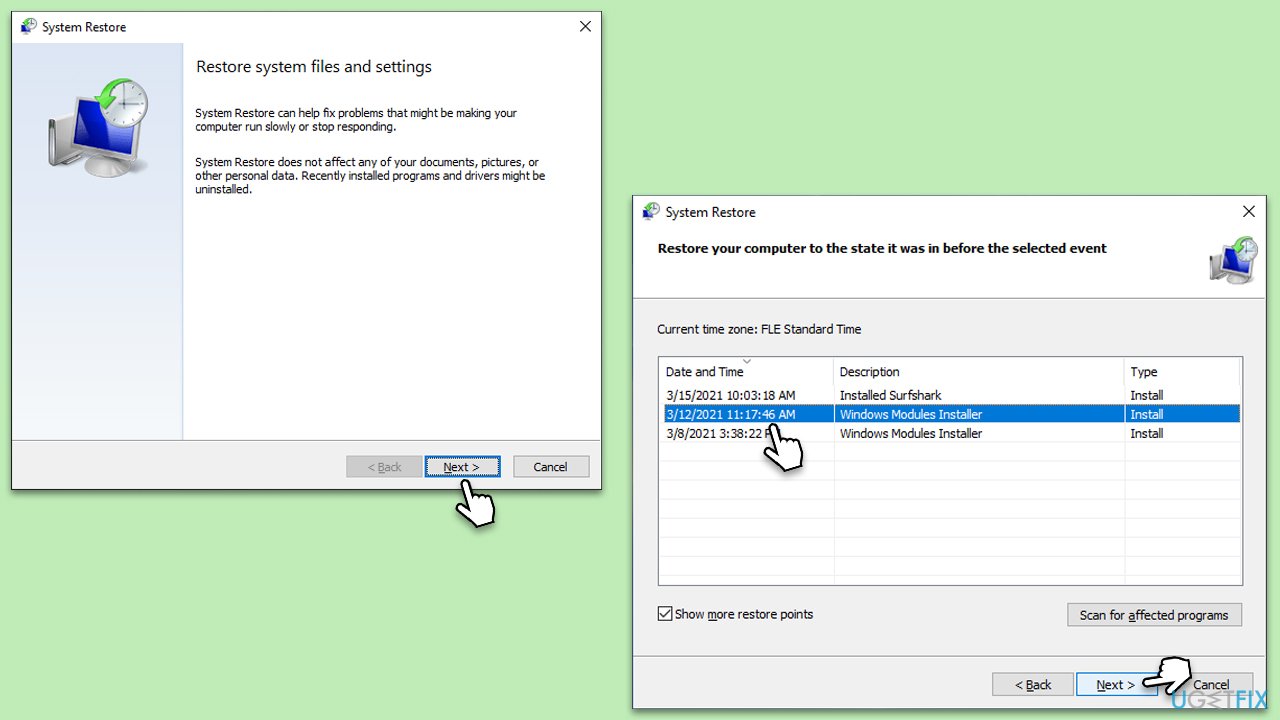
Restoring your system to a previous state can undo recent changes that might be causing the issue.
- Type in Create a Restore Point in Windows search and hit Enter
- Click System Restore
- Pick Choose a different restore point (if available) and click Next
- Mark the Show more restore points checkbox
- Choose a time before issues occurred
- Click Next and reboot the system as required.
Bottom line
To address high CPU usage by Rundll32.exe, consider troubleshooting steps such as killing the process, checking for malware, and repairing corrupted DLL files. If these fixes do not resolve the issue, further diagnostic procedures may be necessary.
Frequently asked questions
High CPU usage by Rundll32.exe can be caused by corrupted system files, malware infections, or misconfigured applications that rely on this process.
You can check for malware by scanning your system with Windows Defender or a reputable antivirus program to ensure that Rundll32.exe is legitimate.
To reduce CPU usage, you can try updating your drivers, performing a clean boot, or disabling unnecessary startup programs that may be triggering Rundll32.exe.




Report an issue
What's wrong with this guide? We review every report and update or remove content.
Report received — thank you. We'll review and fix it.
You need a free account to submit a report.
Be the first to comment