How to fix
Windows Security stopped working
on Windows
Resolve Windows Security issues quickly with our expert-tested solutions for Windows 10 and Windows 11. Fixed in minutes, zero traces left!

What causes How to fix Windows Security stopped working?
- Difficulties opening the application
- Virus definitions not updated
- Real-time protection not activated
- System file corruption
- Program bugs and conflicts
Repairs Windows system files, removes malware, and restores a clean OS state — without reinstalling.
Hello. The Windows Security app does not seem to be working on my PC. I'm quite worried. What should I do?
Microsoft Windows operating systems come with a built-in program called Windows Security that has a number of functions for safeguarding the system against threats including viruses, malware, and other harmful software. It includes a number of functions, such as firewall settings, real-time antivirus defense, device performance analysis, and more. As a thorough defense system, Windows Security gives users the necessary resources to safeguard the safety and integrity of their PCs.
Windows Security reportedly not functioning is a worrying issue that could have a big influence on a user's system security. There are many reasons that Windows Security can stop working properly. It could be difficult to open the application, virus definitions are not updated, real-time protection is not activated, or difficulties are encountered while attempting to access particular security features. The underlying reasons of this problem could be anything from system file corruption to program bugs and conflicts.
Windows Security's dysfunction puts users' systems at considerable risk. Without adequate security, the computer is exposed to a variety of dangers, including viruses, spyware, ransomware, and phishing attempts. Users may unintentionally download harmful files, exposing their sensitive information and jeopardizing the stability and overall functionality of their computers. Furthermore, the lack of real-time protection and security updates raises the risk of these attacks getting into the system, which could result in data loss and a compromised user experience.
Careful troubleshooting is necessary to fix the Windows Security not working problem. Users may try restarting the computer to see if the problem goes away on its own. Underlying software problems may be resolved by looking for and installing any pending Windows updates. Additionally, it's critical to make sure that antivirus software from third parties does not clash with Windows Security.
In this guide, you will find 7 steps that should help you fix Windows Security not working. You can also run a repair tool like [d1] that can fix most system errors, BSODs,[ref en-1] corrupted files, and registry[ref en-2] issues. Otherwise, follow the step-by-step instructions below.
Solution 1. Turn on Windows Security
- Open the Start menu search bar.
- Type security in the search bar.
- Select the best match from the search results.
- In the Windows Security window, locate and click on Virus & threat protection.

- A dialog box will appear, asking for confirmation to proceed.
- Click on the Yes button to confirm and continue.
- The Windows Security app will be instantly enabled for Virus & threat protection on your PC.
Solution 2. Install Windows Updates
- Press the Windows key + R to open the Run box.
- Type ms-settings:windowsupdate in the text box and press Enter.
- Click the Check for updates button.
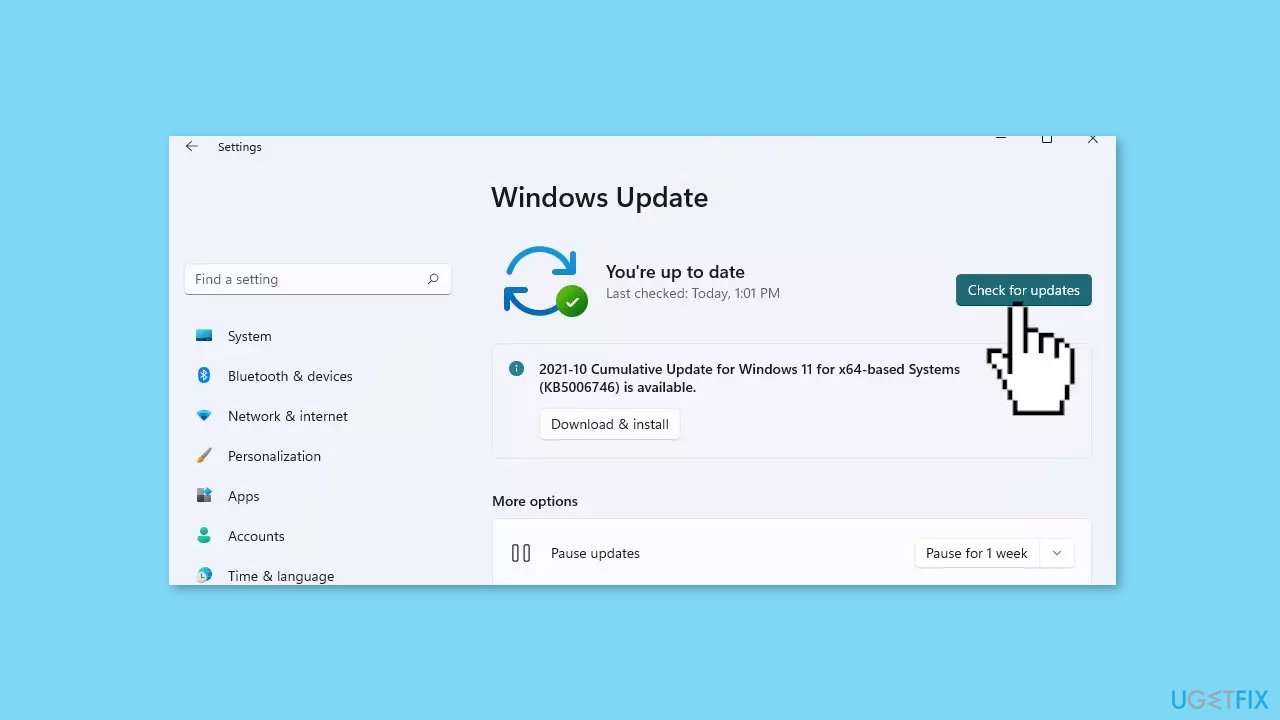
- If a new update is available, click the Download & Install all button.
- Restart your computer after the process is finished and check to see if the problem is fixed.
Solution 3. Fix Corrupted System Files
Use Command Prompt commands to repair system file corruption:
- Open Command Prompt as administrator
- Use the following command and press Enter:
sfc /scannow

- Reboot your system
- If SFC returned an error, then use the following command lines, pressing Enter after each:
DISM /Online /Cleanup-Image /CheckHealth
DISM /Online /Cleanup-Image /ScanHealth
DISM /Online /Cleanup-Image /RestoreHealth
Solution 4. Disable Third-Party Antivirus
Using Windows Security alongside third-party antivirus applications has been associated with causing various disruptions on Windows computers. Therefore, a recommended approach could be to consider removing the additional antivirus software. By doing so, you can test whether this action helps restore normal functionality to the system.
- Open the Settings app.
- Navigate to the Apps section.
- Choose Apps & features from the menu.

- Search for the antivirus software in the list.
- When you locate the antivirus application, click on the options icon (three dots).
- Select the Uninstall option from the menu.
Solution 5. Reset Windows Security
- Open the Settings menu by pressing the Windows key + I.
- Choose Apps from the available options.
- Select Apps & features from the submenu.
- In the search box within the Apps & features section, type security.
- Locate the Windows Security icon from the search results.
- Click on the three dots icon (options) associated with Windows Security.
- Choose Advanced options from the menu.
- Scroll down to the Reset section.
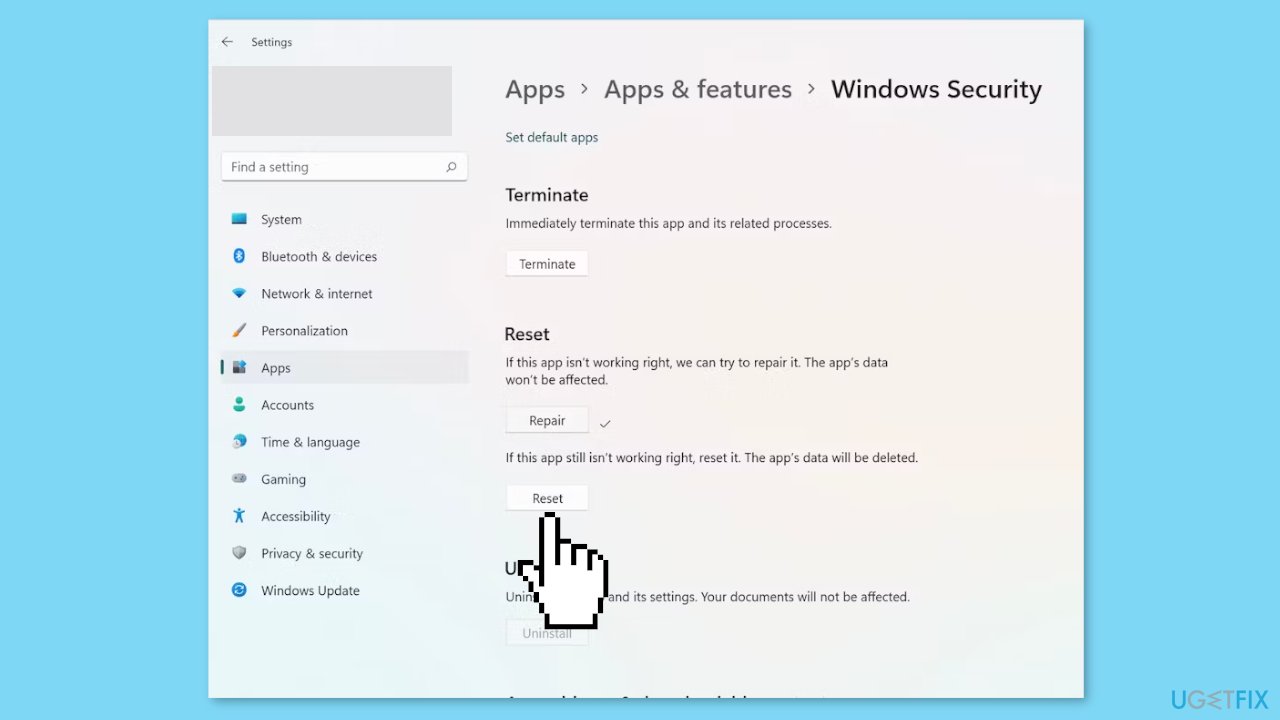
- Click on the Reset button.
- A confirmation message will appear, asking if you want to reset the app along with its data.
- Click on the Reset button to proceed. Alternatively, you can also consider the Repair option if you don't want to reset the app immediately. The Repair option is located just above the Reset option.
Solution 6. Restart Windows Security Service
Certainly, here are the step-by-step instructions rewritten and presented in bullet points:
- Press the Windows key + R on your keyboard.
- In the Run dialog box that appears, type services.msc and then press Enter.
- Scroll through the list of services to locate Security Center.
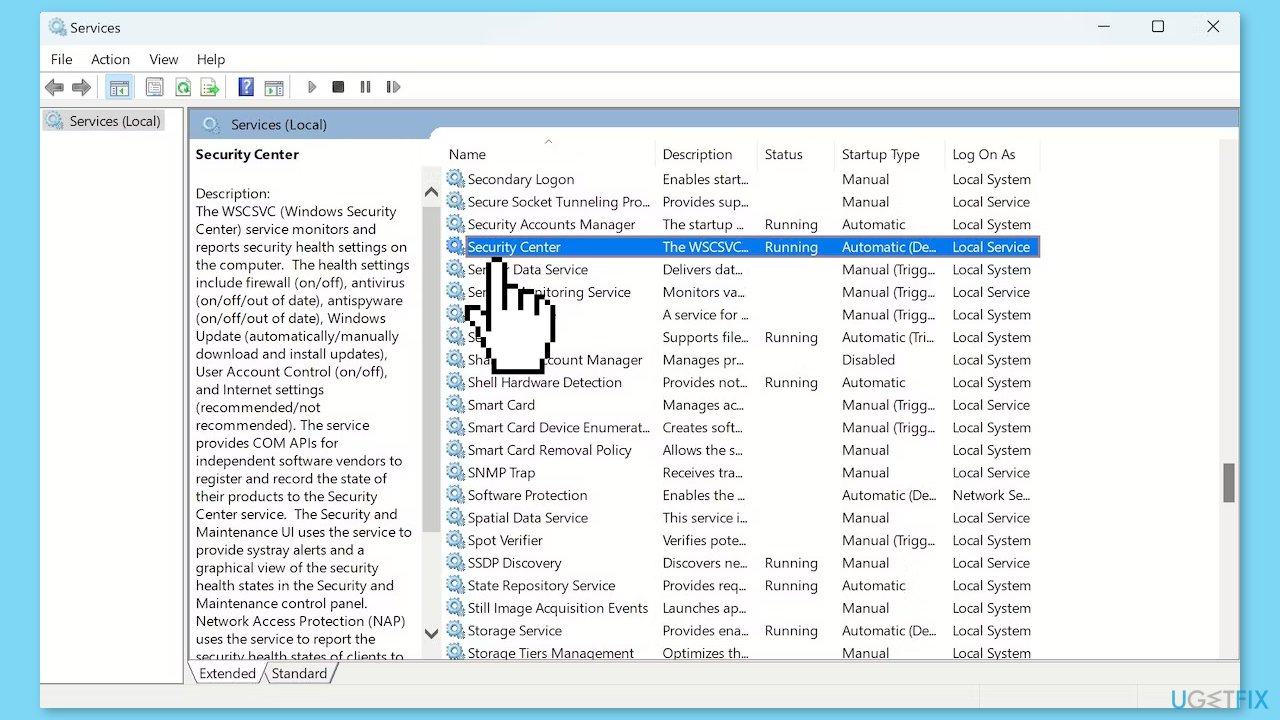
- Right-click on Security Center.
- From the context menu that appears, select Restart.
Solution 7. Reset Windows
- Press the Windows key + I on your keyboard to open the Windows settings.
- Click on Recovery located on the right-hand side.
- Next, click on Reset PC.
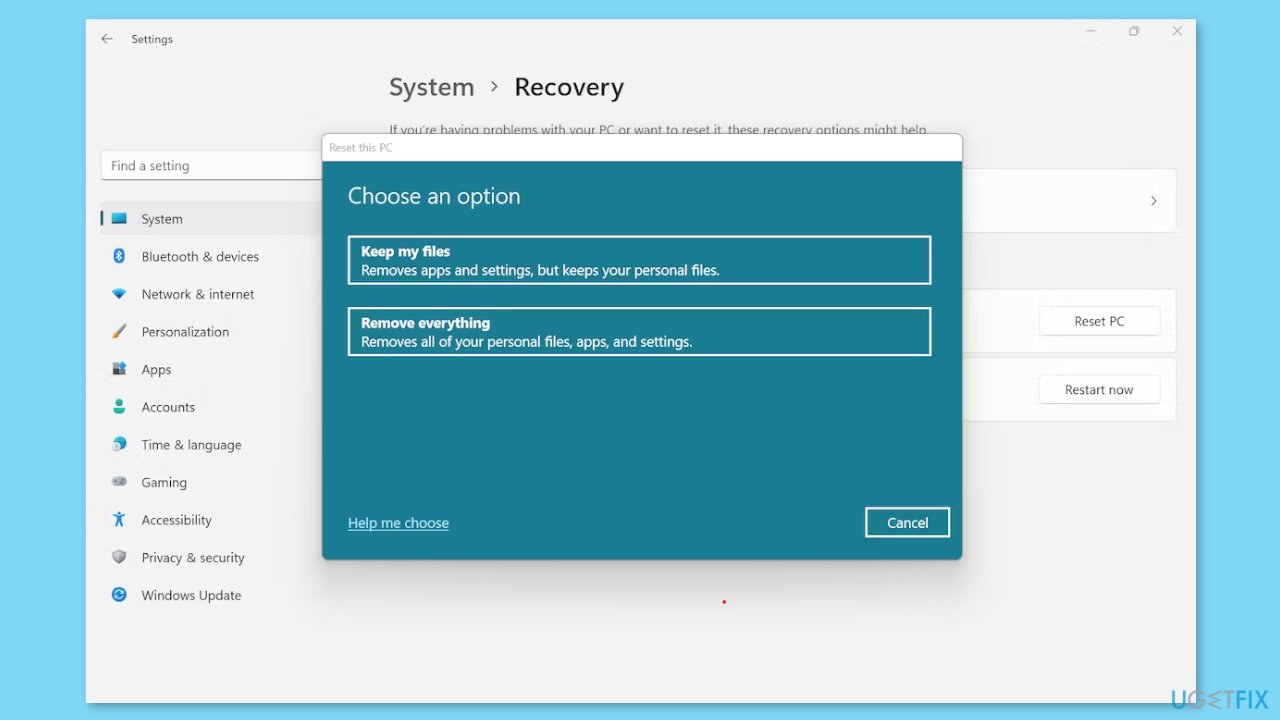
- Choose the option Keep my files.
- Click on Local reinstall and then select Next.
- In the subsequent window, click on Reset and confirm your decision.
- Allow the process to complete.
- Once the process finishes, check to see if the issue on your PC has been resolved.
Bottom line
To fix Windows Security not working, users can try restarting their computer, checking for and installing pending Windows updates, and ensuring that third-party antivirus software does not conflict with Windows Security. If these steps do not resolve the issue, consider using a repair tool to fix system errors or seek further assistance.
Frequently asked questions
Common reasons include corrupted system files, conflicts with third-party antivirus software, or recent updates that may have affected the Windows Security application.
You can restart the Windows Security service by opening the Run dialog (Win + R), typing 'services.msc', locating 'Windows Security Service', and then clicking 'Restart'.
If Windows Security continues to stop, consider running the System File Checker tool by executing 'sfc /scannow' in the Command Prompt to repair any corrupted files.




Report an issue
What's wrong with this guide? We review every report and update or remove content.
Report received — thank you. We'll review and fix it.
You need a free account to submit a report.
Be the first to comment