How to fix
Windows Settings missing in Start Menu
on Windows
Resolve the missing Windows Settings in your Start Menu quickly and easily. Follow expert-tested methods for Windows 10 and 11, fixed in minutes!


What causes How to fix Windows Settings missing in Start Menu?
- User profile may be corrupted
- Recent updates may have altered or deleted important system files
- Malware attacks can compromise system components
- Custom configurations or third-party software may interfere with Windows operations
Repairs Windows system files, removes malware, and restores a clean OS state — without reinstalling.
So I've noticed that Settings is missing from the Start menu in my Windows. I am not sure when it disappeared, but I remember it used to be there before. I am not sure what changed and when it happened. Please help.
Windows is a widely-used operating system that powers millions of computers worldwide. One of its core components is the Start Menu, a user interface element that provides easy access to various functions, files, and programs. Within the Start Menu, the Settings option serves as the central hub for customizing and controlling the Windows environment.
However, some users have reported that the Settings option is missing from their Start Menu. This issue can be perplexing and frustrating, particularly because the Settings menu is critical for adjusting system preferences and configurations. Several factors can contribute to this problem.
For instance, the user profile may be corrupted, requiring a new profile to be created. Updates gone awry are another common culprit; a recent update may have altered or deleted important system files that affect the Start Menu's functionality. Malware attacks can also compromise system components, leading to such anomalies.
Lastly, custom configurations or third-party software could interfere with how Windows operates, thus hiding or removing the Settings option.
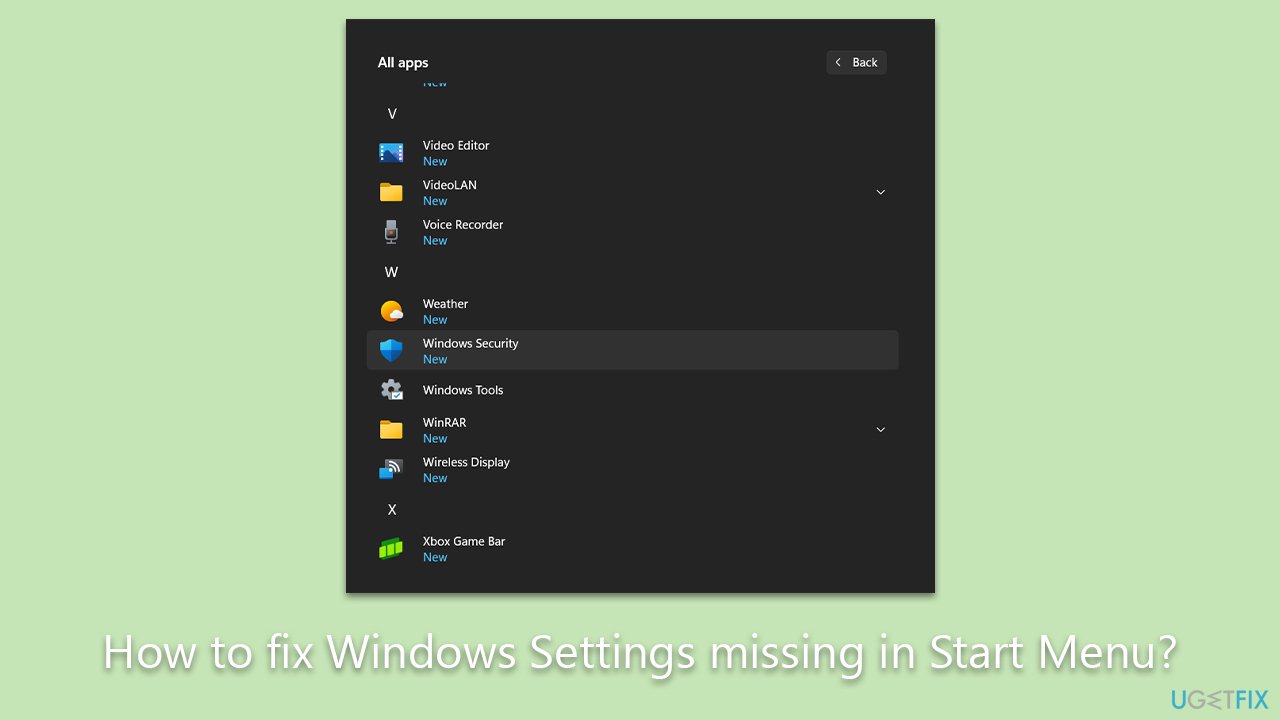
While the missing Settings in the Start Menu is problematic, there are ways to resolve this issue. These solutions range from running built-in Windows troubleshooting tools to manually editing the system registry. Each approach addresses different root causes and can be more or less appropriate depending on the specific circumstances. Detailed instructions for these solutions will be provided below this article.
Additionally, users may consider utilizing a PC repair tool like [d1] as part of their troubleshooting regimen. Although it is not guaranteed to directly resolve the missing Settings issue, this tool is designed to fix corrupted system files, resolve registry issues, clean out junk, and perform other maintenance tasks that could potentially improve overall system stability.
Fix 1. Run Windows Troubleshooter
The built-in Windows Troubleshooter scans for issues and attempts to fix them automatically. It is a straightforward and effective way to resolve many common problems, including the missing Settings option.
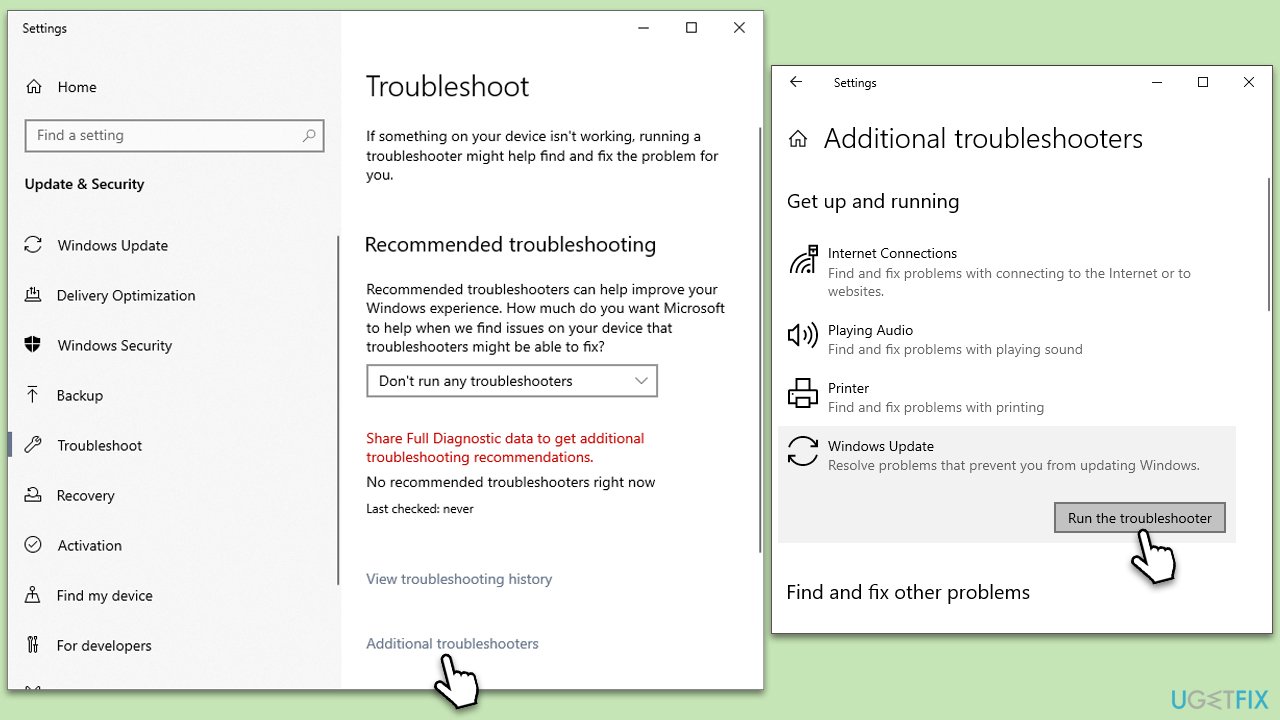
- Type Troubleshoot in Windows search and press Enter.
- Select Additional troubleshooters/Other troubleshooters.
- Find Windows Update from the list.
- Click it and select Run the troubleshooter/Run.
- Restart your computer when the update process is finished.
Fix 2. Check for updates
Sometimes, simply updating Windows resolves issues created by outdated or corrupted files.
- Type Updates in Windows search and press Enter.
- When the new window opens, click Check for updates and wait.
- If there are optional updates available, install them as well.
- Restart your computer to implement the changes.

Fix 3. Use the SFC and DISM commands
A corrupted system file can be one of the main reasons why Windows Settings are missing in the Start Menu. To address this, you can run several commands via elevated Command Prompt.
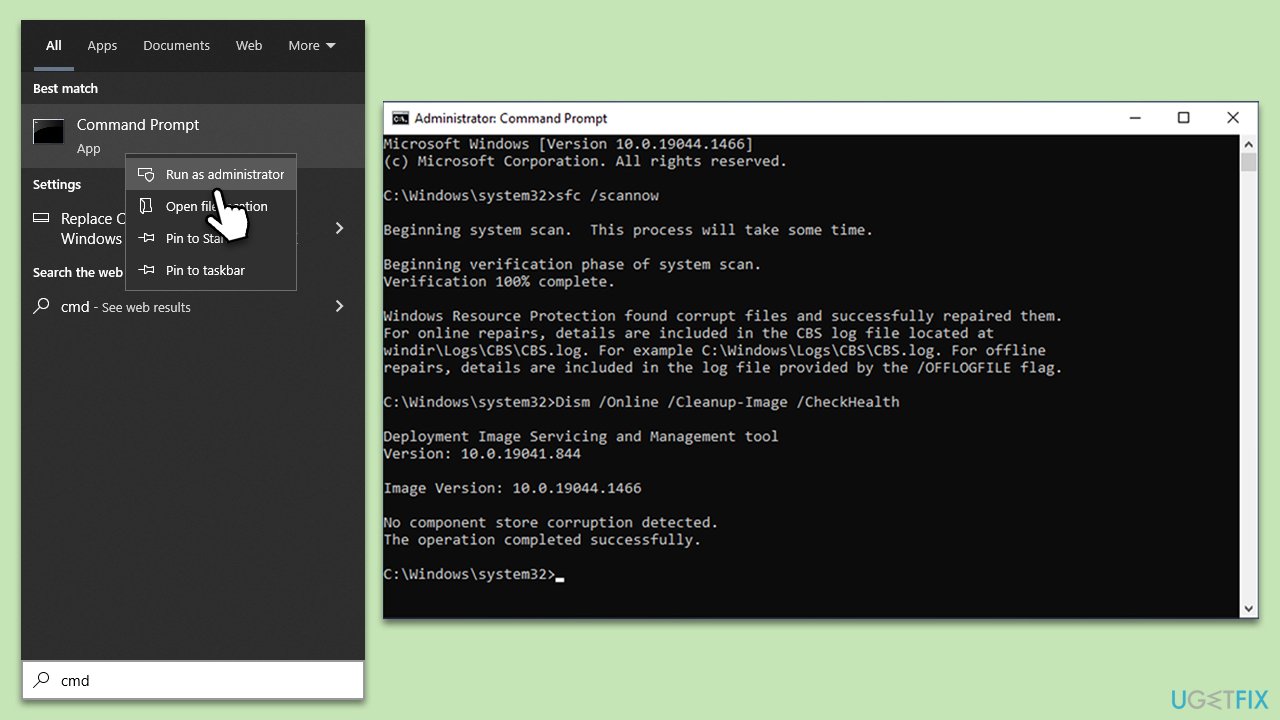
- Type cmd in Windows search.
- Right-click on Command Prompt and pick Run as administrator.
- User Account Control window will show up - click Yes when prompted.
- Then, copy and paste the following command, pressing Enter after:
sfc /scannow - Wait till the scan is finished. If Windows finds system file integrity violations, it will attempt to fix them. After this, use the set of the following commands, pressing Enter each time:
DISM /Online /Cleanup-Image /CheckHealth
DISM /Online /Cleanup-Image /ScanHealth
DISM /Online /Cleanup-Image /RestoreHealth - Close down the Command Prompt and restart your system.
Fix 4. Uninstall the latest Windows update
If your Windows was already up to date, you can try uninstalling the latest update and see if that helps. Sometimes, Windows updates might mess up features and result in other issues.
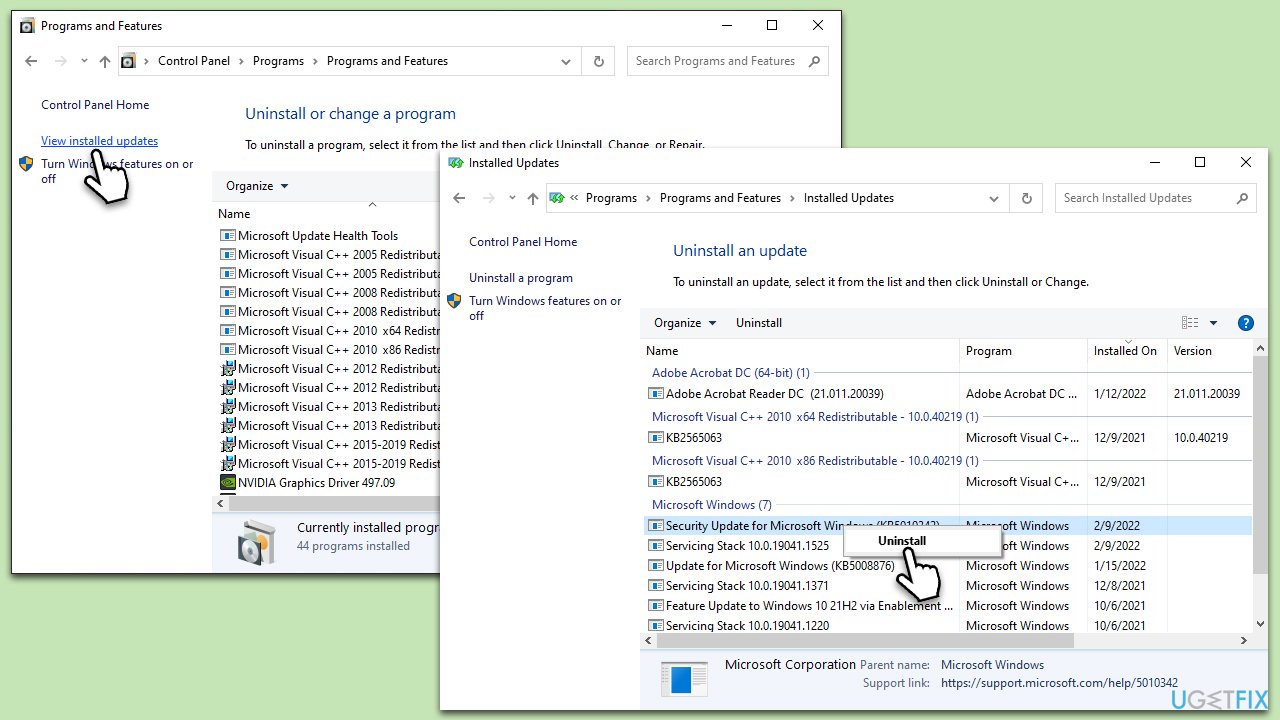
- Type Control Panel in Windows search and press Enter.
- Select Programs > Uninstall a program.
- Click on View installed updates on the left side of the window.
- Sort all the updates by date.
- Right-click on the most recent update and select Uninstall.
- Proceed with on-screen instructions.
- Then, type Updates in Windows search and press Enter.
- Click Pause the updates for 7 days (in Windows 11, you can pick a different time period).
- Install updates only once the issue is addressed by Microsoft.
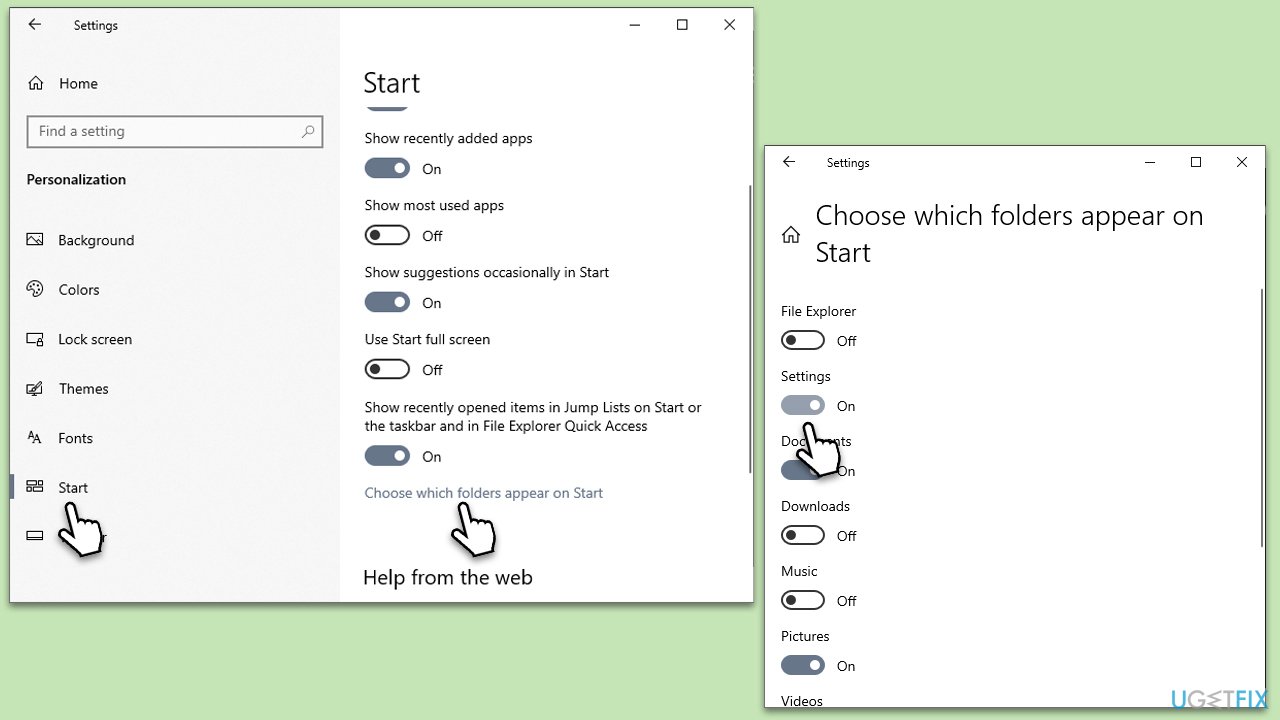
Fix 5. Modify the Start menu settings
- Type Settings in Windows search and hit Enter.
- Go to Personalization.
- On the left side of the window, pick Start.
- On the right side of the window, pick Choose which folders appear on Start.
- Make sure Settings is enabled.
Fix 6. Perform a clean boot
Third-party applications can interfere with Windows functions. A clean boot disables these to identify the culprit.
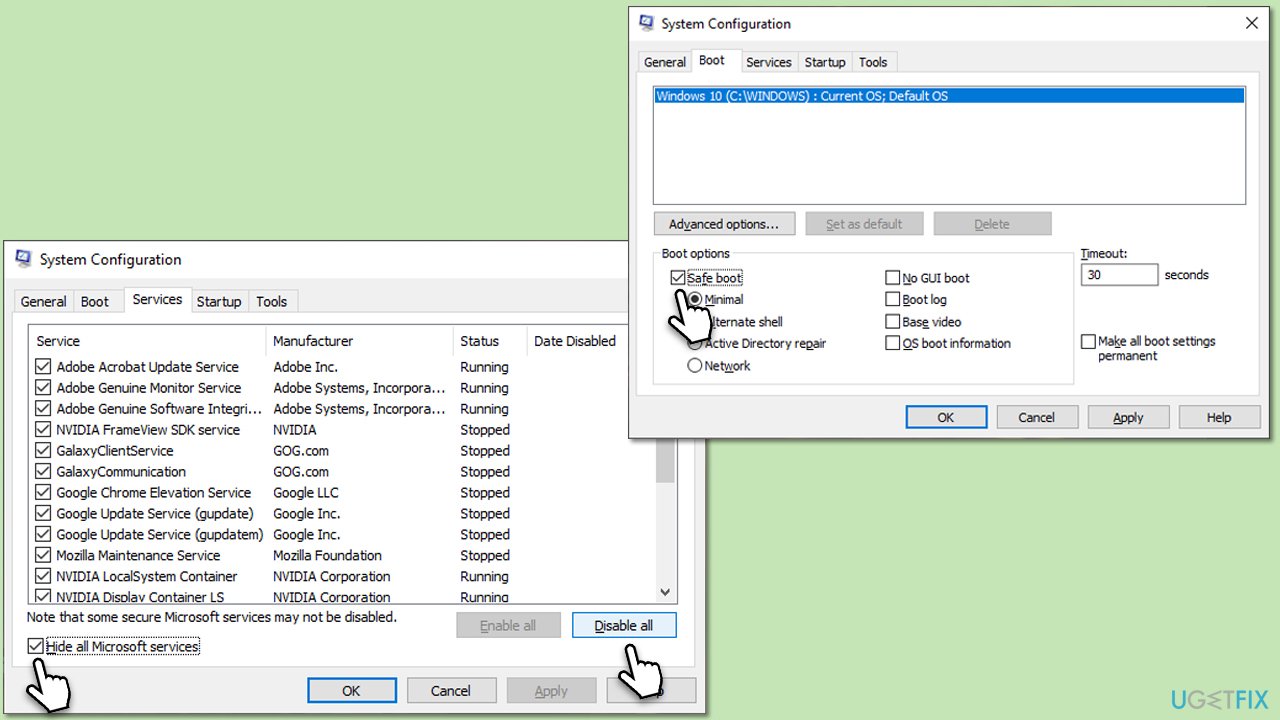
- Press the Windows key + R to open the Run dialog.
- Type msconfig and press Enter to open the System Configuration window.
- Click on the Services tab and check the Hide all Microsoft Services box.
- Click Disable all to disable non-Microsoft services, then click the Startup tab.
- Open the Task Manager, disable all startup items, and close the Task Manager.
- Go to the Boot tab and mark the Safe boot option.
- Click OK on the System Configuration window and restart your computer.
- Attempt to update Windows again.
Fix 7. Reset Windows
This is a last-resort option that will erase all your apps and settings but will likely fix the issue.
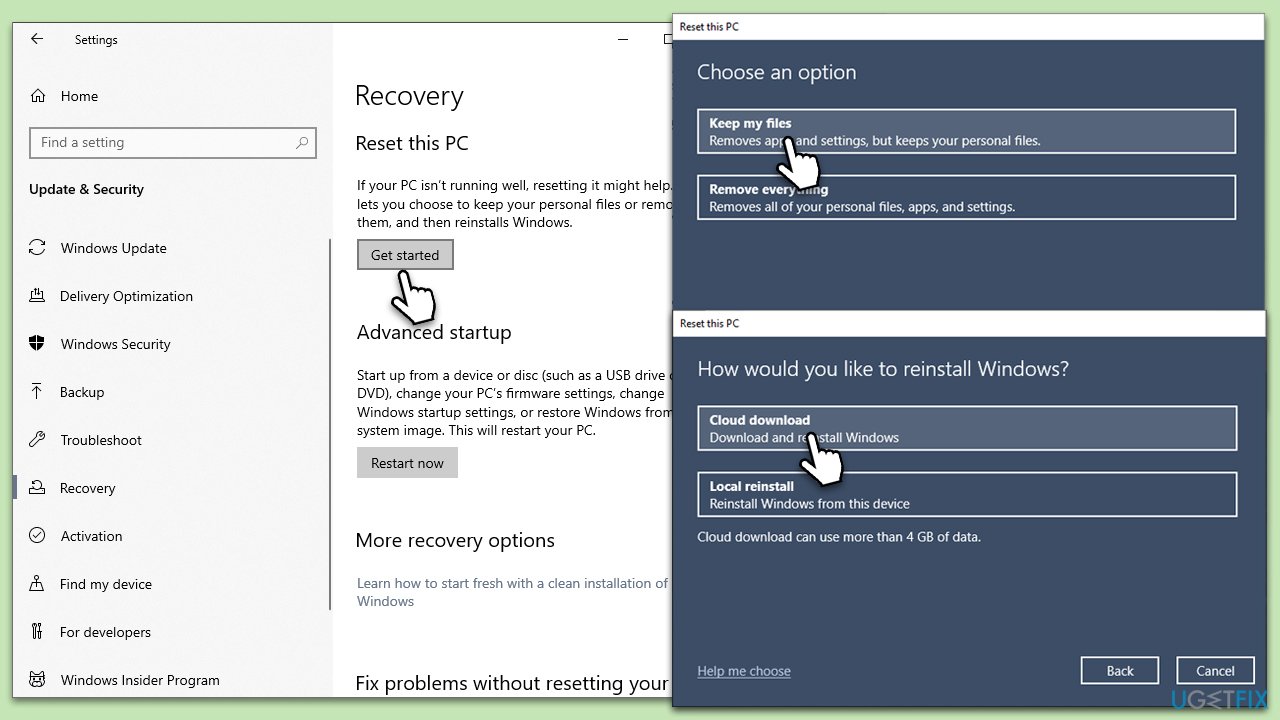
- Right-click on Start and then select Settings.
- Go to Update & Security and pick Recovery on the left side of the window.
- Find Reset this PC section and click Get Started.
- Select Keep my files and Cloud download.
- Next, pick whether you want to reinstall the apps.
- Click Reset.
- Your system will restart, and the process of Windows reset will begin.
These are eight comprehensive fixes for when the Settings option is missing from the Start Menu. Follow the instructions carefully, and one of these methods should resolve your issue.
Bottom line
To resolve the missing Settings issue, users can run the built-in Windows Troubleshooter or manually edit the system registry. If these solutions do not work, consider utilizing a PC repair tool to fix corrupted system files and improve overall system stability.
Frequently asked questions
You can try restarting Windows Explorer through Task Manager or running the System File Checker tool to repair any corrupted system files that may be causing the issue.
You can use the Windows PowerShell to re-register all built-in apps, including the Settings app, which should restore the icon in your Start Menu.
Yes, you can access the Settings app by pressing the Windows key + I or by searching for 'Settings' in the search bar.




Report an issue
What's wrong with this guide? We review every report and update or remove content.
Report received — thank you. We'll review and fix it.
You need a free account to submit a report.
Be the first to comment