How to fix
Windows Store Error Code 0x80073d0b
on Windows
Resolve Windows Store error code 0x80073d0b quickly and easily. Get expert-tested solutions for Windows 10 and Windows 11. Fixed in minutes!


What causes How to Fix Windows Store Error Code 0x80073d0b?
- Overloaded Windows Store servers
- Windows Store cache issues
- App permissions related to internal memory
- Incompatibility of certain apps with external memory
- Issues with user account settings
Repairs Windows system files, removes malware, and restores a clean OS state — without reinstalling.
Hello, when I try to download apps from Store, I get the error code 0x80073d0d. I tried using a different windows account, but that did not help. Could you please comment on this error?
Windows Store errors strike Windows 10 users quite frequently. When trying to download or install both free and paid apps from the Windows Store, the pop-up message shows up and informs that the service is unavailable:
"The server stumbled."
"Something happened on our end. Waiting a bit might help."
"Try that again. Something went wrong. The Error Code is XXX, in case you need it."
"Unable to activate Windows Store apps."
These are the most common messages that people receive when Windows Store fails to work. All of them contain an error code, which may differ according to the error causes and possible solutions. This time, we would like to analyze Windows Store Error Code 0x80073d0b. According to people’s reports, the error usually shows up on PCs and laptops running Windows 10. However, it may also harass people using Lumia Series phone with Windows 10 OS installed on it. Luckily, it’s not difficult to fix 0x80073d0b error. We’ll provide the fixes starting with the easiest ones and ending with the most complicated.
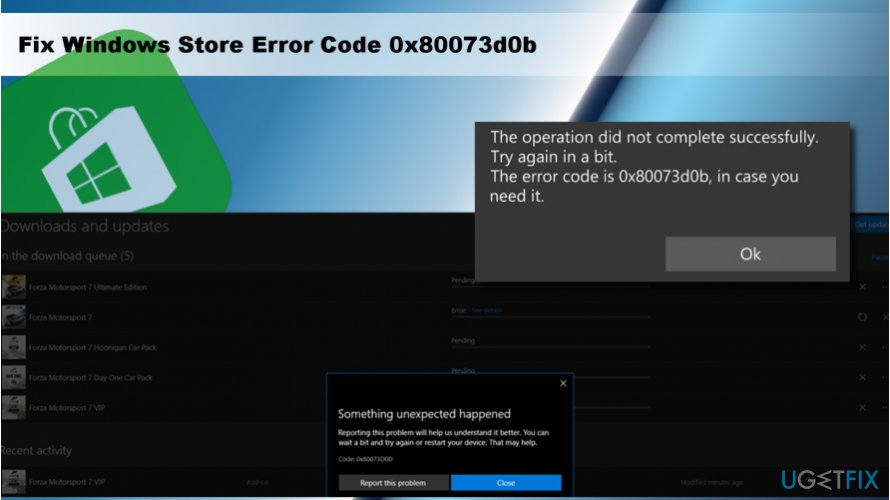
A Guide on How to Fix Windows Store Error 0x80073d0b on Windows 10
Fix Error Code 0x80073d0b on Lumia Series phone
If the 0x80073d0b error occurs on your Lumia phone when trying to transfer inbuild system apps from internal memory to SD card, the only solution would be to stop moving these apps. The culprit of this problem is related to app permissions. Some of the apps are developed to run on internal memory only, so when trying to transfer them to external memory, the error 0x80073d0b shows up.
Fix Windows Store Error 0x80073d0b on Windows 10
Most of the Windows Store errors happen due to overloaded Windows Store servers or Windows Store cache. Therefore, the first thing that you should try is to close Windows Store, wait for a while, and try using it a bit later. If the problem is not related to overloaded server, try to clear Windows Store cache:
- Press Windows key + S and type wsreset.
- Right-click on the wsreset option and select Run as Administrator.
- Click Yes on the User Account Control prompt and wait while the system is resetting the Store cache.
- When Windows Store window opens, it means that the cache has been reset. Reopen Windows Store and try to download required files.
If the simplest way to fix 0x80073d0b error did not work, try to clear Windows Store cache in a more advanced way:
- Press Windows key + R to open run.
- Copy and paste the %localappdata%\\Packages\\Microsoft.WindowsStore_8wekyb3d8bbwe\\LocalState in the run dialogue.
- Click OK to execute the command.
- Now find the folder named Cache. Right-click it and select Rename.
- Name the Cache folder as Cache.old.
- If you can’t find the Cache folder, create it. Right-click on an empty space and select New -> Folder.
- Name it Cache and close File Explorer.
- Now press Windows key + I and open Updates & Security.
- Select Troubleshoot from the left pane and find the Windows Store App.
- Click it and run a scan.
In addition to Windows Store cache, the app may also fail to work after installation of Windows Updates. Some of the update files might have been installed incorrectly or were damaged during update process, so try to reinstall Windpws Store app. If you don't know how to do that, find the tutorial on this post.
Bottom line
To fix the Windows Store Error Code 0x80073d0b, you can try closing the Windows Store and waiting before attempting to use it again. If the error occurs on a Lumia phone, avoid transferring system apps to an SD card. If these solutions do not work, further troubleshooting may be necessary.
Frequently asked questions
The error code 0x80073d0b typically indicates that there is an issue with the Windows Store app installation or a problem with the Windows system files.
To fix this error on Windows 11, you can try resetting the Windows Store cache by running 'wsreset.exe' in the Run dialog.
Yes, ensuring your Windows 10 is up to date by checking for updates in Settings can help resolve the error, as updates often include bug fixes and improvements.




Report an issue
What's wrong with this guide? We review every report and update or remove content.
Report received — thank you. We'll review and fix it.
You need a free account to submit a report.
Be the first to comment