How to fix
Windows update error 0x80070011
on Windows
Resolve Windows update error 0x80070011 with simple fixes that restore system functionality quickly and efficiently. Expert-tested solutions await!


What causes How to fix Windows update error 0x80070011?
- Insufficient storage space for temporary files
- Misconfigured system files
- Corrupted system files
- Remnants of previous updates
- Improper installation of software
Repairs Windows system files, removes malware, and restores a clean OS state — without reinstalling.
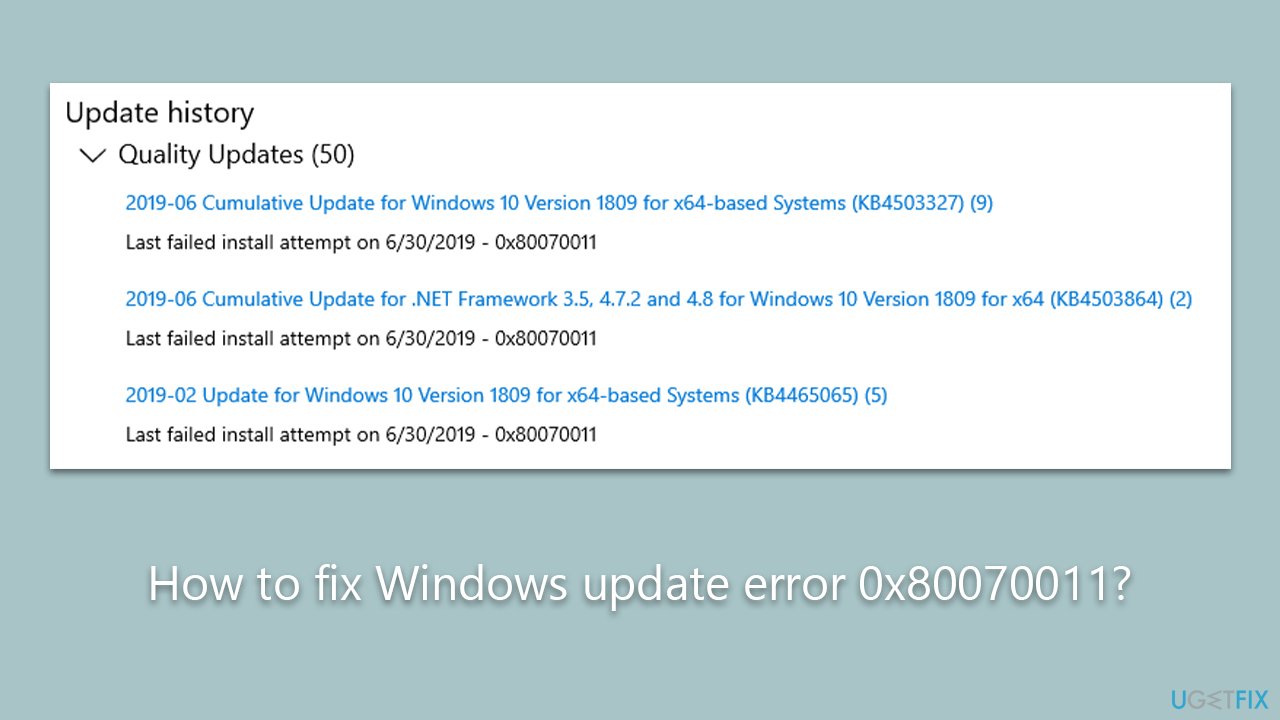
Hello. I was wondering if you could help me with resolving the 0x80070011 Windows update error. I keep getting it for all the main and optional updates. Thanks for the help.
Windows Update is an essential component of Microsoft's operating system. It ensures that your system is updated with the latest features, security patches, and performance improvements. However, the update process does not always run smoothly. One notable issue is the Windows Update error 0x80070011. This cryptic error code might seem intimidating, but it is a problem that can be diagnosed and often resolved with a bit of patience and troubleshooting.
Windows Update error 0x80070011 occurs when a user tries to download or install a Windows update, but the operation fails due to issues related to system storage. The hexadecimal error code, 0x80070011 specifically points towards a situation where the system is unable to make a copy of files during an update due to insufficient space. This issue is often seen when the computer's storage is near its capacity.
The root cause of error 0x80070011 lies within the system’s storage. When there isn't enough space to store the temporary files required during an update, the update operation fails and results in this error. This is particularly likely to occur when installing major updates, which require more storage space than minor or incremental updates.
Furthermore, this error can also occur when the operating system is unable to access necessary files due to misconfigured system files or issues with the file system. Sometimes, remnants of previous updates, corrupted system files, or improper installation of software can alter the file system's structure or settings, causing Windows Update to stumble upon these hurdles while performing its operations.
To navigate the complexities of error 0x80070011 and find a solution that works for you, detailed guidelines are provided below this article. If you would prefer to fix the issue automatically, you can attempt with a Windows repair tool [d1].
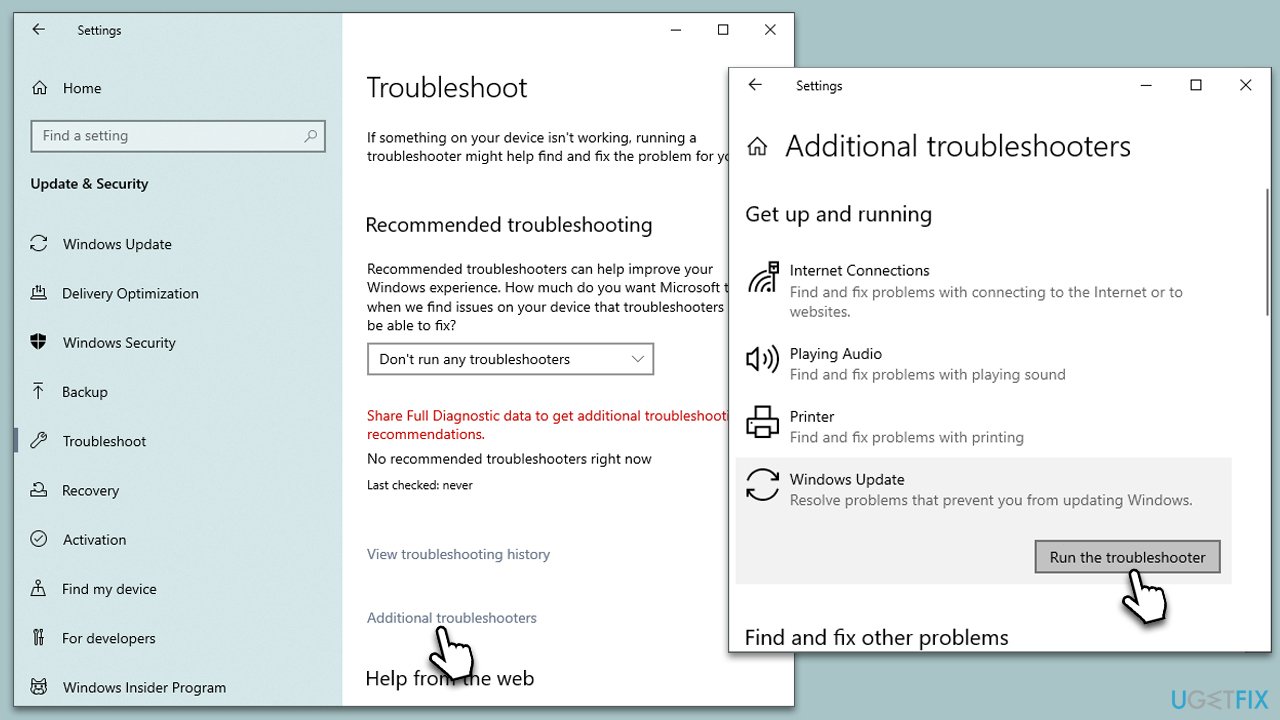
Solution 1. Run the troubleshooter
We always recommend users start with Windows update troubleshooter when facing errors:
- Type Troubleshoot in Windows search and hit Enter.
- Select Additional troubleshooters/Other troubleshooters.
- Find Windows Update from the list and select Run the troubleshooter/Run.
- Wait till the scan is finished - you will be provided with potential causes so you can proceed with fixes.
- If no suggestions were provided, proceed with the solutions below.
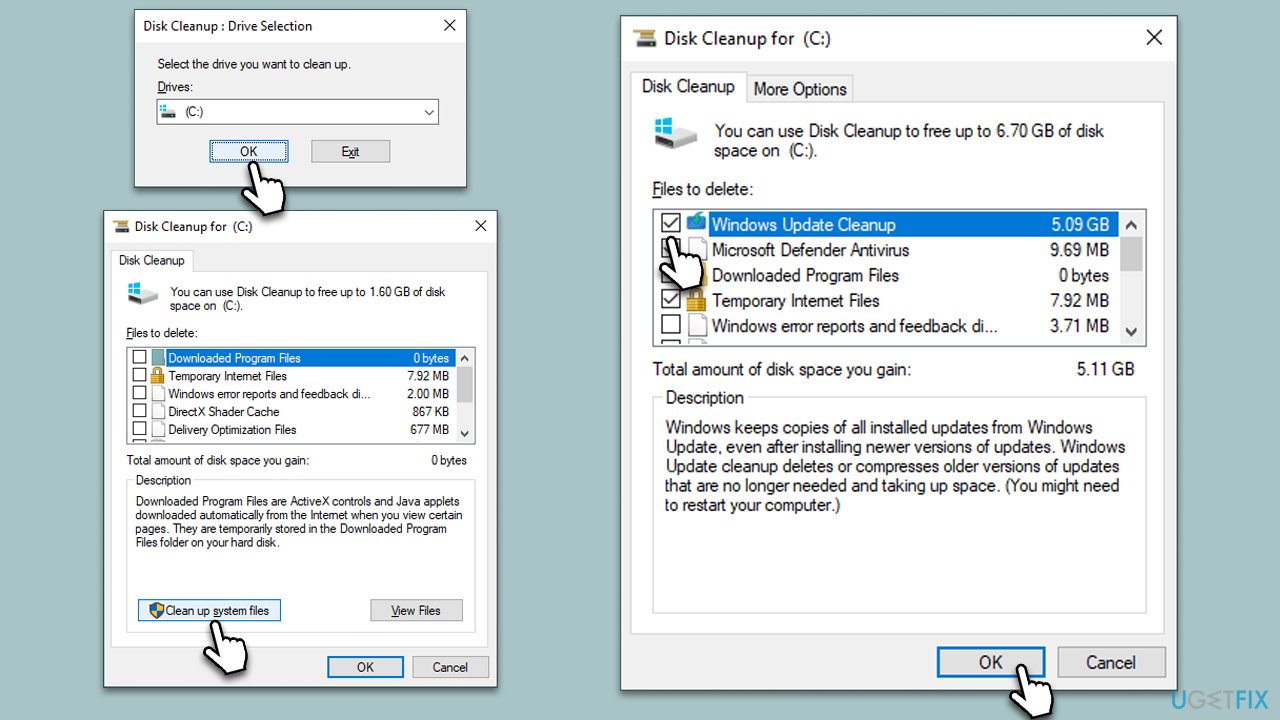
Solution 2. Free some space
- Open the Windows search bar and type Disk Cleanup. Press Enter to open the Disk Cleanup utility.
- In the Disk Cleanup window, click Clean up system files.
- Select the drive again and click OK.
- In the list of files that can be cleaned up, select the largest portions of data, such as Temporary Internet Files, Windows Update, Temporary Files, and others.
- Click OK to begin the cleanup process.
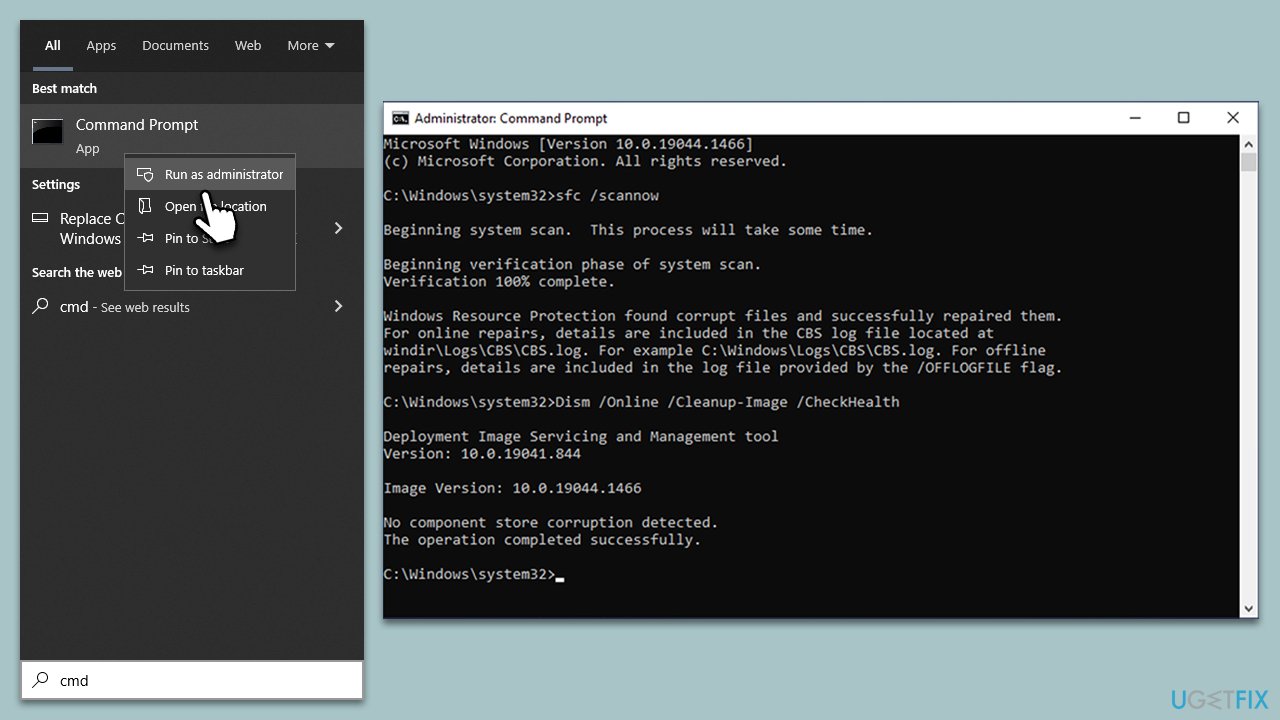
Solution 3. Fix corrupted files
System file corruption is among the most common reasons for Windows update failures. Address this issue by running SFC and DISM scans:
- Type cmd in Windows search.
- Right-click on the Command Prompt result and select Run as administrator.
- The User Account Control (UAC) window will ask whether you want to allow changes to your computer - click Yes.
- Next, copy and paste the following commands, pressing Enter after each:
sfc /scannow
DISM /Online /Cleanup-Image /CheckHealth
DISM /Online /Cleanup-Image /ScanHealth
DISM /Online /Cleanup-Image /RestoreHealth
(Note: if you get an error executing the last command, add /Source:C:\RepairSource\Windows /LimitAccess to it and try again.) - Restart your system.
Solution 4. Check services
In Windows, there are a few key services that are crucial for downloading and installing updates. Sometimes, these services might be disabled, not working properly, or need a restart to function correctly. These services include Windows Update service, Background Intelligent Transfer Service (BITS), and Cryptographic services. Here's how to restart or enable these services:
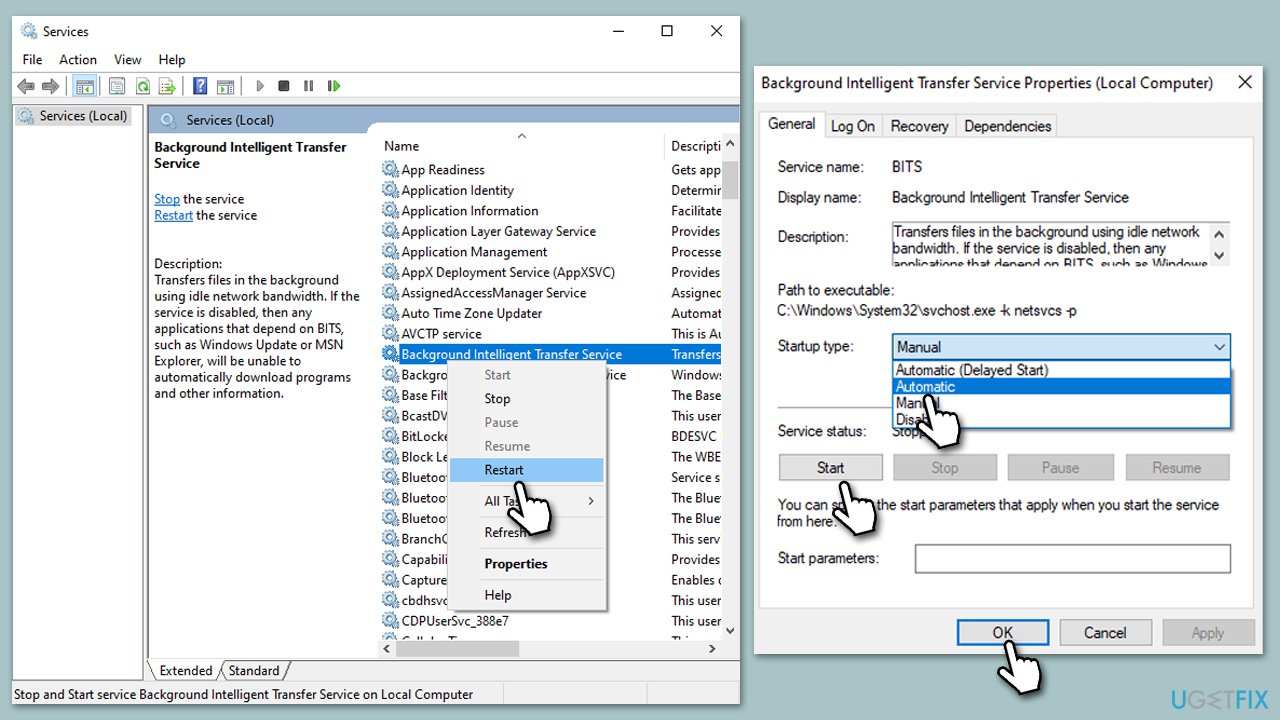
- Type in Services in Windows search and press Enter.
- Locate Background Intelligent Transfer Service (BITS).
- If it is already running, right-click and select Restart.
- if the service is not running, double-click it, select Automatic under the Startup type from the drop-down menu
- Click Start, Apply, and OK.
- Repeat the process with the Windows Update, Cryptographic, and Windows Installer services.
Solution 5. Reset Windows Update Components
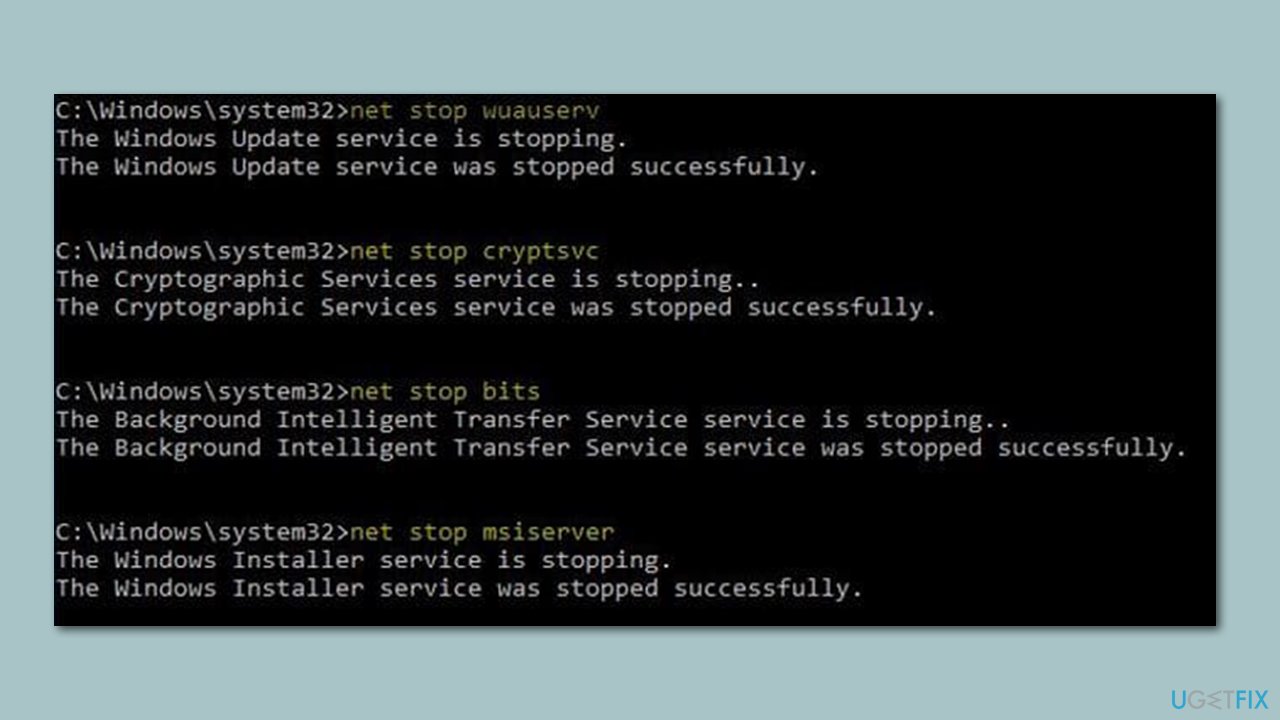
Resetting Windows Update components is a helpful troubleshooting step that effectively gives the update process a fresh start. This action clears the update history, re-registers the update files, and restarts the related services, potentially resolving issues like the Windows update error 0x80070011.
- Open Command Prompt as administrator.
- Copy and paste the following commands, pressing Enter each time:
net stop bits
net stop wuauserv
net stop appidsvc
net stop cryptsvc
Del “%ALLUSERSPROFILE%\Application Data\Microsoft\Network\Downloader\*.*”
rmdir %systemroot%\SoftwareDistribution /S /Q
rmdir %systemroot%\system32\catroot2 /S /Q
regsvr32.exe /s atl.dll
regsvr32.exe /s urlmon.dll
regsvr32.exe /s mshtml.dll
netsh winsock reset
netsh winsock reset proxy
net start bits
net start wuauserv
net start appidsvc
net start cryptsvc - Restart your device.
Solution 6. Use Media Creation Tool
The Media Creation Tool provided by Microsoft could be a useful resource for updating your Windows to the most recent version. Make sure you disable third-party security software before proceeding.
- Visit the official Microsoft website and download Windows 10 installation media (Windows 11 version).
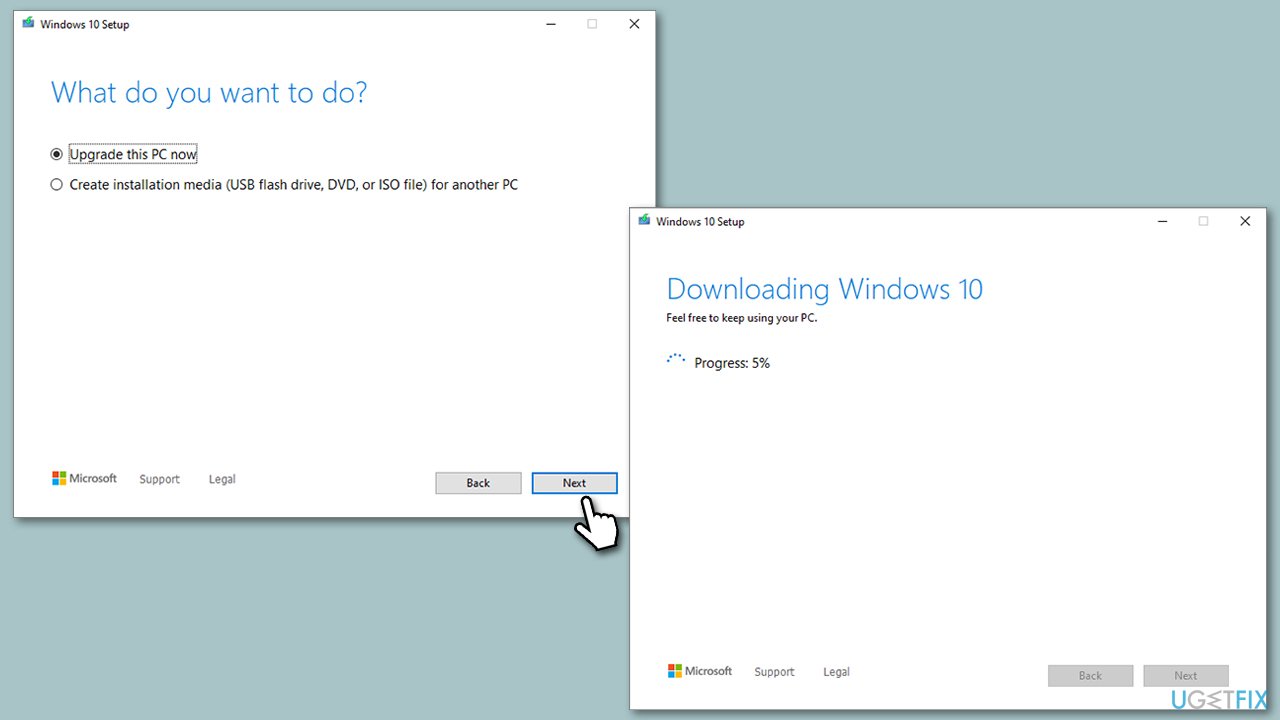
- Double-click the installer, select Yes when UAC shows up, and agree to the terms.
- Select Upgrade this PC now and click Next.
- Windows will start downloading the needed files.
- Agree to the terms once again and click Next.
- Before installing, make sure that you are happy with your choices (otherwise, you can click Change what to keep option).
- Finally, click Install to begin the upgrade process.
Other things to try
- Reboot your system if you haven't already done this.
- Perform a scan on your system to detect any potential malware. You can utilize third-party applications or Microsoft's own tool, the Microsoft Safety Scanner.
- If you currently use security software from a third-party source, consider temporarily disabling it and attempting the update again.
- Inspect your system's time and date settings to ensure they are correct.
Bottom line
To resolve the Windows update error 0x80070011, users can start by running the Windows update troubleshooter, which helps diagnose and fix common issues. If the problem persists, consider using a Windows repair tool or checking for storage issues. If none of these solutions work, further investigation into system settings may be necessary.
Frequently asked questions
Error 0x80070011 typically occurs when there's an issue with the update path or if the update files are corrupted. This can happen due to incorrect settings or disk issues.
To fix error 0x80070011 on Windows 11, you can try resetting your Windows Update components or running the Windows Update Troubleshooter. These methods can help restore proper functionality.
Yes, deleting the SoftwareDistribution folder is safe and can help fix the error as it forces Windows to recreate the folder and download fresh update files. Just ensure to stop the Windows Update service before doing so.




Report an issue
What's wrong with this guide? We review every report and update or remove content.
Report received — thank you. We'll review and fix it.
You need a free account to submit a report.
Be the first to comment