How to fix
Windows update error 0x8007013
on Windows
Resolve Windows update error 0x8007013 with our expert tips. Get your system updated smoothly and efficiently, fixed in minutes.

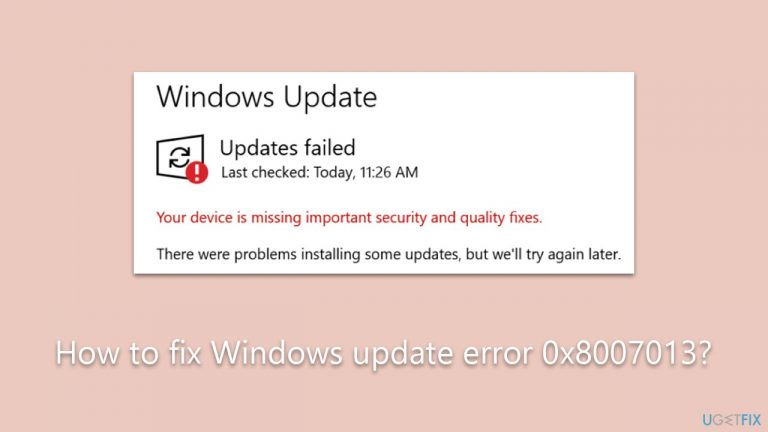
What causes How to fix Windows update error 0x8007013?
- Corrupted system files
- Conflicts with other software or drivers
- Insufficient storage space
- PC not meeting update requirements
Repairs Windows system files, removes malware, and restores a clean OS state — without reinstalling.
I'm struggling to install the latest Windows update because of the 0x8007013 error. Any tips would be appreciated.
Microsoft regularly releases Windows updates to improve system security, fix bugs, and introduce new features. These updates typically fall into several categories, such as security updates for patching vulnerabilities, feature updates that introduce new functionalities, cumulative updates that include previously released fixes, and driver updates to improve system hardware compatibility and performance.
However, updating Windows isn't always a straightforward process. Sometimes, challenges arise, and one such challenge is the Windows update error 0x8007013, which can be particularly problematic as it stops the update process, preventing you from keeping your system up-to-date and potentially exposing your computer to vulnerabilities.
The occurrence of the 0x8007013 error can be attributed to various reasons. It might be due to corrupted system files, conflicts with other software or drivers, or even insufficient storage space on the device. It's essential to understand the root cause of the error to address it effectively.
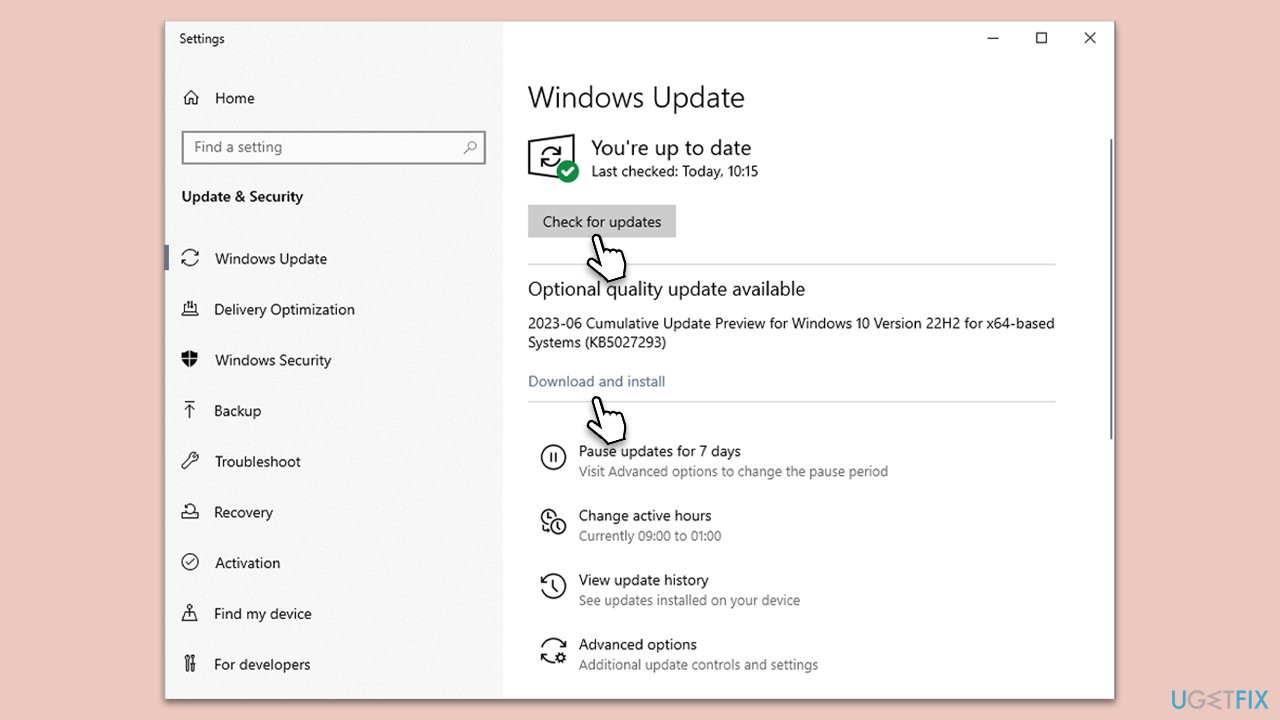
When faced with the Windows update error 0x8007013, there are several potential solutions to consider. Firstly, ensure that your PC meets the necessary requirements for the update you're trying to install. Windows also offers an in-built troubleshooter for updates, which can help identify and fix some problems related to Windows Update. If storage seems to be the concern, clearing up some space on the main drive might help. Another effective method is running a system file check, as corrupted system files can sometimes be the main issue.

For a comprehensive solution to the 0x8007013 error, detailed instructions are provided below. Additionally, for those who continue to experience persistent issues or other system challenges, using [d1] PC repair software is recommended. This software can simplify the process of detecting and fixing common PC problems, ensuring a smoother performance for your device.
Fix 1. Run Windows update troubleshooter
Windows Update Troubleshooter is a built-in tool designed to identify and fix common problems associated with updating your system.
- Type Troubleshoot into the Windows search bar and press Enter.
- Next, on the right side of the window, select Additional troubleshooters/Other troubleshooters.
- Scroll down to locate the Windows update option and click on it.
- Click on Run the troubleshooter/Run and allow the process to complete.
- Once it is finished, implement any recommended fixes and restart your computer.
Fix 2. Perform Disk Cleanup
Over time, your system accumulates temporary files that can occupy significant space and interfere with updates.
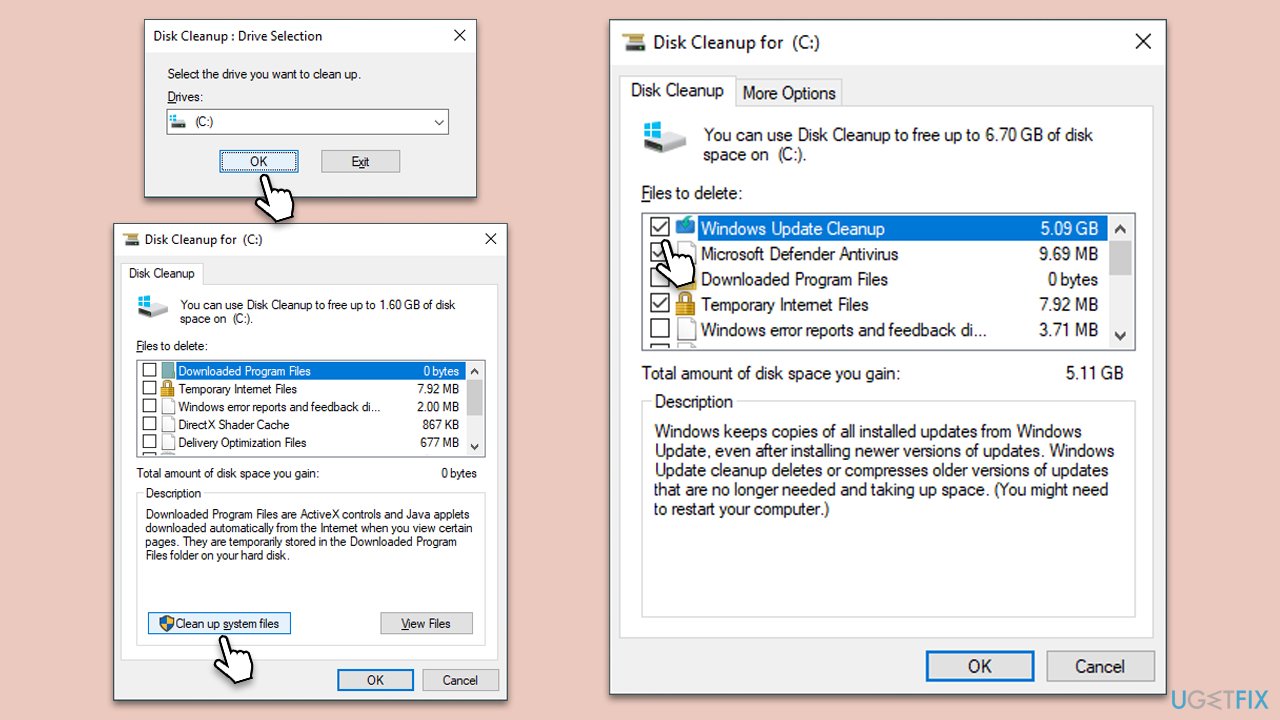
- Open the Windows search bar and type Disk Cleanup. Press Enter to open the Disk Cleanup utility.
- In the Disk Cleanup window, click Clean up system files.
- Select the drive again and click OK.
- In the list of files that can be cleaned up, select the largest portions of data, such as Temporary Internet Files, Windows Update, Temporary Files, and others.
- Click OK to begin the cleanup process.
Fix 3. Run SFC and DISM
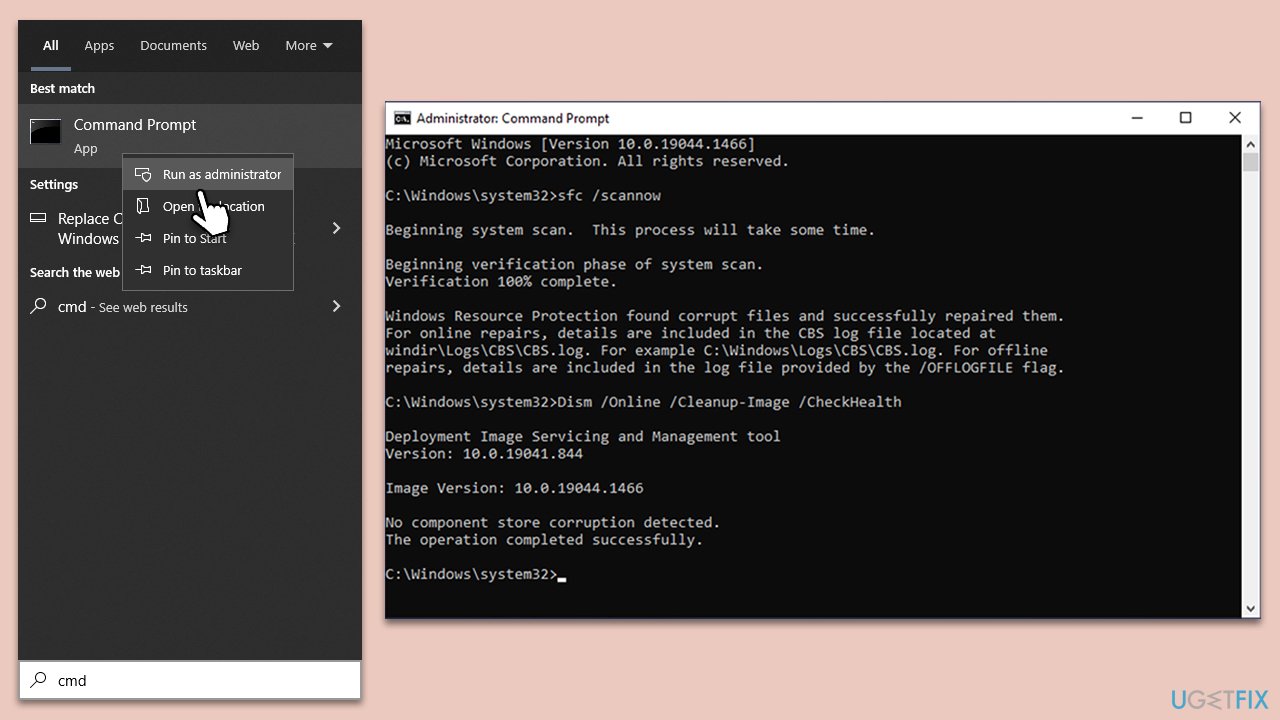
SFC and DISM can repair corrupted system files - you can run these scans using elevated Command Prompt:
- Type cmd in Windows search.
- Right-click on Command Prompt and pick Run as administrator.
- User Account Control window will show up - click Yes when prompted.
- Then, copy and paste the following command, pressing Enter after:
sfc /scannow - Wait till the scan is finished. If Windows finds system file integrity violations, it will attempt to fix them. After this, use the set of the following commands, pressing Enter each time:
DISM /Online /Cleanup-Image /CheckHealth
DISM /Online /Cleanup-Image /ScanHealth
DISM /Online /Cleanup-Image /RestoreHealth - (Note: if you get an error executing this last command, add /Source:C:\RepairSource\Windows /LimitAccess to it and try again).
- Close down the Command Prompt and restart your PC.
Fix 4. Temporarily disable third-party security software
Sometimes, third-party security software can interfere with Windows updates.
- Locate your antivirus or firewall icon in the system tray.
- Right-click on it and look for an option to disable or turn off.
- Turn it off temporarily and try running the Windows update again.
- Don't forget to turn it back on after updating.
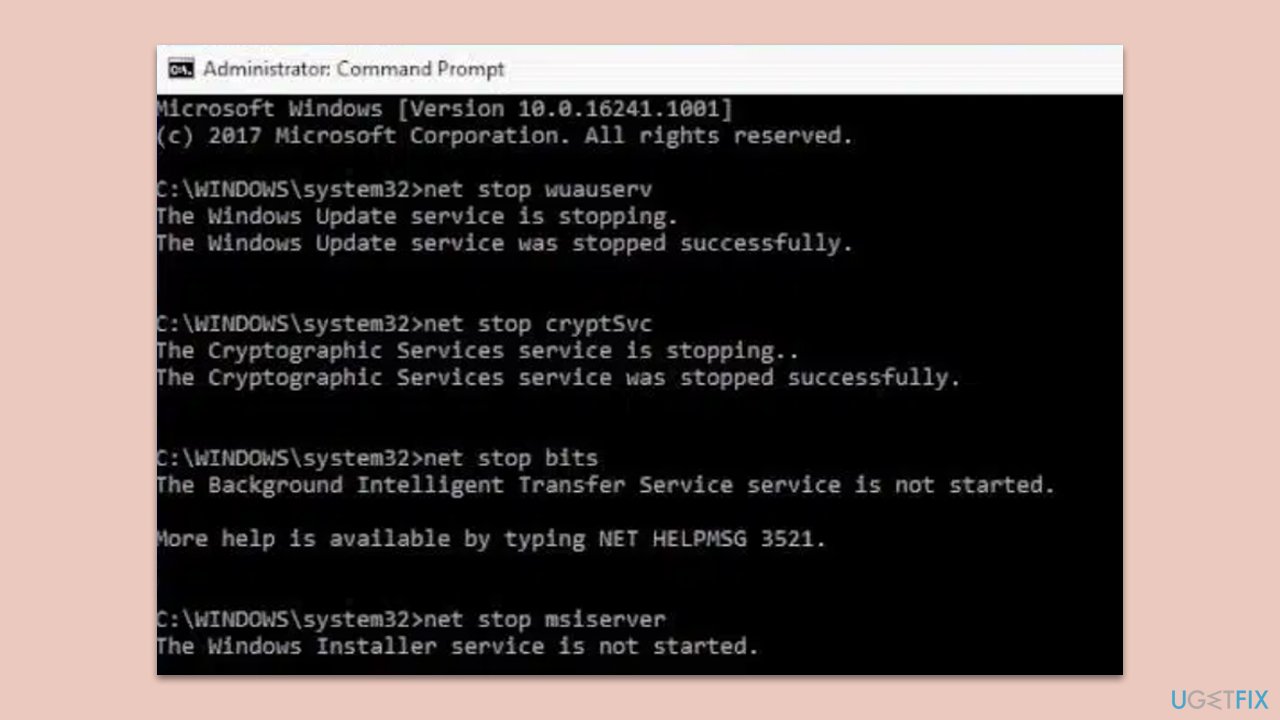
Fix 5. Reset Windows update components
This will restart the services and components associated with Windows Update.
- Open Command Prompt as an administrator.
- Type the following commands, pressing Enter after each:
- net stop wuauserv
- net stop cryptSvc
- net stop bits
- net stop msiserver
- ren C:\Windows\SoftwareDistribution SoftwareDistribution.old
- ren C:\Windows\System32\catroot2 catroot2.old
- net start wuauserv
- net start cryptSvc
- net start bits
- net start msiserver
- Restart your computer.
Fix 6. Use Media Creation Tool
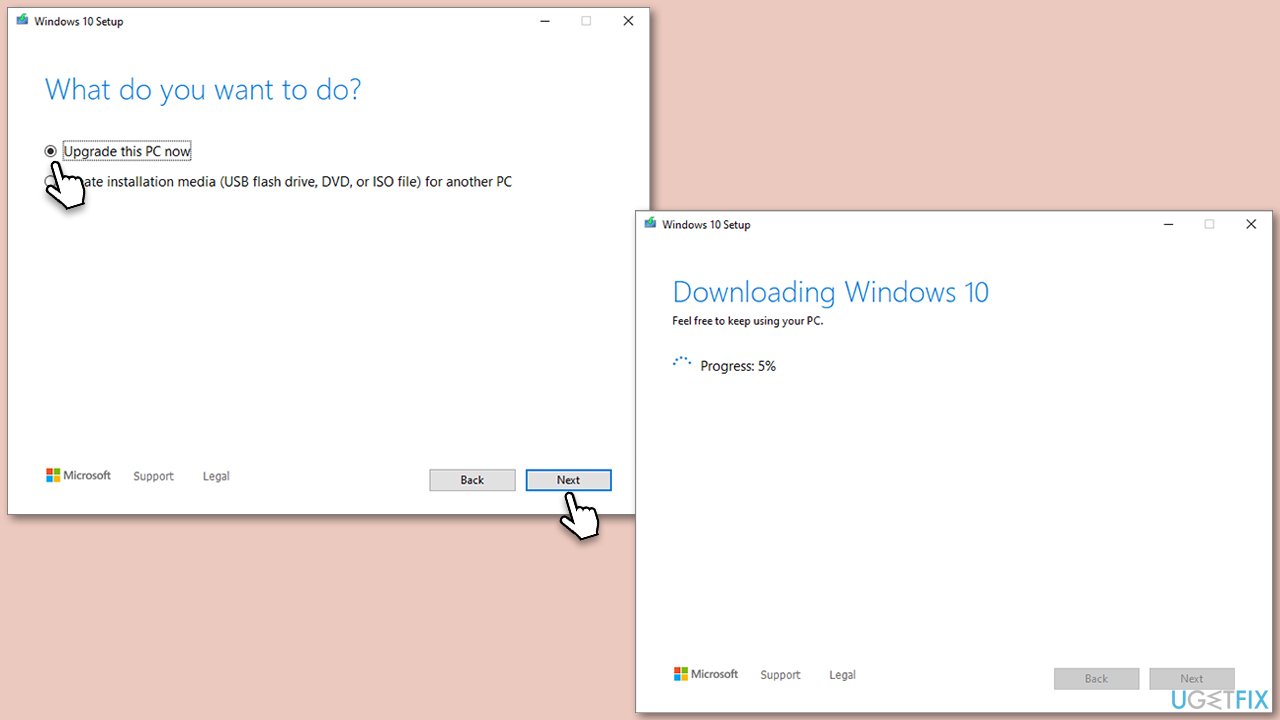
This tool allows you to upgrade Windows to the latest version using the installation media downloaded from the official Microsoft website.
- Visit the official Microsoft website and download Windows 10 installation media (Windows 11 version).
- Double-click the installer and select Yes when UAC shows up.
- Agree to terms.
- Select Upgrade this PC now and select Next.
- Windows will now download all the necessary files – it might take a while.
- Agree to the terms once again and click Next.
- Before installing, ensure you are happy with your choices (otherwise, you can click the Change what to keep option).
- Click Install to begin the upgrade process.
Fix 7. Install the update manually
If automatic updates aren't working, you can download and install them manually.
- Type in Updates in Windows search and press Enter.
- Select View update history.
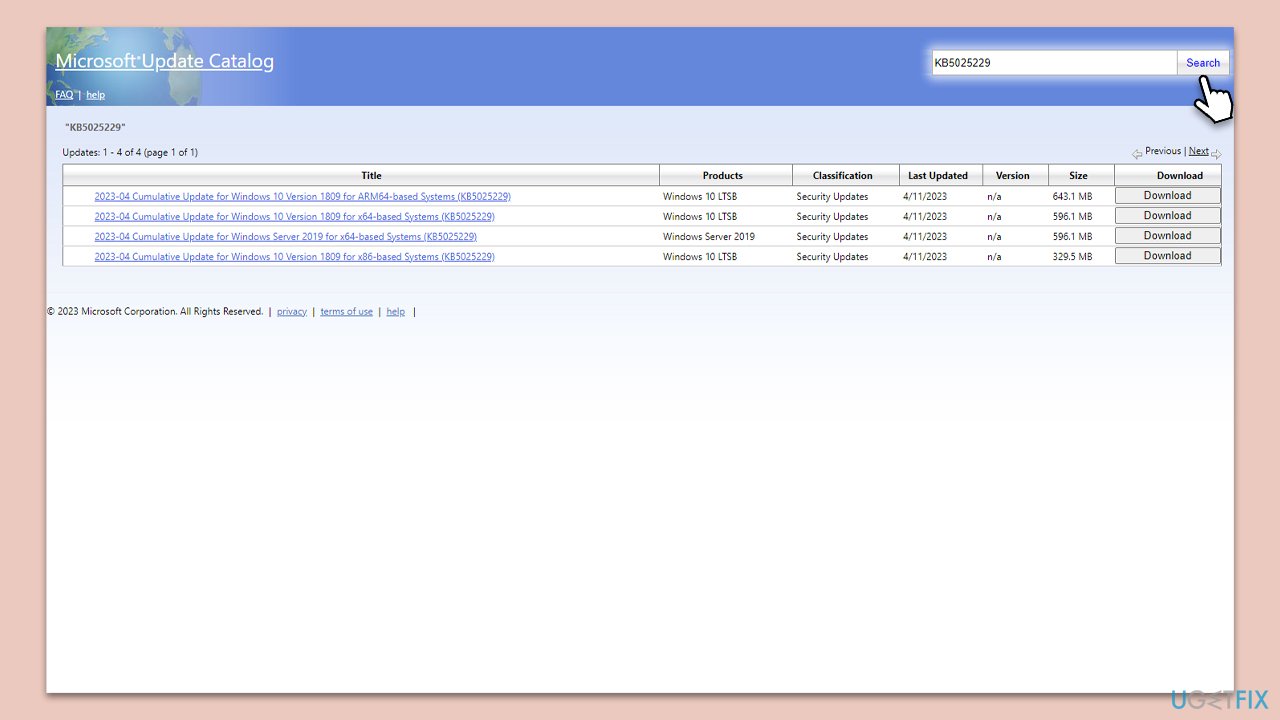
- Find the update that failed with the 0x8007013 error and copy its KB number.
- Open your browser and go to Microsoft Update Catalog.
- Within the search bar, type in the KB number and click Search.
- Find the correct version of the update for your operating system (to check this, right-click on Start and pick System. Under Device specifications and check the System type) and click Download.
- Use on-screen guidelines to finish the installation process and restart your computer.
Bottom line
To fix the Windows update error 0x8007013, you can run the Windows Update Troubleshooter, clear up storage space, and perform a system file check. If these solutions do not resolve the issue, consider using PC repair software for further assistance.
Frequently asked questions
The error 0x8007013 typically occurs due to corrupted system files or problems with the Windows Update components. It can also be triggered by insufficient disk space or network connectivity issues.
To fix the error, you can run the Windows Update Troubleshooter, clear the SoftwareDistribution folder, or perform a System File Checker scan using the command 'sfc /scannow' in Command Prompt.
While some third-party tools may help resolve the error, it's recommended to use built-in Windows tools first, as they are safer and specifically designed for Windows 10 and Windows 11.




Report an issue
What's wrong with this guide? We review every report and update or remove content.
Report received — thank you. We'll review and fix it.
You need a free account to submit a report.
Be the first to comment