
How to fix Windows update error 0x800703e6?
Prefer to fix it yourself? The manual steps follow.
8 methods in this guide
Hello. I am trying to update my Windows 10, but I get the error code 0x800703e6. It would be great to find a way to fix this.
Windows is one of the most frequently used operating systems by private individuals and businesses created by Microsoft. It has many great features and an easy-to-use interface. Windows provides many options to make the maintenance of the system possible to be performed by any user.
But sometimes, Windows cannot update the system, drivers, or troubleshoot other problems and fix them automatically. In these cases, users need to take matters into their own hands. Recently users had trouble updating their OS system and received an error code 0x800703e6. The full notice reads as follows:
Updates failed
Your device is missing important security and quality fixes
There were problems installing some updates, but we'll try again later.
There are many errors that prevent users from updating, like 0x8007371c, 0x800f0986, or 0x800f0990. This one specifically seems to occur while attempting to install KB4023057, KB5003214, KB5003173, and other updates on Windows 10 versions 1903, 1909, 2004, and 20H2. Some users also reported the same problem when installing KB5005033 for the latest Windows 10 version 21H1.
Most often, error 0x800703e6 indicates that Windows "is missing important security and quality fixes." This can result from a cluttered Windows registry or faulty entries of non-existent programs caused by improper software uninstalls. Other common reasons may include incorrect user input and accidentally deleted files from the registry that now cause system malfunctions.
The repair tool can identify the damaged system components, fix BSODs, and registry issues by scanning the system. This software could also be used to free up space by clearing cookies and cache,, which should boost the device's performance.
Below you will find a few manual methods that could fix the 0x800703e6 error and let you update your system. Note that this will take a while, so please follow all of the steps very carefully:
Method 1. Run Windows Update troubleshooter
- Type Troubleshoot in Windows search and hit Enter
- On the right side of the window, click Additional troubleshooters
- Select Windows Update and click Run the troubleshooter
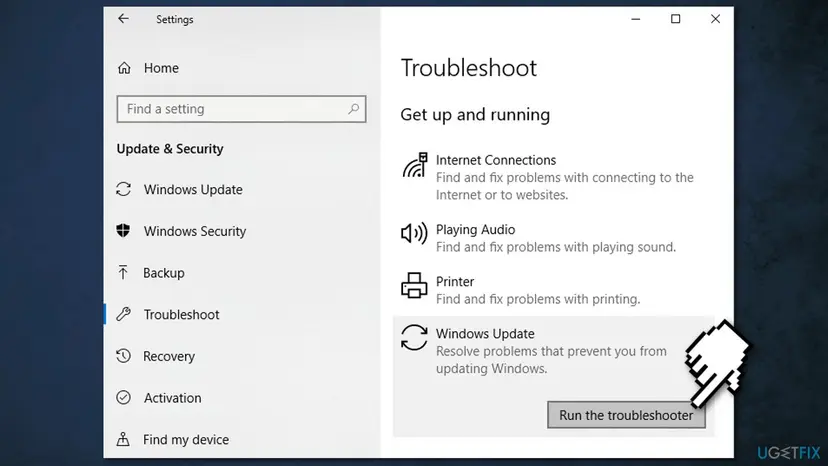
- Once done, apply all the suggested fixes and restart your machine.
Method 2. Repair corrupted system files
Use Command Prompt commands to repair system file corruption:
- Open Command Prompt as administrator
- Use the following command and press Enter:
sfc /scannow
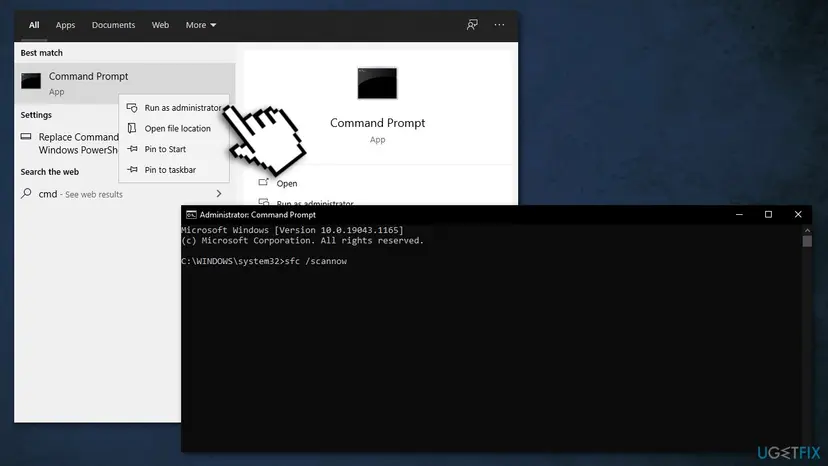
- Reboot your system
- If SFC returned an error, then use the following command lines, pressing Enter after each:
DISM /Online /Cleanup-Image /CheckHealth
DISM /Online /Cleanup-Image /ScanHealth
DISM /Online /Cleanup-Image /RestoreHealth
Method 3. Check Disk
Ensure that your disk is not damaged. You can perform checks using Administrative Command Prompt:
- Type cmd in Windows search
- Right-click on Command Prompt and select Run as administrator
- If User Account Control shows up, click Yes
- If you are using an HDD as your main driver (where your operating system is installed - C: by default), use the following command and press Enter:
chkdsk c: /f
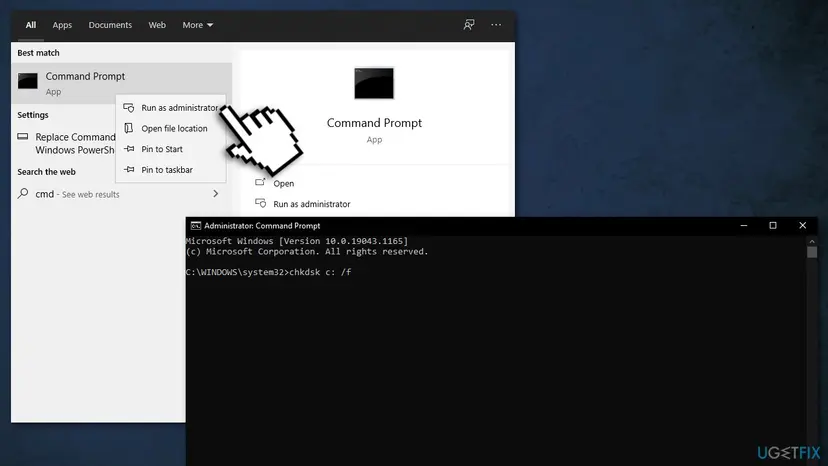
- If you are using SSD, use this command:
chkdsk c: /f /r /x - If you receive an error, type in Y and hit Enter
- Restart your device to perform the check
Method 4. Clean up system files
This method involves wiping out recovery copies and cached files stored in your PC:
- Open This PC
- Right-click on your main disk and choose Properties
- Find and click on Disk Cleanup
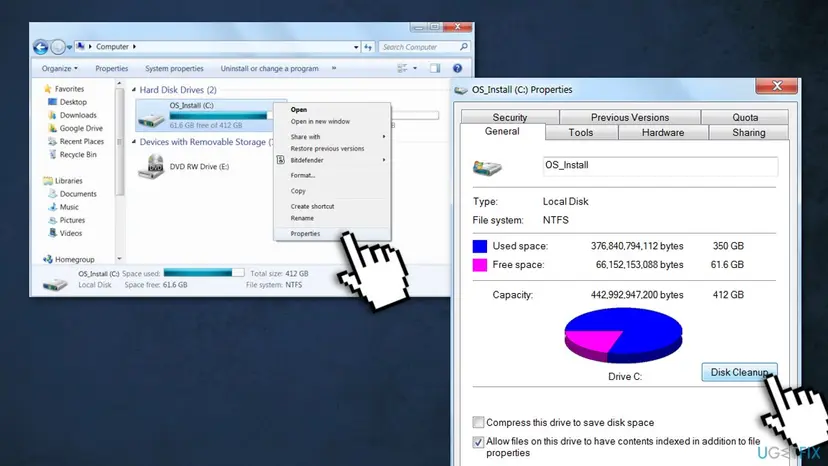
- Then select Clean up system files, check all the boxes, and click OK
- Once done, restart your PC and try to install the update again
Method 5. Update drivers
Outdated drivers could be the cause of the error. Or you can update them manually:
- Open Settings
- Click on Update & Security
- Click on Windows Update
- Click the Check for updates button
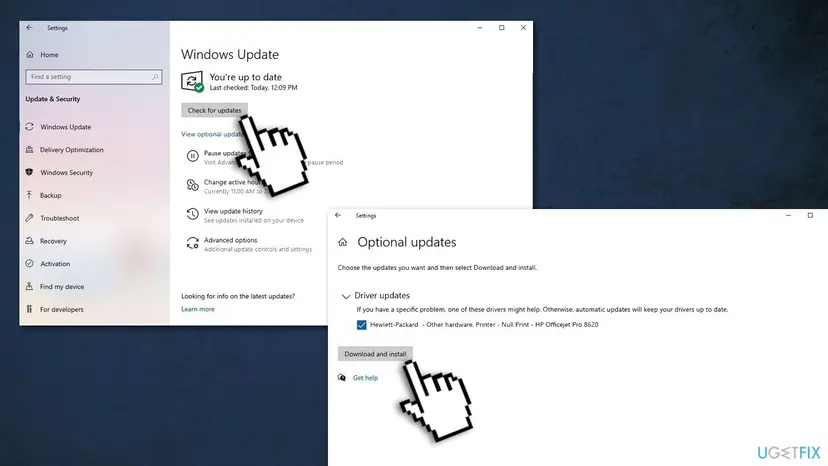
- Click the View optional updates option
- Click the Driver updates tab
- Select the driver you want to update
- Click the Download and install button
If the View optional updates link is not available after checking for updates, then Windows Update does not have any new drivers or any updates for other products at that particular time.
Method 6. Try Clean boot
Clean boot is one of the troubleshooting techniques that help identify if an app is causing the issue. It is usually performed when non-Microsoft products cause software conflicts. A clean boot helps in the easy start-up of OS by only loading essential files and programs:
- Press Windows + R, type msconfig, and hit Enter
- Go to Services tab and tick the Hide all Microsoft services checkbox
- Select Disable all
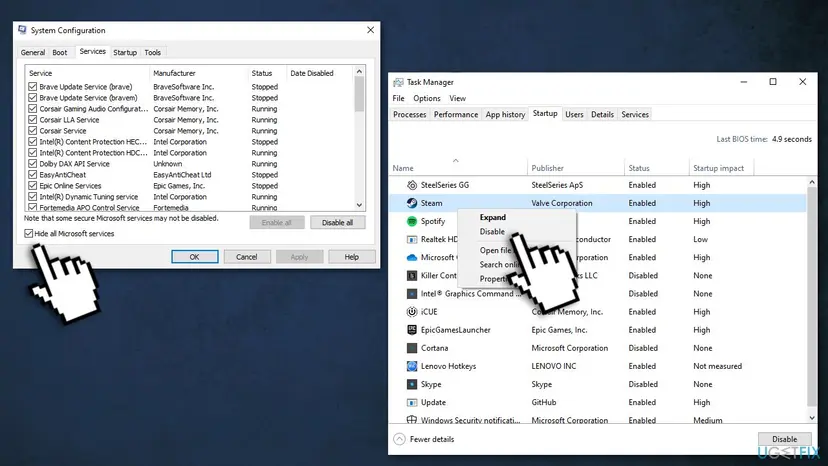
- Go to Startup tab and click Open Task Manager
- Here, right-click on each of the non-Windows entries and select Disable
- Close down the Task Manager
- Go to Boot tab and tick the Safe boot option
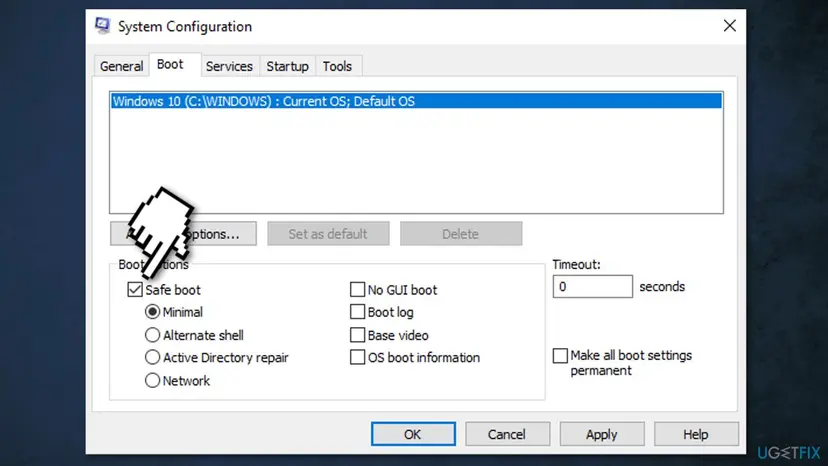
- Click Apply, OK, and restart your computer
Method 7. Reset Windows Update components
- Open Command Prompt (Admin) as explained above
- Copy and paste the following commands, pressing Enter each time:
net stop wuauserv
net stop cryptSvc
net stop bits
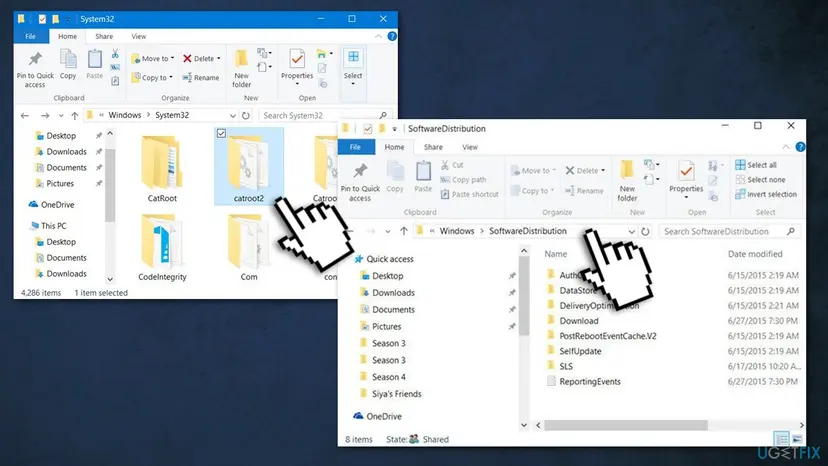
net stop msiserver - Press Windows + E to open File Explorer
- Go to the following locations and delete the contents of these folders:
C:\\Windows\\System32\\catroot2
C:\\Windows\\SoftwareDistribution
- Open Command Prompt again and paste these command lines:
net start wuauserv
net start cryptSvc
net start bits
net start msiserver - Restart your system
Method 8. Use Media Creation tool
If none of the solutions above worked for you, you should try using the Windows Media Creation tool. It is straightforward to use, and it helped most people resolve Windows update errors quickly.
- Go to the official Microsoft website and download Media Creation Tool
- Double-click the installer, agree to terms, and click Next
- Select Upgrade this PC now > Next
- Windows should now download and install all the necessary files
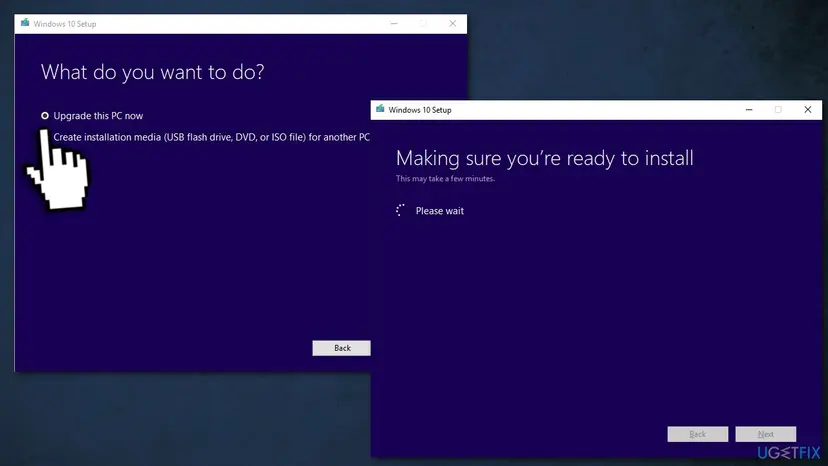
- Your system will restart, and the operation complete.
Did this fix work?
One click, no account. It tells the next reader which guides are worth their time.
Questions and experiences: fix Windows update error 0x800703e6
Still broken, or found a fix we did not cover? Ask here: members and our editors answer. Reading is open; writing needs a free account.
…