How to fix
Windows update error 0x80070664
on Windows
Resolve Windows update error 0x80070664 quickly and easily with our expert-tested solutions. Get your system back on track in minutes!

What causes How to fix Windows update error 0x80070664?
- Problems with Microsoft’s Office application
- Missing installer package
- Corrupted installer package
- Incorrectly configured installer package
- Corruption in the Windows Update cache
- Conflicts between programs or outdated software
Repairs Windows system files, removes malware, and restores a clean OS state — without reinstalling.
I was wondering if you could help me to solve Windows update error 0x80070664. I keep trying to install the latest security update and it keeps failing.
Windows updates are critical for a secure and smoothly functioning operating system. Microsoft periodically releases system updates that are designed to enhance the functionality of your device and eliminate potential problems.
These can often span anything from crucial security patches to feature updates or other system driver improvements. While most updates install fine, some errors can appear during the update process.
Error 0x80070664 is one such error that you can encounter during the process of updating Windows. Windows is not able to install or update the necessary components of some software, which generally occurs due to this error.
This error is typically a result of problems with Microsoft’s Office application or another program that uses the installer process. Error 0x80070664 typically occurs when the installer package is missing, corrupted, or has been configured incorrectly and fails to install successfully.
0x80070664 error frequently occurs when the setup files for the upgrade are incomplete or damaged. Try reinstalling the software; however, there may be cases where programs conflict with each other or outdated versions of your software need an update. The error may also occur due to corruption in the Windows Update cache or a problem with your system configuration. Furthermore, discrepancies with the installer packages in software updates, like Microsoft Office, are another reason for this error to appear.
Typically, solving Windows Update error 0x80070664 requires that you debug the installer files and patch any corruption in update components. In this article, you will find methods to resolve that error, such as clearing the Windows Update cache or reinstalling specific software.
For a faster and automated solution, you can use the PC repair tool [d1], which will fix any underlying Windows issues that may be affecting your updates.
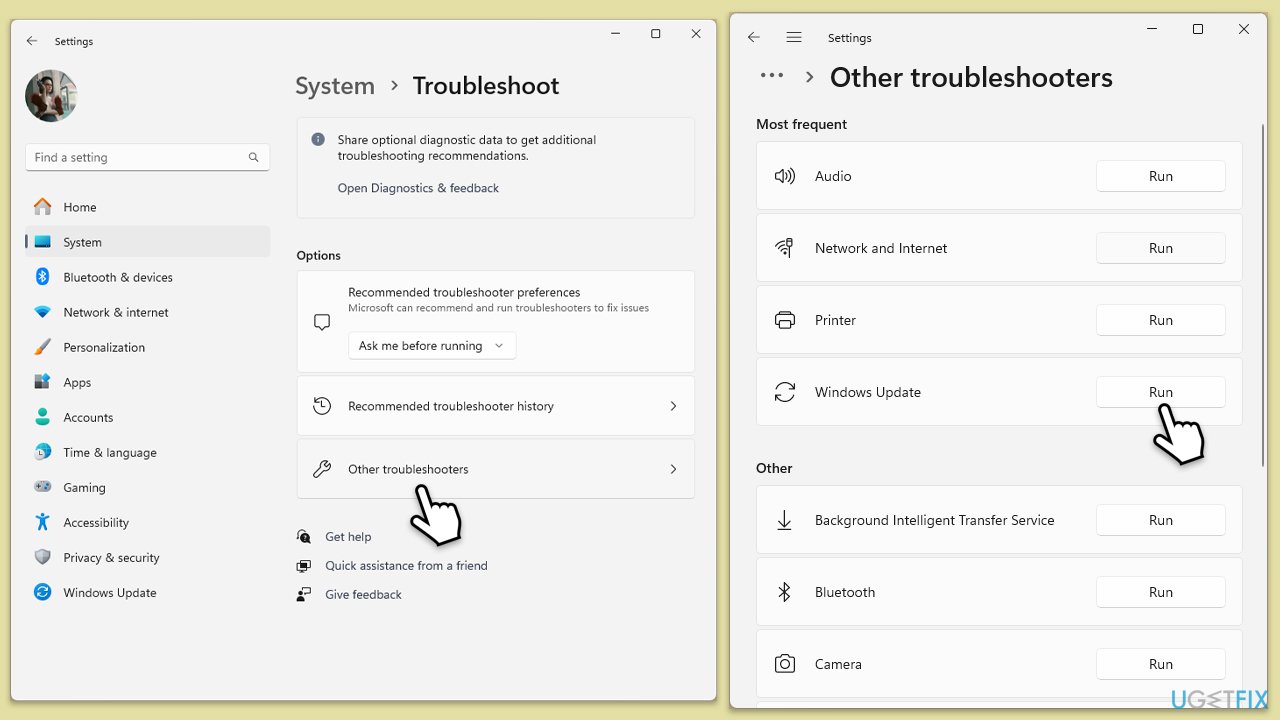
Fix 1. Run the Windows Update troubleshooter
- Type Troubleshoot in Windows search and hit Enter.
- Select Additional troubleshooters/Other troubleshooters.
- Find Windows Update from the list and select Run the troubleshooter/Run.
- Wait till the scan is finished - you will be provided with potential causes so you can proceed with fixes.
- If no suggestions were provided, proceed with the solutions below.
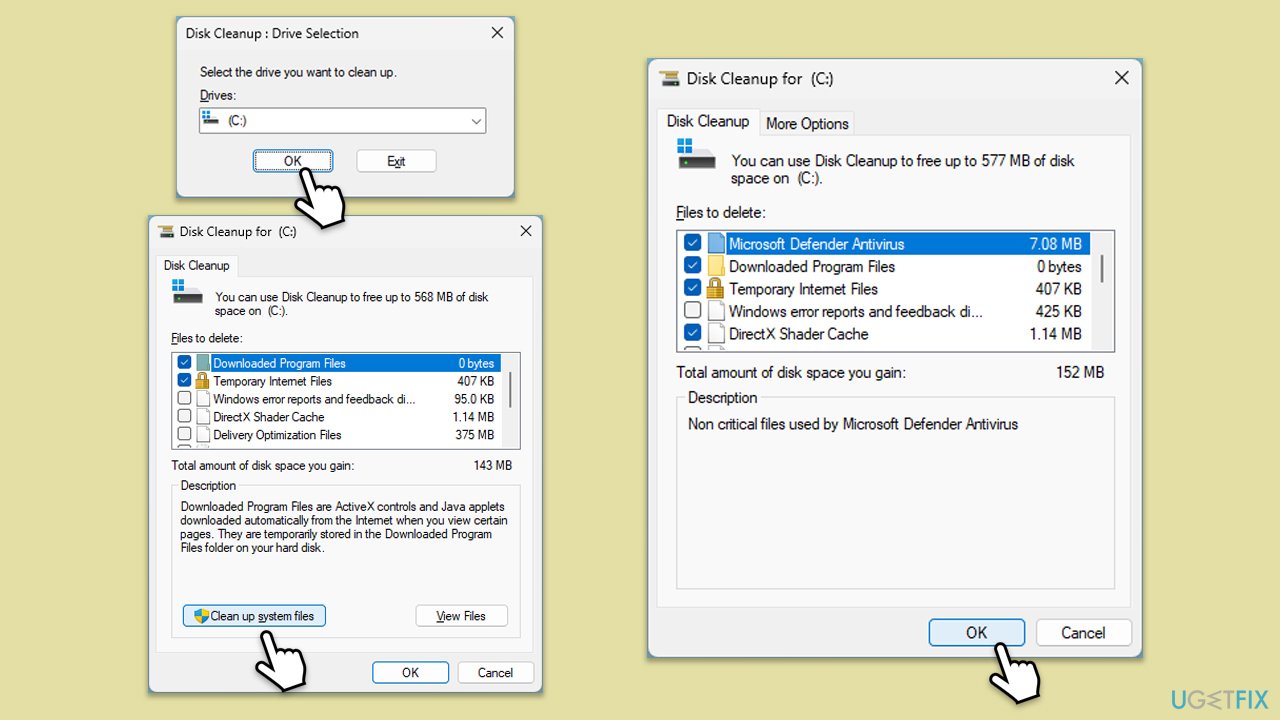
Fix 2. Perform Disk Cleanup
- Type Disk Cleanup in Windows search and hit Enter.
- If your Windows is installed on drive C, pick it from the list (should be by default) and press OK.
- Click Clean up system files.
- Select your main drive again and click OK.
- Here, select the largest portions of the data used - these typically include Temporary Internet Files, Windows Update, Temporary Files, Recycle Bin, Delivery Optimization Files, and others. Marking Windows Update is vital here.
- Click OK - the process should be finished shortly.
Fix 3. Manually install the update
- Type Updates in Windows search and hit Enter.
- Click View update history.
- Here, note down the KB number that failed to install with the error code 0x80070434.
- Go to the official Microsoft Update Catalog website.
- Type the KB number into the search bar, and press Enter or click Search.
- You will find many different versions on the update – you need to find the one that matches your PC specs and Windows version (as a home user, ignore Windows server versions).
- Right-click on Start and pick System.
- Under Device specifications, check the System type section: it should either be 64-bit or 32-bit.
- Scroll down to Windows specifications and check the Version section.
- With all this information, pick the correct version for your device.
- Go back to the Microsoft Update catalog, download the appropriate version, and install it.
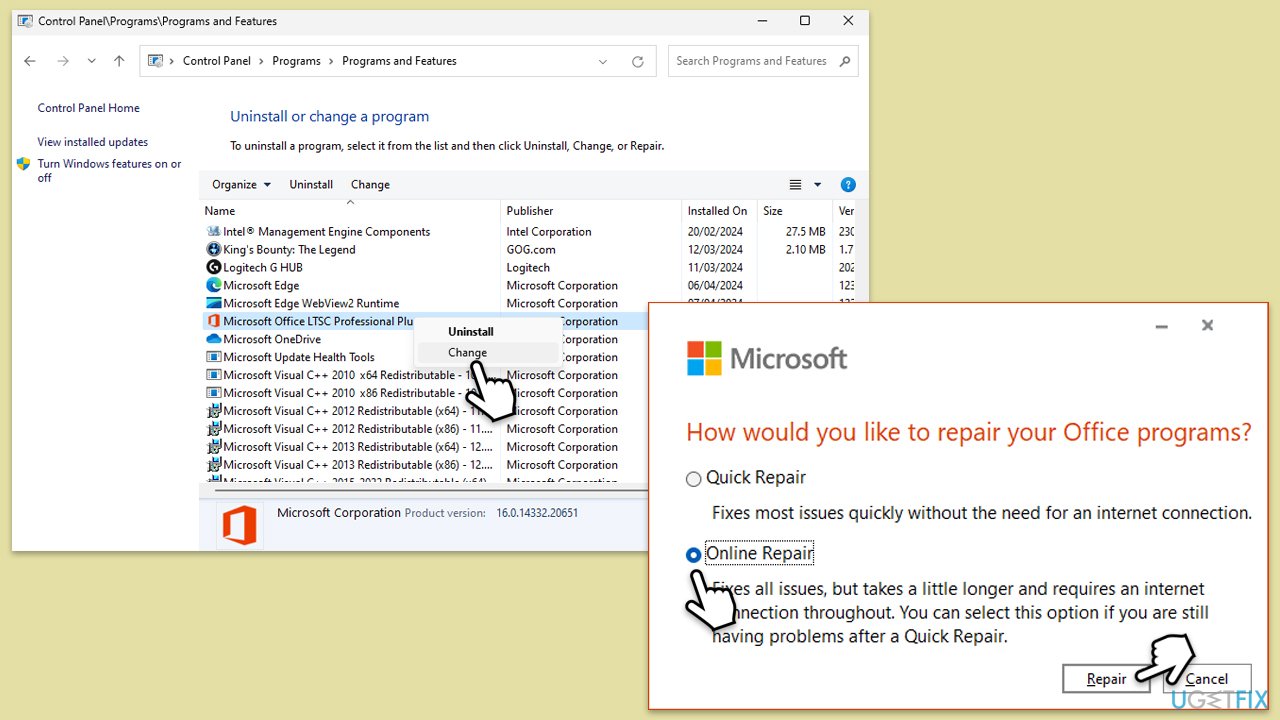
Fix 4. Repair Microsoft Office Installation
- Type Control Panel in Windows search and press Enter.
- Select Programs > Programs and Features.
- Select Microsoft Office and click on Change.
- Choose the option for Online Repair and click Repair.
- Follow the prompts to finish the process.
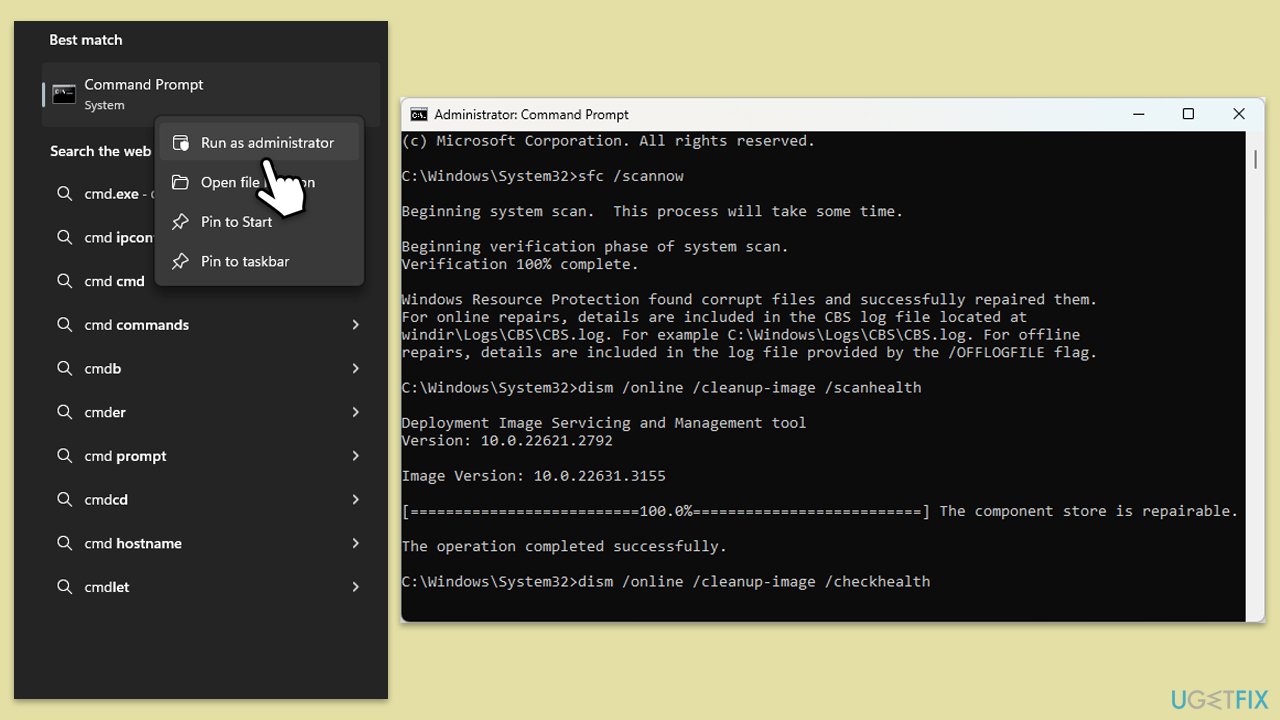
Fix 5. Run SFC and DISM
- Type cmd in Windows search.
- Right-click on the Command Prompt result and select Run as administrator.
- When the UAC window pops up, click Yes.
- In the Command Prompt window, paste the following command and press Enter:
sfc /scannow - Wait for the scan to complete.
- Once the SFC scan is finished, run the following set of DISM commands, pressing Enter after each one:
DISM /Online /Cleanup-Image /CheckHealth
DISM /Online /Cleanup-Image /ScanHealth
DISM /Online /Cleanup-Image /RestoreHealth - After completing the DISM commands, restart your computer.
Fix 6. Reset Windows Update Components
- Open Command Prompt as administrator.
- User Account Control window will show up - click Yes when prompted.
- Stop the BITS, Windows Update, and Cryptographic services by typing the following commands, and pressing Enter after each:
- net stop bits
- net stop wuauserv
- net stop appidsvc
- net stop cryptsvc
- To rename the SoftwareDistribution and Catroot2 folders (where Windows stores update files), type the following commands:
- ren %systemroot%\SoftwareDistribution SoftwareDistribution.old
- ren %systemroot%\system32\catroot2 catroot2.old
- regsvr32.exe /s atl.dll
- regsvr32.exe /s urlmon.dll
- regsvr32.exe /s mshtml.dll
- netsh winsock reset
- netsh winsock reset proxy
- Restart the services stopped earlier by typing the following commands:
- net start bits
- net start wuauserv
- net start appidsvc
- net start cryptsvc
- Close the Command Prompt and restart your computer, then try updating Windows again.
Fix 7. Update Windows Installer driver
- Right-click on Start and pick Device Manager.
- Find and expand the Software devices section.
- Right-click Windows Installer and select Update driver.
- Choose Search automatically for driver and let it install the latest version.
- Alternatively, to take care of all of your driver troubles, users automatic tools such as [rev id="DriverFix"].
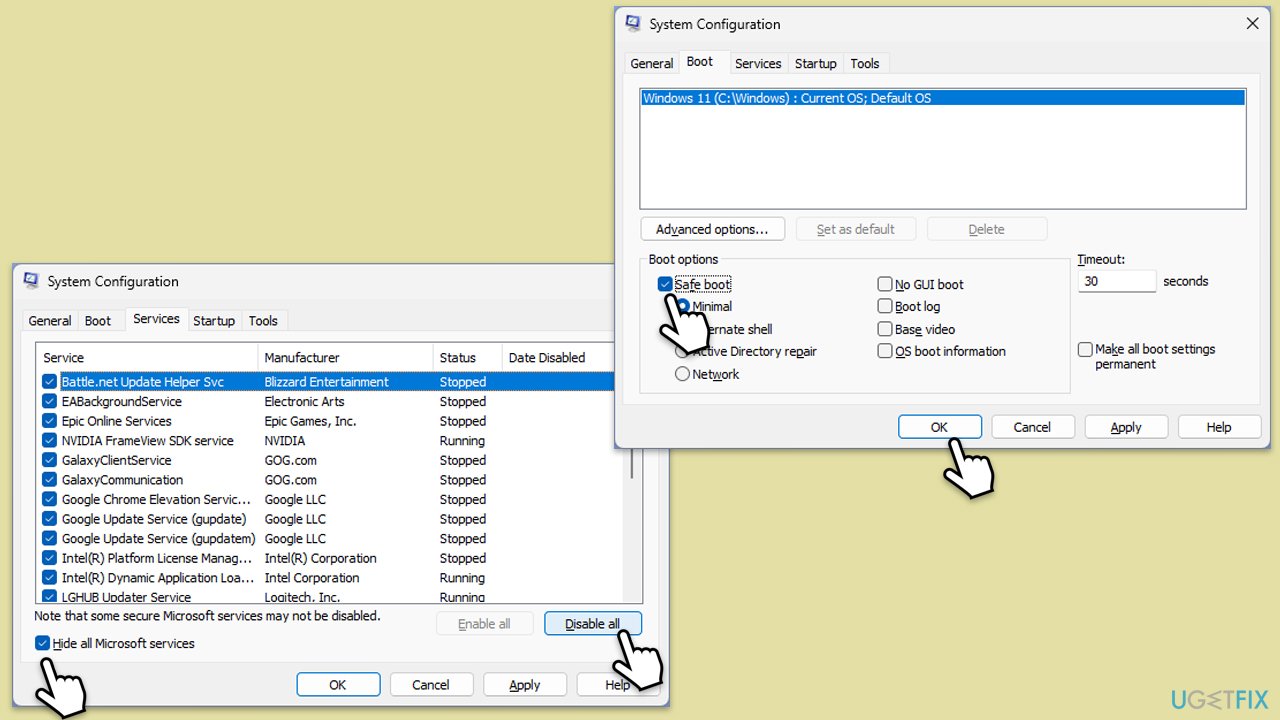
Fix 8. Perform a Clean Boot
- Disable your anti-malware software temporarily and try the update again.
- If the problem persists, press Win + R, type msconfig, and hit Enter.
- Go to the Services tab and tick the Hide all Microsoft services checkbox.
- Select Disable all.
- Go to the Startup tab and click Open Task Manager.
- Here, right-click on each of the non-Windows entries and select Disable.
- Close down the Task Manager.
- Go to the Boot tab and tick the Safe boot option.
- Restart your computer and try installing the update again.
Bottom line
To resolve Windows update error 0x80070664, you can try running the Windows Update troubleshooter, clearing the Windows Update cache, or reinstalling specific software. If these methods do not work, consider using a PC repair tool to fix underlying Windows issues.
Frequently asked questions
The error 0x80070664 typically indicates a problem with Windows Update related to missing or corrupted system files on Windows 10 or Windows 11.
To fix the 0x80070664 error on Windows 10, you can run the Windows Update Troubleshooter and ensure that your system is connected to the internet.
Yes, you can open Command Prompt as an administrator and run the command 'sfc /scannow' to repair system files that may be causing the 0x80070664 error in Windows 11.




Report an issue
What's wrong with this guide? We review every report and update or remove content.
Report received — thank you. We'll review and fix it.
You need a free account to submit a report.
Be the first to comment