How to fix
Windows update error 0x800f0982 when installing KB5037765
on Windows
Resolve the Windows update error 0x800f0982 for KB5037765 effortlessly. Quick solutions to get your system up and running, zero traces left.

What causes How to fix Windows update error 0x800f0982 when installing KB5037765?
- Installation of KB5037765 may fail due to missing English (United States) language pack.
- Error code 0x80004005 may occur for users with the English language pack installed.
- Corrupted system files can contribute to update installation failures.
- Windows Update components may require resetting to resolve installation issues.
Repairs Windows system files, removes malware, and restores a clean OS state — without reinstalling.
Hello. I was unable to install the latest Patch Tuesday updates on several PCs, all of which are running Windows 10 Enterprise. The error code was 0x800f0982 on all of them.
On May 14, 2024, Microsoft released the KB5037765 update for Windows 10 Enterprise LTSC 2019, Windows 10 IoT Enterprise LTSC 2019, Windows 10 IoT Core 2019, and LTSC Windows Server 2019. The update focussed on addressing issues such as IE mode ceasing to respond and VPN connection failures, along with several security improvements.
However, KB5037765 installation may sometimes result in the error code 0x800f0982 during installation, particularly affecting systems without the English (United States) language pack. For users who have the English language pack installed, a similar issue may manifest as error code 0x80004005 instead.
As a workaround, to fix the error, users are advised to install the KB5039705 update, released on May 23, 2024. This update targets and resolves the problems encountered with KB5037765, ensuring a smoother update process. Alternatively, users can install the missing English (United States) language pack.
In addition to these solutions, implementing standard troubleshooting steps can be beneficial. These steps include fixing corrupted system files using tools like the System File Checker or resetting Windows Update components.
For comprehensive system maintenance, the [d1] repair and maintenance tool is highly effective in resolving various Windows issues, including system file corruption and DLL errors, enhancing overall system stability.
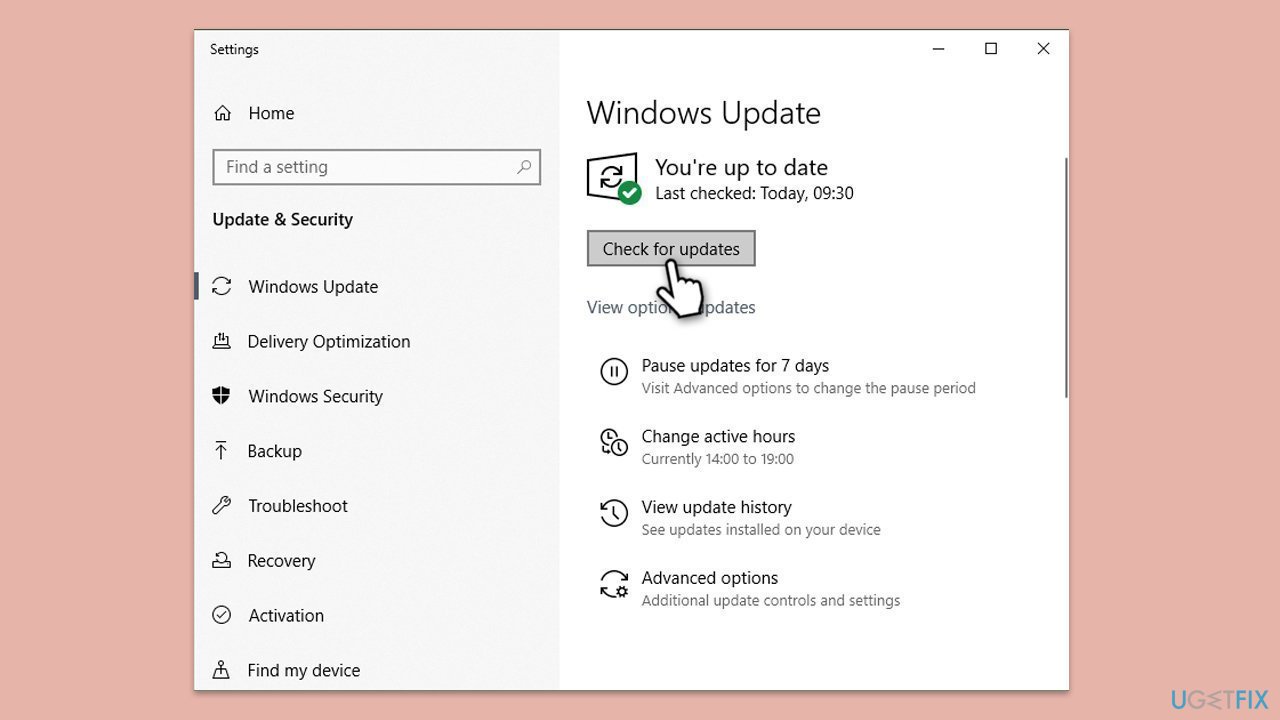
Fix 1. Install KB5039705 update
The KB5039705 update, released on May 23, 2024, specifically addresses and resolves the issues encountered with KB5037765, ensuring a smoother update process.
- Right-click on Start and pick Settings.
- Go to Update & Security.
- Click on Windows Update.
- Select Check for updates.
- Install KB5039705 if available.
- Restart your computer.
Fix 2. Install the English (United States) language pack
Missing English (United States) language pack can cause error 0x800f0982. Installing this language pack directly addresses the root cause.
- Open Settings.
- Go to Time & Language.
- Select Language.
- Click on Add a language.
- Choose English (United States).
- Install the language pack.
- Restart your device.

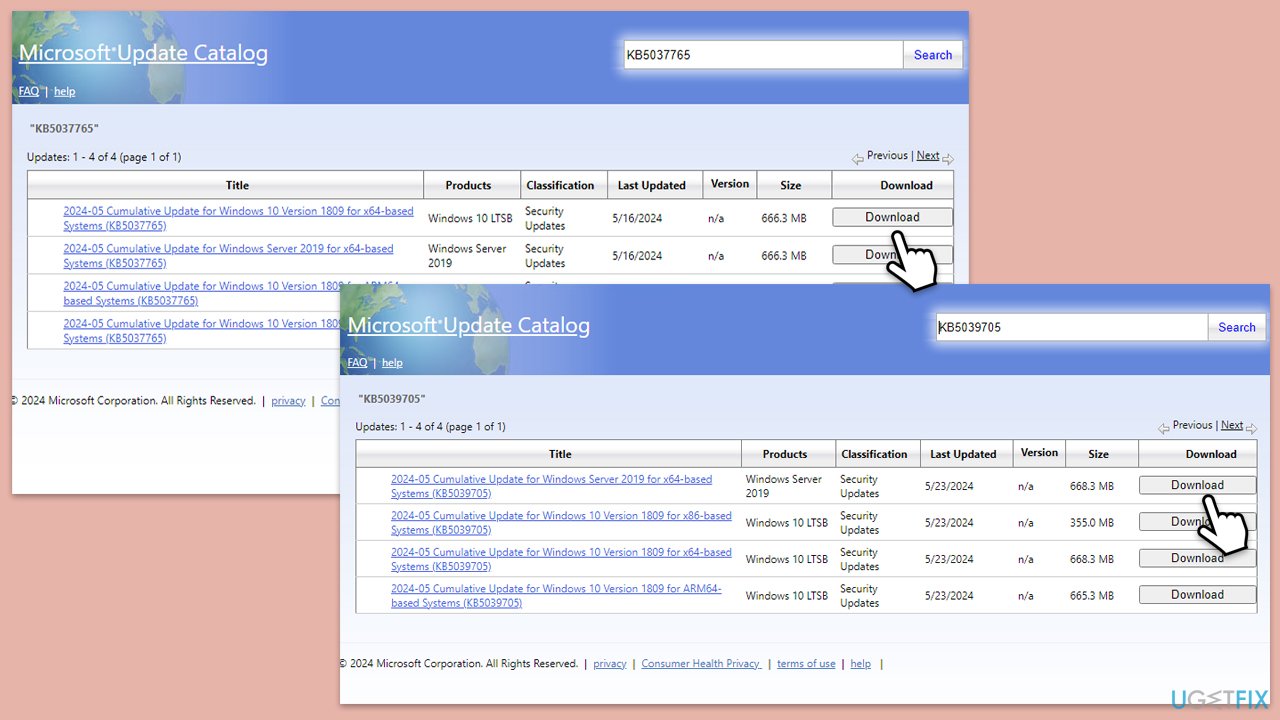
Fix 3. Install updates manually
Manually installing updates can bypass some issues that occur with automatic updates.
- Visit the Microsoft Update Catalog website.
- In the search bar, type the update number (KB5037765 and/or KB5039705) and press Enter or click Search.
- Find the update that matches your system type (32-bit or 64-bit) and click Download.
- In the pop-up window, click the link to download the update.
- Once downloaded, run the update file and follow the on-screen instructions.
- Restart your system.
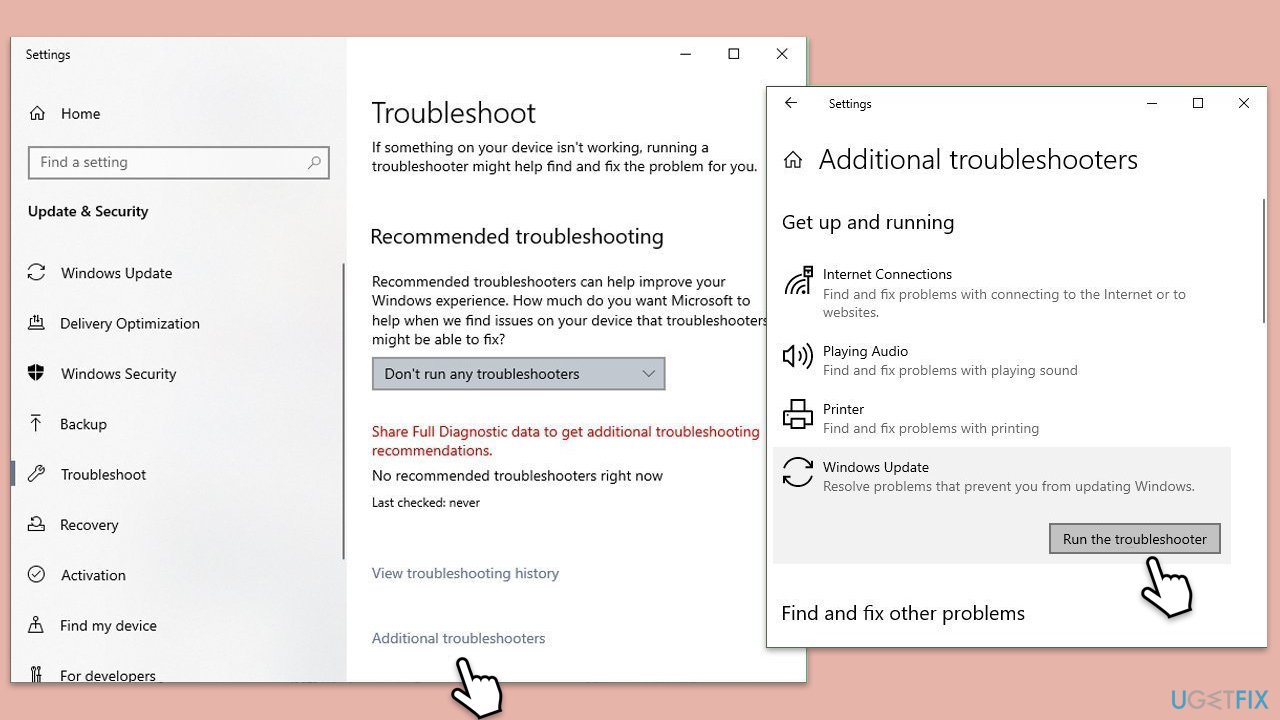
Fix 4. Run the Windows Update troubleshooter
The Windows Update troubleshooter automatically detects and fixes many common update problems.
- Type Troubleshoot in Windows search.
- Select Additional troubleshooters.
- Find Windows Update from the list.
- Click it and pick Run the troubleshooter.
- Apply the suggested steps and restart your device.
Fix 5. Repair corrupted system files
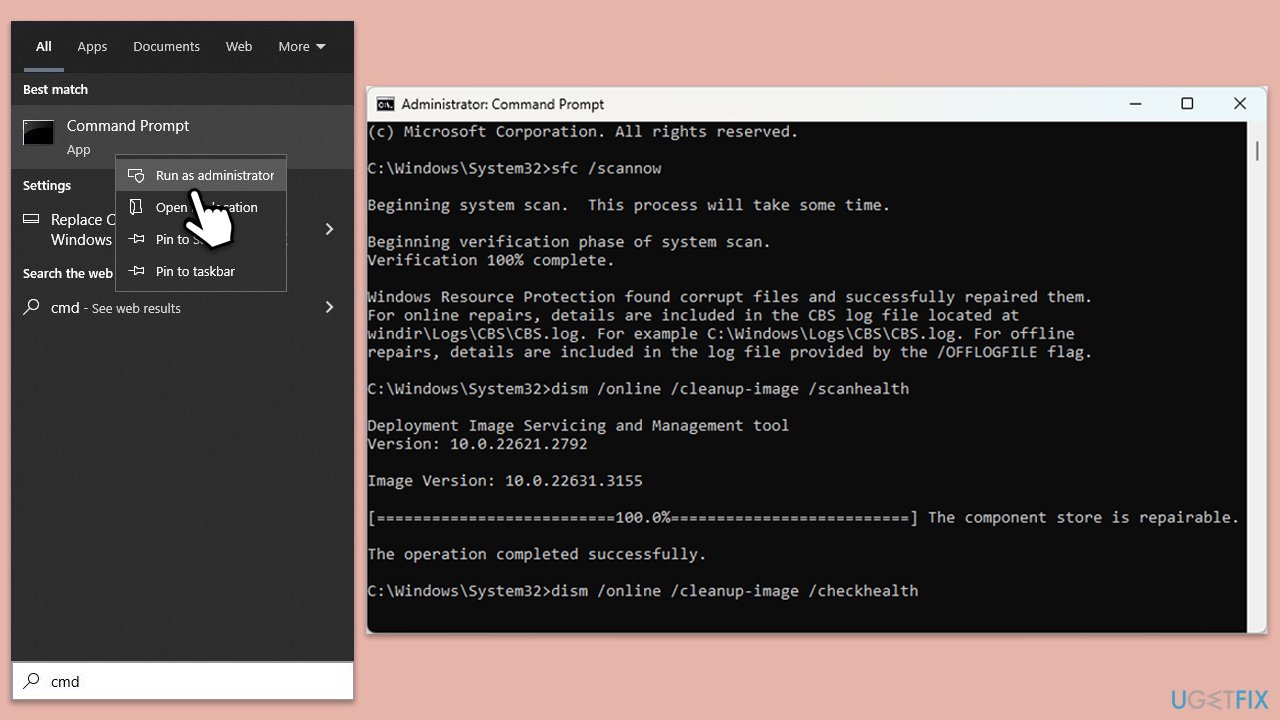
Corrupted system files can interfere with updates, so make sure it's what is causing the issue.
- Type cmd in Windows search.
- Right-click on Command Prompt and pick Run as administrator.
- User Account Control will ask you whether you want to allow changes – click Yes.
- Copy and paste this command and hit Enter:
sfc /scannow - Wait for the scan to finish.
- As soon as it finishes, Windows will report whether integrity violations were found and if they could be fixed. Regardless of the outcome, use these commands next, pressing Enter after each:
Dism /Online /Cleanup-Image /CheckHealth
Dism /Online /Cleanup-Image /ScanHealth
Dism /Online /Cleanup-Image /RestoreHealth - Close down the Command Prompt and reboot your PC.
Fix 6. Reset Windows Update components
Resetting Windows Update components can resolve underlying issues that prevent updates from installing properly.
- Type cmd in Windows search.
- Right-click on Command Prompt and pick Run as administrator.
- User Account Control window will show up - click Yes when prompted.
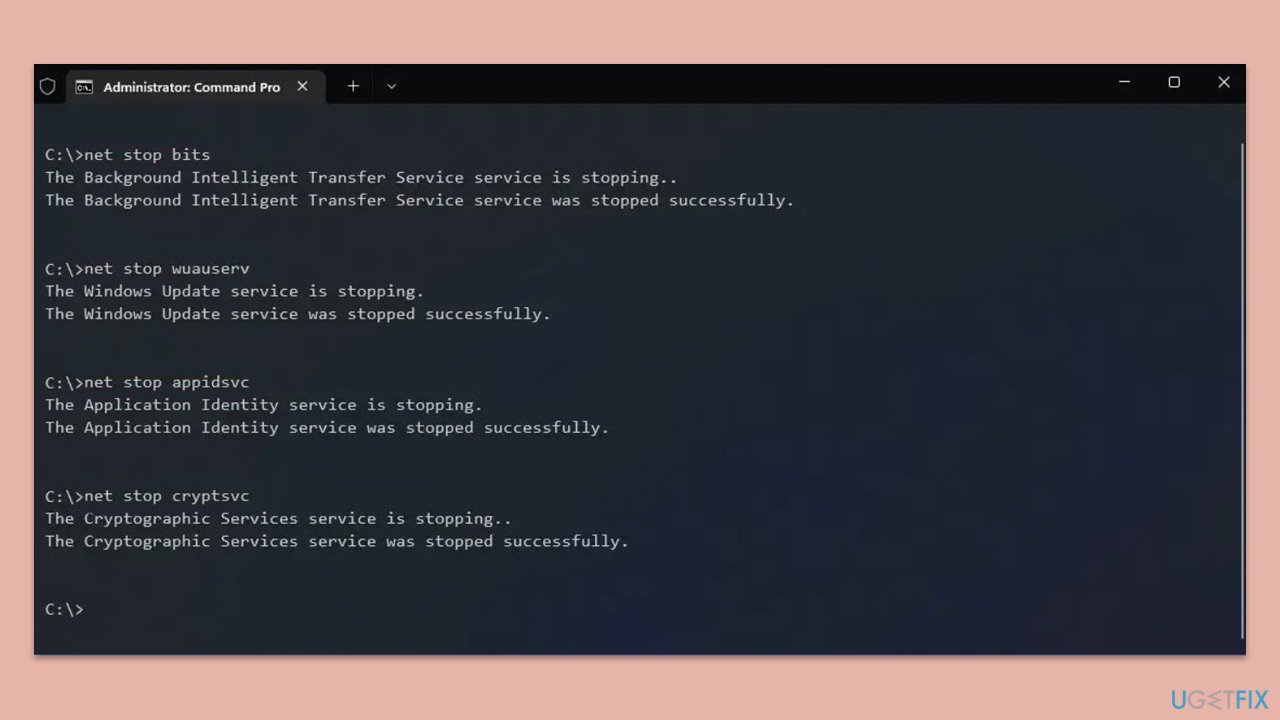
- Stop the BITS, Windows Update, and Cryptographic services by typing the following commands, and pressing Enter after each:
- net stop bits
- net stop wuauserv
- net stop appidsvc
- net stop cryptsvc
- To rename the SoftwareDistribution and Catroot2 folders (where Windows stores update files), type the following commands:
- ren %systemroot%\SoftwareDistribution SoftwareDistribution.old
- ren %systemroot%\system32\catroot2 catroot2.old
- Restart the services stopped earlier by typing the following commands:
- net start bits
- net start wuauserv
- net start appidsvc
- net start cryptsvc
- Close the Command Prompt and restart your computer, then try updating Windows again.
Bottom line
To fix the Windows update error 0x800f0982 when installing KB5037765, users can install the KB5039705 update or the English (United States) language pack. Additionally, standard troubleshooting steps like fixing corrupted system files or resetting Windows Update components can be beneficial. If none of these solutions work, further investigation into system issues may be necessary.
Frequently asked questions
The error code 0x800f0982 typically indicates that there is a missing component or an issue with the Windows update system that prevents the installation of the update.
You can resolve this error by running the Windows Update Troubleshooter and ensuring that all system files are intact using the System File Checker tool.
If the error persists, consider manually downloading the update from the Microsoft Update Catalog and installing it, or performing a repair installation of Windows 10 to fix any underlying issues.




Report an issue
What's wrong with this guide? We review every report and update or remove content.
Report received — thank you. We'll review and fix it.
You need a free account to submit a report.
Be the first to comment