How to fix
Windows update error 0x80246008
on Windows
Resolve Windows update error 0x80246008 quickly and effortlessly. Get step-by-step solutions that are expert-tested for reliability. Fixed in minutes!

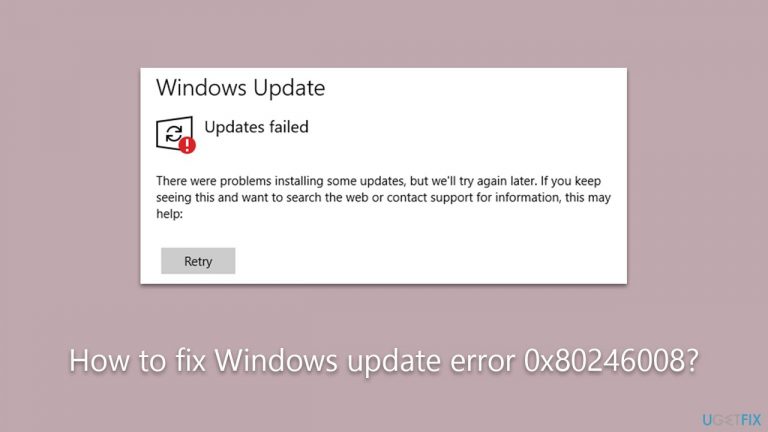
What causes How to fix Windows update error 0x80246008?
- Corrupted system files
- Bugged update caches
- System conflicts
- Inaccurate date and time settings
- Lack of security scan
Repairs Windows system files, removes malware, and restores a clean OS state — without reinstalling.
I can't seem to update Windows, as I keep getting a 0x80246008 error. It says that I should try again later, but the error just keeps showing up again. Any tips on this?
Microsoft regularly releases Windows updates to address security vulnerabilities, fix bugs, and introduce new features. These updates are categorized into various types: critical updates that handle security vulnerabilities, software updates that refine system performance and deal with non-critical bugs, and feature updates that bring new functionalities.
It's crucial for users to install these updates promptly. Timely installation ensures the system remains secure, runs smoothly, and benefits from the latest enhancements. Moreover, many applications and programs perform optimally when the underlying system is up-to-date.
However, as with any software system, there can be glitches. Some users encounter difficulties when trying to install these updates. A particular obstacle that's been reported is the Windows update error 0x80246008.
Windows update errors, like the 0x80246008, are relatively common. Although they can be frustrating, it's essential to address them quickly. An unresolved update error can lead to vulnerabilities or other complications in the system.
Several factors could lead to the 0x80246008 error:
- Corrupted system files. Any files that get corrupted during the download or installation phase can halt the update process.
- Bugged update caches. Sometimes, the cache that stores temporary update files becomes bugged, preventing successful installation.
- System conflicts. On occasions, inherent system configurations or existing software can conflict with the update, causing it to fail.

These are just a few reasons, and the actual cause might differ based on individual system configurations and scenarios.
While there are various manual methods to troubleshoot and resolve the 0x80246008 error, not everyone is comfortable diving deep into system settings or command lines. That's where [d1] PC repair software comes into the picture. This software can automatically diagnose and fix underlying Windows issues, making the repair process hassle-free for users.
Quick checks to make
- If you haven't already, reboot your computer.
- Ensure that your system's date and time settings are accurate.
- Conduct a thorough security scan of your computer to detect any potential malware infections.
- Consider temporarily disabling any third-party antivirus software and attempting the update once more.
Fix 1. Repair system files with SFC and DISM
Corrupted system files can interfere with Windows updates. Windows has built-in tools to scan and repair these files.
- Type in cmd in Windows search.
- Right-click on Command Prompt and select Run as administrator.
- User Account Control will ask you whether you want to allow making changes to the system - click Yes.
- In the Command Prompt window, paste the following command and hit Enter:
sfc /scannow - Next, use these commands (don't forget to press Enter every time):
Dism /Online /Cleanup-Image /CheckHealth
Dism /Online /Cleanup-Image /ScanHealth
Dism /Online /Cleanup-Image /RestoreHealth - Restart your system.

Fix 2. Perform Disk Cleanup
Accumulation of unnecessary files can sometimes cause issues with Windows Update. Performing a disk cleanup can free up space and eliminate potential conflicts.
- Type Disk Cleanup in Windows search and hit Enter
- If your Windows is installed on drive C, pick it from the list (should be by default) and press OK
- Click Clean up system files
- Select your main disk again and click OK
- Here, select the largest portions of the data used - these typically include Temporary Internet Files, Windows Update, Temporary Files, Recycle Bin, Delivery Optimization Files, and others.
- Click OK and wait for the cleanup process to finish.

Fix 3. Run the troubleshooter
Windows has an in-built troubleshooter that can detect and automatically fix some problems with Windows Update.
- Type Troubleshoot in Windows search and press Enter.
- On the right side of the window, click Additional troubleshooters/Other troubleshooters.
- Scroll down and select Windows update.
- Click Run the troubleshooter/Run.
- Wait for the troubleshooter to finish.
- Restart your system once done.

Fix 4. Check relevant services
Certain services must be running for Windows Update to function correctly.
- Type in Services in Windows search and hit Enter.
- Scroll down a bit to find Background Intelligent Transfer Service (BITS).
- If it is already running, right-click and select Restart.
- If the service is not running, double-click it, pick Automatic under the Startup type drop-down menu.
- Click Start, Apply, and OK.
- Repeat this process for Windows Update and Cryptographic services.

Fix 5. Reset Windows Update Components
Manually resetting the components can resolve conflicts and issues hindering the update process.
- Open Command Prompt as administrator, as explained previously.
- In the new window, use the following commands, pressing Enter after each:
net stop bits
net stop wuauserv
net stop appidsvc
net stop cryptsvc
Del “%ALLUSERSPROFILE%\Application Data\Microsoft\Network\Downloader\*.*”
rmdir %systemroot%\SoftwareDistribution /S /Q
rmdir %systemroot%\system32\catroot2 /S /Q
regsvr32.exe /s atl.dll
regsvr32.exe /s urlmon.dll
regsvr32.exe /s mshtml.dll
netsh winsock reset
netsh winsock reset proxy
net start bits
net start wuauserv
net start appidsvc
net start cryptsvc - Restart your system.

Fix 6. Install the update manually
If automatic updates fail, you can manually download and install the update.
- Type in Update in Windows search and press Enter.
- Click View Update History on the right side of the window.
- From the list of updates, note the KB number of the one that failed to be installed.
- Go to Microsoft Update Catalog.
- Here, type in the KB number and click Search.
- Pick the version that is compatible with your operating system (ignore updates for the server) and click Download.
- Proceed with on-screen instructions and restart Windows once done.

Fix 7. Use Media Creation Tool
The Media Creation Tool can help in updating or reinstalling Windows, thus fixing potential issues.
- Visit the official Microsoft website and download Windows 10 installation media (Windows 11 version)
- Double-click the installer and select Yes when UAC shows up
- Agree to terms
- Select Upgrade this PC now and select Next
- Windows will now download all the necessary files – it might take awhile
- Agree to terms once again and click Next
- Before installing, make sure that you are happy with your choices (otherwise, you can click Change what to keep option)
- Click Install to begin the upgrade process.

Bottom line
To fix the Windows update error 0x80246008, you can reboot your computer, ensure your date and time settings are accurate, and conduct a thorough security scan. If these steps do not resolve the issue, consider using PC repair software to automatically diagnose and fix underlying Windows problems.
Frequently asked questions
The error 0x80246008 typically indicates that there is a problem with the Windows Update service or the required components for downloading updates on Windows 10 or Windows 11.
To fix the error on Windows 10, try running the Windows Update Troubleshooter, which can automatically detect and resolve issues related to updates.
Yes, you can manually reset the Windows Update components by stopping the Windows Update services, deleting the SoftwareDistribution folder, and then restarting the services.




Report an issue
What's wrong with this guide? We review every report and update or remove content.
Report received — thank you. We'll review and fix it.
You need a free account to submit a report.
Be the first to comment