How to fix
Windows update error 0x8031004a
on Windows
Resolve Windows update error 0x8031004a quickly with our expert-tested solutions. Get back to smooth updates on Windows 10 or 11 in minutes!

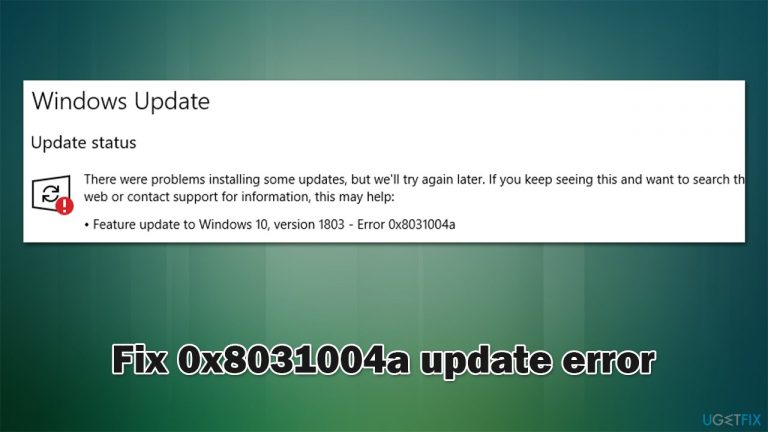
What causes How to fix Windows update error 0x8031004a?
- Inadequately configured services
- System file corruption
- Bugged update caches
- Insufficient disk space
- Older hardware or smaller SSDs
Repairs Windows system files, removes malware, and restores a clean OS state — without reinstalling.
Hello, I was trying to update Windows as per usual but received an error 0x8031004a instead. I have never encountered update errors before, so this is all new to me. Is there something wrong with my computer, or can this be fixed?
Shipments of Windows updates occur monthly, on the second or fourth Tuesday of every month. These can include a variety of improved features and bug fixes, as well as security patches to address vulnerabilities.[ref en-1] The latter is particularly important; thus, disabling automatic updates is not advised.
Unfortunately, so users may encounter errors such as 0x8031004a when trying to update their operating systems to the latest build. The issue may also happen to those who are trying to upgrade from Windows 10 to Windows 11 or another version. Regardless of which circumstances the error occurs, it is vital to find a fix as soon as possible, as there could be some underlying issues causing it in the first place.
In most cases, people who encounter the 0x8031004a error do not have enough disk space on their systems. Most newer machines employ high-capacity hard drives, although those who still operate older hardware or smaller SSDs[ref en-2] might easily run out into this issue, especially if the upgrade is to the latest Windows 11 iteration. This happens because each Windows version is larger due to improved features and options provided to users.
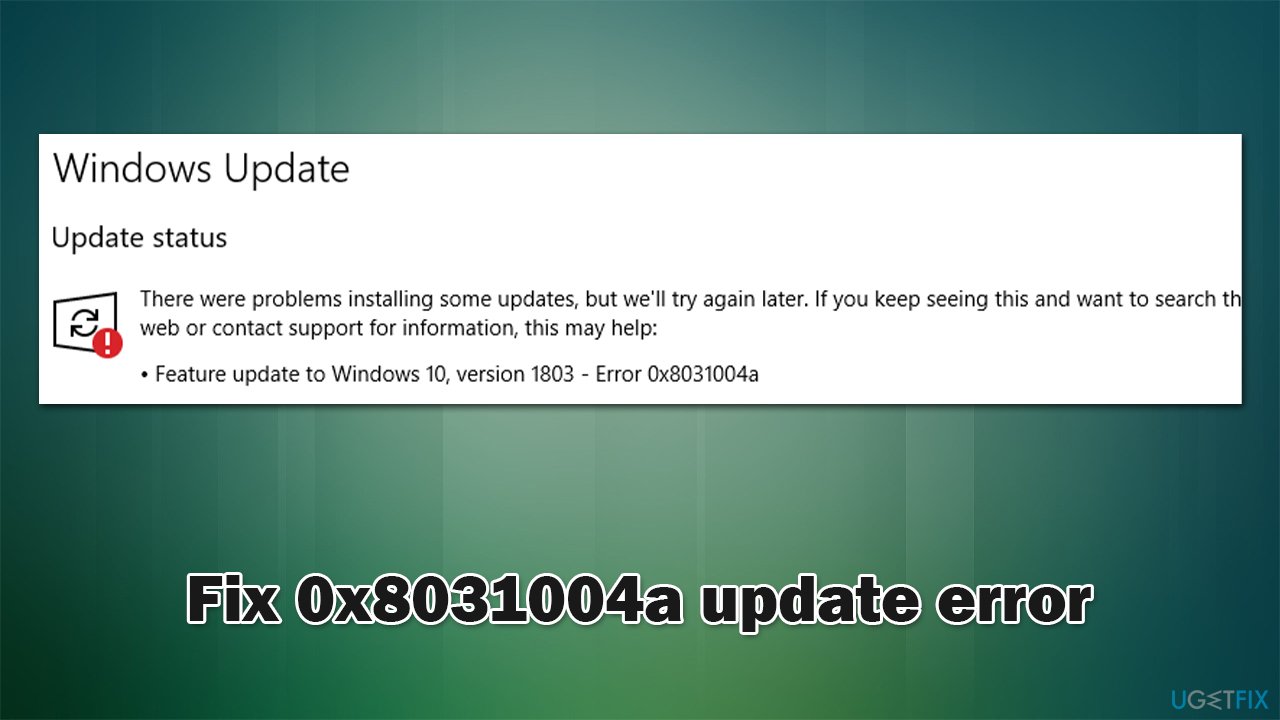
A feature, security, cumulative, or other updates may fail with an error 0x8031004a as well. This can happen due to a myriad of reasons, including inadequately configured services, system file corruption, bugged update caches, and more.
Below we provide several methods that should help you get rid of the error. If you would rather use a quicker solution, we recommend running a scan with a PC repair tool [d1], which can quickly and easily find system inconsistencies and fix them automatically for you. The app is also useful when dealing with other Windows issues, such as BSODs,[ref en-3] DLL errors, etc.
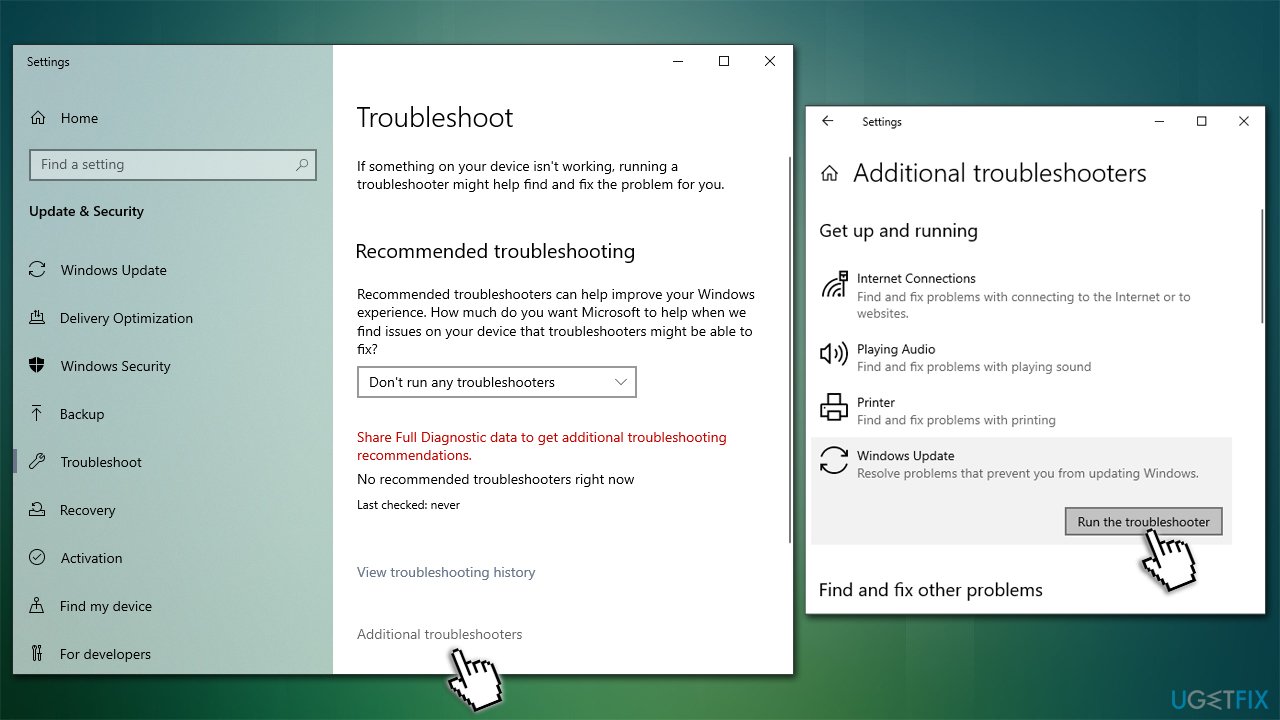
Fix 1. Run the troubleshooter
- Type in Troubleshoot in Windows search and hit Enter
- Select Additional Troubleshooters/Other troubleshooters option
- Locate Windows Update and click Run/Run the troubleshooter
- Once done, apply the offered fixes.
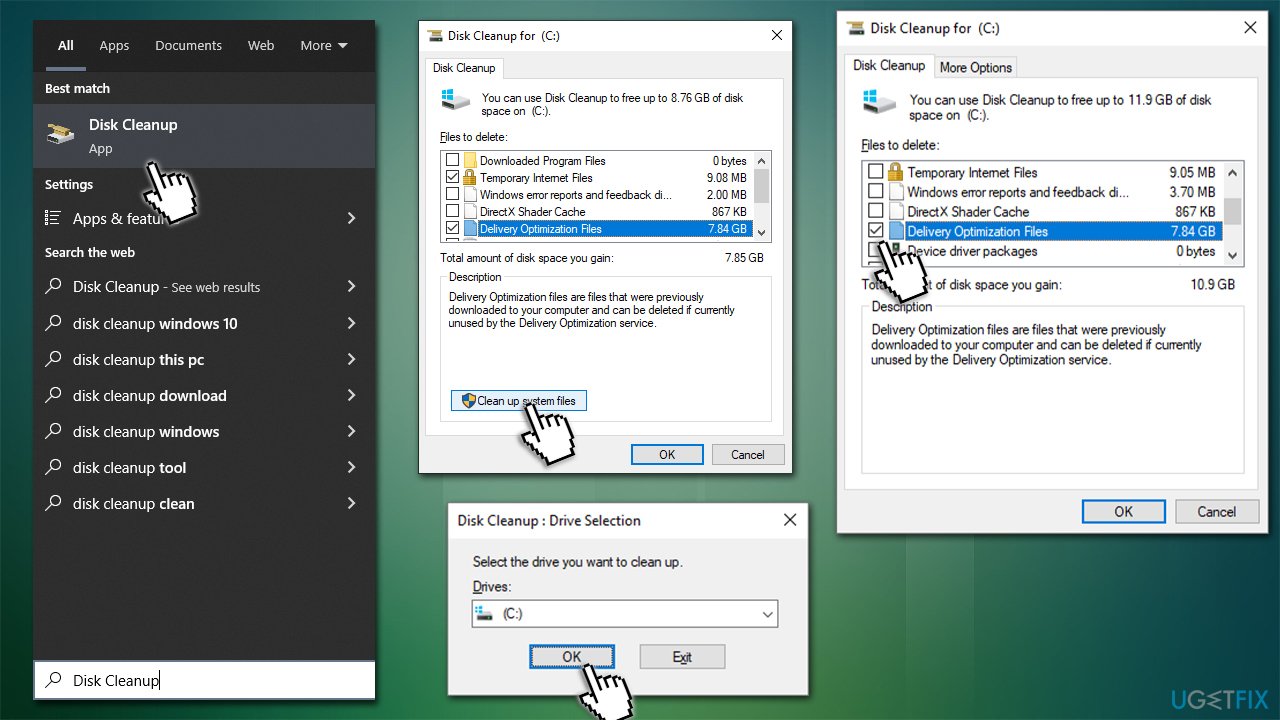
Fix 2. Free disk space
This solution will help those who struggle to upgrade to the newest version of Windows.
- Type Disk Cleanup in Windows search and press Enter
- Select your main drive (C: by default)
- Select appropriate fields (Temporary files, Recycle Bin, etc.) and click OK
- If you want a more thorough cleanup and require even more space, select Clean system files in the Disk Cleanup window
- Select your main drive once again - Windows will computer how much space can be retrieved
- The largest data dumps are usually accumulated in Windows Update and Delivery Optimization sections, although Temp files can also take a lot if it hasn't been cleaned in a while
- Select appropriate fields and click OK - Windows will remove all these files from your device and free up space.
Fix 3. Check the system for corruption
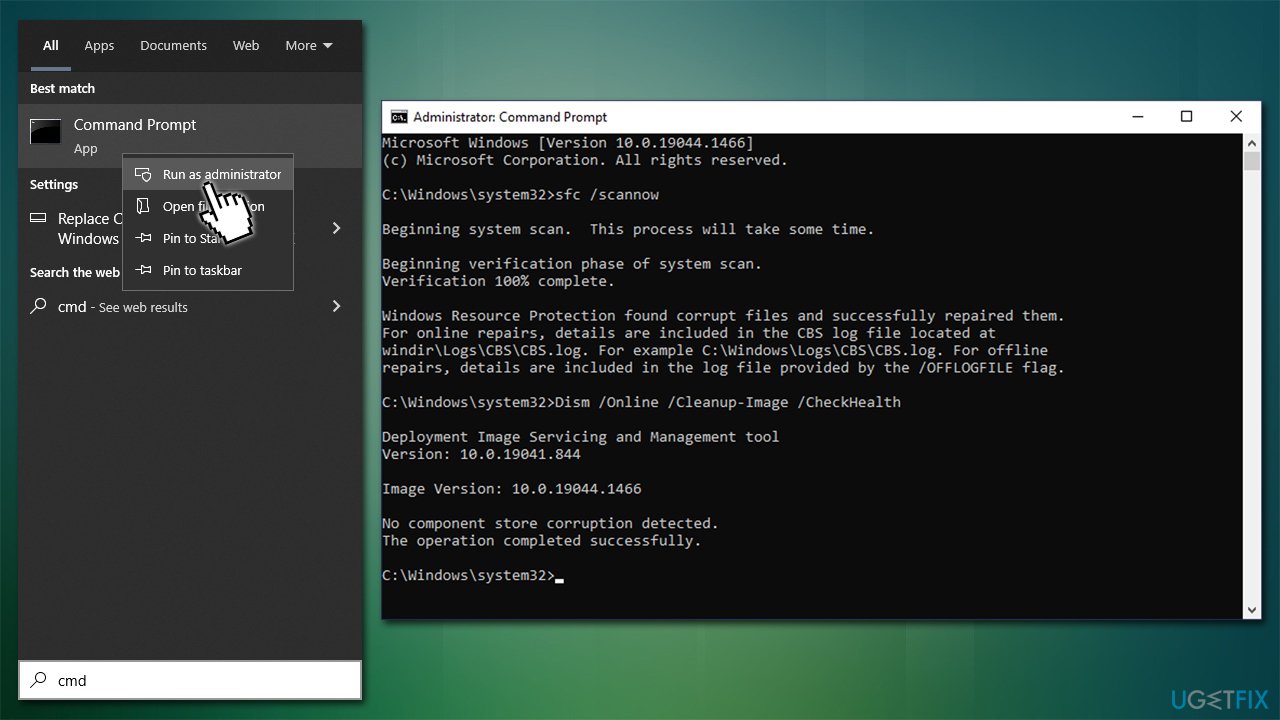
- Type in cmd in Windows search
- Right-click on Command Prompt and select Run as administrator
- User Account Control will ask you whether you allow to make changes to the system - click Yes
- In the Command Prompt window, paste the following command and hit Enter:
sfc /scannow - Once the scan is complete, use the following commands and press Enter after each:
Dism /Online /Cleanup-Image /CheckHealth
Dism /Online /Cleanup-Image /ScanHealth
Dism /Online /Cleanup-Image /RestoreHealth - Restart your device.
Fix 4. Reset Windows update components
- Open Command Prompt (Admin) as explained above
- Copy and paste the following commands, pressing Enter each time:
net stop wuauserv
net stop cryptSvc
net stop bits
net stop msiserver - Press Win + E to open File Explorer
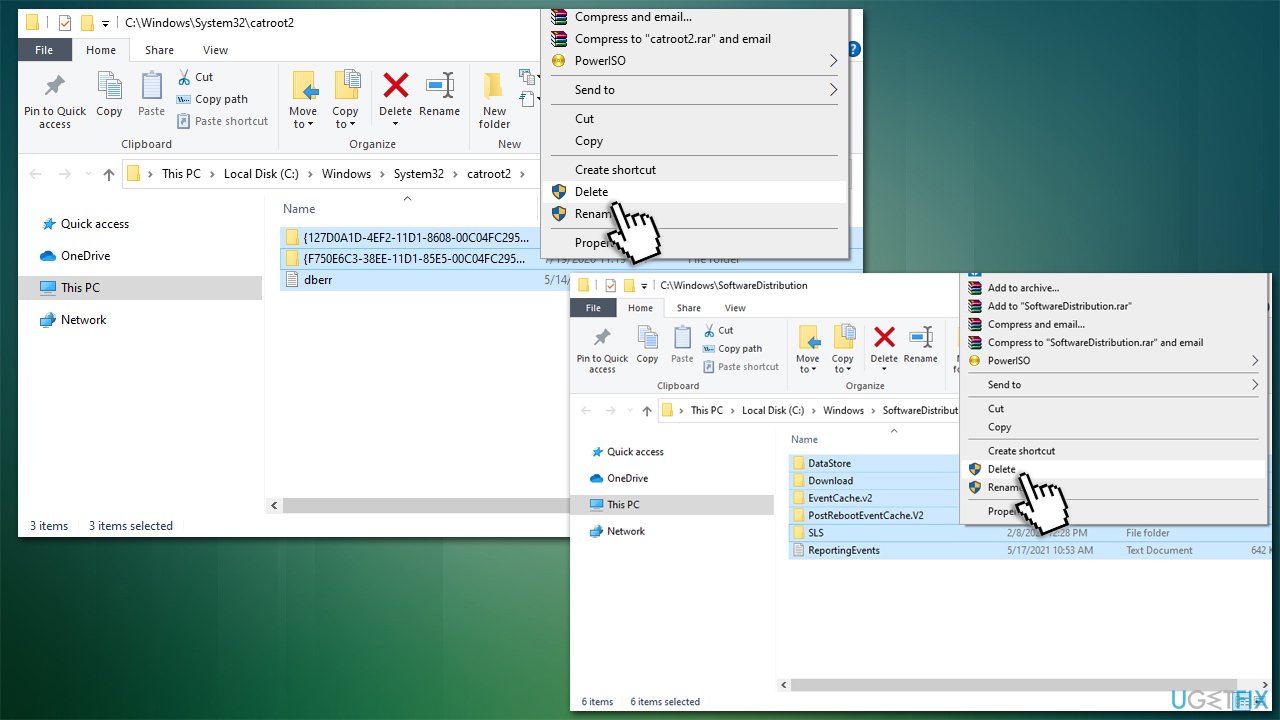
- Go to the following directories and delete the contents of these folders:
C:\Windows\System32\catroot2
C:\Windows\SoftwareDistribution - Open Command Prompt again and paste these command lines:
net start wuauserv
net start cryptSvc
net start bits
net start msiserver - Restart your machine.
Fix 5. Install the update manually
- Type in Update in Windows search and press Enter
- Click View Update History on the right side of the window
- From the list of updates, note the KB number of the one that failed to be installed
- Go to Microsoft Update Catalog
- Here, type in the KB number and click Search
- Pick the version that is compatible with your operating system (ignore updates for the server) and click Download
- Proceed with on-screen instructions and restart your system once finished.
Fix 6. Try Media Creation Tool
Before proceeding with the next step, make sure you back up your personal files as a precautionary measure. Also, disconnect any printers, cameras, and other unnecessary peripherals.
- Visit the official Microsoft website and download Windows 10 installation media (Windows 11 version)
- Double-click the installer and select Yes when UAC shows up
- Agree to terms
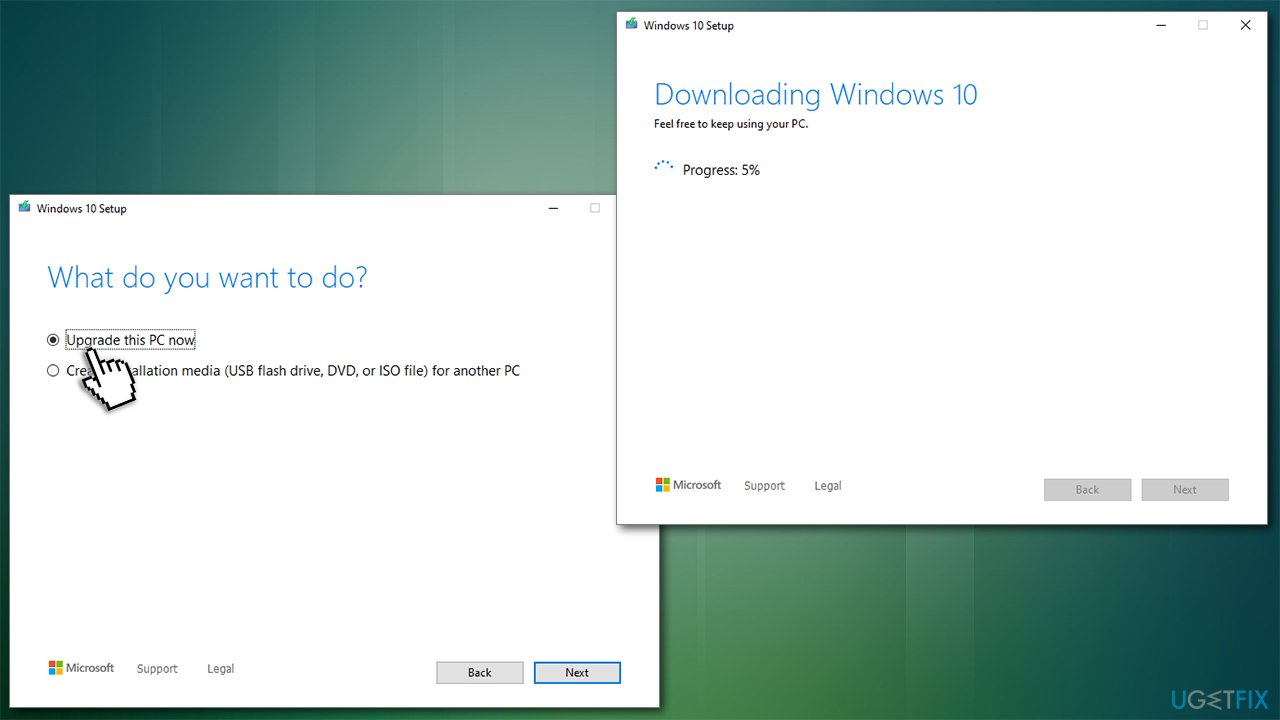
- Select Upgrade this PC now and click Next
- Windows will start downloading the needed files
- Agree to terms once again and click Next
- Before installing, make sure that you are happy with your choices (otherwise, you can click Change what to keep option)
- Finally, click Install to begin the upgrade process.
Bottom line
To fix the Windows update error 0x8031004a, you can run the troubleshooter, check your disk space, and consider using a PC repair tool for automatic fixes. If these methods do not resolve the issue, further investigation into system inconsistencies may be necessary.
Frequently asked questions
The error 0x8031004a typically indicates that there is a problem with the Windows Update service or corrupted update files on Windows 10 or Windows 11.
To troubleshoot error 0x8031004a, you can try running the Windows Update Troubleshooter from Settings, which can automatically detect and fix issues related to updates.
Yes, resetting Windows Update components is a safe method to resolve the 0x8031004a error, and it can help clear any stuck updates on Windows 10 or Windows 11.




Report an issue
What's wrong with this guide? We review every report and update or remove content.
Report received — thank you. We'll review and fix it.
You need a free account to submit a report.
Be the first to comment