How to fix
Windows update error 0xe0000002
on Windows
Resolve the Windows update error 0xe0000002 quickly and efficiently. Trust our expert-tested solutions for Windows 10 and Windows 11 users. Fixed in min…


What causes How to fix Windows update error 0xe0000002?
- Corrupted system files
- Malfunctioning Windows services
- Issues with the SoftwareDistribution folder
- Problems with the update process
- Incompatibility with specific updates
Repairs Windows system files, removes malware, and restores a clean OS state — without reinstalling.
Hello. I tried to install the latest update on my Windows 10 computer but the process failed. What could be the problem?
Windows is an operating system created by Microsoft. It has a user-friendly interface, many customization abilities, built-in troubleshooters, and other useful features. Such complex systems rely on thousands of processes to run smoothly. Even if just one component goes rogue, people can experience errors, bugs, glitches, and other malfunctions.
One of the most important things to keep the system stable is to keep it updated.[ref en-1] However, issues with Windows updates are the most common ones. They provide important security patches, bug fixes, and new functions. Recently, users started seeing 0xe0000002 error when trying to update their Windows 10 PCs. The error was reported to appear when trying to install the KB5014699 update, however, the error code can appear when installing other updates as well.
Although it is unknown why specifically the update error appears, most of the time Windows updates fail because of corrupted system files, and malfunctioning Windows services. In this guide, you will find 5 steps that could help you fix Windows update error 0xe0000002.
However, manual troubleshooting can be a lengthy process, so you can use a maintenance tool like [d1]. It can fix most system errors, corrupted files, BSODs,[ref en-2] and registry[ref en-3] issues. Otherwise, follow the instructions below.
Method 1. Run the Update Troubleshooter
- Press the Windows + X keys and go to Settings
- Go to Update and Security
- Click Troubleshooter
- Select Additional troubleshooters
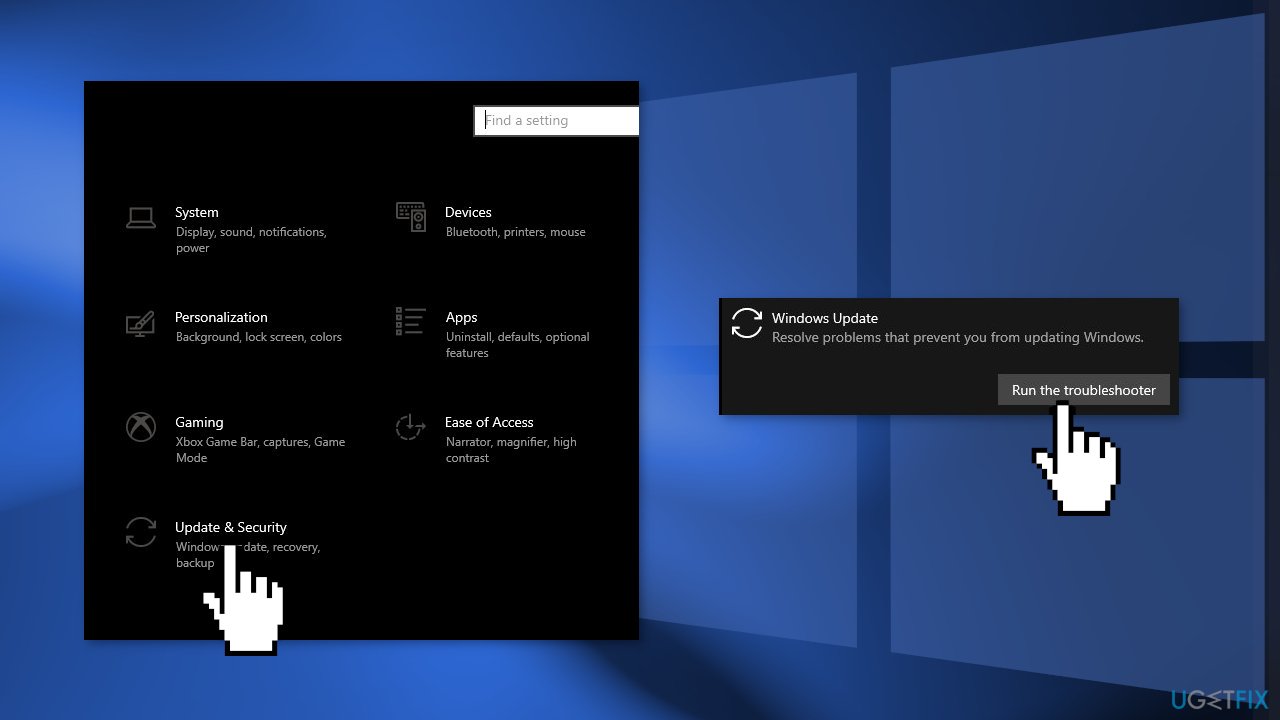
- Run the Update troubleshooter
- Restart
Method 2. Delete Files in the SoftwareDistribution Folder
- Press Windows key + R to open the Run command box
- Type services.msc and click OK
- In Services control panel locate the Windows Update service
- Right-click on Windows Update service and select Stop
- Now open Windows Explorer and navigate to: C:\Windows folder
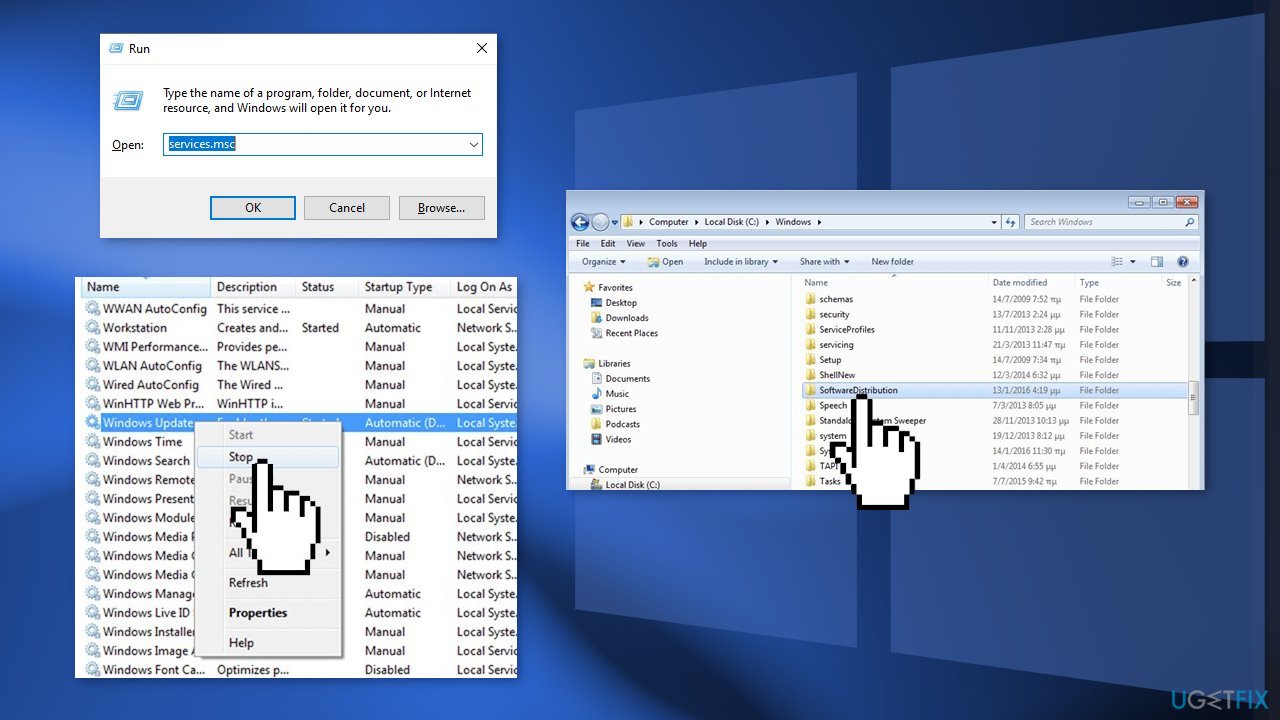
- Find the SoftwareDistribution folder and Delete its contents
Method 3. Reset Services used by Windows Updates
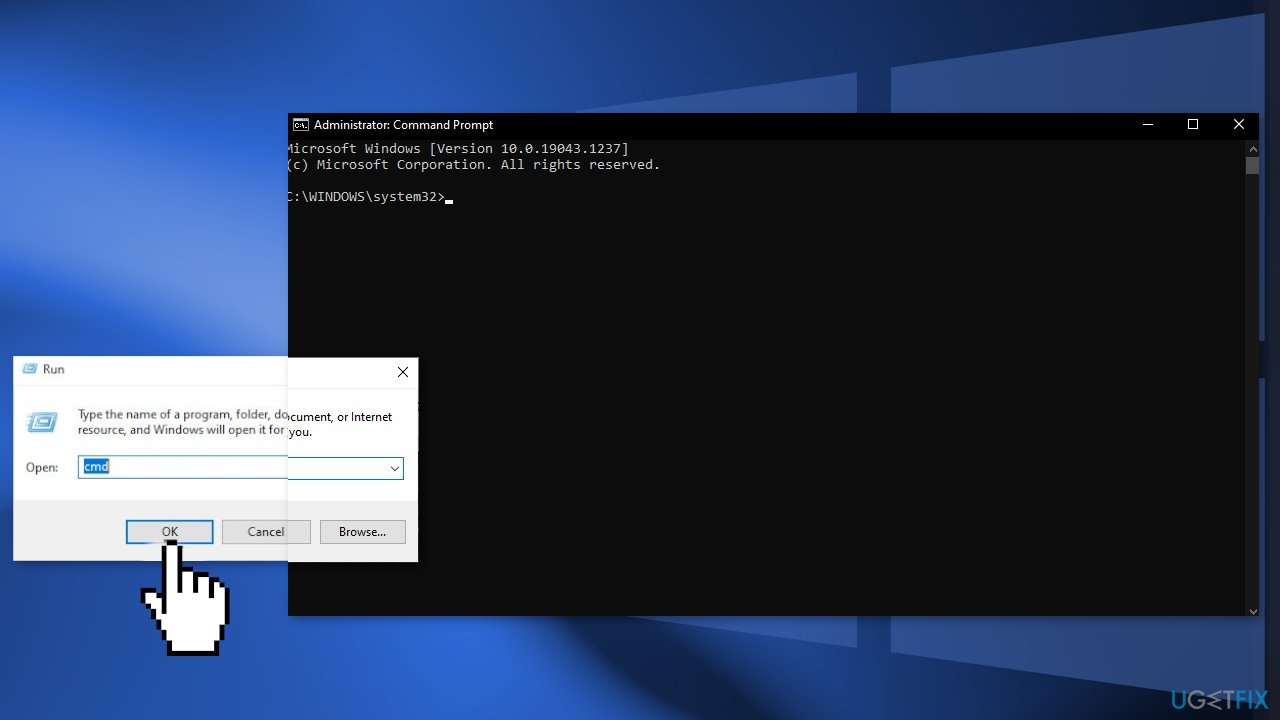
- Press the Windows key + R to open the Run box
- Type cmd and press Ctrl + Shift + Enter to open up an elevated Command Prompt
- If you’re prompted by the User Account Control (UAC), click Yes at the window
- Type the following commands and hit Enter after each one:
SC config trustedinstaller start=auto
SC config bits start=auto
SC config cryptsvc start=auto
- Perform a system reboot and check if the issue persists
Method 4. Install the Update Manually
Whenever Windows updates fail to install automatically, you can always try doing it manually. First, you need to find out which KB number is relevant to you.
- Right-click Start button and pick Settings
- Go to Update & Security
- On the right, locate and click View update history
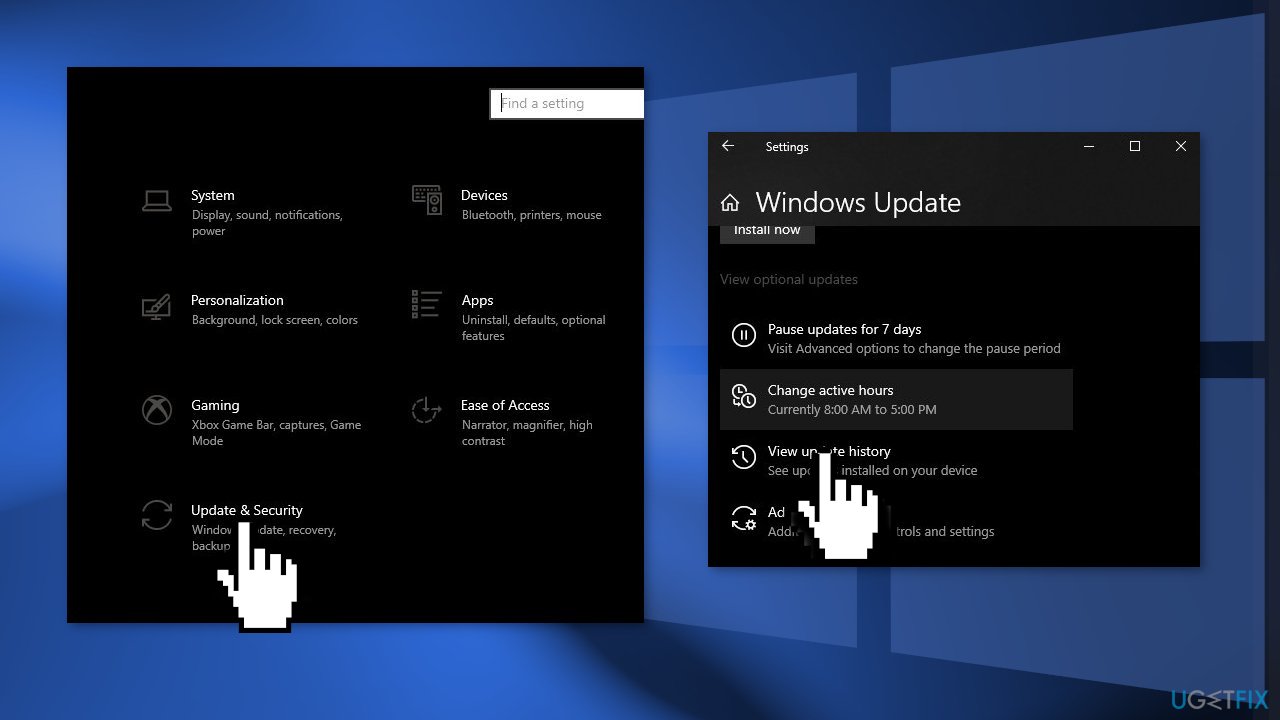
- From the list, note the KB number that fails to install with the error code
- Go to Microsoft Update Catalog page, type in the KB number and press Search
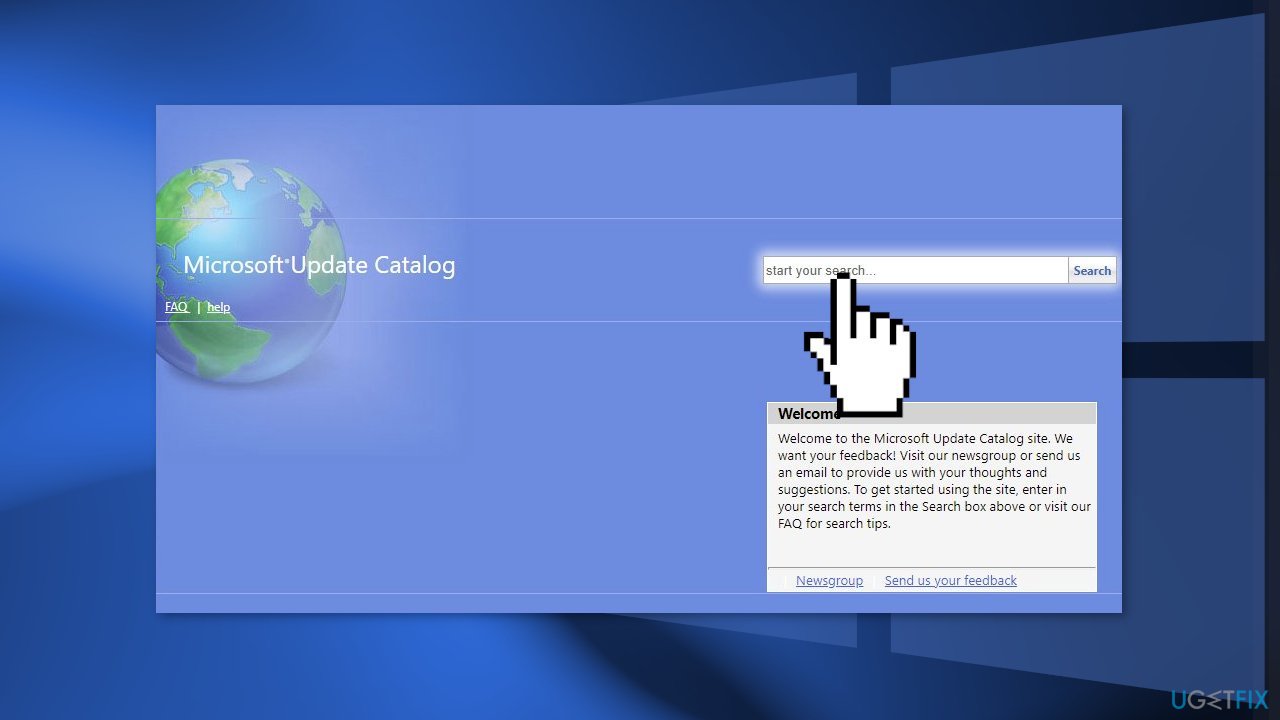
- Download the update and install it manually
Method 5. Repair Install Windows
- Download the Windows 10 ISO file
- Now mount the ISO file
- Double-click on the file setup.exe to start the repair, install from the mounted drive
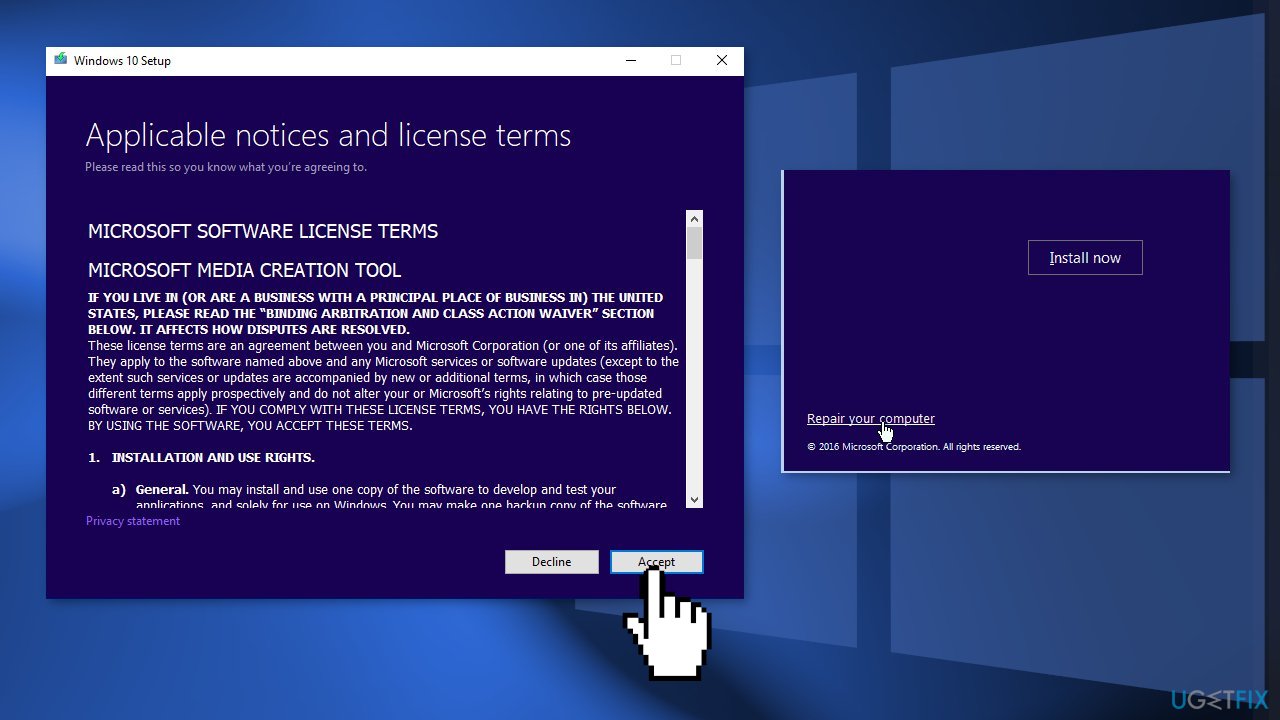
- When the installation provides the License Terms, read them and click Accept
- Windows 10 will now check for updates and will install the ones available
- When all is set, click Install
- When the installation is complete, follow the on-screen instructions
Bottom line
To fix Windows update error 0xe0000002, you can run the Update Troubleshooter, delete files in the SoftwareDistribution folder, and reset services used by Windows Updates. If these methods do not resolve the issue, consider using a maintenance tool to fix system errors.
Frequently asked questions
The error 0xe0000002 typically signifies that there is a problem with the update service or system files in Windows 10 or Windows 11 that prevents updates from being installed.
To fix the 0xe0000002 error on Windows 10, try running the Windows Update Troubleshooter and then resetting the Windows Update components.
Yes, you can use the Command Prompt to run 'sfc /scannow' and 'DISM /Online /Cleanup-Image /RestoreHealth' commands to repair system files and resolve the 0xe0000002 error in Windows 11.




Report an issue
What's wrong with this guide? We review every report and update or remove content.
Report received — thank you. We'll review and fix it.
You need a free account to submit a report.
Be the first to comment