How to fix
Windows Update Error Code 0xC1900101 – 0x4001E
on Windows
Resolve Windows Update Error 0xC1900101 – 0x4001E effortlessly. Get expert-tested solutions for Windows 10 and 11, with screenshots for clarity.

What causes How to Fix Windows Update Error Code 0xC1900101 – 0x4001E?
- Corrupted updated files
- Inconsistencies on the currently running Windows 10 version
- Conflicts between the OS and antivirus software
- Missing updates
- Issues during the installation process
Repairs Windows system files, removes malware, and restores a clean OS state — without reinstalling.
I’ve been trying to update windows since the day when Windows 10 Anniversary Update came out, but the update does not work for me. I’ve tried using Windows update tool, but received an error code 0xC1900101 – 0x4001E and the system has been reverted back to the state before running the update. Any ideas what to do next?
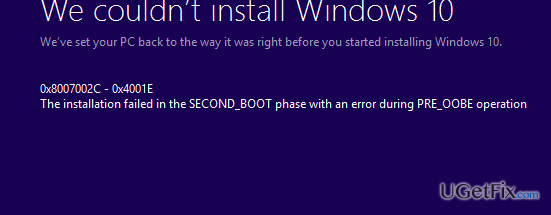
Various questions related to the 0xC1900101 error are circulating on the Microsoft and Windows 10 forums. This bug has a number of varieties, including 0xC1900101 – 0x4000D, 0xC1900101 – 0x30018, and some others that we are going to discuss in the near future. This time, we’ve noticed that quite a lot of people are making fuss about an error code 0xC1900101 – 0x4001E. Just like its varieties mentioned above, this error is yet another Windows 10 update error, which occurs when the computer attempts to upgrade earlier Windows versions to Windows 10. This might happen both using an ISO file for the upgrade, using a USB drive or running an automatic Windows Update function. Usually, the installation process is launched successfully and executed up till 90% and more, but then freezes and shows up a BSOD saying:
0xC1900101 – 0x4001E
The installation failed in the SECOND_BOOT phase with an error during PRE_OOBE operation
Since Microsoft hasn’t yet acknowledges this issue, its code is not clarified. We can only speculate that 0xC1900101 – 0x4001E error may be triggered by corrupted updated files, some inconsistencies on the currently running Windows 10 version, conflicts of the OS and the antivirus, missing updates, and similar problems. Nevertheless, we have collected a list of fixes that people who have encountered 0xC1900101 – 0x4001E bug have tried and approved. Thus, you should try the following fixes:
How to Fix Windows Update Error Code 0xC1900101 – 0x4001E?
If you have tried to upgrade Windows 10, but the process failed due to the 0xC1900101 – 0x4001E error, our recommendation would be to check what kinds of problems are lurking on the current Windows version. For this purpose, you can try running a scan with [d1]. That’s a PC optimization tool, which is capable of checking the system thoroughly and detecting registry issues, corrupted system files, and similar. If the scan did not help, try to disable your anti-virus. This can be done by right- clicking the icon of your antivirus on the taskbar and selecting Exit/Quit.
In case you have tried to run the update using Windows Updates, but that did not help, you are strongly advised to create a Media Creation Tool and install the update manually. For this purpose, you have to:
- Download a Media Creatio Tool from the official Microsoft‘s website.
- Click on the .exe file and click Accept the T&C.
- On the next screen, select Create Installation Media for another PC.
- Select language, architecture, and edition.
- Now select USB Flash Drive and ISO file to create. Select USB Flash Drive and plug in a USB that has at least 8 GB of free space.
- After that, open the USB drive and press Next. Media Creation tool will now download the update.
- When the download is complete, you will be asked to enter a product key, which is unnecessary if you are upgrading/reinstalling OS.
- When Windows 10 upgrade is ready to install, select Change in order to set either Keep personal files or apps, Keep personal files only, or Nothing.
- Finally, select Install. Once finished, the system will restart.
If this did not help of if you have tried using Media Creation Tool, then the culprit may be system-related issues.
Option 1. Install system Updates
- Open Settings and select System and Security.
- Find Windows Updates and click Check for updates.
- Select all items from the search results and click Install Updates.
- Restart your PC
Option2. Run sfc/scannow
- Click Win key + S, type cmd in the search box, and press Enter.
- Right-click on the Command Prompt and select Run as Administrator.
- Type sfc /scannow and press Enter.
- Let the system perform the repair automatically.
- After that, reboot the system.
Option 3. Use a System Restore Point
- Type Create a Restore point in the search bar and click on the search results.
- Select System Protection, click System Restore, and press Next.
- Select the last Restore point that you have created and then click Next.
- Click Finish and wait for the system to restore. After that, restart the system.
NOTE: the last method will work only if you have had a System Restore Point created before. If you didn't, then it's natural that the system cannot restore any settings.
Bottom line
To fix the 0xC1900101 – 0x4001E error, you should check for problems on your current Windows version, run a scan with a PC optimization tool, and ensure your system is free from conflicts with antivirus software. If none of these solutions work, consider seeking further assistance from Microsoft support or relevant forums.
Frequently asked questions
This error typically indicates a driver issue that prevents Windows 10 or Windows 11 from completing the update process. It often occurs during the installation of major updates.
To fix this error, ensure all your drivers are updated, especially for hardware like graphics and network devices, and then attempt the update again. You can also try disconnecting any external devices that are not essential during the update.
Yes, using System Restore is a safe method to revert your system to a previous state before the update attempt, which can help resolve conflicts causing the error. Make sure to back up your data before proceeding.




Report an issue
What's wrong with this guide? We review every report and update or remove content.
Report received — thank you. We'll review and fix it.
You need a free account to submit a report.
Be the first to comment