How to fix
Windows upgrade error 0x800F0830 – 0x20003
on Windows
Resolve Windows upgrade error 0x800F0830 - 0x20003 easily with our expert solutions. Get your system running smoothly in minutes! Updated 2025.

What causes How to fix Windows upgrade error 0x800F0830 – 0x20003?
- Corrupt update files
- Compatibility issues
- Settings preventing update installation
- Developer Mode being active
Repairs Windows system files, removes malware, and restores a clean OS state — without reinstalling.
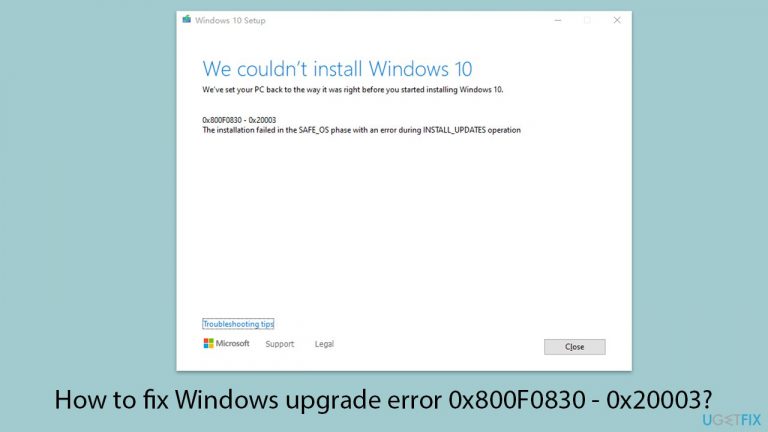
Hello. I finally tried upgrading to Windows 11 and I received an error 0x800F0830 - 0x20003, which said "The installation failed in the SAFE_OS phase with an error during INSTALL_UPDATES operation." I checked and I passed all the requirements for the upgrade, so I am not sure what's wrong...
Understanding Windows Upgrade Error 0x800F0830 - 0x20003
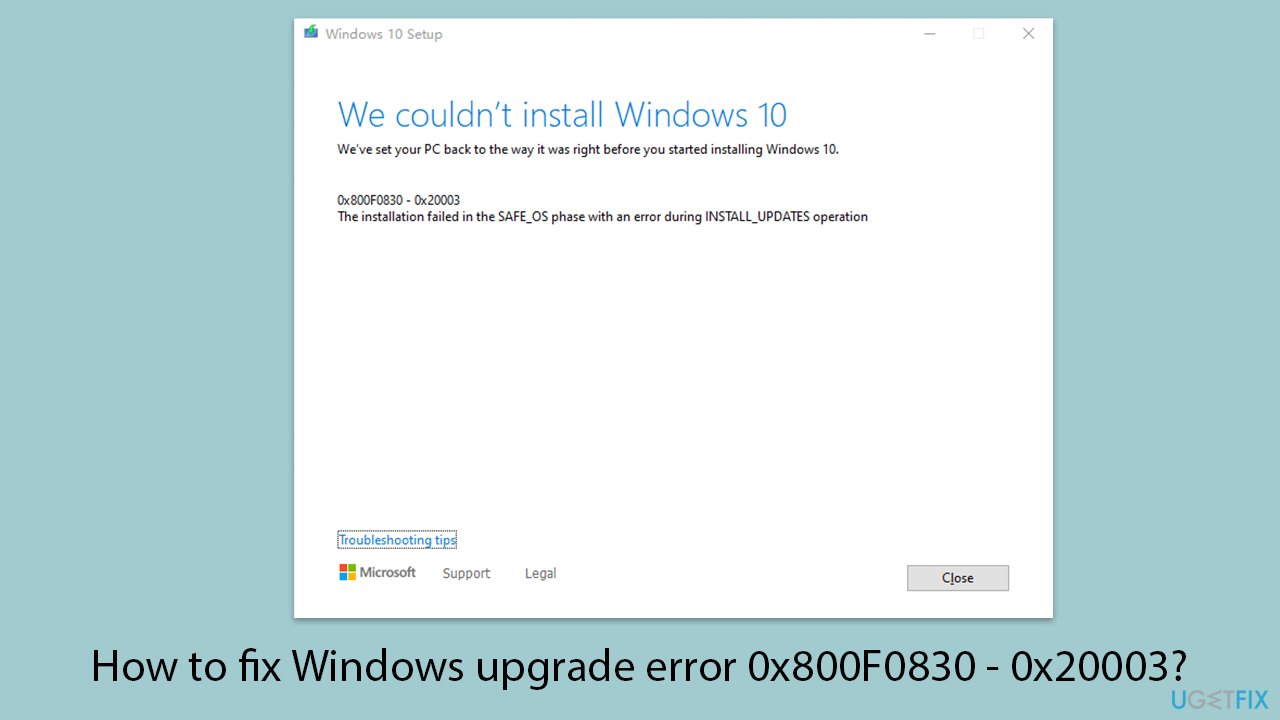
When attempting to upgrade to Windows 11, you may come across the error code 0x800F0830-0x20003. The full message indicating this error states:
We couldn’t install Windows 11. We’ve set your PC back to the way it was right before you started installing Windows 11. The installation failed in the SAFE_OS phase with an error during INSTALL_UPDATES operation.
This error indicates that the Windows 11 installation could not be completed, and as a precaution, your system has been restored to its previous configuration, prior to the upgrade attempt.
What does "SAFE_OS Phase with an error during INSTALL_UPDATES operation" mean?
The SAFE_OS phase is a critical part of the Windows installation process. This phase occurs before the operating system is actually installed, during which the installer checks that all conditions are right for a safe installation.
The operations during this phase include preparing the system, configuring settings for the new OS, and applying necessary updates. If an error occurs in this phase, particularly during the INSTALL_UPDATES operation, it usually means there was a problem applying updates critical for the OS installation.
This could be due to corrupt update files, compatibility issues, or settings that prevent proper update installation, such as Developer Mode being active.
How to resolve the error
To fix the error 0x800F0830-0x20003 and successfully upgrade, consider the following steps:
- Disable Developer Mode.
- Ensure your Windows is fully updated.
- Run the Windows Update troubleshooter.
- Perform a Clean Boot.
- Repair corrupted files.
- Skip updates during the Windows installation.
Detailed instructions on how to perform each of these solutions are provided below to guide you through the resolution process effectively.
Use a PC repair [d1] and maintenance tool for thorough troubleshooting of this and other Windows issues. This kind of software facilitates the update process by automating the finding and fixing system issues.
Tips before proceeding with the Windows upgrade
Sometimes, there are simple reasons why you might not be able to upgrade to the new version of Windows. Here are the tips you should check out before delving into more complex solutions:
- Ensure you have enough space (32GB for Windows 10 and 64GB for Windows 11).
- Uninstall any security software (or similar) before proceeding.
- Ensure that TPM and Secure Boot are enabled.
- Unplug all unnecessary peripherals, leaving just mouse and keyboard.
- Try disconnecting your PC from the internet before running the upgrade.
Fix 1. Disable Developer Mode
Developer Mode can interfere with the installation of Windows updates by allowing experimental features that might not be fully stable.
Windows 10
- Press Win + I to open Settings.
- Navigate to Update & Security and select For developers on the left panel.
- Under Use developer features, switch the option to Off.
- Restart your computer to apply the changes.
Windows 11
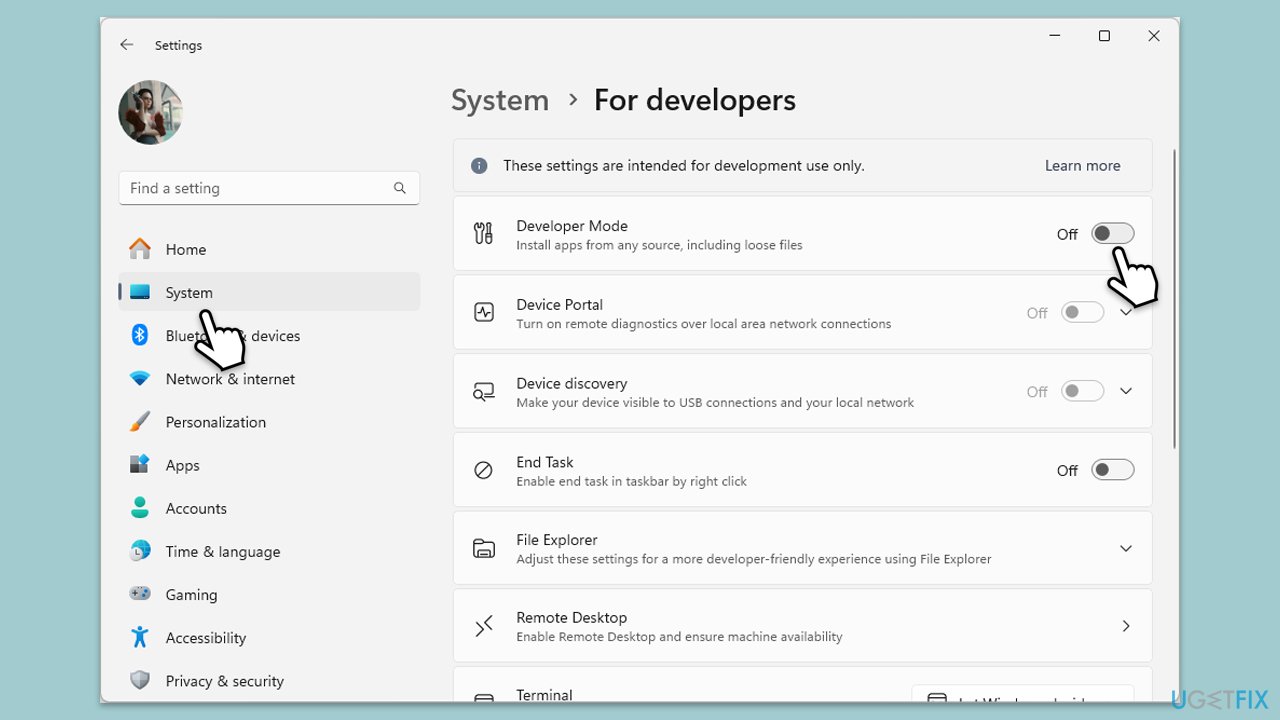
- Press Win + I to open Settings.
- Pick System.
- Select For developers on the right.
- Make sure Developer Mode is disabled.
Fix 2. Install all Windows updates
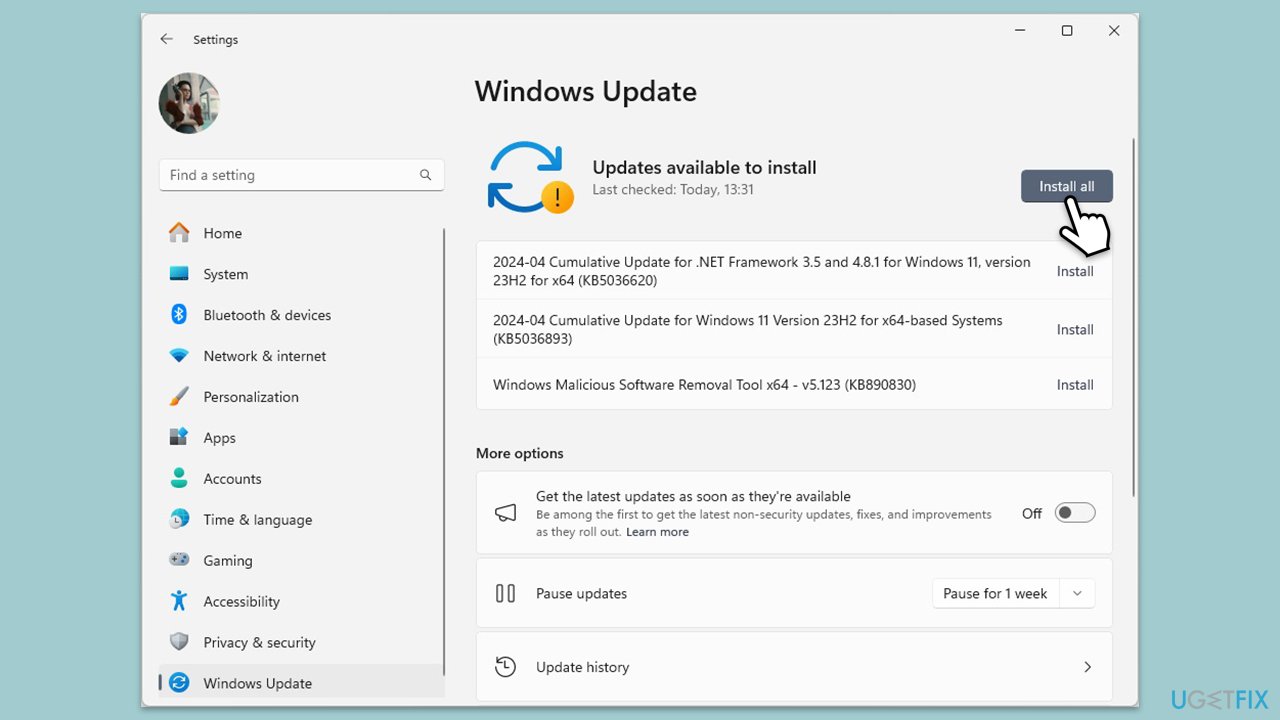
- Type Updates in Windows search and hit Enter.
- If updates are available, click Install updates.
- Otherwise, click Check for updates.
- If optional updates are available, install them as well.
- When all the update processes are complete, restart your device.
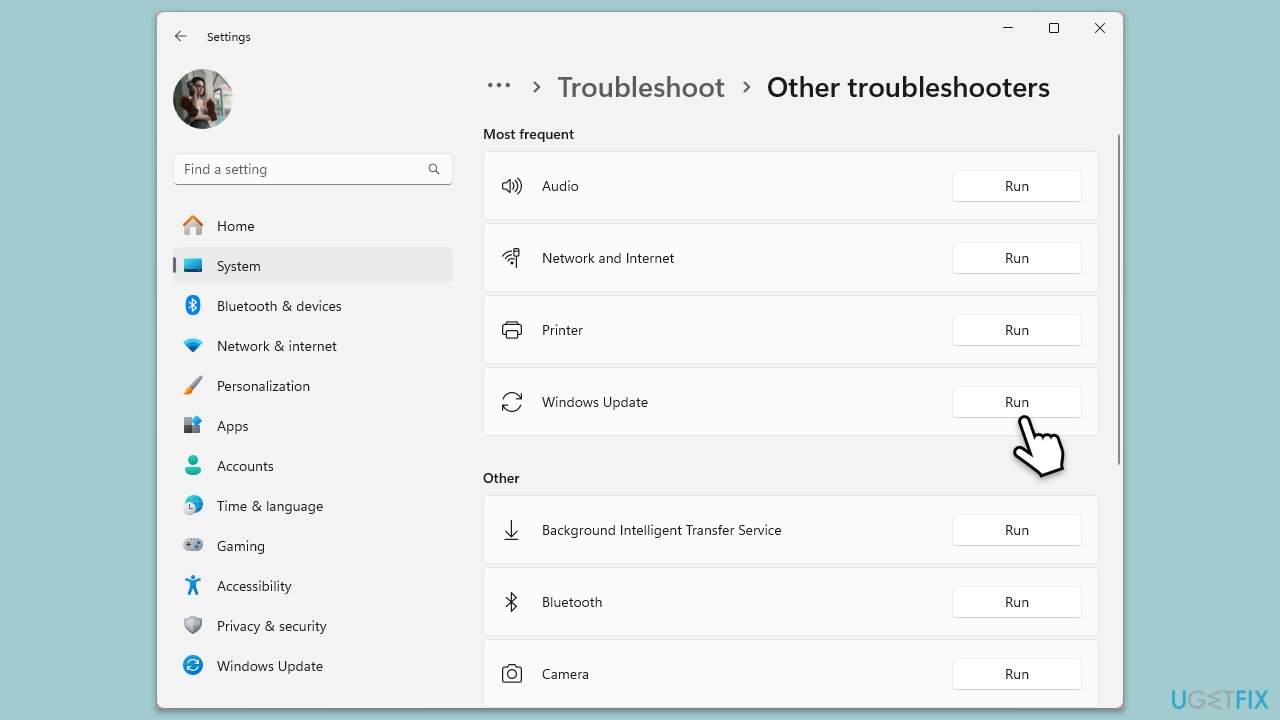
Fix 3. Run Windows update troubleshooter
- Type Troubleshoot in Windows search and press Enter.
- Select Additional troubleshooters/Other troubleshooters.
- Find Windows Update from the list.
- Click it and select Run the troubleshooter/Run.
- Restart your device when the update process finishes.
Fix 4. Repair corrupted files
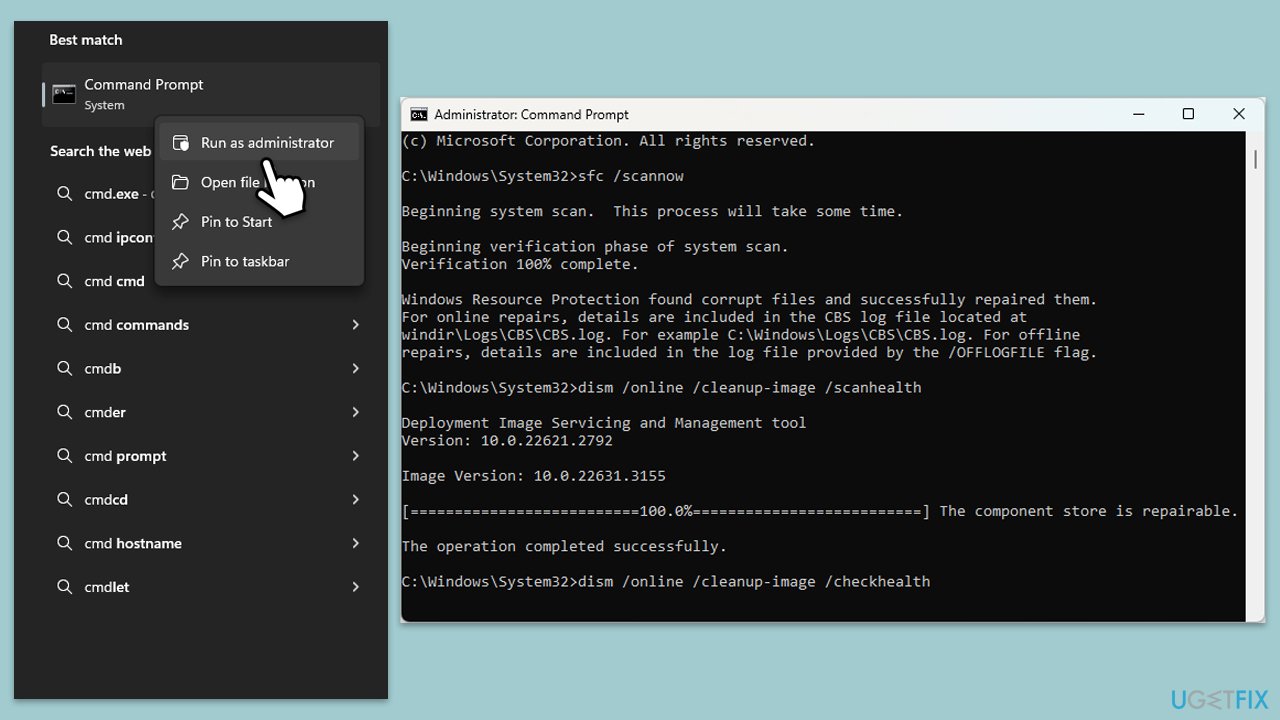
System File Checker and Deployment Image Servicing and Management are tools that repair Windows system files and restore system health.
- Type cmd in Windows search.
- Right-click on Command Prompt and pick Run as administrator.
- When User Account Control (UAC) asks you whether you want to allow changes, click Yes.
- Use the following command and press Enter:
sfc /scannow - When the scan is complete, you should also run the following commands to repair Windows image files:
DISM /Online /Cleanup-Image /CheckHealth
DISM /Online /Cleanup-Image /ScanHealth
DISM /Online /Cleanup-Image /RestoreHealth - Restart your computer.
Fix 5. Reset Windows Update components
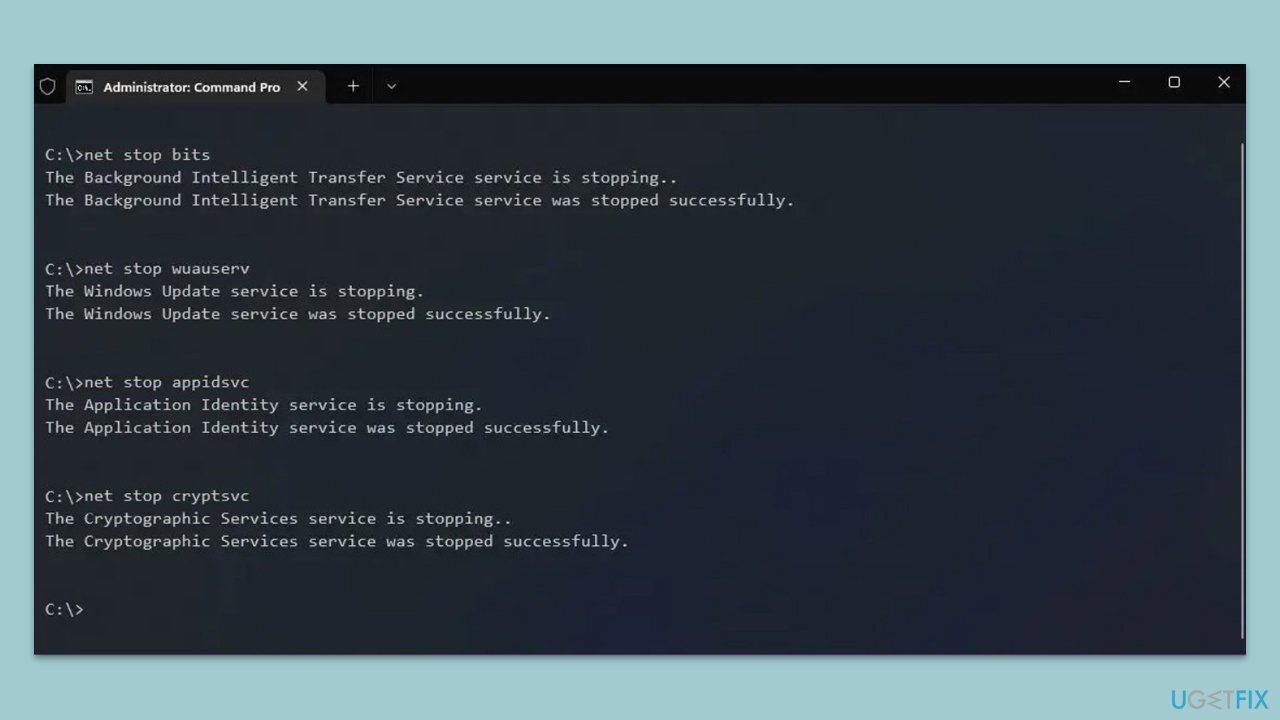
- Open Command Prompt as administrator.
- In the new window, use the following commands, pressing Enter after each:
net stop bits
net stop wuauserv
net stop appidsvc
net stop cryptsvc
Del “%ALLUSERSPROFILE%\Application Data\Microsoft\Network\Downloader\*.*”
rmdir %systemroot%\SoftwareDistribution /S /Q
rmdir %systemroot%\system32\catroot2 /S /Q
regsvr32.exe /s atl.dll
regsvr32.exe /s urlmon.dll
regsvr32.exe /s mshtml.dll
netsh winsock reset
netsh winsock reset proxy
net start bits
net start wuauserv
net start appidsvc
net start cryptsvc - Restart your system.
Fix 6. Perform Clean Boot
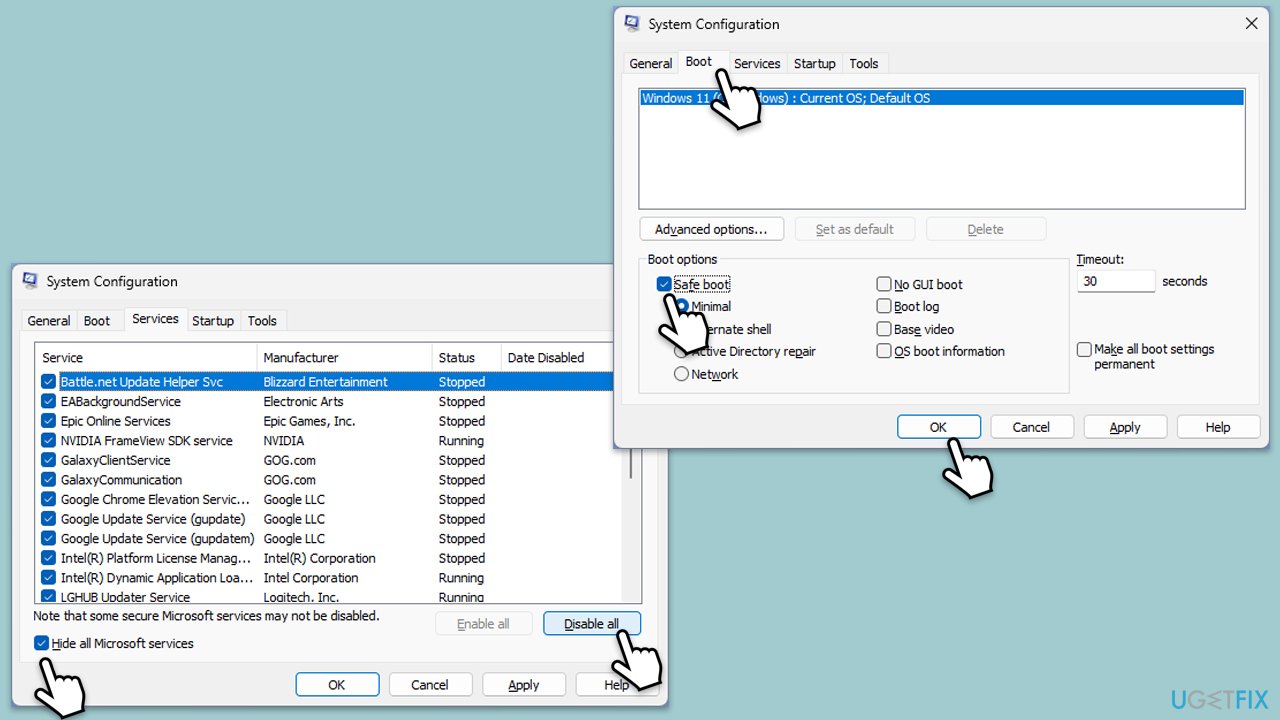
A Clean Boot starts Windows with a minimal set of drivers and startup programs, which can help avoid conflicts during the installation process.
- Type msconfig in the Windows search box and press Enter.
- Pick the Services tab.
- Mark Hide all Microsoft services and select Disable all.
- Select the Startup tab and click Open Task Manager.
- In the Task Manager, right-click on each of the items and select Disable, then close the Task Manager.
- Go to the Boot tab, mark the Safe Boot option, then click Apply and OK.
- On the System Configuration window, click OK.
- Restart your computer.
Fix 7. Choose to skip updates during the Windows installation
Skipping updates during the installation might avoid conflicts that arise from the updates themselves.
- Open Windows ISO to begin the upgrade process.
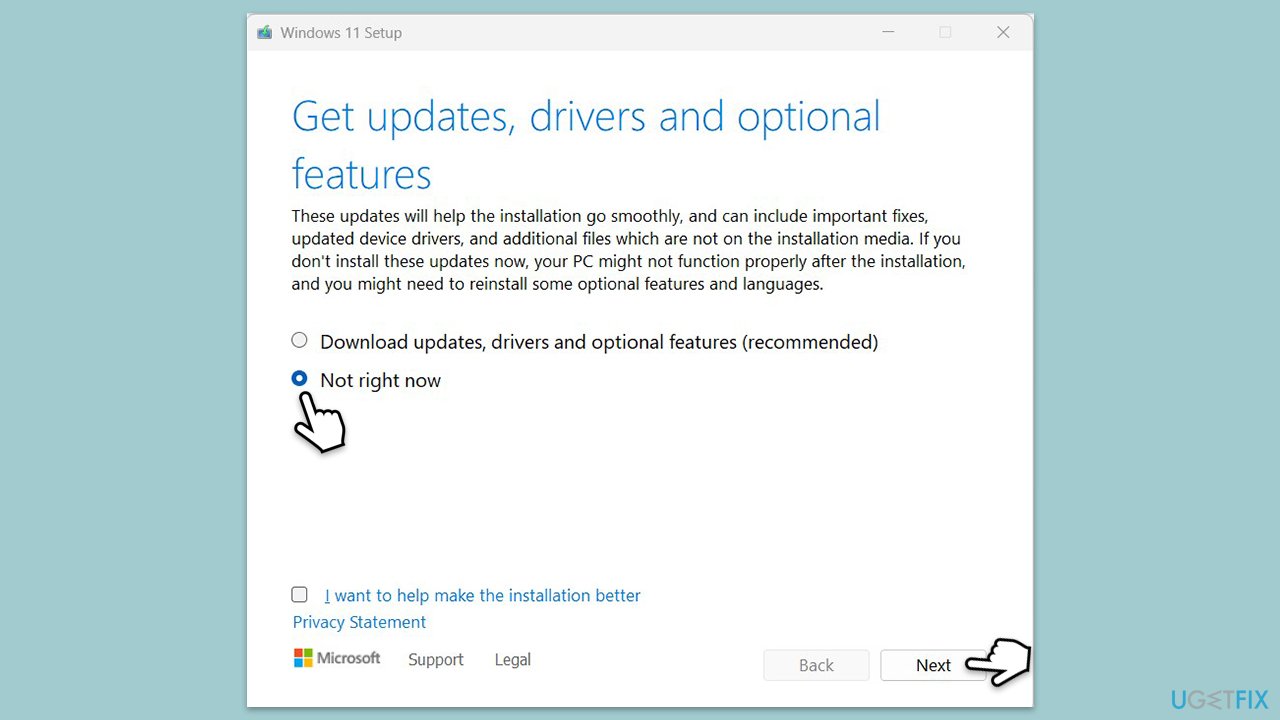
- You will be asked whether you want to update Windows to the latest version - pick Not right now and click Next.
- Accept Terms and Windows will make several checks to ensure everything is fine.
- Click Change what to keep.
- Here, you have several options: Keep your files and apps, Keep files only, or Keep nothing - choose what suits you the best. Click Next.
- Finally, click Install to begin the installation process.
Bottom line
To resolve the error 0x800F0830-0x20003, you can disable Developer Mode, ensure Windows is fully updated, run the Windows Update troubleshooter, perform a Clean Boot, and repair corrupted files. If these steps do not work, consider skipping updates during the installation or using a PC repair and maintenance tool for further troubleshooting.
Frequently asked questions
This error typically indicates that there are missing files or issues with the Windows update components during the upgrade process on Windows 10 or Windows 11.
To resolve this issue, you can run the Windows Update Troubleshooter and ensure that your system has a stable internet connection before attempting the upgrade again.
Yes, you can use the DISM command 'DISM /Online /Cleanup-Image /RestoreHealth' followed by 'sfc /scannow' in Command Prompt to repair system files and fix the upgrade error.




Report an issue
What's wrong with this guide? We review every report and update or remove content.
Report received — thank you. We'll review and fix it.
You need a free account to submit a report.
Be the first to comment