How to fix
Windows upgrade error 0xC1900101 – 0x20017
on Windows
Resolve Windows upgrade error 0xC1900101 - 0x20017 quickly with our expert troubleshooting tips. Get your PC running smoothly again—fixed in minutes!

What causes How to fix Windows upgrade error 0xC1900101 – 0x20017?
- Corrupt or missing system files
- Incompatible or outdated device drivers
- Conflicting software or third-party applications
- Insufficient system requirements
Repairs Windows system files, removes malware, and restores a clean OS state — without reinstalling.
Windows 11 upgrade keeps failing with the following message: "0xC1900101 - 0x20017 Installation failed during safe OS phase with an error during boot operation." The installation gets to 100%, stops, and then reboots, resulting in failure.
Windows is a widely used operating system that offers regular updates and upgrades to enhance performance, security, and user experience. With the latest version, Windows 11, released in October 2021, users may have various reasons for wanting to upgrade, such as accessing new features, improving system performance, or staying up-to-date with the latest security patches.
However, during the upgrade process, users may encounter errors, such as the 0xC1900101 - 0x20017 error, which can be frustrating and hinder the successful installation of the new version. This error message typically reads:
0xC1900101 - 0x20017 Installation failed during safe OS phase with an error during boot operation.
There could be several reasons why users encounter this error during the upgrade process. One common cause is corrupt or missing system files. During the upgrade, Windows attempts to replace or update existing files, and if any of these files are corrupt or missing, it can result in an error.
Another potential cause could be incompatible or outdated device drivers, which may not be compatible with the new version of Windows and cause conflicts during the upgrade process.
In addition, conflicting software or third-party applications running on the system could also trigger the 0xC1900101 - 0x20017 error. These programs may interfere with the upgrade process, causing errors and preventing a successful installation.
It's important to note that encountering the 0xC1900101 - 0x20017 error during the upgrade process is not uncommon and can be resolved with appropriate troubleshooting steps, which we provide below. To speed up the process and resolve several Windows issues automatically, we recommend trying a potent PC repair tool [d1].
1. Run Microsoft's PC Health Check
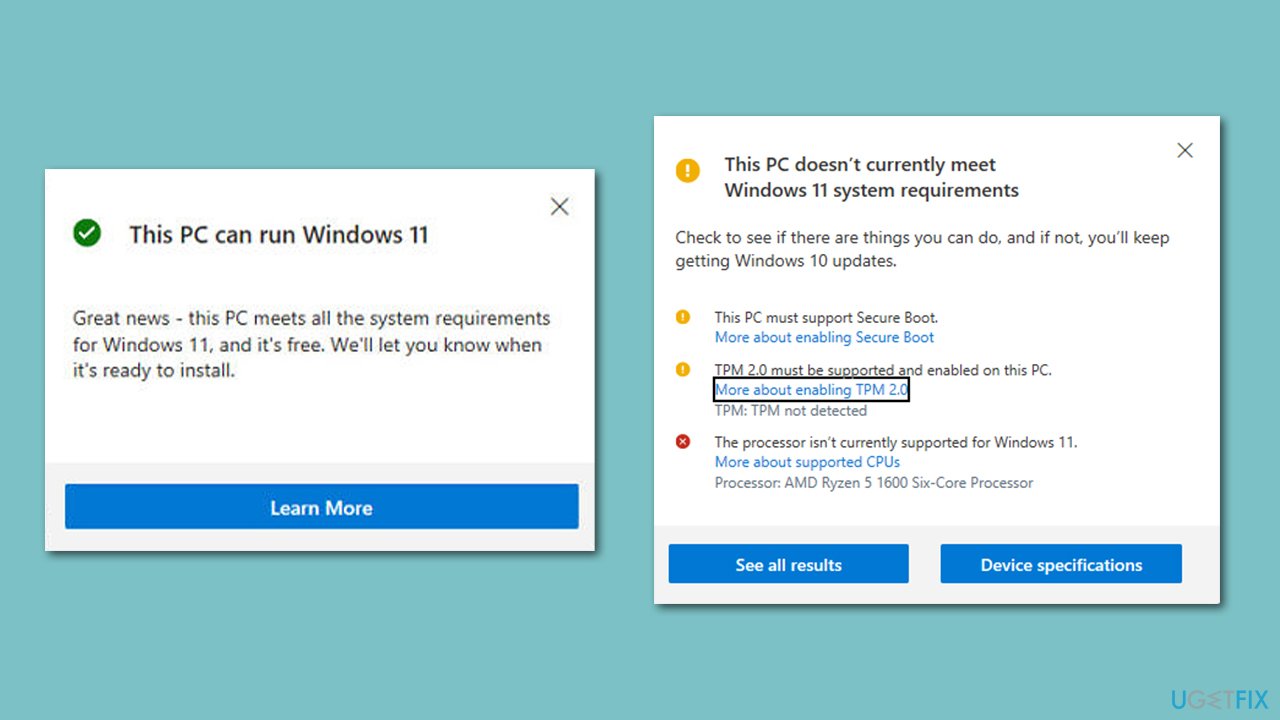
One of the most common reasons why people can't upgrade to Windows 11 is due to insufficient requirements. To see if that's the case, run Windows diagnostic tool provided by Microsoft:
- Open your browser and download the PC Health Check app from the official Microsoft website.
- After it's downloaded, click the prompt within your browser to start the installation process.
- Agree to the terms and click Install.
- In a few seconds, the app should be installed - click Finish.
- Under Introducing Windows 11, click Check now.
- You will be provided with one of the following results:
This PC meets Windows 11 requirements
This PC doesn't currently meet Windows 11 system requirements
Your organization manages updates on this PC - If your PC meets the requirements, proceed with the solutions below. If that's not the case, it might sometimes be possible to upgrade even if the hardware is not supported.
2. Run Windows update troubleshooter
Let's start with a troubleshooter:
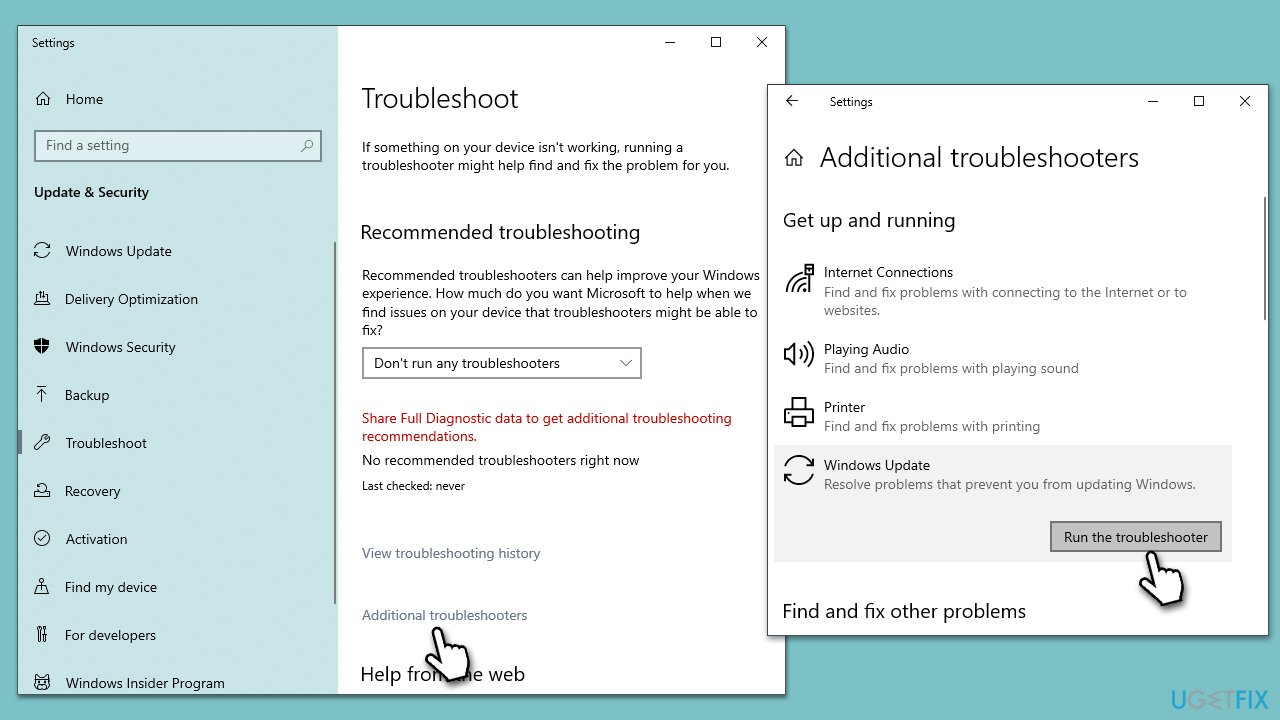
- Type Troubleshoot in Windows search and press Enter.
- Here, click the Additional Troubleshooters/Other troubleshooters option.
- Locate Windows Update and click Run/Run the troubleshooter.
- As soon as the scan finishes, apply the recommended fixes.
3. Check for corrupted files
System file corruption might prevent your upgrade from being successful. To repair them, follow these steps:
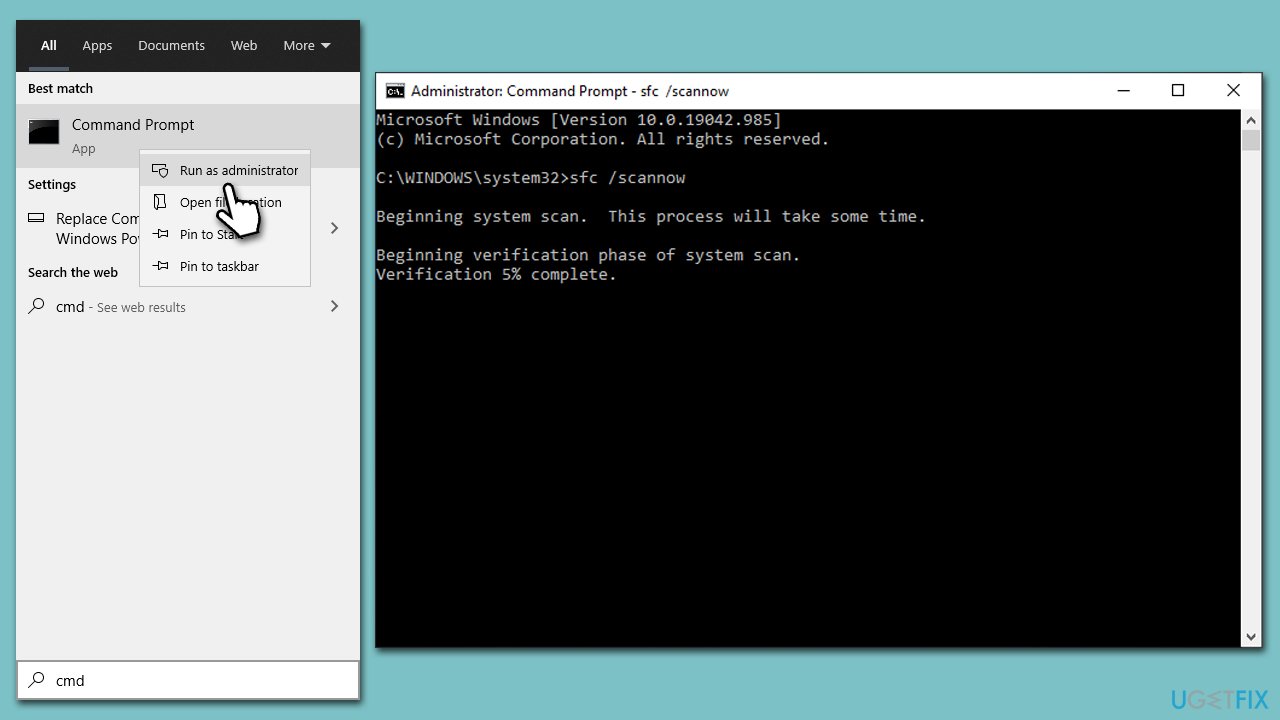
- Type cmd in Windows search.
- Right-click on the Command Prompt result and select Run as administrator.
- When UAC shows up, click Yes.
- In the Command Prompt window, paste the following command and hit Enter:
sfc /scannow - Once the scan is complete, use the following commands and press Enter after each:
Dism /Online /Cleanup-Image /CheckHealth
Dism /Online /Cleanup-Image /ScanHealth
Dism /Online /Cleanup-Image /RestoreHealth - Restart your PC.
4. Reset Windows update components
- Open Command Prompt as administrator.
- When the User Account Control shows up, click Yes.
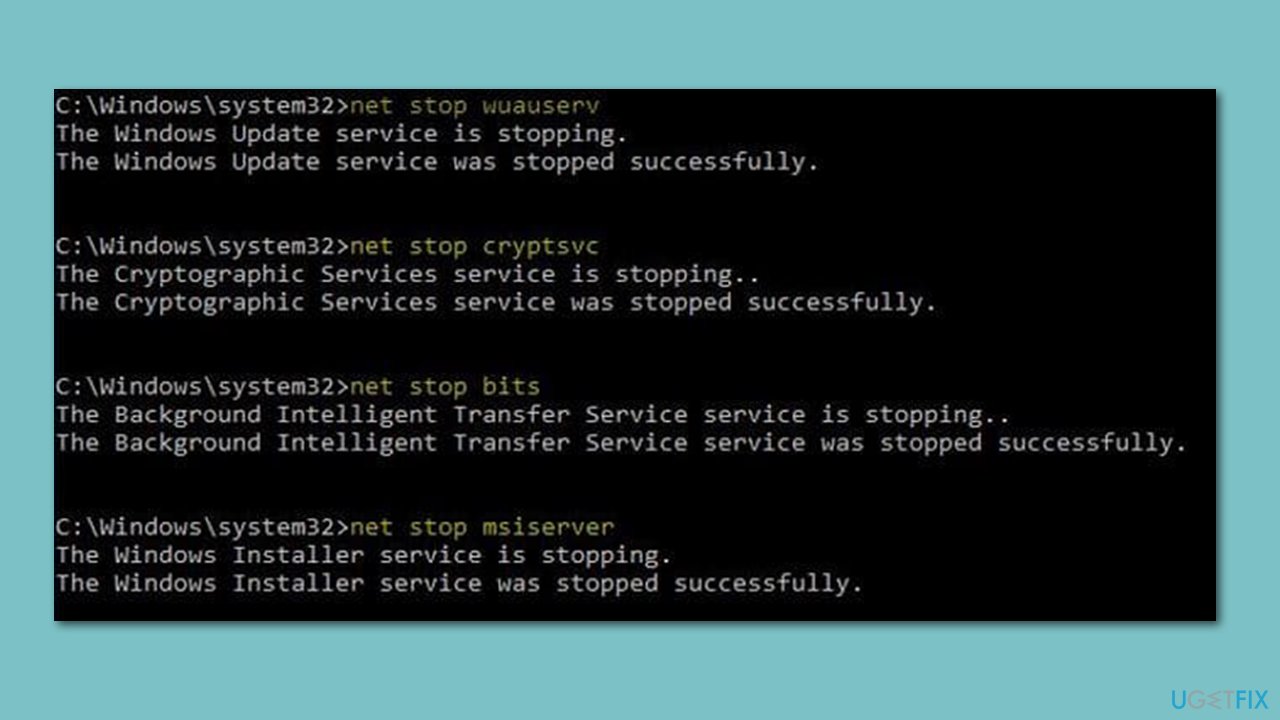
- Copy and paste each of the command lines, pressing Enter every time (wait till each of them is executed properly):
net stop bits
net stop wuauserv
net stop appidsvc
net stop cryptsvc
Del “%ALLUSERSPROFILE%\Application Data\Microsoft\Network\Downloader\*.*”
rmdir %systemroot%\SoftwareDistribution /S /Q
rmdir %systemroot%\system32\catroot2 /S /Q
regsvr32.exe /s atl.dll
regsvr32.exe /s urlmon.dll
regsvr32.exe /s mshtml.dll
netsh winsock reset
netsh winsock reset proxy
net start bits
net start wuauserv
net start appidsvc
net start cryptsvc - Restart your device.
5. Use Clean Boot
During a Windows upgrade, various third-party programs, drivers, or services may interfere with the installation process and cause errors or conflicts. By performing a clean boot, you can prevent these programs from running at startup, and then attempt the upgrade again with a clean environment.
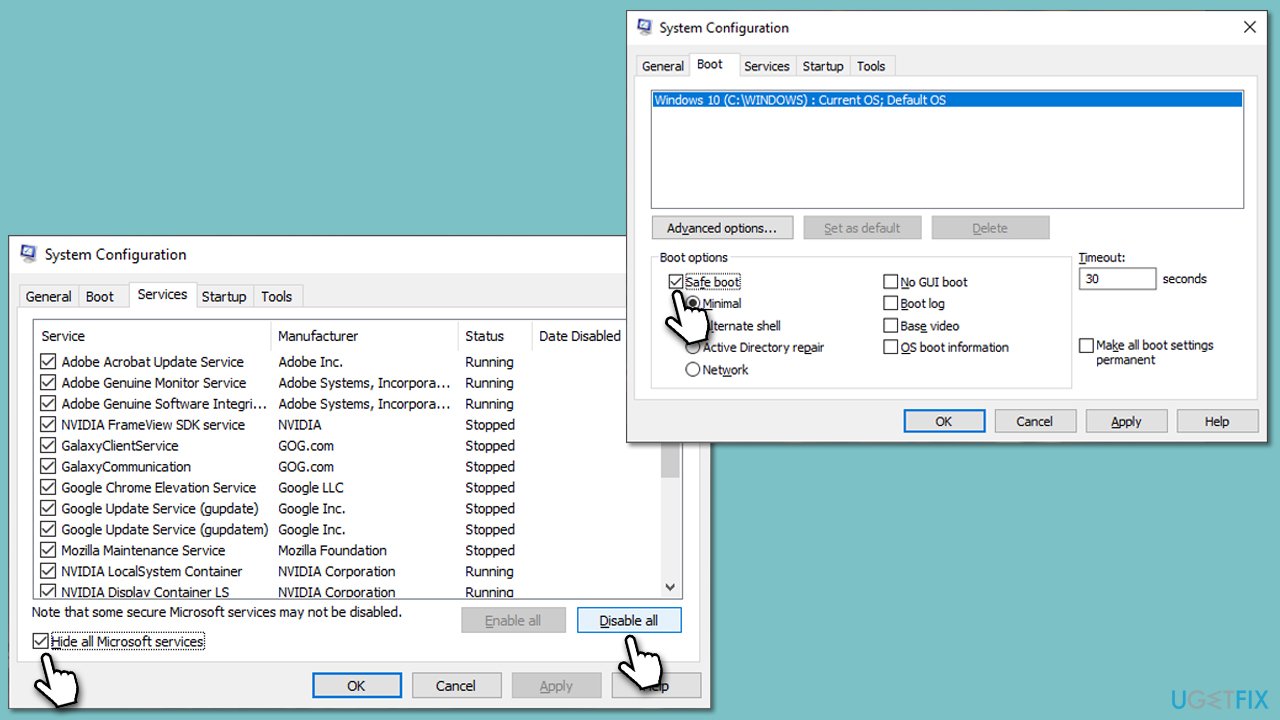
- Press Win + R, type msconfig, then press Enter.
- Select the Services tab and tick the Hide all Microsoft services checkbox.
- Pick Disable all.
- Go to the Startup tab and click Open Task Manager.
- Here, right-click on each of the non-Windows entries and select Disable.
- Close down the Task Manager.
- Go to the Boot tab and tick the Safe boot option
- Restart your system.
6. Install the latest Windows and driver updates
Outdated or incompatible drivers and software can cause upgrade errors. Make sure all your drivers, especially graphics and chipset drivers, are up to date. Start with updating Windows:
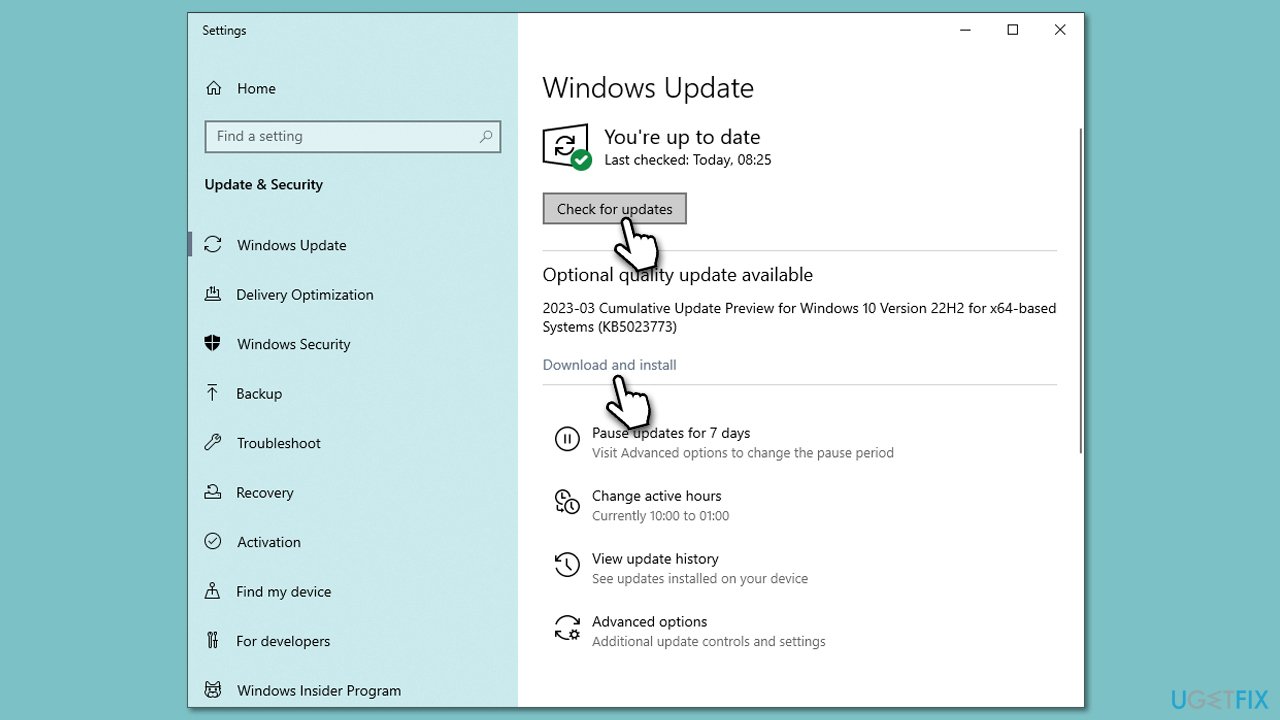
- Type Updates in Windows search and press Enter.
- Here, click the Check for Updates button.
- Wait till all the available updates are installed.
- If any optional updates are there, install them too.
- When done, restart your system to apply all the driver updates.
While the above technique should let you install the latest drivers as well, it might not always succeed in finding items for your configuration. Thus, either update drivers from the device manufacturer's website or use an automatic driver updater such as [rev id="DriverFix"].
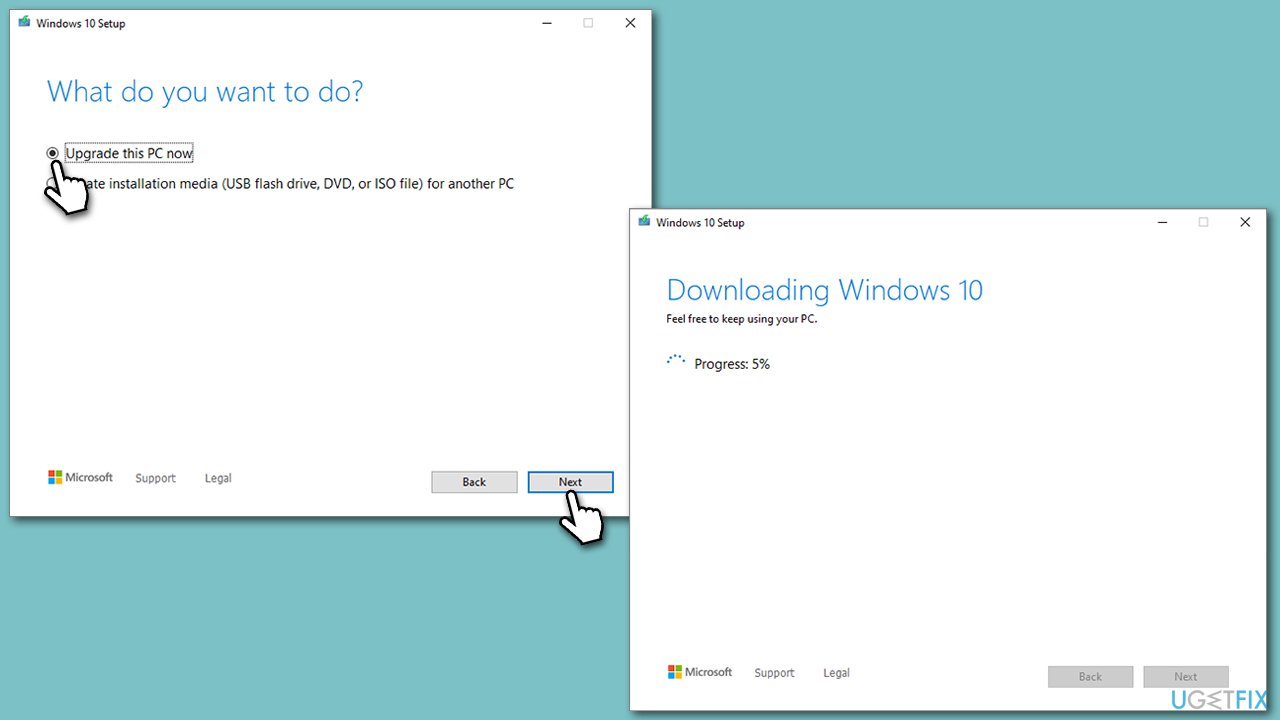
7. Try the Media Creation Tool
Before proceeding, uninstall third-party security software and disconnect any unnecessary peripherals.
- Visit the official Microsoft website and download Windows 10 installation media. [Windows 11 version]
- Double-click the installer and select Yes when UAC shows up.
- Agree to the terms and click Next.
- Select Upgrade this PC now and click Next.
- Wait till Windows downloads all the necessary files.
- Restart your device when finished.
Bottom line
To fix the 0xC1900101 - 0x20017 error, users should run Microsoft's PC Health Check to verify system requirements and consider using a potent PC repair tool to resolve issues automatically. If these steps do not work, further troubleshooting may be necessary.
Frequently asked questions
This error typically occurs due to incompatible drivers or hardware issues that prevent Windows 10 or Windows 11 from completing the upgrade. It's important to ensure that all drivers are updated before attempting the upgrade.
To fix this error, you should uninstall any third-party antivirus software and disconnect non-essential hardware devices before retrying the upgrade. Additionally, updating all device drivers through Device Manager can help resolve compatibility issues.
Yes, you can use the Windows Update Troubleshooter, which is built into Windows 10 and Windows 11, to automatically detect and resolve issues related to the upgrade process. Access it through Settings > Update & Security > Troubleshoot.




Report an issue
What's wrong with this guide? We review every report and update or remove content.
Report received — thank you. We'll review and fix it.
You need a free account to submit a report.
Be the first to comment