
How to fix Xbox app error 0x80073CFB in Windows?

Prefer to fix it yourself? The manual steps follow.
- 6methods
- 10 to 30 minutes
- Intermediate
Applies to Windows 11 and Windows 10; the Xbox app, Gaming Services, Game Pass games such as Minecraft, Microsoft Store apps and packages installed with PowerShell or an .msix installer
6 methods in this guide
Yesterday I started getting Xbox app issues out of nowhere. When I try to open it, it tries to update itself, but then something goes wrong and error code 0x80073CFB shows up. I'd be grateful for any help.
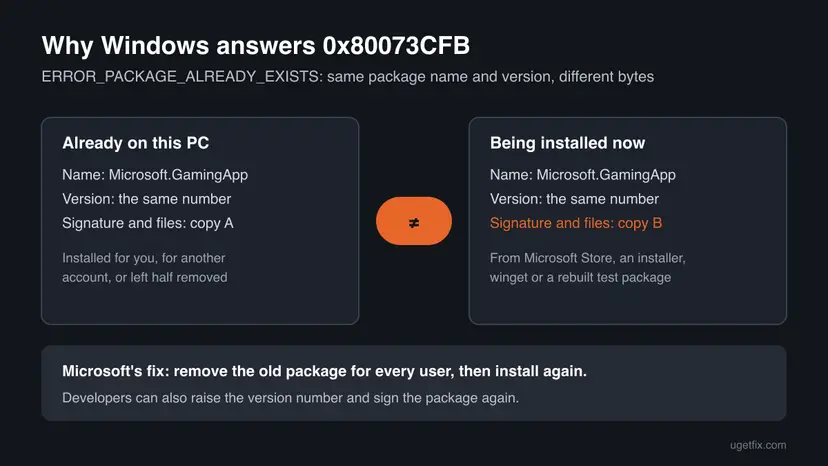
Error 0x80073CFB means Windows refused to install or update an app because a copy of the same app and version is already on the PC, and the two copies are not identical. For the Xbox app, remove it for every user account on the PC, restart and install it again from Microsoft Store.
0x80073CFB is Microsoft's code ERROR_PACKAGE_ALREADY_EXISTS: the package is already installed and reinstalling it is blocked, because the copy on the PC is not identical to the new one. Microsoft's fix is to remove the old package for every user and then install again. Uninstall the Xbox app, restart and install it from Microsoft Store (Fix 1). If that fails, remove it for all accounts with PowerShell (Fix 2).
| Error | 0x80073CFB, name ERROR_PACKAGE_ALREADY_EXISTS: "The provided package is already installed, and reinstallation of the package is blocked." |
|---|---|
| Where it appears | In the Xbox app when it updates itself or installs a game, in Microsoft Store under the Install or Update button, and in PowerShell after Add-AppxPackage. |
| Main cause | A package with the same name and version is already on the PC, for your account or another one, but its files or signature differ from the package being installed. |
| Fastest fix | Uninstall the Xbox app, restart, install it again from Microsoft Store (Fix 1). Still blocked: remove it for every user with PowerShell (Fix 2). |
| Also written as | 0x80073cfb, 0X80073CFB, 80073cfb, Win32 error 15611 (0x3CFB), "Deployment failed with HRESULT: 0x80073CFB". |
| Affects | Windows 11 and Windows 10. Any app package can show it: the Xbox app, Gaming Services, games such as Minecraft Bedrock, Store apps and developers' test packages. |
| Microsoft's status | A documented app deployment error, not a bug with a patch. Microsoft names two fixes: remove the old package for every user, or (for developers) raise the version number and sign again. |
| Where the cause is logged | Event Viewer > Applications and Services Logs > Microsoft > Windows > AppXDeployment-Server > Microsoft-Windows-AppXDeploymentServer/Operational, or Get-AppxLog in PowerShell. |
| Time to fix | About 10 minutes for a reinstall from Settings. Up to 30 minutes when Gaming Services or a game has to be removed and downloaded again. |
Facts checked on 15 October 2026. Steps written for Windows 11 (25H2 and 26H2) and Windows 10 22H2.
What error code 0x80073CFB means
The Xbox app, Gaming Services, Game Pass games and every Microsoft Store app are app packages (.msix or .appx files). Each package has a name and a version number. Windows treats a name plus a version as one exact package, down to the last byte and the digital signature.
Error 0x80073CFB, ERROR_PACKAGE_ALREADY_EXISTS, is what Windows answers when it is asked to install a package whose name and version already exist on the PC, but whose content is different. Microsoft's developer documentation says the error appears when the new package "is not bitwise identical to the package that is already installed", and that the signature counts as part of the package.
- HRESULT
- 0x80073CFB (also typed 0x80073cfb, 0X80073CFB and 80073cfb)
- Win32 error
- 15611, in hexadecimal 0x3CFB
- Name
ERROR_PACKAGE_ALREADY_EXISTS- Microsoft's text
- The provided package is already installed, and reinstallation of the package is blocked.
- Microsoft's two fixes
- Increment the version number, rebuild and re-sign the package (developers), or remove the old package for every user on the system before installing the new one.
Clearing caches and running troubleshooters does not touch the copy that blocks the install. The copy has to go. For the Xbox app that means an uninstall for your account first (Fix 1) and for every account second (Fix 2), then a fresh install from Microsoft Store.
Where 0x80073CFB shows up: the Xbox app, Microsoft Store, games and PowerShell
| Where | What you see | Start with |
|---|---|---|
| Xbox app on a PC | The app tries to update itself when it opens, then stops with 0x80073CFB. | Fix 1 |
| Xbox app, a game or Gaming Services | A game install or a Gaming Services update stops with the code. | Fix 3 |
| Microsoft Store | The code under the Install or Update button of one app, for example Minecraft Bedrock. | Fix 2 with the app's name |
| Windows PowerShell or an .msix installer | Deployment failed with HRESULT: 0x80073CFB after Add-AppxPackage. | The developer section below |
| Xbox console | Our sources describe the code only on Windows PCs. | Xbox Support |
People also search for "0x80073cfb windows app": the code is the same for any app package on Windows, so the steps for the Xbox app work for other apps when you put in that app's name.
Why the install is blocked: the causes of 0x80073CFB, ranked
Every cause comes back to one thing: a second, different copy of the same package version. What differs is where that copy came from. Most often it is a damaged or half finished update on your own account. Less often the copy belongs to another account on the PC. Rarely it is a package that someone installed by hand.
| Cause | How often | How to tell | Fix |
|---|---|---|---|
| An update of the Xbox app stopped half way, and the copy on the PC no longer matches the one the Store sends. | Most often | The app worked yesterday and now fails while it updates itself, as in the reader's question. | Fix 1 |
| Another Windows account on the PC has the same version installed or staged from another source. | Often on shared PCs | The app is gone from Installed apps for you, and the install still fails. | Fix 2 |
| Gaming Services, the component that installs Xbox games, is the package that is blocked. | Often for games | Games fail to install or update, and the Xbox app may say Gaming Services needs attention. | Fix 3 |
| Microsoft Store's own cache or install service is stuck. | Sometimes | Other Store apps also fail to update. | Fix 4 and Fix 5 |
| A copy was installed outside the Store: an offline installer, winget, or a rebuilt test package. | Rarely for players, often for developers | You or an administrator installed it by hand. | Fix 2 or the developer section |
The column "How often" is our reading of Microsoft's description of the code and of the reports we read. Microsoft publishes no numbers for this error.
If you build or sideload the app: 0x80073CFB in PowerShell
Developers meet the code when they install a rebuilt package with an unchanged version number, or when the Store version and a sideloaded test version share the same version. A rebuild or a new signature changes the bytes, so Windows sees a different package under the old identity.
- Raise the version number in
Package.appxmanifest, rebuild and sign again. This is Microsoft's first option. - Remove the old package for every user with the commands in Fix 2, then install the new one. This is Microsoft's second option.
- Read the log with
Get-AppxLogto see which package and which user Windows found. See "If the error is still there" below.
How to fix Xbox app error 0x80073CFB in Windows 11 and Windows 10
Fix 1 and Fix 2 remove the blocking copy of the Xbox app, which is Microsoft's own fix for this code. Fix 3 does the same for Gaming Services. Fixes 4 to 6 are for a Store or Windows that cannot finish the new install. Paths are given for Windows 11 and Windows 10 where they differ.
| What you see or have | Start with |
|---|---|
| The Xbox app tries to update itself and stops with 0x80073CFB. | Fix 1 |
| The Xbox app is not in Installed apps, or Fix 1 did not help, or the PC has several Windows accounts. | Fix 2 |
| One game or Store app, such as Minecraft, fails with the code. | Fix 2 with that app's name |
| Games will not install or Gaming Services will not update. | Fix 3 |
| Every Store app fails to update. | Fix 4, then Fix 5 |
| Nothing above helped and Windows has pending updates. | Fix 6 |
Fix 1. Uninstall the Xbox app, restart and install it again from Microsoft Store
10 minutesLow riskThe Xbox app fails while it updates itself and it is still listed in Installed apps.
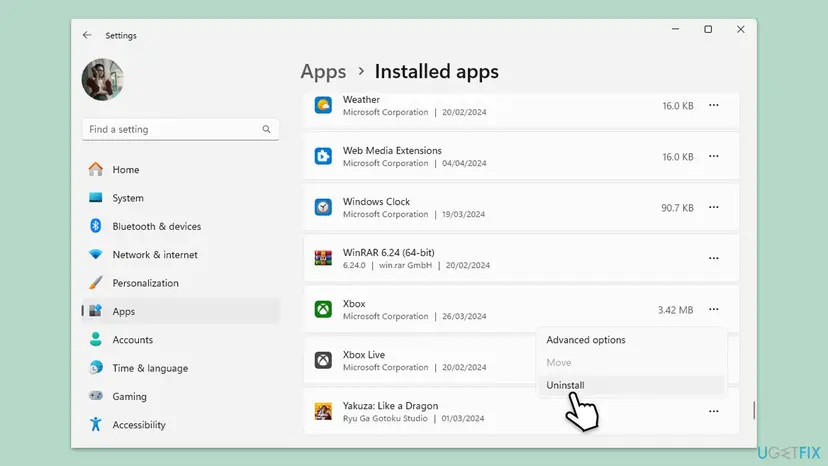
Microsoft's fix for 0x80073CFB is to remove the old package before the new one goes in. An uninstall from Settings removes the Xbox app for your account, so the Store can install a clean copy instead of updating a copy that no longer matches.
- Close the Xbox app and Microsoft Store.
- Press Win + I and open Apps > Installed apps. On Windows 10 open Apps > Apps & features.
- Find Xbox, select the three dots next to it and select Uninstall. Confirm.
- Select Start > Power > Restart.
- Open Microsoft Store, search for Xbox and select Install on the app by Microsoft Corporation.
- Open the Xbox app and sign in.
- Your games stay. Games are separate packages. This step removes only the Xbox app, and your saves in the cloud belong to your Xbox account.
- Uninstall is grey or missing: go straight to Fix 2, which removes the app from PowerShell.
- The same uninstall steps for any app, with screenshots: Uninstall a program or app in Windows
It worked if: The Store installs the Xbox app from the start, it opens without asking to update, and the code is gone.
If not: Go to Fix 2. A copy for another account, or a damaged leftover, can still block the install.
Fix 2. Remove the Xbox app for every user with PowerShell, then install it again
15 minutesRead the warningFix 1 did not help, the Xbox app is not listed in Installed apps, the PC has more than one Windows account, or one game or Store app fails with the code.
Microsoft's text is exact here: remove the old package for every user on the system before installing the new one. Settings removes the app only for you. Remove-AppxPackage -AllUsers also removes copies held for other accounts, which Settings never shows.
Other people who use the PC will have to install the Xbox app again and sign in. For a game, its local data on this PC goes with it, so let cloud saves sync first. Copy any local save folder you care about: Back up your files (Windows Backup, File History, Time Machine)
- Close Microsoft Store, the Xbox app and any game.
- Right-click Start and select Terminal (Admin). On Windows 10 select Windows PowerShell (Admin). Select Yes.
- Run the first command. It lists every copy of the app for every account.
- Read the Name column. The current Xbox app is listed as Microsoft.GamingApp. If you see another name, use that one below.
- Run the second command with the same name. It removes the package for all users.
- Run the first command again. It should print nothing.
- Restart the PC, open Microsoft Store and install Xbox again.
Terminal (Admin): list every copy, then remove it for all users
Get-AppxPackage -AllUsers -Name '*Gaming*','*Xbox*' | Select-Object Name, Version, PackageFullName
Get-AppxPackage -AllUsers -Name 'Microsoft.GamingApp' | Remove-AppxPackage -AllUsers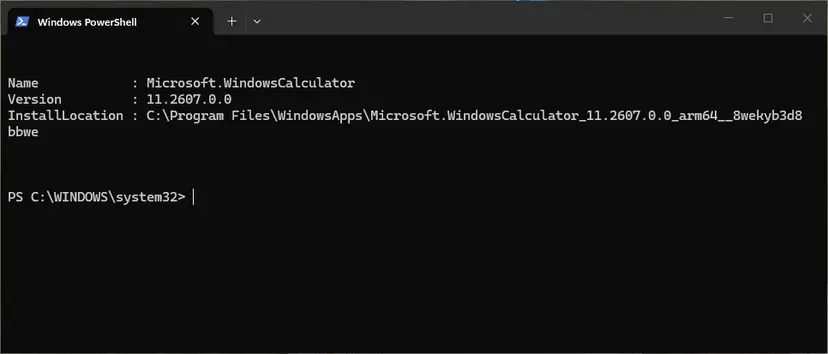
| The code appears with | Name to look for | Note |
|---|---|---|
| The Xbox app | Microsoft.GamingApp | The old Xbox Console Companion app is Microsoft.XboxApp. Remove it only if it is the one that fails. |
| Gaming Services | Microsoft.GamingServices | Use Fix 3, which also runs the repair tool. |
| Minecraft or another game | Run the first command with part of the game's name, for example '*Minecraft*'. | Cloud saves and Realms stay with your account. Local worlds are on the PC: copy them first. |
- Do not remove packages you do not recognise. The first command also lists Xbox helpers such as the Xbox Identity Provider. Remove only the one whose install fails.
- Red text "0x80073CFA" when you remove: removal failed, often because the app is still running. Restart the PC and run the second command before you open anything.
It worked if: The first command prints no copy of the app, and after the restart the Store installs it with no error.
If not: If the code now comes from games or Gaming Services, go to Fix 3. If the Store will not install anything, go to Fix 4.
Fix 3. Run the Gaming Services Repair Tool, then remove and reinstall Gaming Services
10 to 20 minutesLow riskGames will not install or update in the Xbox app, or Gaming Services is the package that shows 0x80073CFB.
Gaming Services is a package of its own and it installs every Xbox game on the PC. When its own copy is the one that does not match, Microsoft's rule applies again: remove it, then install it fresh. Xbox Support's repair tool does the check for you first.
- Open the Xbox app, select your profile picture and then Support.
- Select Gaming Services Repair Tool, then Start Troubleshooting, and follow what it reports.
- Restart the PC and try the game again.
- If the code returns, close the Xbox app and Microsoft Store and open Terminal (Admin) as in Fix 2.
- Run the command below to remove Gaming Services for all users.
- Install it again from the Gaming Services page in Microsoft Store, then restart the PC.
Terminal (Admin): remove Gaming Services
Get-AppxPackage -AllUsers Microsoft.GamingServices | Remove-AppxPackage -AllUsers- The repair tool will not run: Xbox Support says that on Windows 22H2 or older it may need the local administrator account, and that the fix is to update Windows (Fix 6).
- Installed games: they stay on the drive. Gaming Services has to be back before they start again.
It worked if: The repair tool reports no problem, or Gaming Services installs again, and the game installs or updates.
If not: Go to Fix 4 if the Store itself fails, or read "If the error is still there" to find the package named in the log.
Fix 4. Reset the Microsoft Store cache, then repair or reset the Store
5 to 10 minutesLow riskThe Store fails to install the fresh copy after Fix 1 or Fix 2, or every Store app fails to update.
This does not remove the blocking copy, so it is not a fix on its own for 0x80073CFB. It makes sure the Store that delivers the new copy works, once the old copy is gone.
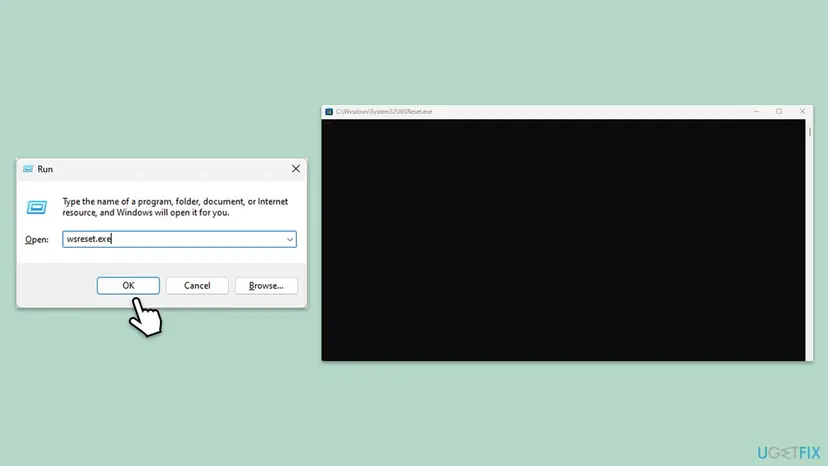
- Press Win + R, type
wsreset.exeand select OK. - Wait. A blank window opens, closes by itself, and Microsoft Store opens.
- Try the install. If it still fails, open Settings > System > System components on Windows 11, or Settings > Apps > Apps & features on Windows 10.
- Next to Microsoft Store, select the three dots and Advanced options.
- Select Repair. If that does not help, select Reset and sign in to the Store again.
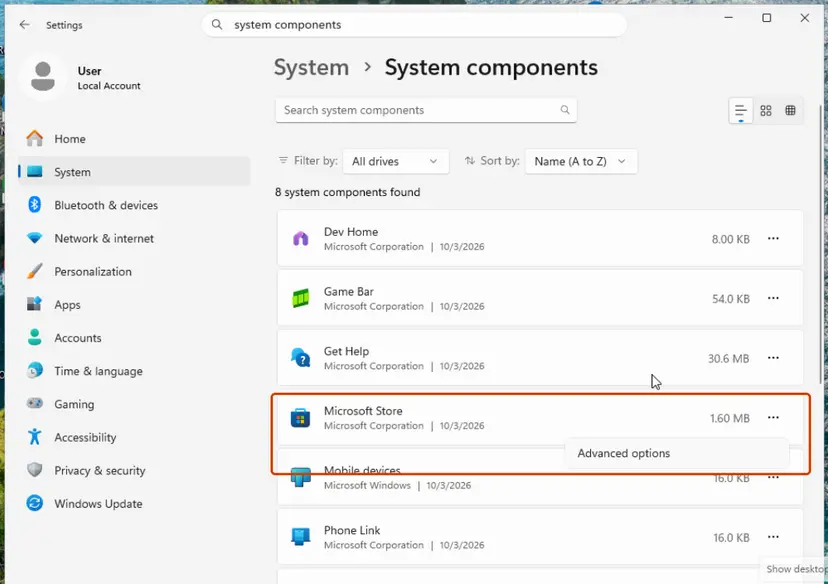
Reset removes the Store's sign-in on this PC. Your purchases and Game Pass belong to your Microsoft account and stay. Every screen: Reset the Microsoft Store
It worked if: The Store opens, Library > Get updates runs without errors, and the Xbox app installs.
If not: Go to Fix 5 and check the install services.
Fix 5. Check that Gaming Services and the Store install service can start
5 minutesLow riskInstalls stay at Pending or stop at once, or someone used a tool that turns off Windows services.
The new copy of the Xbox app or a game is installed by background services. If one of them is disabled, the Store cannot finish the install that replaces the blocking copy.
- Press Win + R, type
services.mscand press Enter. - Find Microsoft Store Install Service. Its Startup Type should not be Disabled. Right-click it and select Restart if it is running.
- Do the same for Gaming Services and Windows Update.
- If a service shows Disabled, double-click it, set Startup type to Manual and select Apply, then Start.
- Check Xbox Live Auth Manager, Xbox Live Game Save and Xbox Live Networking Service the same way. They should not be Disabled.
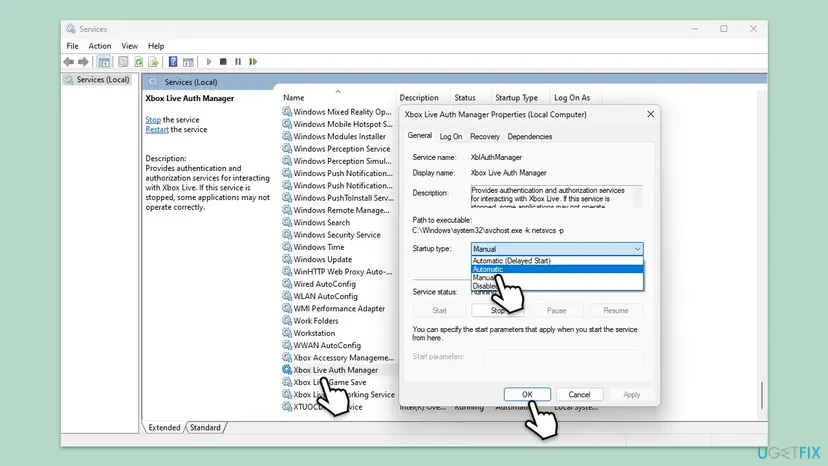
Step by step, with the PowerShell way too: Check and restart Windows services
It worked if: The services are not Disabled, and the Store finishes the install.
If not: Go to Fix 6 and install the pending Windows updates, then try the install again.
Fix 6. Install pending Windows updates, then try the install again
10 to 30 minutesLow riskWindows has pending updates, the Gaming Services Repair Tool will not run, or you are on Windows 10.
The app package system is part of Windows. Xbox Support asks for a current Windows before its repair tool will run without the local administrator account, and an update replaces damaged parts of the platform that installs packages.
- Press Win + I and open Windows Update. On Windows 10 open Update & Security > Windows Update.
- Select Check for updates and install everything that is offered.
- Restart the PC, even if Windows does not ask.
- Open Microsoft Store > Library > Get updates, then install the Xbox app or the game again.
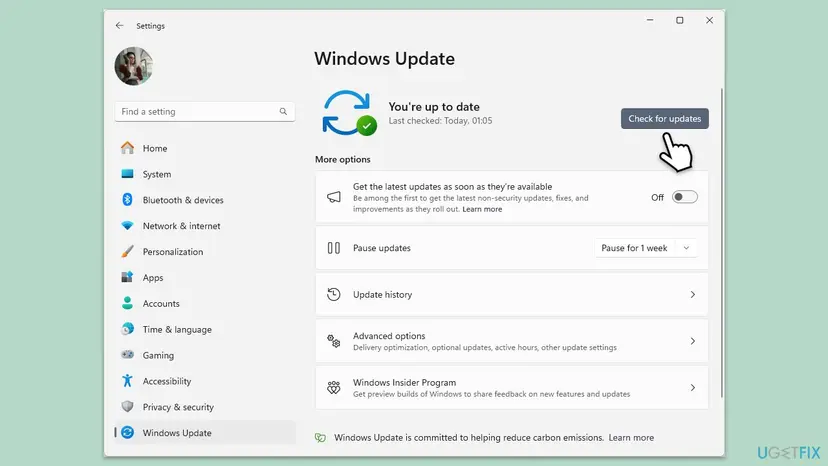
Windows 10 left support on 14 October 2025. It still installs the Xbox app, but a PC that no longer gets updates can stay stuck on an old app platform. When an update will not install: Install an update from the Microsoft Update Catalog
It worked if: Windows reports that it is up to date, and the Xbox app installs.
If not: Read the log as shown below to find which package and which account still hold the old copy.
If the error is still there: find the blocking package in the deployment log
Microsoft's deployment errors are written to the AppXDeployment-Server event log. The entry for 0x80073CFB names the package that already exists, so you know exactly what to remove.
- Make the error appear once more and note the time.
- Open Windows PowerShell and run
Get-AppxLog | Out-GridView. A table opens in its own window. - Look for rows with 0x80073CFB and read the full package name near them.
- To use Event Viewer instead, run
eventvwr.mscand open Applications and Services Logs > Microsoft > Windows > AppXDeployment-Server > Microsoft-Windows-AppXDeploymentServer/Operational. - Remove the named package for all users as in Fix 2, restart and install again.
- What to send to Xbox Support or the app's publisher: the text of the log entry, the Windows edition and build from Settings > System > About, and which fixes you tried.
- On a work or school PC: an administrator may have installed the app for all users. Ask them to remove it, because you may not have the rights.
- It is not a hardware fault. The code is about package versions, not about the drive or the console. A failing drive gives other codes.
How to keep 0x80073CFB from coming back
- Install the Xbox app and Gaming Services from Microsoft Store only, not from offline installers or package sites.
- Do not close the PC or the Store while the Xbox app updates itself.
- On a shared PC, keep every account's Store apps updated, so no account holds an old copy.
- Developers: raise the version number every time you rebuild or re-sign a package.
Frequently asked questions
What does error code 0x80073CFB mean?
It means that Windows blocked an install because the package is already on the PC. Microsoft names the code ERROR_PACKAGE_ALREADY_EXISTS and explains it as a package that is already installed with the same name and version, while the new copy is not bitwise identical to it. The digital signature counts, so a rebuilt or re-signed package is a different package. Windows will not swap one for the other. The fix is to remove the old copy for every user and install again, which is Fix 1 and Fix 2 on this page.
How do I fix Xbox app error code 0x80073CFB?
Remove the Xbox app and install it fresh. Close the app, open Settings > Apps > Installed apps, select the three dots next to Xbox and Uninstall. Restart the PC and install Xbox from Microsoft Store. If the app is not listed, or the code returns, open Terminal (Admin) and remove Microsoft.GamingApp for all users with Remove-AppxPackage -AllUsers, then restart and install again. Your games are separate packages and stay on the drive.
Why does the Xbox app show 0x80073CFB when it updates itself?
Because the copy of the app on the PC no longer matches the version the Store tries to install. This happens after an update that stopped half way, or when another account on the PC holds a different copy of the same version. Windows refuses to replace one with the other and stops the update. Uninstalling the app first gives the Store a clean start. That is what Microsoft recommends for this code.
How do I fix 0x80073CFB in Microsoft Store or for Minecraft?
The same way, with the name of the app that fails. In Terminal (Admin), list the package with Get-AppxPackage -AllUsers and part of the name, for example '*Minecraft*', then remove it with Remove-AppxPackage -AllUsers. Copy local worlds or saves first, because they live on the PC. Restart and install from Microsoft Store. A Microsoft Q&A thread from November 2025 shows the code when Minecraft Bedrock updates on Windows 11, and one later reply says the usual cache resets did not help.
Will removing the Xbox app delete my games or saves?
No for games, and no for cloud saves. Each game is its own package, so removing the Xbox app leaves games on the drive. Saves that sync to the Xbox network belong to your account. Removing a game itself is different: its local data on this PC goes with it, so let the cloud sync finish or copy the save folder first. Removing Gaming Services leaves games installed, but they will not start until Gaming Services is back.
Does wsreset or the Store troubleshooter fix 0x80073CFB?
Not on their own. wsreset.exe clears the Store's cache and the troubleshooter checks Store settings. Neither removes the installed copy that blocks the new one, and that copy is the cause of this code. Use them after the uninstall, when the Store has trouble delivering the fresh copy. The older version of this page started with the troubleshooter and Disk Cleanup. We moved them because no Microsoft source ties them to this code.
Is 0x80073CFB the same on Windows 11 and Windows 10?
Yes. The code belongs to the app package system that both versions share, and the fixes on this page work on both. The menu paths differ a little, and each fix gives both. Windows 10 left support on 14 October 2025. The Xbox app still installs there, but a PC that no longer gets Windows updates can keep an old app platform, so update what you can (Fix 6).
I did everything and the error is still there. What now?
Find the exact package that blocks the install. Run Get-AppxLog | Out-GridView in PowerShell right after the error, or open the AppXDeployment-Server Operational log in Event Viewer. The entry names the full package. Remove that package for all users, restart and install again. If the log names a package for another account on a work PC, an administrator has to remove it. Send the log text to Xbox Support if nothing helps.
What is error 0x80073CFB for developers?
It means you tried to install a package whose name and version match one that is already installed, but whose content or signature is different. Microsoft gives two fixes. Raise the version number in the manifest, rebuild and sign again. Or remove the old package for every user before you install the new one. A Store version and a sideloaded test build with the same version number clash in exactly this way.
Sources
- Microsoft Learn: Troubleshooting packaging, deployment, and query of Windows apps (ERROR_PACKAGE_ALREADY_EXISTS, 0x80073CFB) (learn.microsoft.com)
- Xbox Support: Gaming Services Repair Tool for PC (support.xbox.com)
- Microsoft Q&A: Error 0x80073cfb of Microsoft Store but only when updating Minecraft Bedrock (learn.microsoft.com)
Did this fix work?
One click, no account. It tells the next reader which guides are worth their time.
Questions and experiences: fix Xbox app error 0x80073CFB in Windows
Still broken, or found a fix we did not cover? Ask here: members and our editors answer. Reading is open; writing needs a free account.
…