How to fix
Xbox app error 0x87e00191
on Windows
Resolve the Xbox app error 0x87e00191 on Windows 10 or 11 quickly and effectively. Get expert-tested solutions for seamless gaming experiences.

What causes How to fix Xbox app error 0x87e00191 in Windows?
- Network connectivity issues
- Corrupted or missing system files
- Outdated Xbox or Windows software
- Limitations in the Microsoft Store
- Region settings issues
Repairs Windows system files, removes malware, and restores a clean OS state — without reinstalling.
How do I fix error code 0x87e00191 in the Xbox app in Windows 11? I can't download and install games because of this, and it is a huge issue obviously.
The core of Microsoft's gaming ecosystem revolves around the Xbox app: it provides a source for game procurement, achievement tracking, and interaction with other gamers. The app, designed for Windows, works in a seamless fashion with the Xbox services and Game Pass; you can easily play or manage your next great games across your devices.
It is such cross-platform compatibility that really elevates the experience by expanding access to game libraries and providing one unified platform for community expression. However, issues like the Xbox app error 0x87e00191 do not allow such a seamless experience and aggrieve those users of the app who use it for managing and playing games.
In such a scenario when the Xbox error code 0x87e00191 occurs, the app fails to download or install a pending game or update. Users say that the error mostly occurs just at the time of installation for any game and frequently prevents downloading the game or keeps it at a certain percentage with no apparent solution. This could be anything from accessing new titles, updating existing ones, to even handling game files within the Xbox app, hence keeping one's game library current.
Several causes are well known to make the Xbox app error 0x87e00191 appear. This could be due to network connectivity issues where unstable internet does not allow the Xbox app to download game data correctly. Other common reasons include corrupted or missing system files which interfere with the installation-handling capability of the app. This could also be brought about by outdated Xbox or Windows software, since certain incompatibilities in the version of the app or system updates may cause some things not to work as they should.
Sometimes, it is related to limitations in the Microsoft Store itself or the issues of the region settings of an account, where certain games could not be downloaded due to this. In order to eliminate this bug, some troubleshooting steps may be taken which will be elaborated here. Another alternative involves the use of [d1] PC repair tool, which can also aid in self-healing any corrupted system files, as well as deep-rooted Windows bugs, to remove this error message.
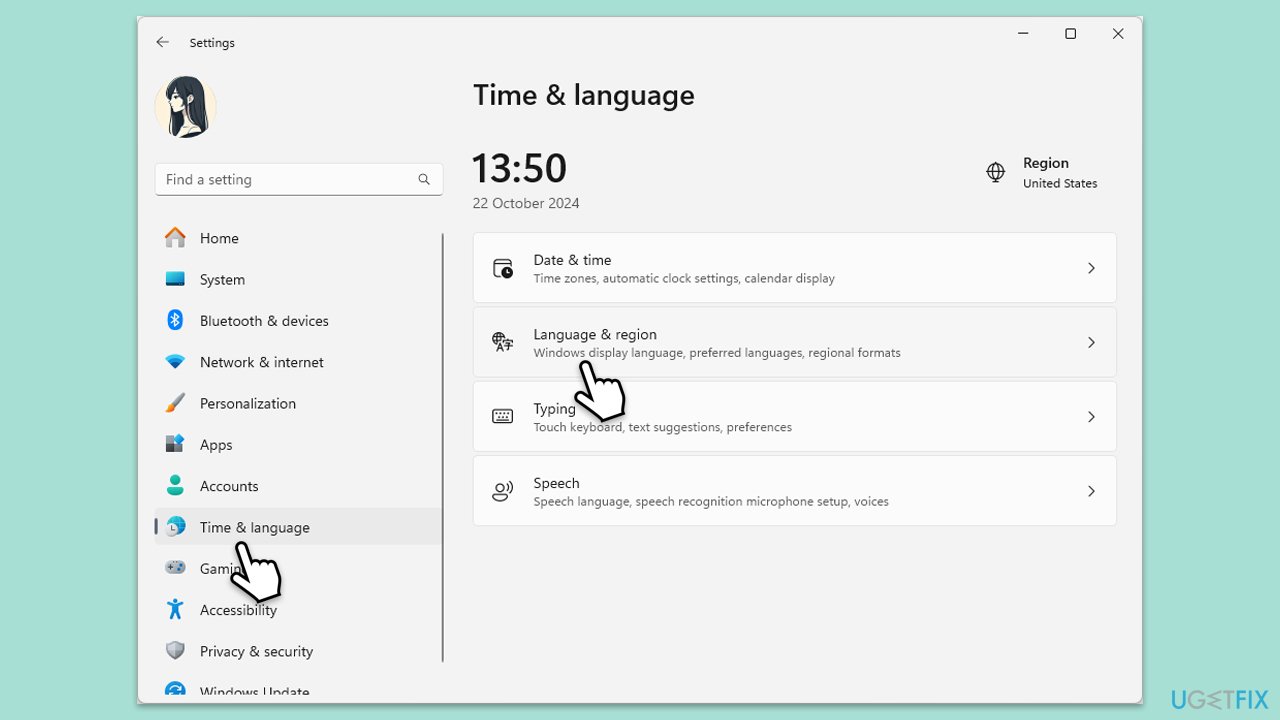
Fix 1. Verify region settings
Incorrect region settings can sometimes restrict access to certain game downloads, which may trigger this error.
- Right-click on Start and select Settings.
- Go to Time & Language.
- Select Region and ensure your region matches the region associated with your Microsoft account.
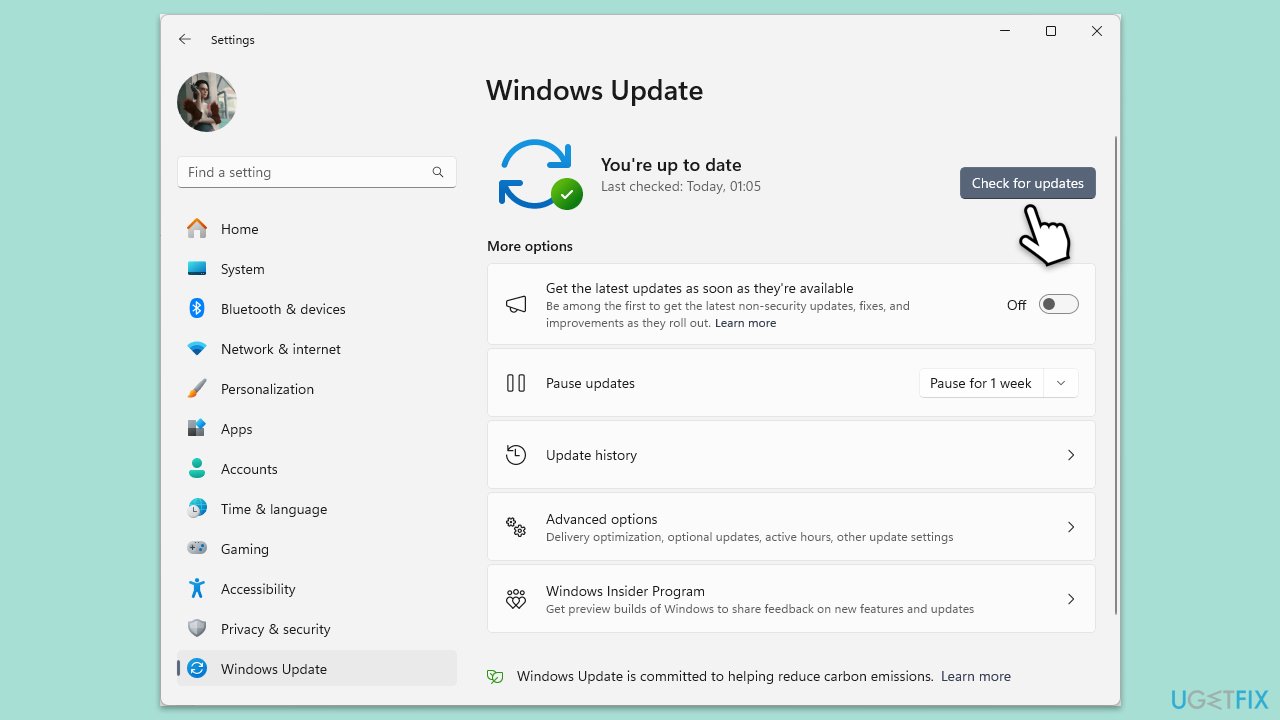
Fix 2. Update Windows
Outdated software can sometimes cause compatibility issues, making it difficult for the app to handle downloads and installations.
- Updates in Windows search and hit Enter.
- In the new window, click Check for updates and wait till everything is installed.
- Make sure you also install any available optional updates.
- When done, restart your device to implement the changes.
Fix 3. Clear Microsoft Store cache
Clearing the Microsoft Store cache can resolve issues if corrupt data is interfering with downloads in the Xbox app.
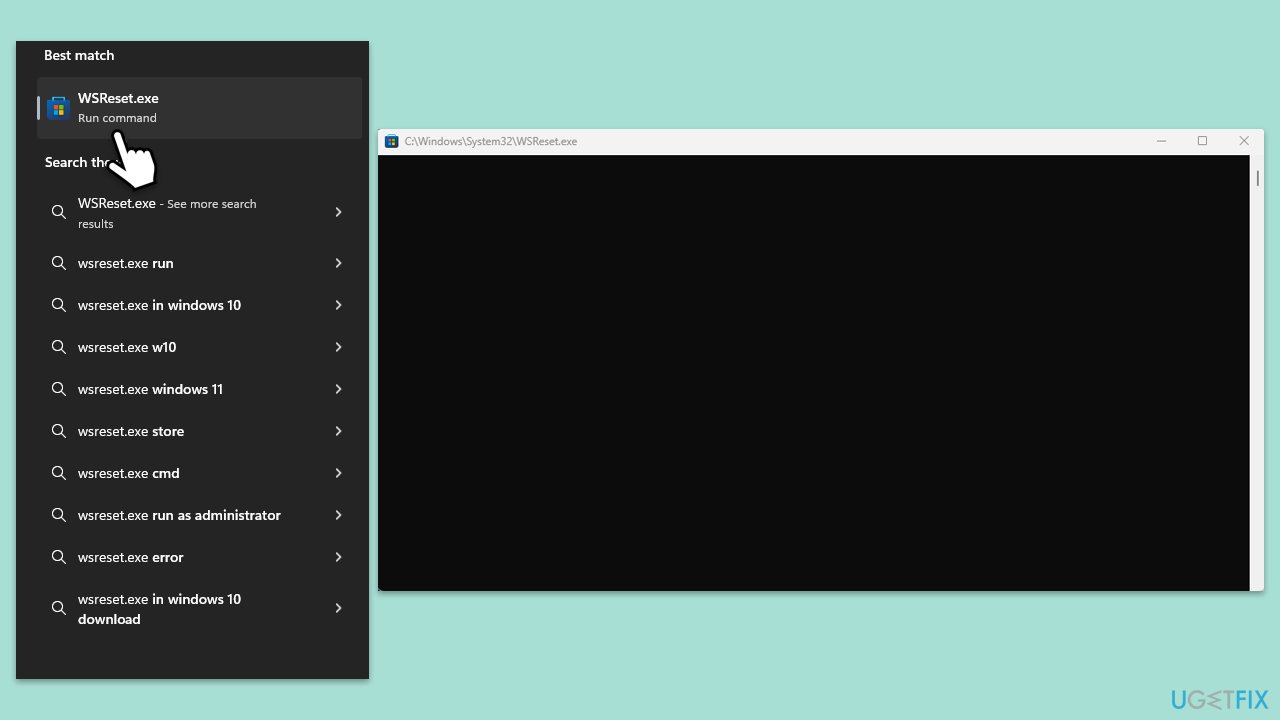
- Type wsreset.exe in the Windows search box and press Enter.
- Wait till a black window shows up – do not close it.
- Once it's gone,Microsoft Store should restart.
- Try using the Store again.
Fix 4. Repair or reset Xbox app, Microsoft Store, and Gaming services
Repairing or resetting the Xbox app and other related components can resolve problems caused by corrupt or misconfigured app data.
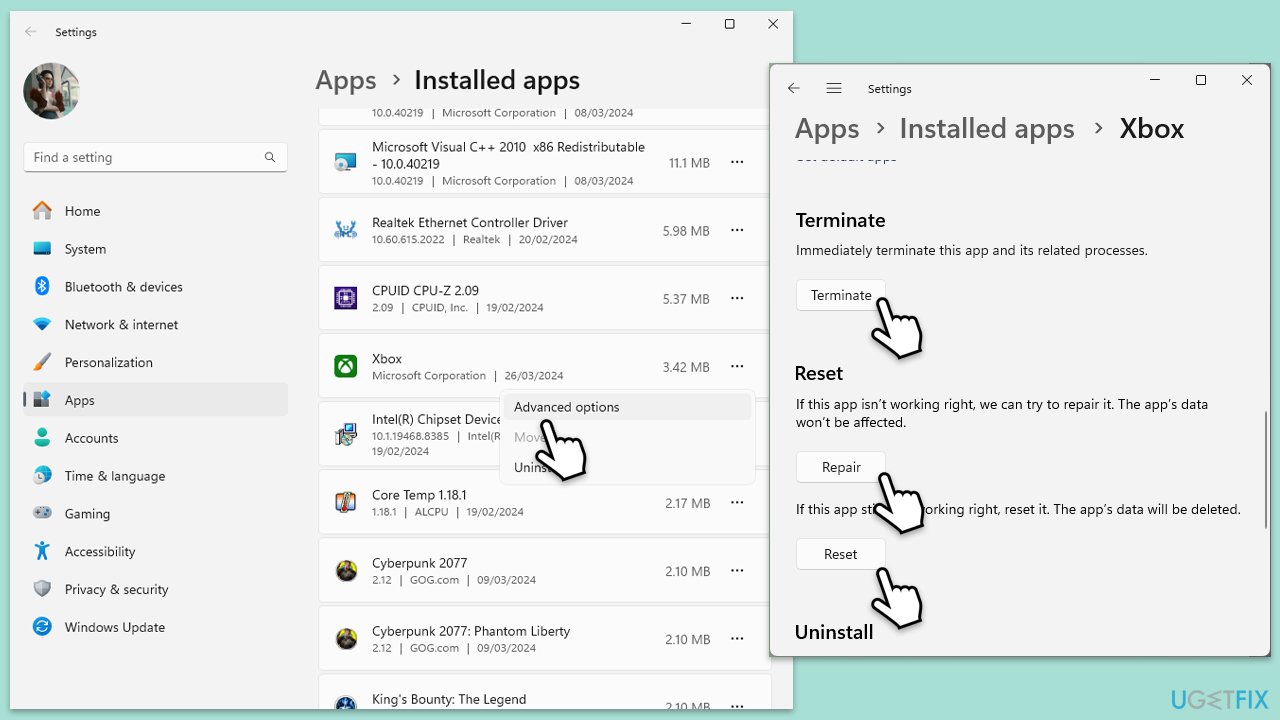
- Right-click on Start and select Apps & Features/Installed apps.
- Scroll down to find Microsoft Store and click Advanced options.
- Scroll down again and click Terminate and Repair.
- If that does not work, try using Reset.
- Repeat this process with the Xbox app and Gaming Services.
Fix 5. Run SFC and DISM scans
Run the commands via Command Prompt to repair damaged system files.
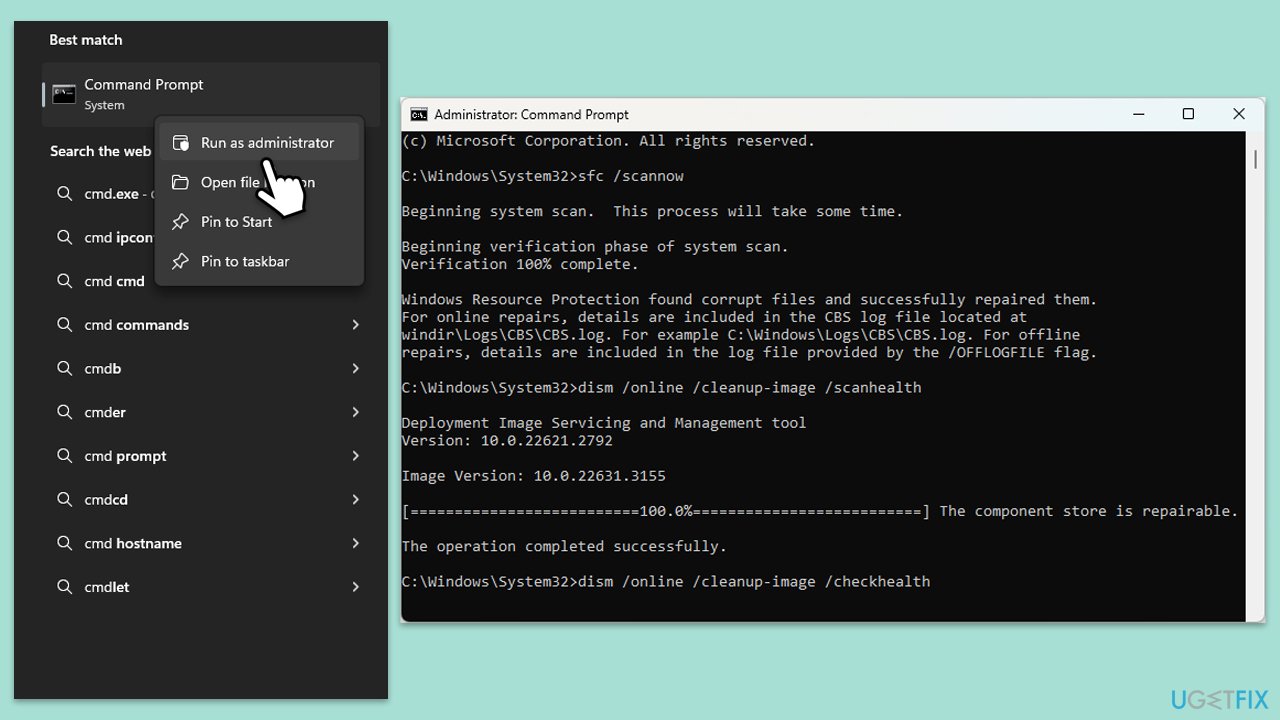
- Type cmd in Windows search.
- Right-click on Command Prompt and pick Run as administrator.
- User Account Control window will show up - click Yes when prompted.
- Then, copy and paste the following command, pressing Enter after:
sfc /scannow - Wait till the scan is finished. If Windows finds system file integrity violations, it will attempt to fix them. After this, use the set of the following commands, pressing Enter each time:
DISM /Online /Cleanup-Image /CheckHealth
DISM /Online /Cleanup-Image /ScanHealth
DISM /Online /Cleanup-Image /RestoreHealth - (Note: if you get an error executing this last command, add /Source:C:\RepairSource\Windows /LimitAccess to it and try again).
- Close down the Command Prompt and restart your system.
Fix 6. Reinstall Gaming Services using PowerShell
If the error persists, reinstalling Gaming Services in PowerShell can help refresh app dependencies.
- Ensure the Microsoft Store and Xbox App are closed.
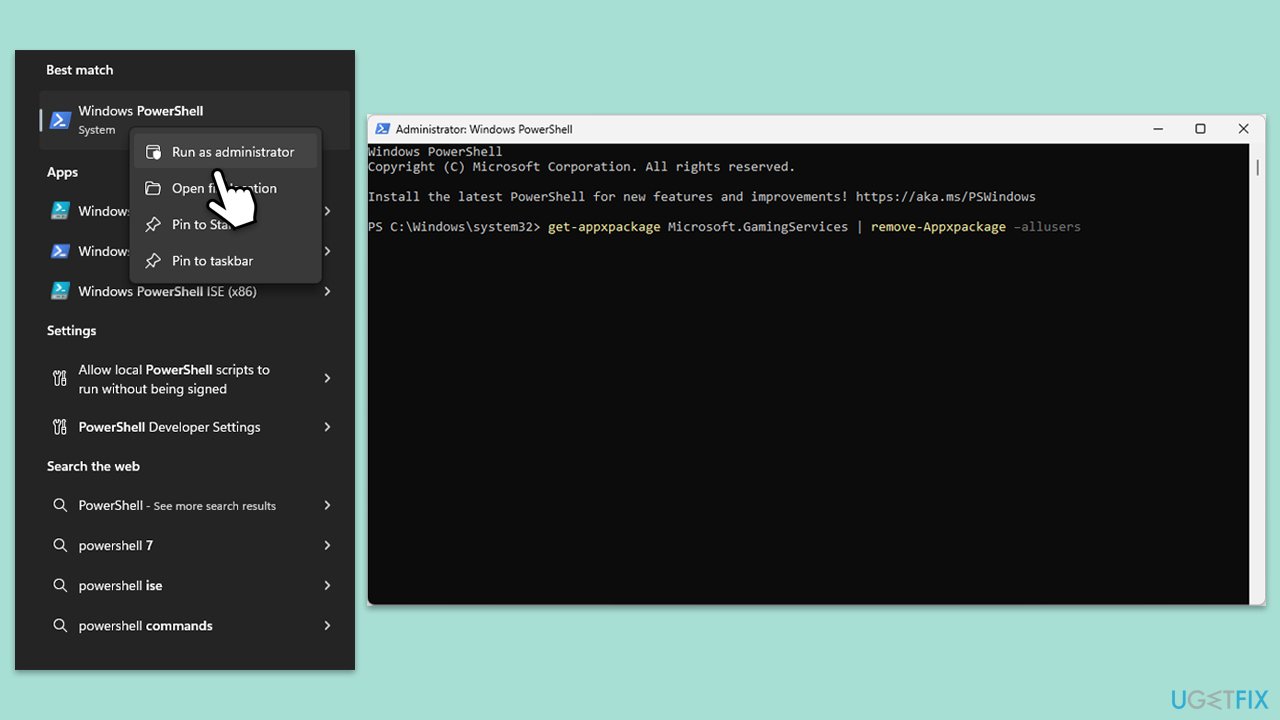
- Type PowerShell in Windows search.
- Right-click on the result and select Run as administrator.
- When User Account Control shows up, click Yes.
- In the new window, copy and paste the following commands and hit Enter:
get-appxpackage Microsoft.GamingServices | remove-Appxpackage –allusers
Remove-Item -Path "HKLM:\System\CurrentControlSet\Services\GamingServices" -recurse
Remove-Item -Path "HKLM:\System\CurrentControlSet\Services\GamingServicesNet" -recurse - Close down PowerShell and restart your system.
- Next, install Gaming Services from the Microsoft Store.
Bottom line
To fix the Xbox app error 0x87e00191, you can try checking your internet connection, repairing system files, updating your Xbox and Windows software, and reviewing your Microsoft Store limitations and region settings. If none of these solutions work, consider reaching out to Microsoft support for further assistance.
Frequently asked questions
The error 0x87e00191 is often caused by issues with the Xbox app's installation, corrupted game files, or problems with the Microsoft Store services.
You can troubleshoot this error by resetting the Xbox app, repairing the Microsoft Store, or ensuring that all Windows updates are installed.
Yes, on Windows 10, you can try uninstalling and reinstalling the Xbox app, or running the Windows Store Apps troubleshooter to resolve the error.




Report an issue
What's wrong with this guide? We review every report and update or remove content.
Report received — thank you. We'll review and fix it.
You need a free account to submit a report.
Be the first to comment