How to fix
“You can’t sign out while a game is running” in Riot Games
on Windows
Resolve the "You can’t sign out while a game is running" error on Windows 10 and 11 effortlessly. Enjoy seamless gaming with expert-tested solutions.

What causes How to fix “You can’t sign out while a game is running” in Riot Games?
- Game still running in the background
- Fault preventing Riot Games products from shutting down completely
- Client assumes a game is running when it is not
- Background process causing error message
- User unaware of background processes
Repairs Windows system files, removes malware, and restores a clean OS state — without reinstalling.
Hello. When I try to sign out of the Riot Games client I keep getting the "You can’t sign out while a game is running" error message even though there is no game running in the background. What should I do?
A well-known maker and distributor of video games, Riot Games is best known for their hit games League of Legends and Valorant. Players can access and control these games via the company's game client. Recently, when trying to sign out of the Riot Games client, some users have run into an error message. It says, "You can't sign out while a game is running," and occasionally it might say, "Please close other Riot Games products before signing out."
This issue generally happens when the Riot Games client requests that a game, like Valorant, be shut down before you can log out of the client because it assumes the game is still running. Users have, however, noted occasions where they think there isn't a game running on their desktop yet the mistake still occurs. Players who want to leave the client or switch accounts without running into this obstruction may find this situation to be frustrating.
One problem that has been identified as contributing to this error is a fault that prevents Riot Games products from shutting down entirely after being closed, causing them to keep running in the background. Even when the game seems to have ended normally, this can still occur. Although the user is not aware of it, this background process is probably what causes the error message that prevents log-out attempts.
While Riot Games upgrades or patches may be necessary for a thorough resolution to this problem, some users have found success with interim solutions. These include logging out of the client and then right away logging back in, or manually terminating background processes related to Riot Games products. It's crucial to remember that they are temporary fixes and that they might not be effective for many people. Users are encouraged to keep their client software updated in order to take advantage of any problem fixes or enhancements added in later releases because Riot Games is actively trying to address these issues through client upgrades.
In this guide, you will find 4 steps that should help you fix "You can’t sign out while a game is running" error in Riot Games. You may also run a system repair tool like [d1] that can fix most system errors, BSODs,[ref en-1] corrupted files, registry[ref en-2] issues, or clear cookies and cache.[ref en-3] Otherwise, follow the step-by-step instructions below.
Solution 1. Force Quit the Game
- Press the Windows key + S to open Windows search.
- In the Windows search box, type Task Manager and open it from the search results.
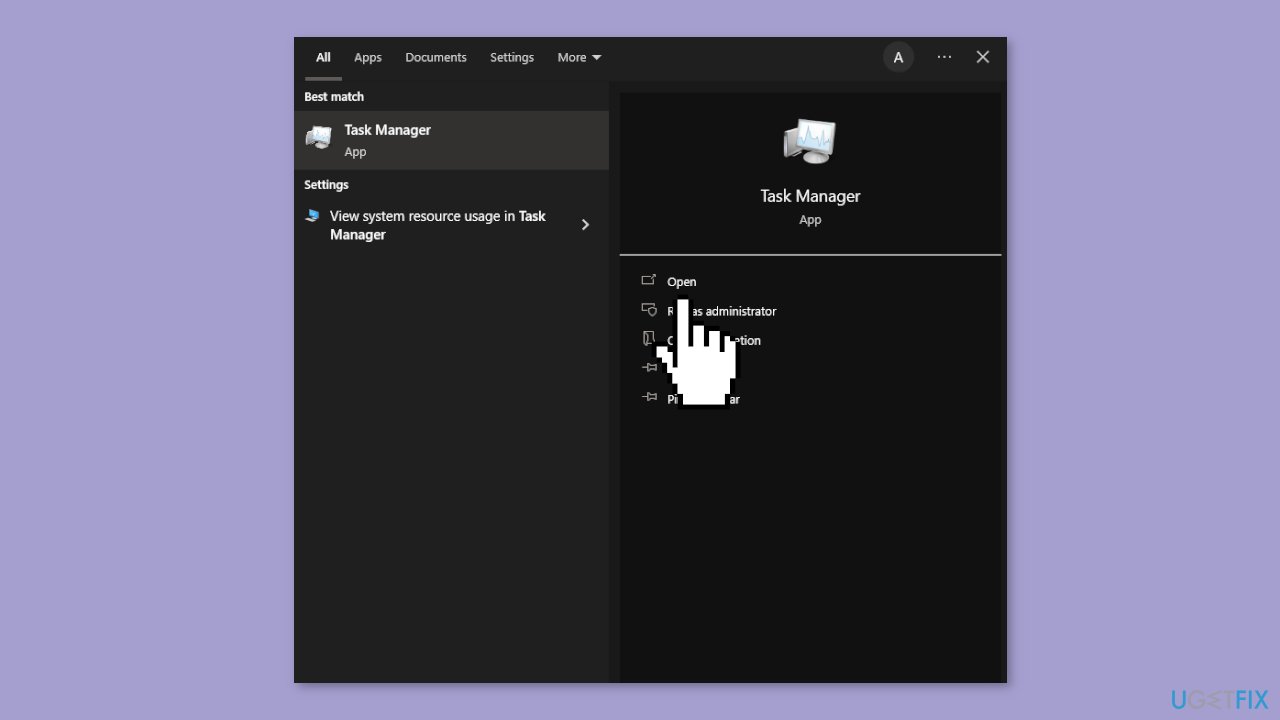
- Inside Task Manager, click on the Processes tab.
- Locate the game you want to close in the list of running processes.
- Right-click on the game's entry.
- From the context menu that appears, select End task.
Solution 2. Delete the Cache Files
- Press the Windows key + R to open the Run dialog box.
- In the Run dialog box, type %localappdata% into the search bar and then press Enter.
- Within the %localappdata% folder, find and locate the folders related to the game (e.g., "VALORANT") and the Riot Games folder.
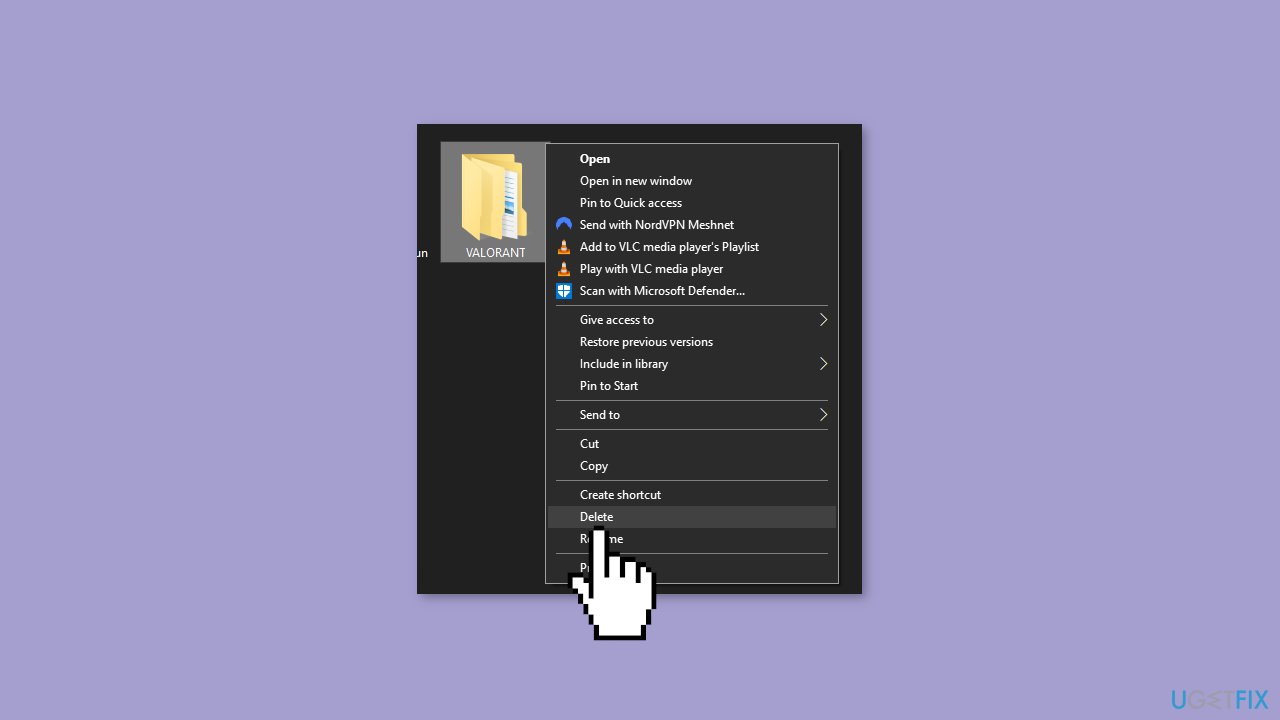
- Right-click on both of these folders.
- From the context menu that appears, select Delete.
- Restart your computer.
- Try logging out once again.
Solution 3. Reinstall Riot Vanguard and the Game
- Press the Windows key and click on the Gear icon located above the Power button to open the Settings menu.
- In the Settings menu, click on Apps.
- In the Apps & features section, locate Riot Vanguard.
- Left-click on Riot Vanguard, and then press the Uninstall button.
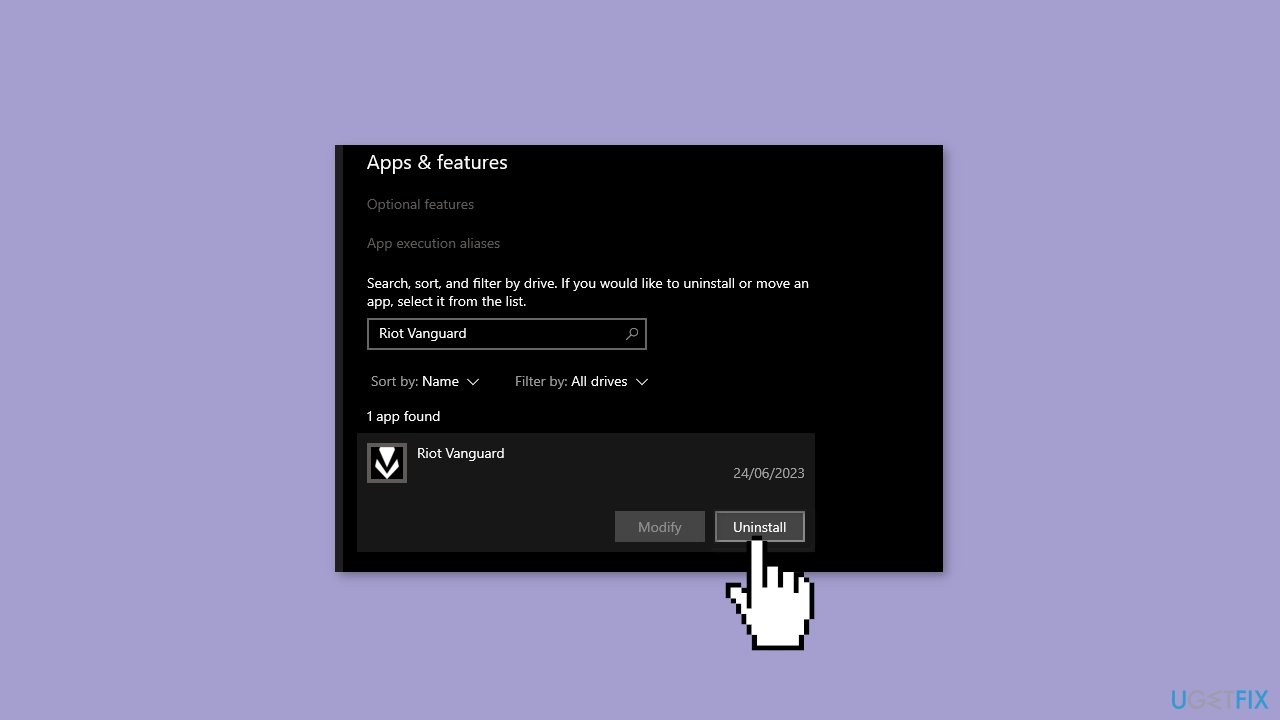
- Follow all prompts and instructions until the uninstallation process finishes.
- Now, repeat the same steps for the Riot game you want to uninstall.
- After uninstalling both Riot Vanguard and the game, restart your computer.
- Once your computer has restarted, open the Riot Client.
- In the Riot Client, navigate to the Games section.
- Select the game you want to reinstall and follow the installation instructions.
Solution 4. Contact Riot Games Support
- Open your web browser and navigate to the Riot Games Support website.
- From the Choose a category to find what you need dropdown menu, select the game you are experiencing issues with.
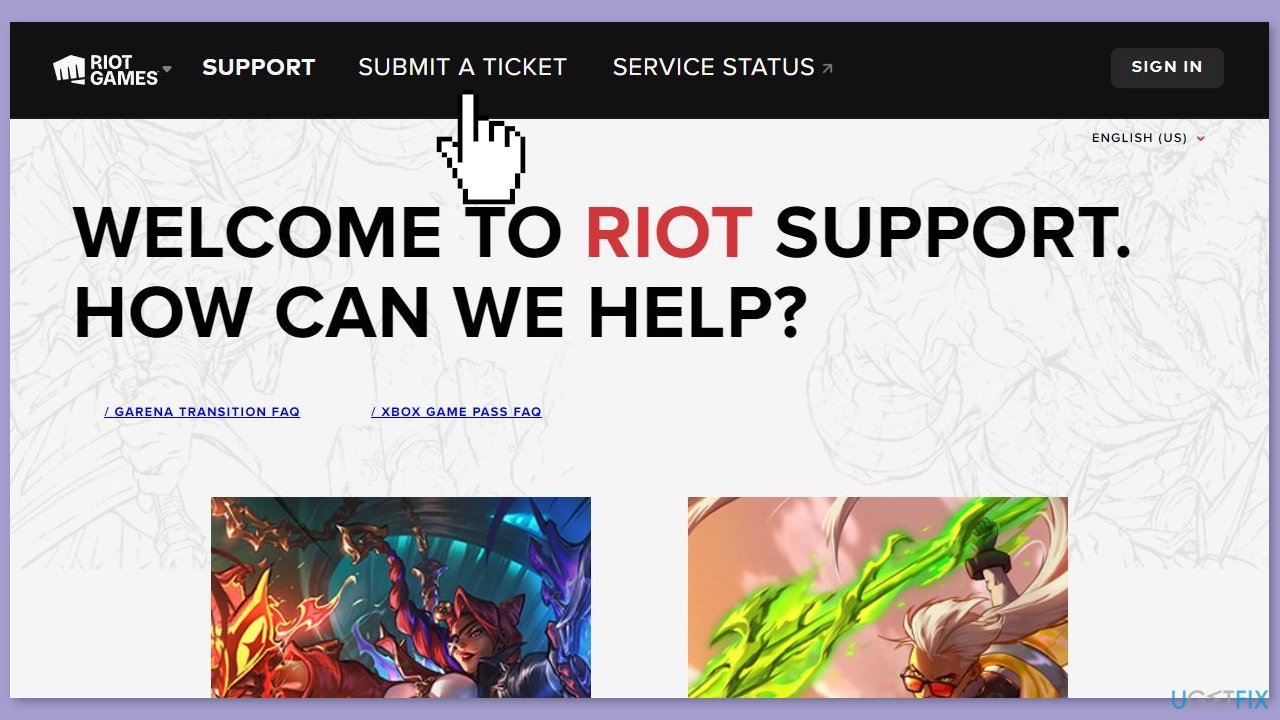
- On the website's main page, locate and click on the Submit a ticket button, which is usually situated in the middle of the page.
- From the dropdown menu that appears, choose the most relevant category for your issue; for technical issues, select Technical Issues.
- Enter your USERNAME and PASSWORD to log in to your Riot Games account.
- In the provided sections, first enter a brief subject describing your issue. Then, use the provided text box to provide more comprehensive information about the problem. Be sure to include details about any error messages you've encountered, the steps you've taken to resolve the issue so far, and any other pertinent information.
- If you have any screenshots or files that could aid Riot Support in understanding or diagnosing your problem, use the Choose File button to attach them.
- After you've completed all the required information and attached any necessary files, click the Submit button located at the bottom of the page to submit your support ticket.
Bottom line
To resolve the error message, users can try logging out of the client and then immediately logging back in, or manually terminating background processes related to Riot Games products. It's important to note that these are temporary fixes, and if none of these solutions work, users should keep their client software updated for potential patches.
Frequently asked questions
To resolve this error, close the game completely and check the Task Manager to ensure no game-related processes are running. Once all processes are terminated, you should be able to sign out without issues.
In Windows 11, make sure to exit the game and any associated background applications before attempting to sign out. If the problem persists, restart your PC to ensure all game processes are cleared.
If the issue recurs, consider reinstalling the game or checking for updates on Windows 10 or Windows 11 to ensure compatibility and stability.




Report an issue
What's wrong with this guide? We review every report and update or remove content.
Report received — thank you. We'll review and fix it.
You need a free account to submit a report.
Be the first to comment