How to fix
“You have a ZEUS virus” Error
on Windows
Resolve the "You have a ZEUS virus" error on Windows 10 or 11 quickly and securely. Use our expert-tested solutions for a hassle-free fix today!

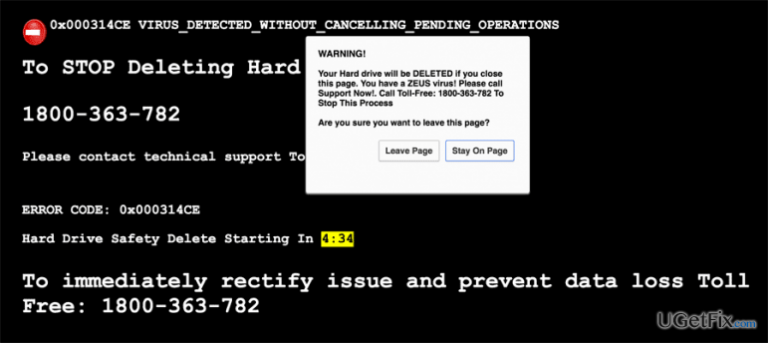
What causes How to Fix “You have a ZEUS virus” Error?
- Adware program infection
- Compromised website visit
- Tech Support Scam
- Intimidation tactics by cyber criminals
- Threat of data loss used to manipulate users
Repairs Windows system files, removes malware, and restores a clean OS state — without reinstalling.
Need help ASAP!! I’ve just received a pop-up alert, which claims that my hard drive is about to be deleted by Zeus virus. The message contains a tech support number and I’m urged to call for it now. I can close neither this alert nor the web browser itself, what makes me a little bit scared. I don’t want to lose all my data since I don’t have backups. Please tell me how should I behave?
A warning message on Google Chrome or another web browser saying that "You have a ZEUS virus" is fake. It’s occurrence indicates the fact that your PC might be infected with an adware program or you might have landed on a compromised website. Anyway, it means that your immediate response should be a system scam with a reliable security tool. In this case, you can try using [d1].
"You have a ZEUS virus" pop-up message is known as Tech Support Scam. Its purpose is to intimidate people and prompt them to contact a certified technician by calling a number provided on the alert (+1-884-859-0337). For this purpose, cyber criminals exploit the name of a notorious virus ZEUS and warn that the hard disk of the computer is going to be deleted if its owner closes the "You have a ZEUS virus" error message. We must admit that this unexpected notification might seem threatening, but we can assure you that by closing it you will not lose any personal files kept on the hard disk. On the contrary, calling for a “professional technician” might cost you a lot because the provided number may be premium-rated. On top of that, cyber criminals may persuade you to disclose some personal information or provide remote access to your PC, what may lead to identity theft and money loss. All in all, if you are receiving a "You have a ZEUS virus" alert, remove malware from the system or block malicious websites on your web browser.
How to Remove “You have a ZEUS virus" Pop-Up Alert?
As we have already mentioned, “You have a ZEUS virus" error may be triggered by an adware or a corrupted website. Therefore, to get rid of it, you have to block adware-type software or block compromised website on your web browser.
Method 1. Uninstall malware
You might know that adware-type programs are distributed using 'bundling' method, which employs the installer of other free programs. In other words, ad-supported web browser plug-ins and add-ons are typically attached to freewares and installed by default unless the user detaches them during the installation setup. Having this in mind, we strongly recommend using Advanced or Custom installation mode all the time and unmarking all prechecked additional components.
Now, since you have already received “You have a ZEUS virus" pop-up, you have to locate the ad-supported application installed unintentionally and delete it completely. This can be done either using a security tool, such as [d1] or performing the following steps:
- Click Start and navigate to Control Panel.
- Open Programs and Features and select Uninstall a Program.
- Find all suspicious programs on the list, click on them, and select Uninstall.
Once done, you should reset your web browser. If you are using Google Chrome, here's what you have to do:
- Open Google Chrome, click on three-bar button at the top of the screen to open Menu.
- Select Tools and then go to Extensions.
- Look for suspicious browser extensions, mark them and click on Trash icon.
- Open menu again and go to Settings. Find On startup part, and click Set pages next to Open a specific page or a set of pages option.
- Remove suspicious websites by clicking on X next to them. Then enter a URL of the site that you would like to set as your homepage.
- Then go to Menu → Settings → Manage Search engines.
- Remove all suspicious entries and leave only the search engine that you would like to use.
- After that, go to Menu → Settings, and click on Reset Browser Settings..
- Once Reset browser settings window appears, click Reset to proceed.
Reset other web browsers as well. If you don't known how to do that, you can find instructions at the end of this post.
Method 2. Block malicious websites
In case you PC is adware-free, then you must have landed on an infected web page. Usually, people are redirected to such websites by clicking on various links disguided on the third-party websites, email messages or doubtful search results. The detection of phishing websites and malware is performed on Google Chrome by default. However, sometimes the settings might be changed by third-party applications or a PC owner may turn off malware notifications purposely. Therefore, if you do not want to ran into a website prompting “You have a ZEUS virus" error pop-up, here's what you have to do:
Launch Google Chrome and click More More at the top right corner of the screen.
Open Settings and click Show advanced settings,
Under Privacy, tick the box next to Protect you and your device from dangerous sites.
Bottom line
To fix the 'You have a ZEUS virus' pop-up alert, remove malware from your system and block malicious websites on your web browser. It's important to avoid calling the provided tech support number as it may lead to identity theft and financial loss. If these steps do not resolve the issue, consider using a reliable security tool for further assistance.
Frequently asked questions
First, disconnect your device from the internet to prevent further damage, and then run a full system scan using Windows Defender or a reputable antivirus program.
While it's possible to remove the ZEUS virus manually by deleting infected files, it's highly recommended to use an antivirus tool for a thorough cleanup to ensure complete removal.
No, ignoring this error can lead to data theft and further system issues, so it's crucial to address it immediately by following proper removal steps.




Report an issue
What's wrong with this guide? We review every report and update or remove content.
Report received — thank you. We'll review and fix it.
You need a free account to submit a report.
Be the first to comment