How to fix
“Your IT administrator has limited access” error
on Windows
Resolve the "Your IT administrator has limited access" error on Windows 10 and 11 easily. Expert-tested solutions to regain full access, fixed in minutes.

What causes How to fix “Your IT administrator has limited access” error in Windows?
- Incorrectly set user account permission settings
- Third-party antivirus software causing restricted access
- Using a school or work email as the main account
- Account not having full control over Windows features
Repairs Windows system files, removes malware, and restores a clean OS state — without reinstalling.
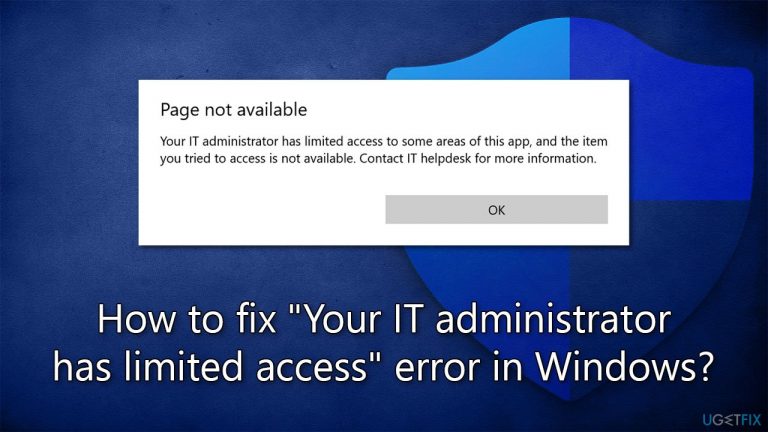
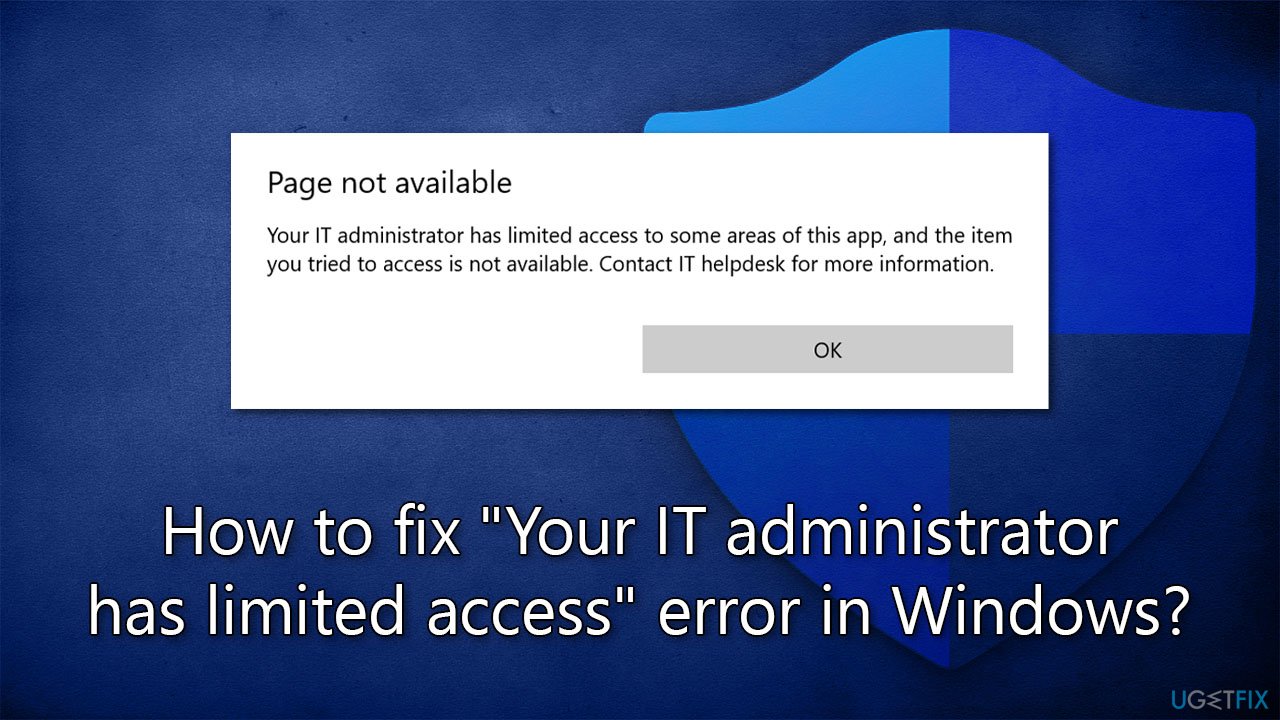
Every time I open Windows Defender, I receive an error saying that "Your IT administrator has limited access to some areas of this app, and the item you tried to access is not available." I don't have any other antivirus software, so I am not sure if I'm even protected at this point. Please advise ASAP.
Microsoft Defender is a comprehensive security solution for Windows 10 or 11 home users that provides real-time protection from the latest threats and malware. It utilizes advanced technologies, such as machine learning and cloud-based intelligence, to detect and block malicious activity.
Microsoft Defender provides proactive protection against all types of attacks, including zero-day exploits, ransomware, and phishing. It also offers an easy-to-use user interface and automated updates that keep your system up-to-date and safe from the latest threats.
Unfortunately, some users noticed that they were not able to access its settings due to the mysterious "Your IT administrator has limited access" error whenever they tried to open the Defender panel.
While this setting hints that the user might not be in full control of their Windows machine (for example, if an account is for work or school), it is not always the case. People said that they receive the "Your IT administrator has limited access" error when using their personal computers and personal Microsoft accounts, which can be a huge issue since they are unable to control their systems as they should.
In most cases, the problem resides within incorrectly set user account permission settings, and this can be easily corrected. In other cases, third-party anti-virus could be the cause of why one has restricted access to Windows defender or the "Virus Protection" section. That being said, the reason could still lie with users having their school or work email set as their main account, which could restrict access to Windows features. We'll explain how to remove them below.
Nevertheless, there could be other underlying issues that could cause the "Your IT administrator has limited access" error in Windows. Therefore, we recommend running a scan with [d1] PC repair tool that can easily find corrupted system files and replace them with working ones automatically.
1. Remove school or work account via Settings
You could have forgotten that you are using a different (i.e., not personal) account on your Windows device. This fix usually helps those who have the "Virus & Threat Protection" setting missing. Try this:
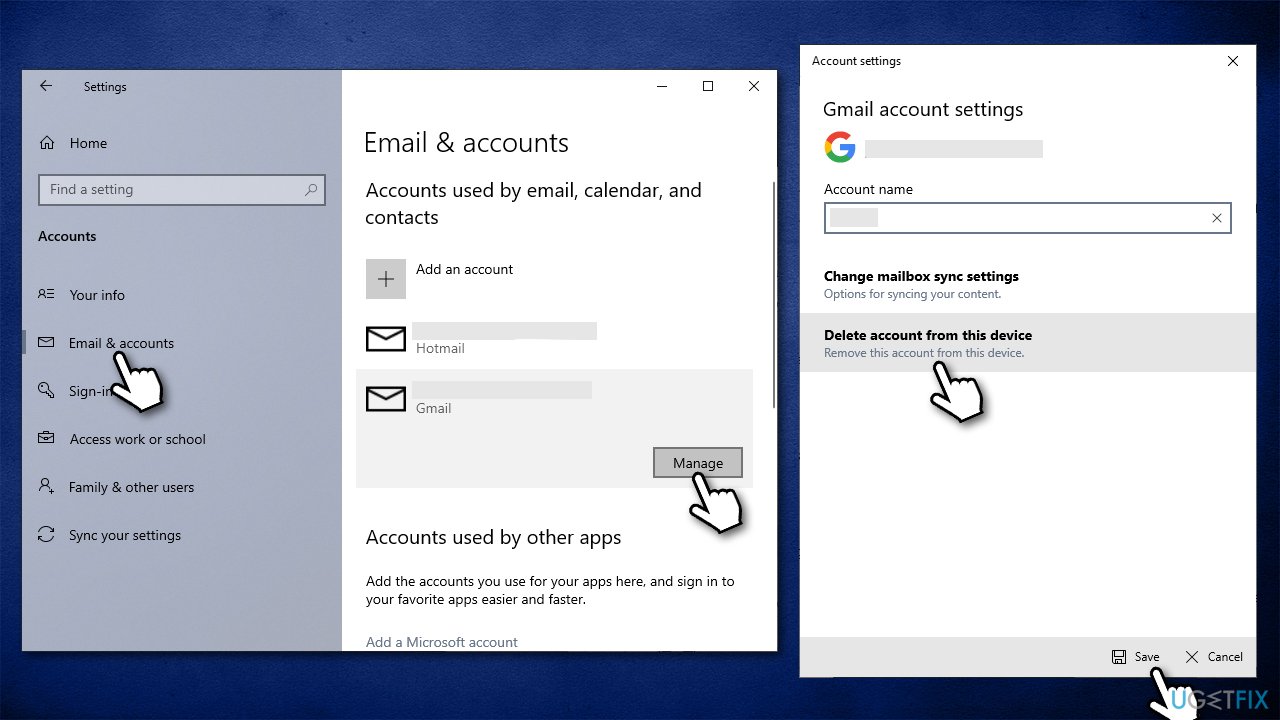
- Right-click on Start and pick Settings
- Here, go to the Accounts section
- Pick Emails and Accounts on the left side of the window
- Look for any emails/accounts that are from your school or work
- If found, click the entry and select Manage
- Then, select Delete account from this device, and proceed with on-screen instructions
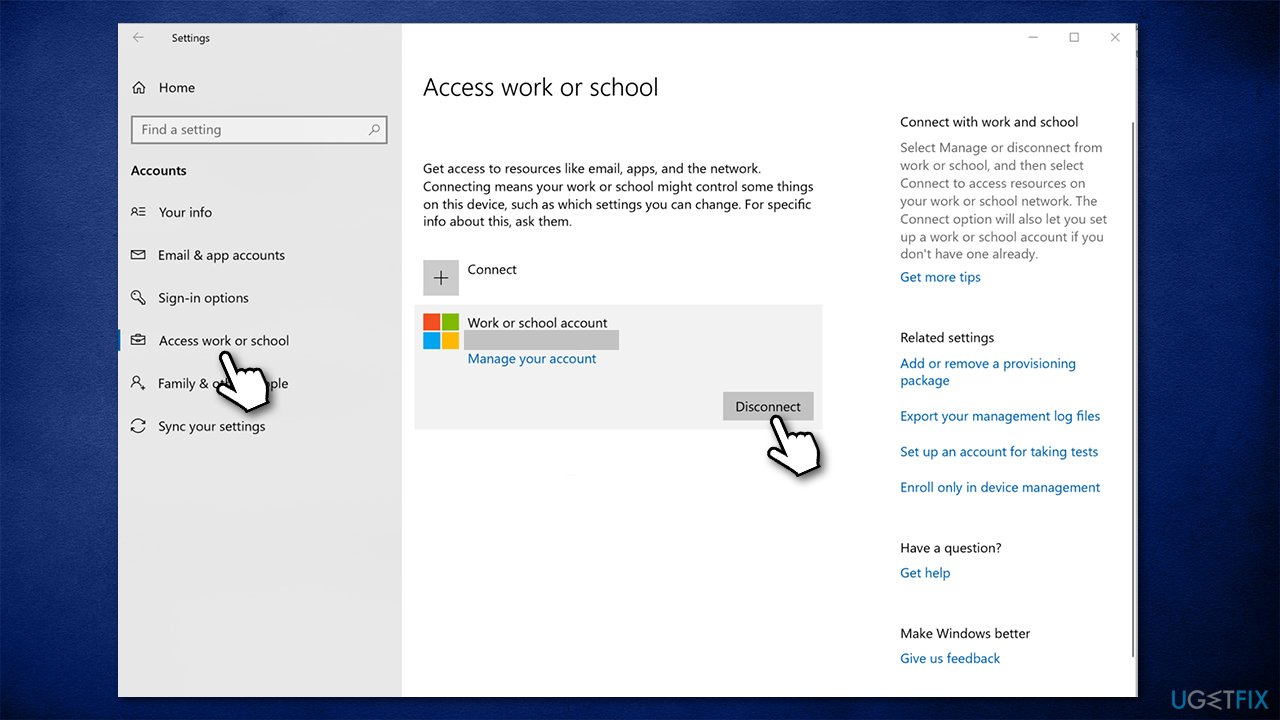
- Next, click on the Access work or school section on the left
- If there are any emails or accounts listed here, remove them by pressing Disconnect
- Restart your device.
2. Uninstall third-party antivirus
If you are using third-party antivirus software, you should remove it and see if that helps to fix the "Your IT administrator has limited access" error. Even if you do not have one running on the system at the moment, but there was one before (this is especially true if you have purchased a laptop with a pre-installed security program), there might be remnants of the software on your system still, conflicting with Microsoft Defender.
To uninstall it properly, you should use a dedicated removal tool that will remove the application properly along with all its remnants. You can find this list of download links for them here.
It is worth noting that malware could also disable access to your security tools. In such a case, we do recommend performing a scan with alternative security software and seeing if any threats are found.
3. Delete policies
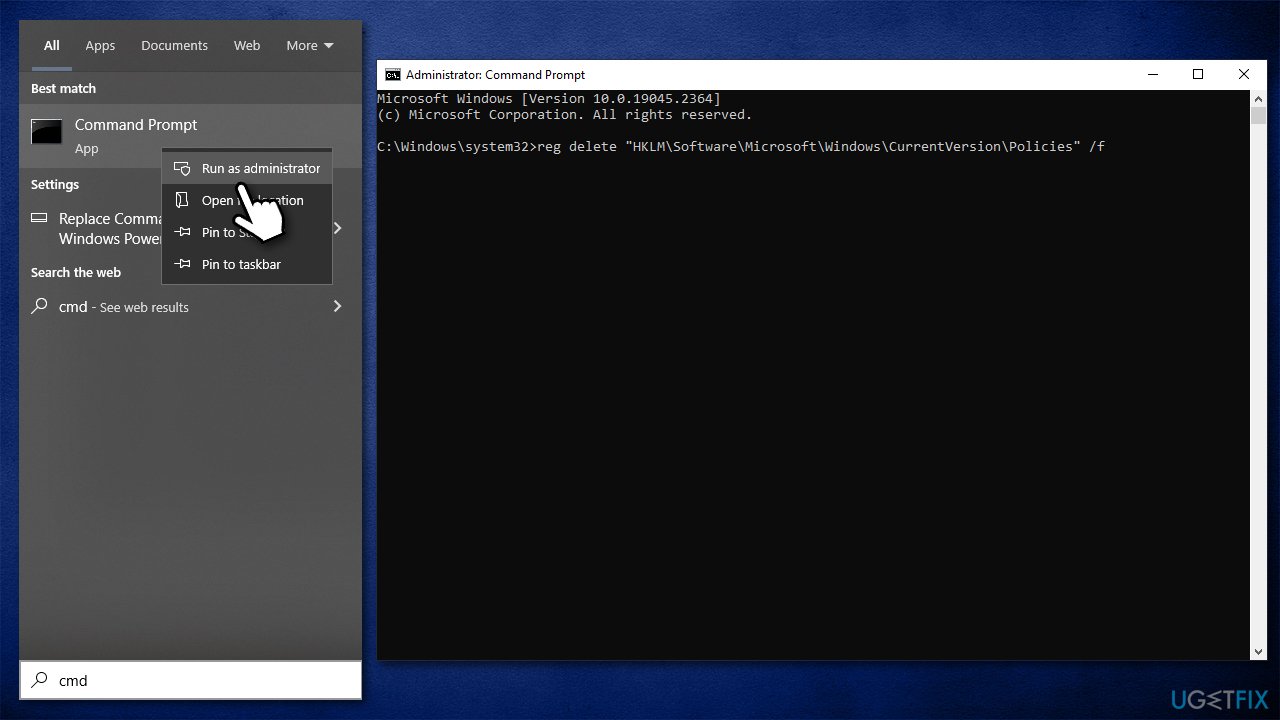
If you are sure there are no school/work accounts or third-party security software on your system, you should remove some policies via an elevated Command Prompt.
- Type cmd in Windows search
- Right-click on Command Prompt result and select Run as administrator
- User Account Control will ask if you want to allow this program to make changes to your device - click Yes
- In the new window, you need to type numerous commands, pressing Enter after each:
reg delete "HKLM\Software\Microsoft\Windows\CurrentVersion\Policies" /f
reg delete "HKLM\Software\Microsoft\WindowsSelfHost" /f
reg delete "HKLM\Software\Policies" /f
reg delete "HKLM\Software\WOW6432Node\Microsoft\Policies" /f
reg delete "HKLM\Software\WOW6432Node\Microsoft\Windows\CurrentVersion\Policies" /f
reg delete "HKLM\SOFTWARE\Policies\Microsoft\Windows Defender" /v DisableAntiSpyware
reg delete "HKCU\Software\Microsoft\Windows\CurrentVersion\Policies" /f
reg delete "HKCU\Software\Microsoft\WindowsSelfHost" /f
reg delete "HKCU\Software\Policies" /f
reg delete "HKLM\Software\Microsoft\Policies" /f - Close down Command Prompt and restart your PC.
You may find the following articles useful:
Bottom line
To fix the 'Your IT administrator has limited access' error, you can adjust user account permissions, check for third-party antivirus interference, and ensure that your main account is not a school or work email. If these solutions do not resolve the issue, further investigation into other underlying problems may be necessary.
Frequently asked questions
This error typically occurs due to Group Policy settings or local security policies that restrict user permissions on Windows 10 devices, often in corporate or educational environments.
To change Group Policy settings, press Win + R, type 'gpedit.msc', and navigate to the relevant policies to adjust user permissions accordingly in Windows 11.
If you don't have admin privileges, you may need to contact your IT administrator for assistance, as they can modify the necessary settings in Windows 10 or Windows 11.




Report an issue
What's wrong with this guide? We review every report and update or remove content.
Report received — thank you. We'll review and fix it.
You need a free account to submit a report.
Be the first to comment