How to fix
“Your PC needs to be repaired. Error code (0xc0000034)”
on Windows
Resolve the "Your PC needs to be repaired. Error code (0xc0000034)" issue on Windows 10 easily. Follow our expert-tested solutions for quick fixes!


What causes How to fix “Your PC needs to be repaired. Error code (0xc0000034)” in Windows 10?
- Bad sectors on the hard drive
- Corrupted Windows installation
- Missing boot files
- Compatibility issues
Repairs Windows system files, removes malware, and restores a clean OS state — without reinstalling.
Hello. I reinstalled WIndows 10 and everything was fine, but after a couple of days, it went into a recovery screen and displayed an error. The window said to use recovery tools. Are there any other ways to fix the issue?
Windows is one of the most popular and powerful operating systems used in the world. It was created by Microsoft and is used for its customization abilities, user-friendly interface, and easy troubleshooting options. However, like many other things, it does not come without issues and errors. The complexity of having to configure different system components like drivers is likely to cause an error sooner or later.
Users experience errors that can be easily fixed with Windows built-in automatic troubleshooter,[ref en-1] and some other more serious errors that need user input. Some of the more serious errors are 0x0000007b, 0xc000014c and 0xc0000034, which we will talk about today.
This problem can occur because of various reasons, but this is what the error says:
Recovery. Your PC needs to be repaired.
The Boot Configuration Data file is missing some required information.
File: \\BCD
Error code: 0xc0000034
You’ll need to use the recovery tools on your installation media. If you don’t have any installation media (like a disc or USB device), contact your system administrator or PC manufacturer.
Press ESC for UEFI Firmware Settings.
The error prompt says that the Boot Configuration Data file[ref en-2] is missing some information. Boot Configuration Data (BCD) is a firmware-independent database for boot-time configuration data. It is used by Microsoft's new Windows Boot Manager and replaces the boot. Some of the reasons why you are experiencing this can be:
- Bad sectors on the Hard drive
- Corrupted Windows installation
- Missing boot files
- Compatibility Issues
In this article, we provide a couple of possible solutions for the 0xc0000034 error code. Depending on the severity of your issue, a simple scan could be enough, or you might have to reinstall WIndows completely. If your PC is still functional, you can try using a repair tool [d1] to avoid going through all the possible fixes. This powerful software can fix various system errors, corrupted files, BSODs[ref en-3] and optimize the machine for maximum performance.
We listed the solutions in the order of complexity. You can start the process step-by-step:
Solution 1. Perform a Disk Scan
Your Windows 10 problems may stem from a corrupt file. If you can boot into the operating system — even if you have to boot into safe mode — you should perform a file scan to check for problems.
- Type cmd into the main search box
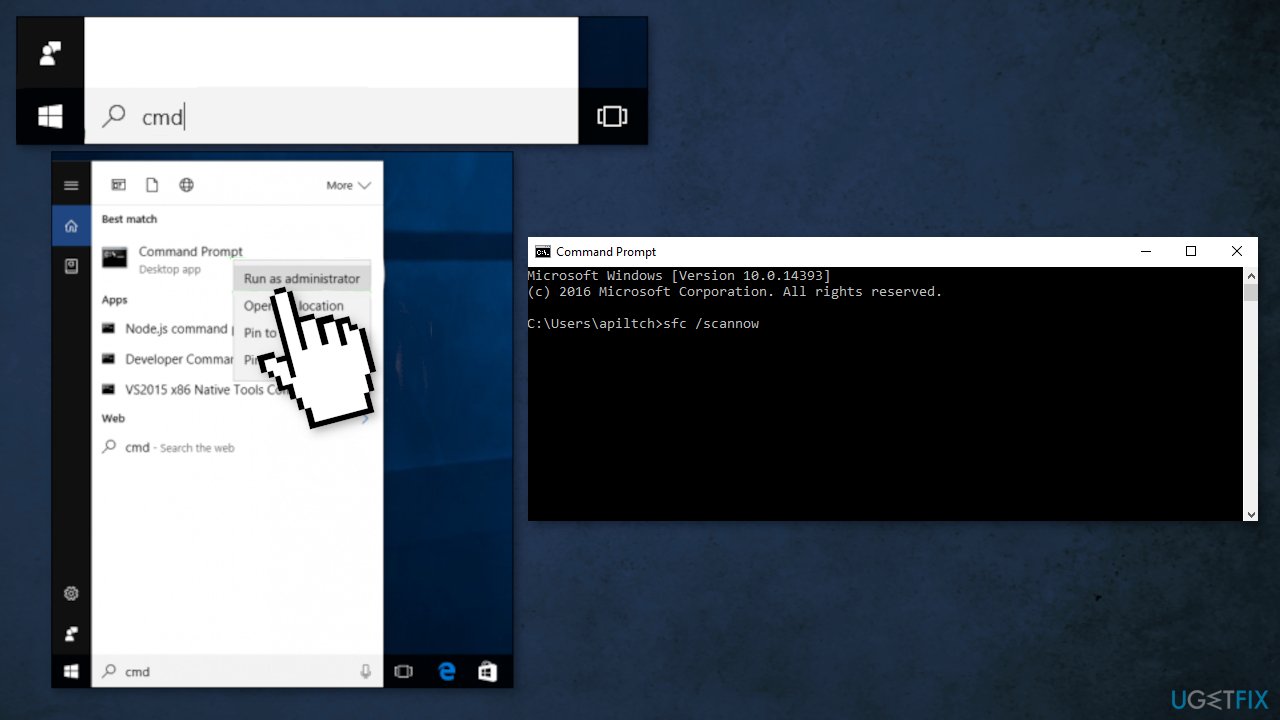
- Right-click on Command Prompt and select Run as Administrator
- Type sfc /scannow at the Command prompt and hit Enter
Solution 2. Use Windows Startup Repair
- Navigate to the Windows 10 Advanced Startup Options menu (on many pc's, hitting F11 as soon as you power on will get you to the Windows 10 Advanced Startup Options.
- Once your computer has booted, select Troubleshoot
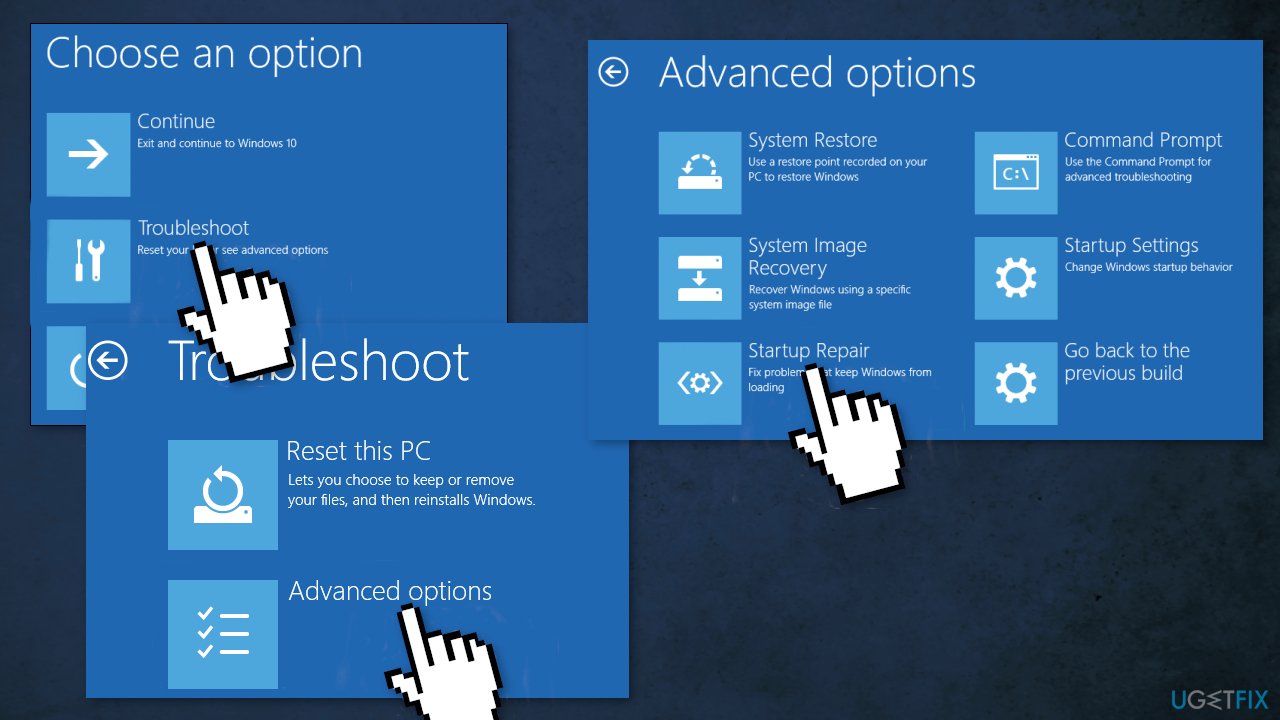
- Click Advanced options
- Click Startup Repair
Solution 3. Use Windows Restore
- Click System Restore
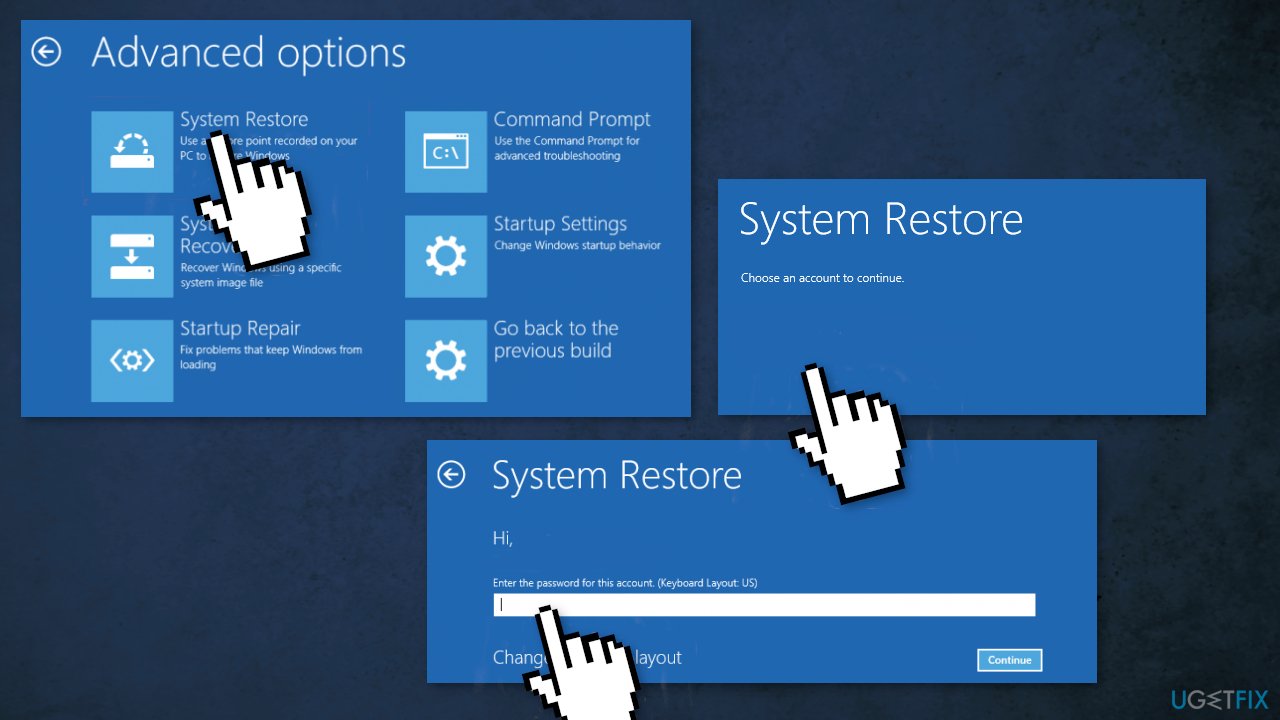
- Select your username
- Enter your password
- Select a restore point from the menu and follow the prompts (if you have no restore points, you can't use this method)
Solution 4. Refresh Your PC
When you are unable to repair your PC using any of the above-mentioned solutions you can use Windows Recovery Environment (WinRE) to perform automatic repair.
Please follow the following steps to refresh your Windows 10 PC:
- Reboot your PC
- Hit the F8 or F11 key (depending on your system) to open Advanced boot options
- On the next screen select Troubleshoot and then Refresh your PC.
- Follow the instructions to complete the process
Solution 5. Manually repair the error
This method requires a Windows 10 setup bootable media, so you can fix the error by following these steps.
- Plug in Windows 10 DVD or USB stick after starting your PC; the system will prompt you to select your keyboard and language settings
- Select Repair your computer option
- Select Troubleshoot and then click Advanced Options
- Click on the Command Prompt option
- As soon as you see a Command Prompt window, enter the following commands and press Enter after each one:
bootrec /fixMBR
bootrec /fixBoot
bootrec/scanos
bootrec /rebuildBCD
- Add the installation to the boot list by typing A and pressing the Enter key
- Close the Command Prompt and click Continue
- In the end, you will proceed to the Windows 10 home screen
Solution 6. Reinstall Windows 10
If all else fails and you can't even reset your Windows computer, you can reinstall the OS entirely. You won't even need an activation number or any proof of purchase, either. Just make sure you have more than 4GB of space available, as that's how much space the file you'll download takes up. Here's how to reinstall Windows 10:
- Download the ISO file
- Select Create installation media for another PC and click Next
- Select ISO file and click Next

- Click Finish
- Open the Windows ISO file you downloaded
- Open Setup and click Next
- Click Accept (Be prepared to wait; this next part may take a while)
- Click Install
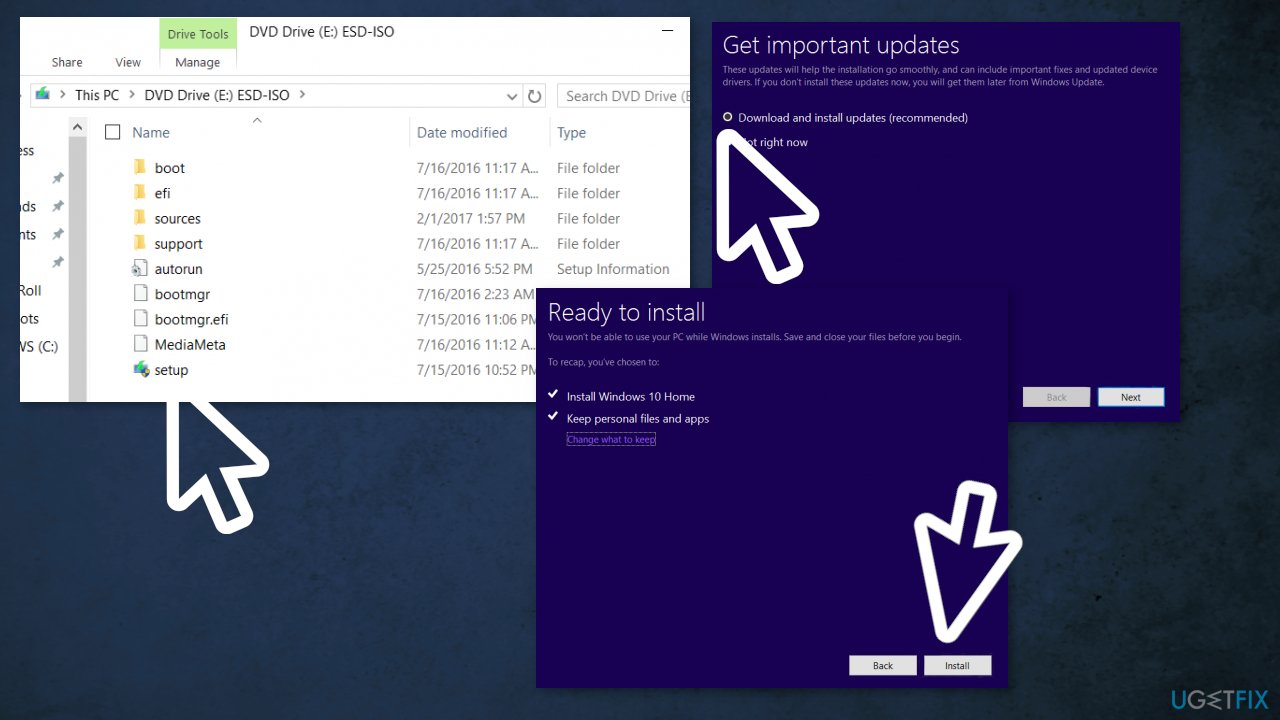
- Wait for your system to restart and install Windows 10
Bottom line
To fix the 0xc0000034 error code, you can try using a repair tool if your PC is still functional, or you may need to reinstall Windows completely. If these solutions do not work, consider contacting your system administrator or PC manufacturer for further assistance.
Frequently asked questions
This error is often caused by corrupted boot configuration data (BCD) or missing system files, which prevent Windows 10 from starting properly.
You can access Advanced Startup Options by repeatedly pressing F11 during boot, or by using a Windows 10 installation media to select 'Repair your computer'.
Yes, performing a System Restore can help if the error occurred after a recent change, as it reverts your system settings to a previous state.




Report an issue
What's wrong with this guide? We review every report and update or remove content.
Report received — thank you. We'll review and fix it.
You need a free account to submit a report.
Be the first to comment