How to fix
YouTube green screen error
on Windows
Resolve the YouTube green screen error on Windows 10 and 11 effortlessly. Get expert-tested solutions to enjoy uninterrupted streaming today!

What causes How to fix YouTube green screen error?
- Driver-related problems
- Enabled hardware acceleration settings
- Crashed web browser
- Frozen web browser
Repairs Windows system files, removes malware, and restores a clean OS state — without reinstalling.
When I play YouTube video, after a few seconds it gets stuck, and I see only a green screen on the player. How can I fix this problem?
YouTube[ref en-2] green screen error is similar to black screen error. However, this issue is usually reported by Windows 8 and Windows 8.1 users who access YouTube.com using Internet Explorer web browser. However, the same problem might emerge when using other versions of the operating system too.
Additionally, YouTube green screen issue was reported on Google Chrome, Mozilla Firefox, and other web browsers. Therefore, it’s not related to some Internet Explorer bugs. The main reasons why this error shows up are:
- driver-related problems which can be solved by updating[ref en-3] or reinstalling drivers;
- enabled hardware acceleration settings in web browsers;
- crashed or frozen web browser.
This error might prevent from watching videos on the popular sharing and streaming platform. While some users can hear an audio playing in the background, others cannot see or hear anything. In some cases, web browsers tend to crash due to the green screen error.
Fortunately, you can find YouTube green screen error quite easily. This issue is usually related to driver problems. Thus, instead of blaming YouTube, you should check your graphics drivers and browser’s settings.
Two ways to deal with YouTube green screen error
Google support offers two methods that can help to fix YouTube green screen error. Thus, you should try them out. However, if they do not help, you should try changing the web browser, installing available updates, changing display settings or streamed video quality.
Option 1. Disable hardware acceleration
Disabling hardware acceleration is one of the methods provided by Google. The steps differ based on your used web browser.
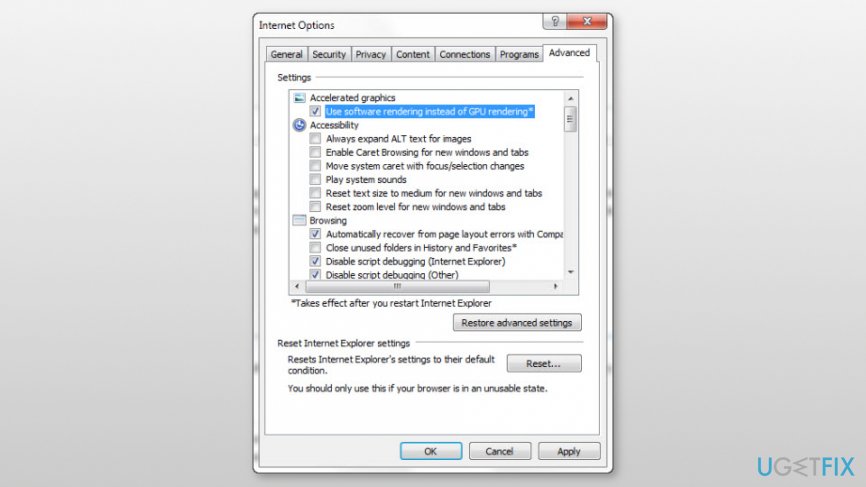
Internet Explorer users can turn off hardware acceleration via Internet Options:
- In Windows search, enter Internet Options and click on the first search result.
- Open Advanced tab.
- Under Accelerated graphics section mark the tick near Use software rendering instead of GPU rendering* box.
Disable hardware acceleration on internet explorer - Click Apply and then OK to save the changes.
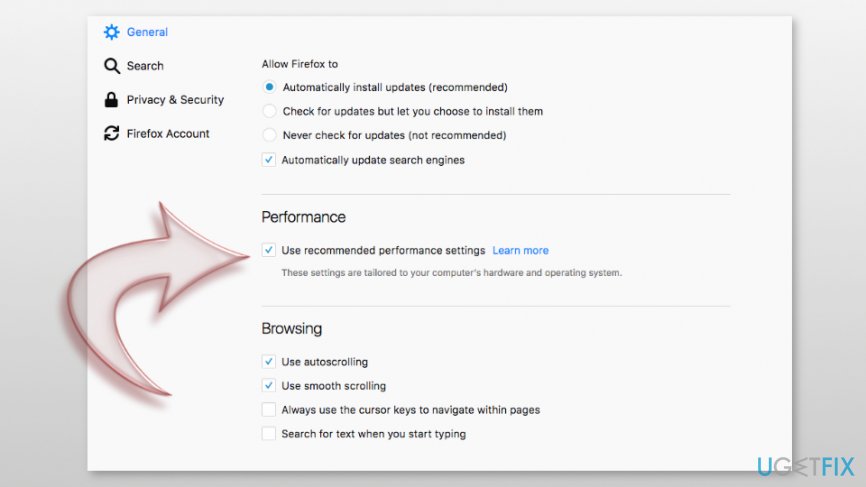
Mozilla Firefox users should follow these steps:
- Open Firefox and access menu.
- Go to Preferences and navigate to General section.
- Scroll down until you see Performance section.
- Remove the ticks from Use recommended performance settings (and Use hardware acceleration when available, if available) box.
Disable hardware acceleration on mozilla firefox - Close settings and check if YouTube green screen error was removed.
Google Chrome[ref en-1] users can disable this feature by following these steps:
- Open Chrome and click on menu.
- Navigate to Settings.
- When in Settings, scroll down until you see Advanced option.
- When in Advanced section, find System section and turn off Use hardware acceleration when available feature.
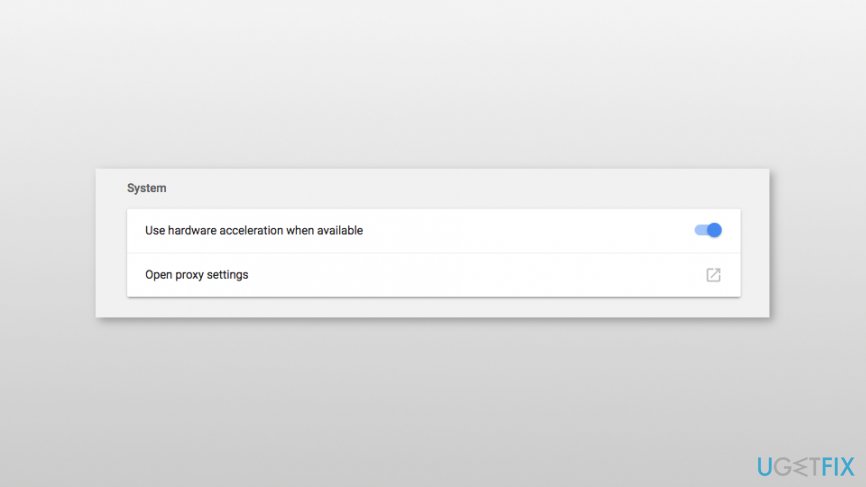
Disable hardware acceleration on google chrome - Restart the browser.
Option 2. Update graphics driver
- Find Device Manager app via Windows search and open it.
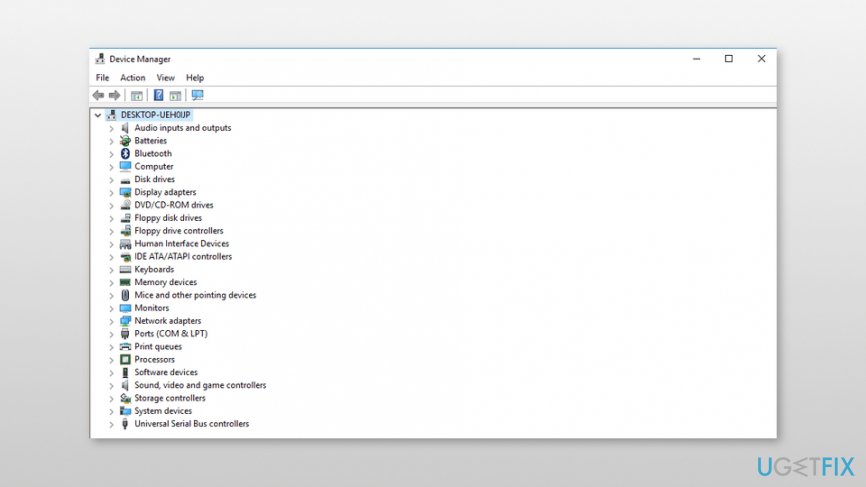
Open device manager - Find your graphics drivers and right-click on each entry.
- Choose Update Driver Option.
- Select Search automatically for updated driver software.
- Windows should update the drivers automatically. However, if OS cannot find the new driver, you should look up for the necessary drivers on the manufacturer's website and follow their provided installation guidelines.
Additionally, you can try to reinstall the driver.[ref en-4] In step 2 choose Uninstall option instead of Update. Then reboot the computer and Windows should install the missing driver automatically.
Bottom line
To fix the YouTube green screen error, you can disable hardware acceleration, update or reinstall drivers, and check your browser settings. If these methods do not resolve the issue, consider changing the web browser, installing available updates, or adjusting display settings and streamed video quality.
Frequently asked questions
The YouTube green screen error can occur due to outdated graphics drivers, browser issues, or hardware acceleration settings. Ensuring your system and browser are up-to-date can help resolve this issue.
To disable hardware acceleration in Windows 10 or Windows 11, go to your browser settings, find the 'Advanced' section, and toggle off the hardware acceleration option. Restart the browser and check if the issue persists.
Yes, clearing the browser cache can help fix the YouTube green screen error as it removes corrupted files that may be causing playback issues. Make sure to clear the cache regularly to maintain optimal browser performance.




Report an issue
What's wrong with this guide? We review every report and update or remove content.
Report received — thank you. We'll review and fix it.
You need a free account to submit a report.
Be the first to comment