How to fix
Remove Evaluation Copy watermark
on Windows
Say goodbye to the Evaluation Copy watermark on Windows 11 with our expert-tested solutions. Get a clean desktop in minutes!

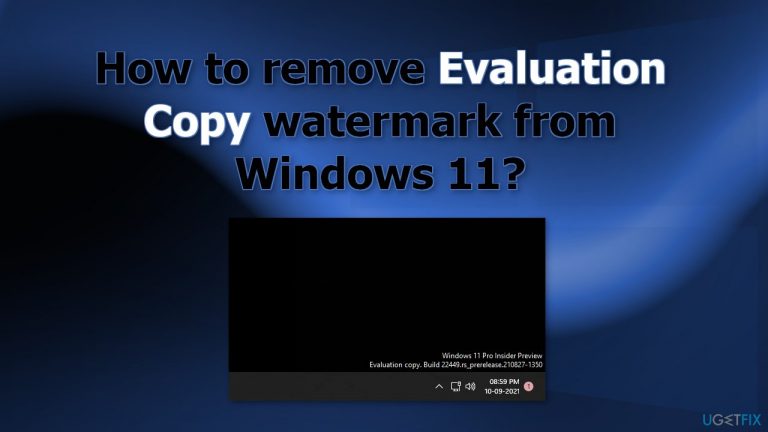
What causes How to remove Evaluation Copy watermark from Windows 11?
- User is enrolled in the Insider program
- Installed the latest feature update
- Joined the Insider program without realizing it
- The watermark is part of Beta and Dev builds
- The watermark appears due to using experimental software
Repairs Windows system files, removes malware, and restores a clean OS state — without reinstalling.
Hello. I have updated my Windows 11 PC and a watermark appeared on my desktop "Windows 11 Home Single Language. Evaluation copy. Build 22581.ini_release.220318- 1623" Why is it there and can I remove it?
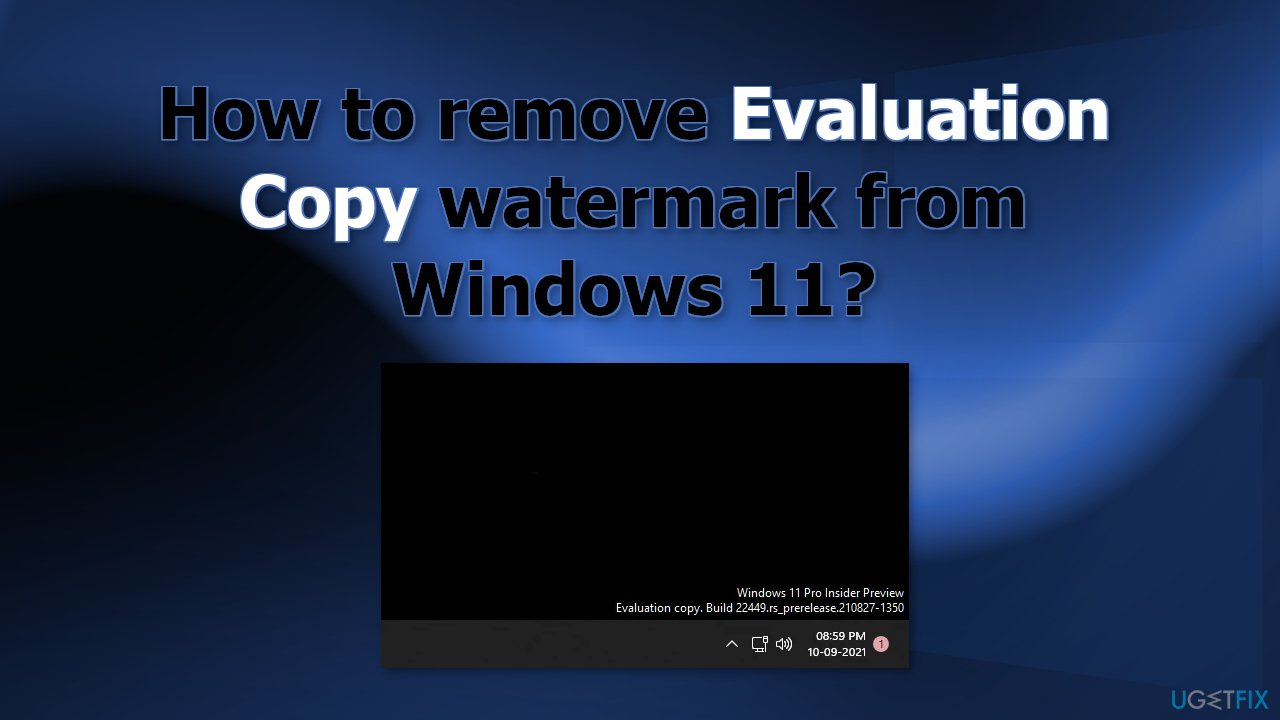
Recently, some Windows 11 users noticed that a small text appeared on the desktop above the taskbar. It is an Evaluation Copy watermark and it can say something like this:
Windows 11 Home Single Language. Evaluation copy. Build 22581.ini_release.220318- 1623
The watermark is shown on those systems, which are enrolled in the Insider program[ref en-1] and have installed the latest feature update. People participating in the program can receive Beta and Dev builds which let people test features before the next stable release. When signing up, users agree to the possibility that there may be bugs in the software as told in the Windows Insider program agreement:
You understand that using experimental and early pre-release software means you may experience occasional crashes and data loss. By participating, you acknowledge that it is your responsibility to frequently backup your data and restore it in the event of data loss.
However, some people might have joined the Insider program without realizing it. Many are now confused with the message shown in the right corner of the screen. The watermark does not affect the performance in any way, so users should not be worried about that. But many people still found it very annoying and are looking for ways to remove it.
In this guide, we will give you 6 suggestions on how to solve this issue. If you are not a Windows 11 Beta tester but you still experience frequent bugs and crashes, we recommend using a maintenance tool, like [d1]. It can fix most system errors, BSODs,[ref en-2] corrupted files, and registry[ref en-3] issues. Otherwise, proceed with the steps below.
Solution 1. Wait a few days
The watermark will automatically disappear after a few days upon the feature update installation. It does not affect the functionality in any way so you can sit back and wait.
Solution 2. Uninstall the Feature Update
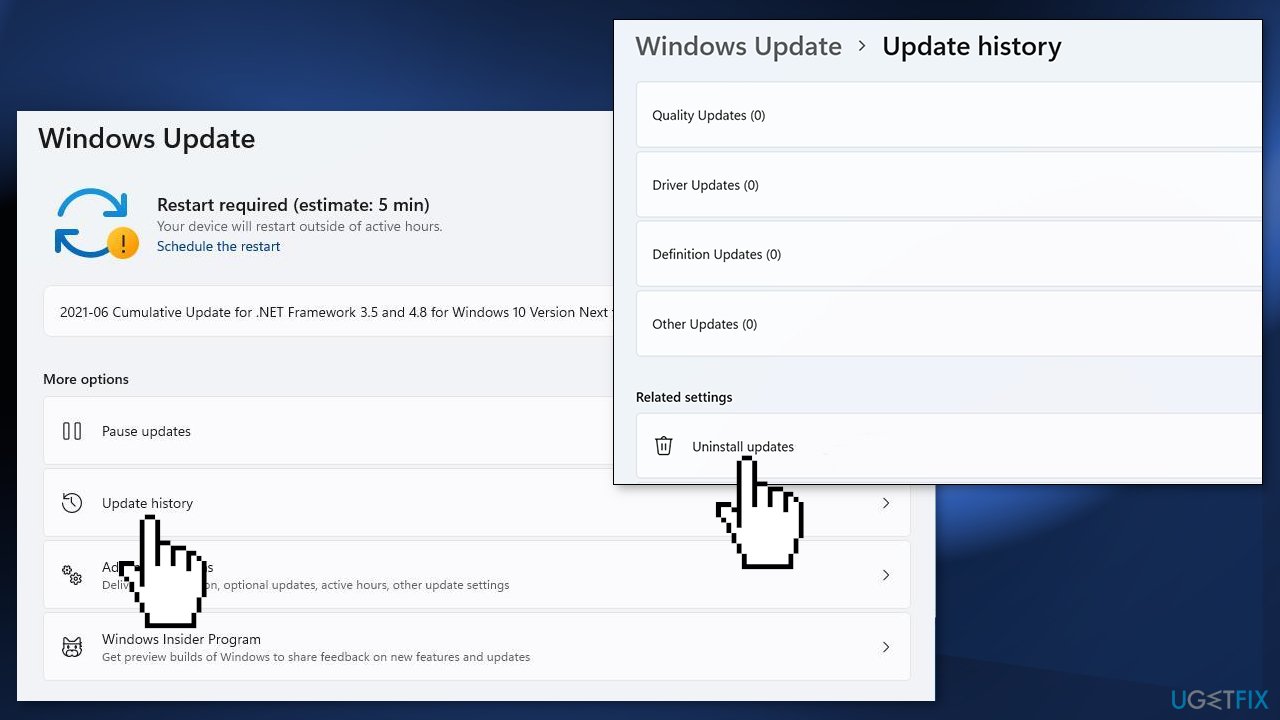
- Press the Windows key + I to open the Settings
- Select Windows Update and click on the Update history option
- The update history will be shown on your screen
- Click on Uninstall updates to begin the uninstallation process
- A new dialog box will open with a list of updates installed on your copy of Windows
- Choose the updates you want to get rid of and click on Uninstall
- Click on Yes to proceed with the uninstallation
Solution 3. Use System Restore
If you have a system restore point set up, you can use it to revert back to before the watermark appeared as well.
- Start the device
- As soon as the Windows logo appears on the screen, press the power button to interrupt the boot sequence
- Repeat these steps two more times until the device boots into the Windows Recovery Environment
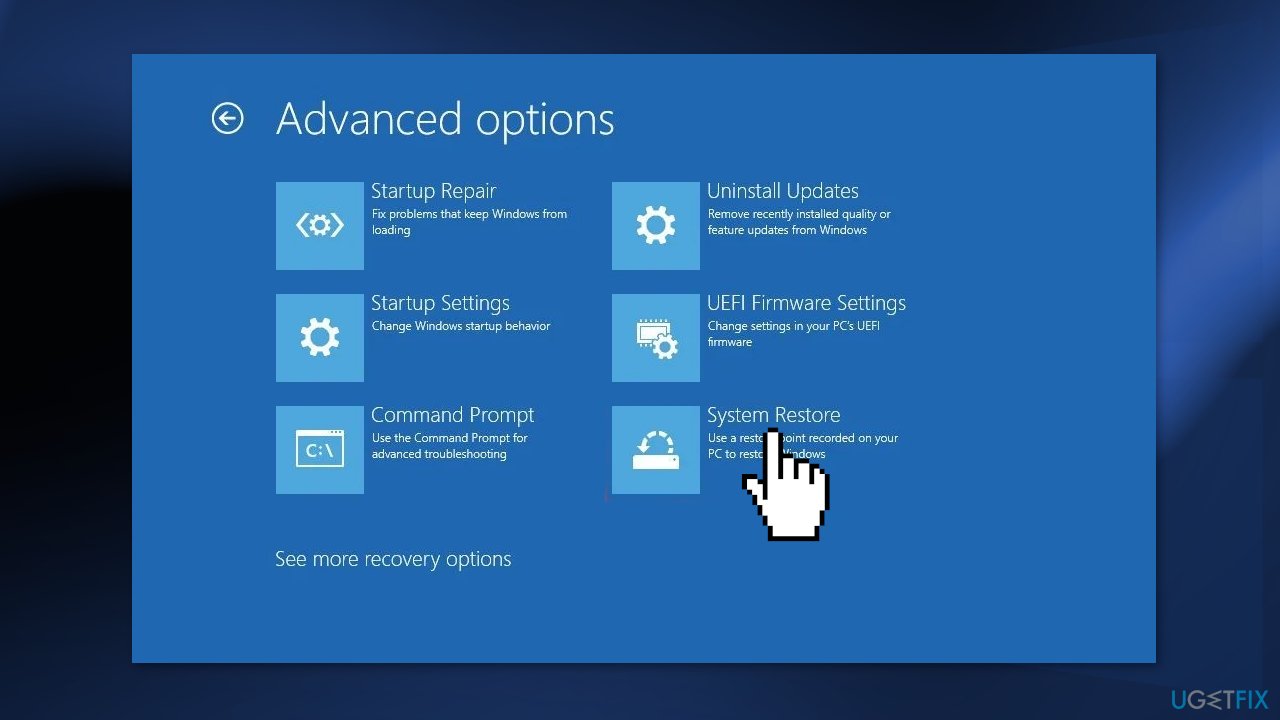
- Click the Advanced options button and choose Troubleshoot
- Click on Advanced options and go to System Restore
- Click the Next button
- Select the restore point to revert changes
- Click the Next button
- Click the Finish button
Solution 4. Leave the Insider Program
If you no longer want to receive Insider Preview builds, you will have to unenroll your device:
- Go to Settings and choose Update & Security
- Click on Windows Insider Program and Stop Insider Preview Builds to see your options
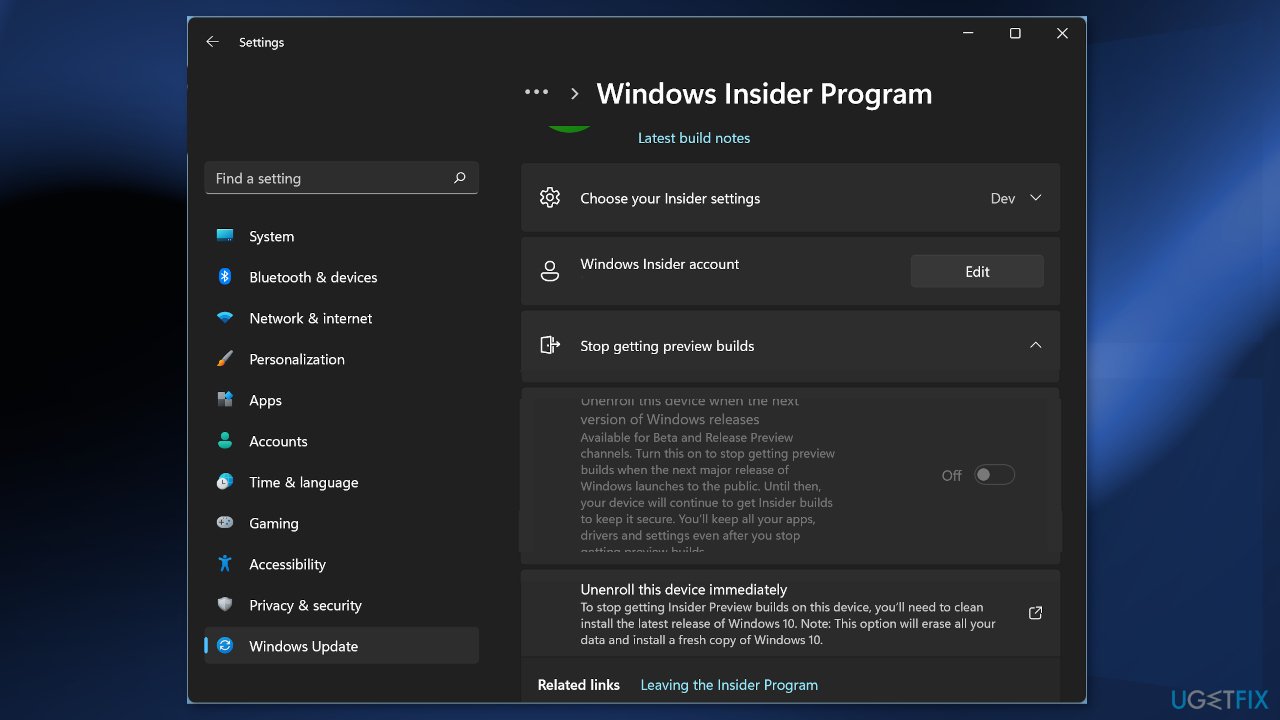
- If you're in the Beta Channel or the Release Preview Channel, you can flip the switch to stop getting preview builds on your device when the next major release of Windows launches to the public
- If you're in the Dev Channel or you'd like to stop getting preview builds immediately, you should perform a clean installation of Windows
Solution 5. Reinstall Windows 11 using Installation Media
- Go to the official Microsoft page
- Open the Select Download dropdown, pick Windows 11, and hit the Download button
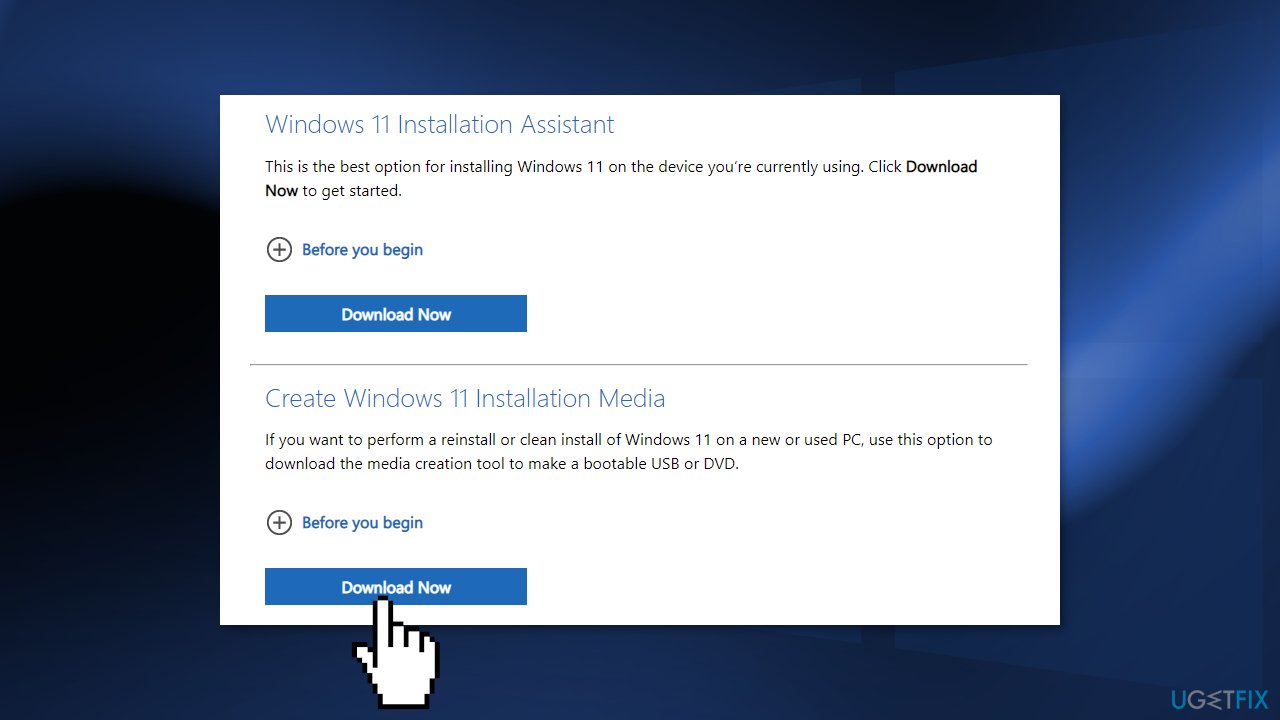
- Select your product language from the Choose one dropdown, hit Confirm, then click 64-bit Download
- When the .ISO file finishes downloading, right-click on it and pick Open with > Windows Explorer to mount the virtual disc, then double-click the setup file to begin the installation
- Follow the on-screen instructions
Solution 6. Go back to Windows 10
If you want to leave Windows 11 altogether, you can read an in-depth guide we wrote on How to downgrade from Windows 11 to Windows 10?
Bottom line
To remove the Evaluation Copy watermark, you can wait a few days for it to disappear automatically, or uninstall the feature update. If the watermark persists and you are not a Beta tester, consider using a maintenance tool to fix system errors.
Frequently asked questions
The Evaluation Copy watermark appears when you're using a Windows 11 version that is not activated or is a pre-release version. This indicates that the system is running a test build or hasn't been properly licensed.
No, to remove the Evaluation Copy watermark from Windows 11, you must activate the operating system with a valid license key. Simply changing settings will not eliminate the watermark.
You can try using third-party software to hide the watermark, but this is not a permanent solution and may not work on all systems. It's best to activate Windows 11 to ensure full functionality.




Report an issue
What's wrong with this guide? We review every report and update or remove content.
Report received — thank you. We'll review and fix it.
You need a free account to submit a report.
Be the first to comment