How to fix
Windows Defender identifies the same threat repeatedly – how to fix
on Windows
Resolve Windows Defender's repeated threat alerts on Windows 10 or 11 effortlessly. Get expert-tested solutions that ensure lasting security, fixed in m…

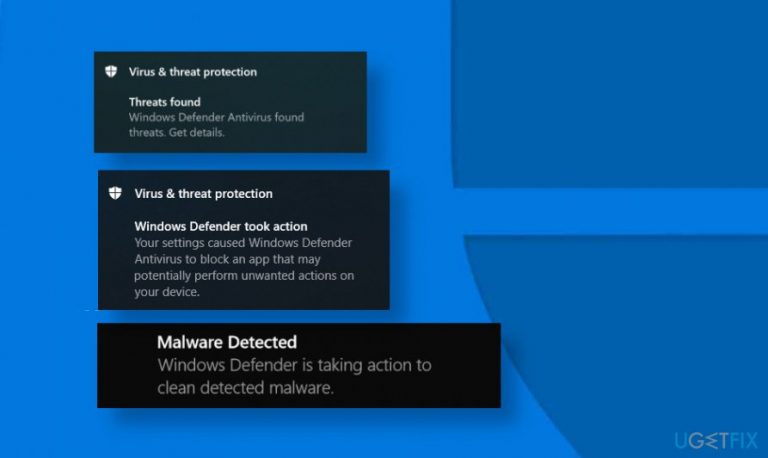
What causes Windows Defender identifies the same threat repeatedly – how to fix?
- Windows Defender may be generating false positives.
- The PUP may not be completely removed from the system.
- There could be remnants of the PUP causing repeated detections.
- Windows Defender's performance issues may lead to inefficient threat handling.
Repairs Windows system files, removes malware, and restores a clean OS state — without reinstalling.
Hello. I have an ongoing issue with Microsoft Defender. It keeps displaying me a pop-up with a notification sound saying that a PUP has been found on the system. When I click details, it says that the item has been quarantined and removed. However, minutes later the same pop-up reappears. Can someone please tell me what is happening here?
Windows Defender[ref en-1] is an in-built real-time antivirus program launched with Windows 10 OS. Previously known as Microsoft Security Essentials back in Windows 7, it has been offered as a separate download and has been facing difficulties in competing with the most popular AV brands.
Windows Defender has been underrated by default and known as an inferior antivirus system by the community due to its poor past performance. A glimpse at the AV-Test back in 2013[ref en-2], it has been considered dead. However, Microsoft put much effort to resurrect the software and apparently did a great contribution since Windows Defender is currently ranking as one of the top services[ref en-3].
One of the stand-out features of the Windows Defender is the speed. Since it's an inbuilt software managed by Microsoft, it is usually optimized and updated automatically. Therefore, it is capable of running in the background of the system and perform scans without negatively affecting the system's performance. Besides, it won't ask uses to purchase full versions since it works on all licensed versions of Windows 10.
Despite many pros that this security suite offers, the issue with ongoing Windows Defender false positives is discussed on various forums. People keep reporting Windows Defender popups reporting PUPs and other threats repeatedly even after their supposed removal. As one of the users on Reddit[REF EN-4] claimed:
While Windows Defender managed to put up similar numbers to vendors like Bitdefender or Kaspersky, they have had consistently higher false positives and more importantly, the performance test showed that Windows Defender is also the most inefficient out of all of them. It uses more system resources to provide the same (sometimes less) protection.
According to the reports, Windows Defender popup notification usually reports about PUP/Optional, PUP/trojan, BrowserModifier:Win32/SupTab!blnk[ref en-5], and similar threats. These may be real cyber threats negatively affecting the system, thus performing a full scan and eliminating the PUPs is recommended.
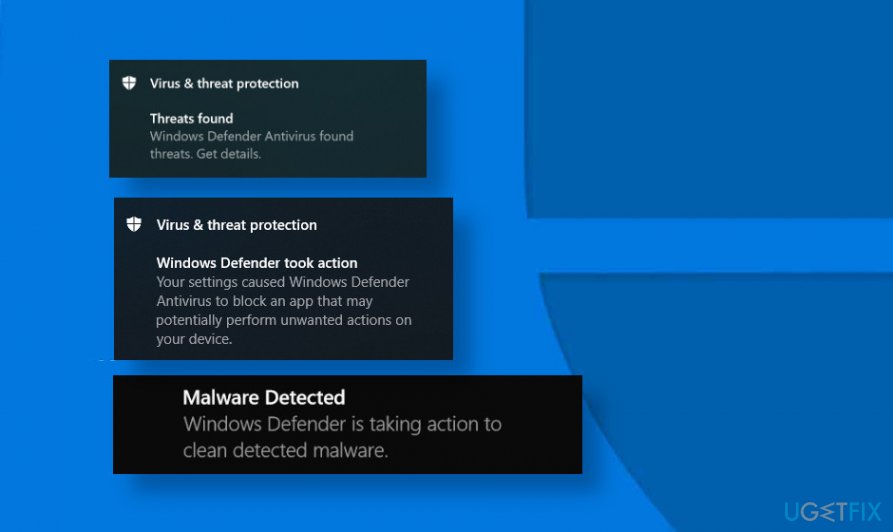
However, what it Windows Defender identifies the same threat repeatedly and keeps popping up after their quarantine and removal? In this case, the detection may be a false positive, meaning that there's no malware on the machine. However, some legitimate files or software may lack a digital certificate or mismatch definitions. Nevertheless, it's advisable to rely on a third-party security tool and double-check whether any issues on the system detected.
According to experts, Windows Defender turned to be extremely sensitive in terms of PUP detection upon the release of the Windows Defender Advanced Threat Protection (ATP) software. This package relies on machine-learning models, behavior-based detection algorithms, and heuristics to analyze suspicious files in a quick manner. While essentially that's a great scheme for protection, it often causes inconveniences due to false-positive detections and intrusive Windows Defender alerts[ref en-6] flagging the same threats again and again.
The culprit of Windows Defender repeated reports on the same PUPs can be related to suspicious browser-based extensions. In other words, if you have had malware on the system, which has been eliminated some time ago, but the web browser's settings haven't been unchanged, Windows defender may be flagging suspicious browser-based behavior this way.
Another possible reason why Windows Defender keeps displaying false positives may be related to the Windows Defender cache. The software is known for storing logs of the scan results, quarantined items, and removed threats. Consequently, when you perform a full system scan, the tool may be scanning itself and detect its logs as a potential threat.
Therefore, if you are facing this issue, you can try to fix Windows Defender identifying the same PUP as a threat in several ways and we'll explain each of them separately.
Fix Windows Defender Identifies the same PUP as a threat repeatedly
This issue is rather intrusive as Windows Defender warning may pop up frequently, and sometimes the popup may be accompanied by a warning sound effect. Luckily, there are several methods that can help to bypass these false detections.
1. Delete Windows Defender history
The PUP you are notified about may be present in Windows Defender history only. If the details on the popup itself say that the item has been quarantined and removed, you should remove the entries in Windows Defender protection history. This may work since this AV tool is programmed so scan its own Scans/History, thus resulting in the discovery of the same PUPs over and over again.
- Press Windows key + R to open the Run dialog.
- Copy and paste the below-given path to the Run dialog, and hit Enter.
C:\\ProgramData\\Microsoft\\Windows Defender\\Scans\\History
- Right-click on the Service folder in the location that has just opened and select Delete.
- Close File Explorer.
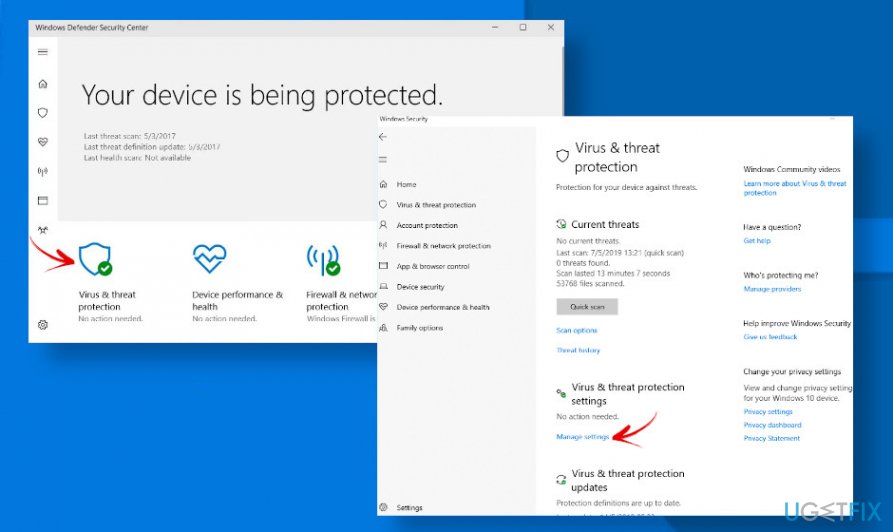
- Now press Windows key + I and open Windows Security.
- Select Virus & Threat Protection option on the left pane and open Manage settings option.
- Slide a toggle to Off and then return back to On.
If this method did not work, then you can delete the history via the Event Viewer:
- Press Windows key + R to open the Run dialog.
- Type eventvwr and press Enter.
- Find the Applications and Services log on the left pane and expand it.
- Now find the Microsoft option and double-click on it.
- Click on Windows to open the list of its files and scroll down to find Windows Defender.
- Right-click on Windows Defender option and select Open.
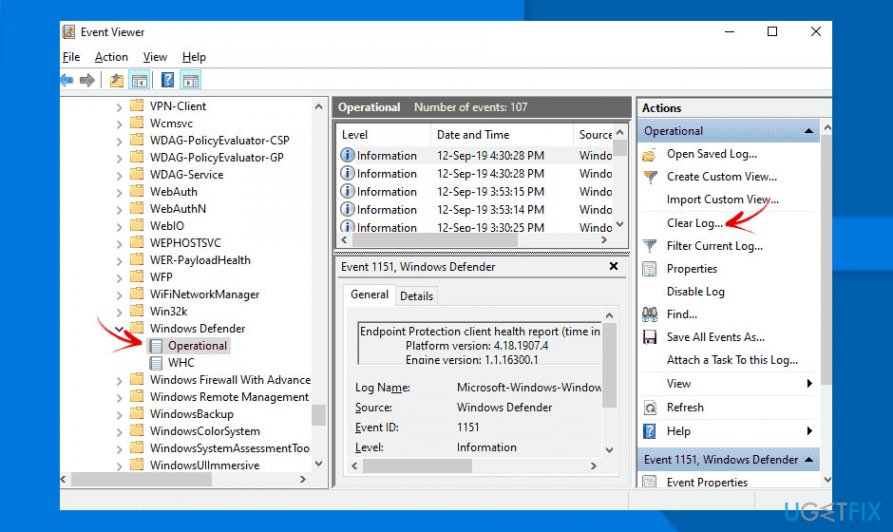
- Right-click on Operational and then select Open to view all logs.
- Under the Windows Defender folder (left pane), right-click on Operational.
- Select Clear Log option.
- Finally, click Clear or Save and Clear to approve the option.
2. Prevent Windows Defender from scanning its Scans/History
To fix Windows Defender constantly detecting non-existing threats, stop its AV engine from scanning its own scan history. For this purpose, you should:
- Press Windows key + I to open Settings.
- Open Virus & Threat Protection settings.
- Click the Manage settings option and scroll down until you find Exclusions.
- Select Add or remove exclusions option.
- Select Add an exclusion and select Folder.
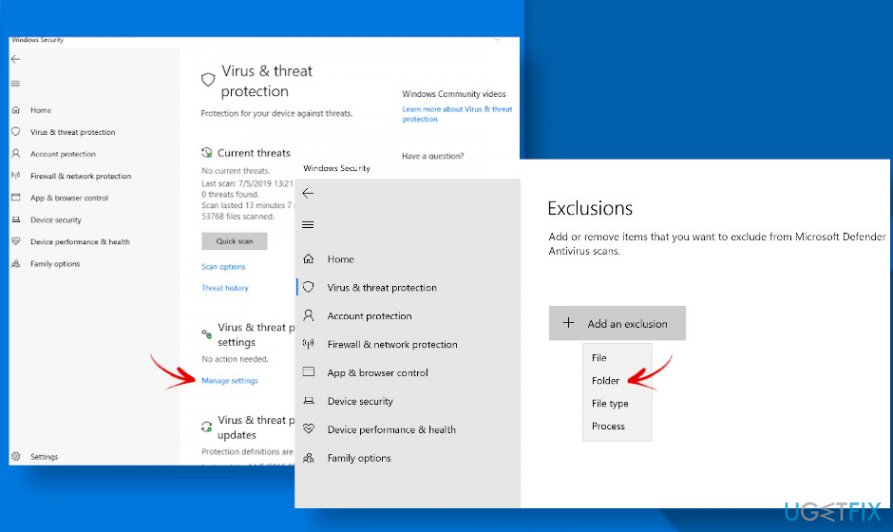
- Now navigate to the following location:
C:>Program Data>Microsoft>Windows Defender>Scans>History.
- Click on History and then Select Folder.
3. Clear browser cache
If, however, the Windows Defender false positive detection fix provided above did not help, we recommend you to address browser-based extensions or rather a browser cache. First of all, check if the browser that you are using has not potentially dangerous extensions listed. If you cannot find any suspicious extensions, add-ons, or another browser-based content, try to clear browser cache:
Clear Cache on Google Chrome:
- Open the web browser.
- Click on the three vertical dots at the top-right corner of the page.
- Open Settings and select Advanced.
- Then select Privacy and security.
- Click Clear browsing data or History.
- Open History and select Clear browsing data or More tools.
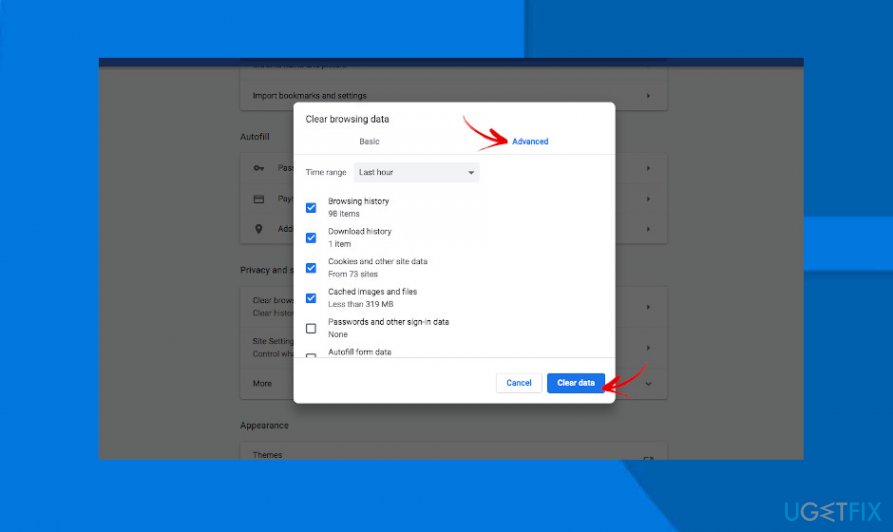
- Finally, click Clear browsing data.
If you are using another web browser, you can find an explicit guide on how to clear browsing data on a dedicated article submitted by our researchers.
Bottom line
To address the issue, users can try running a full system scan, updating Windows Defender, or using a different antivirus program for a second opinion. If none of these solutions work, consider seeking professional technical support.
Frequently asked questions
This issue often occurs due to a persistent malware infection or a false positive in Windows Defender's detection. It's essential to ensure your virus definitions are up-to-date and perform a full system scan.
You can try excluding the detected file from Windows Defender scans, but ensure it's not a legitimate threat. If it is malware, consider using a dedicated malware removal tool for a thorough cleanup.
If Windows Defender can't resolve the issue, you should run an advanced malware removal tool and check for system file corruption using the System File Checker (SFC) tool.




Report an issue
What's wrong with this guide? We review every report and update or remove content.
Report received — thank you. We'll review and fix it.
You need a free account to submit a report.
Be the first to comment