How to fix
Xbox Game Bar error: can’t hear anyone in Party Chat – how to fix
on Windows
Resolve Xbox Game Bar Party Chat issues on Windows 10 and 11 effortlessly. Get expert-tested solutions to hear everyone clearly—fixed in minutes!

What causes Xbox Game Bar error: can’t hear anyone in Party Chat – how to fix?
- Outdated/corrupt drivers
- Incorrect audio device configuration
- Xbox Game Bar malfunction
- Incorrect time/date settings
Repairs Windows system files, removes malware, and restores a clean OS state — without reinstalling.
Hello. I frequently use Xbox Game Bar for communication when playing games such as Sea of Thieves. Everything was working fine before, but now I can't hear my friends in party chat. In the meantime, they can hear me clearly. So it does not seem like that chat function does not work at all, it's just somehow impeded. Any way to fix this?
Voice communication over the internet now became one of the most important features for gamers, as it allows plan strategies in the team-based competitive environment better. It can also serve as a great tool for chit-chat when needed. Regardless of the purpose, communication service disruptions can be extremely frustrating, as users are being handicapped due to the extreme advantage that the voice chat provides.
Many users reported that they can't hear party chat in Xbox Game Bar. While sound issues are not unique, this one is a little bit different. Many people who encountered the problem said that other sound systems and functions work appropriately, including the in-game sounds. Despite this, there are no errors and error codes presented at that time, so it is difficult to determine what is causing the problem.
There are several reasons why you might struggle to hear party chat in Xbox Game Bar. Some of them include:
- Outdated/corrupt drivers[ref en-1]
- Incorrect audio device configuration
- Xbox Game Bar malfunction
- Incorrect time/date settings, etc.
Xbox Game Bar is a powerful tool that can not only be used for communication. Microsoft implemented multiple other features, which would allow gamers to take screenshots, record gameplay, enable Game mode, monitor FPS, CPU/GPU usage, etc. However, just like any other software, it does not avoid problems.
Previously, users complained about Game Bar spawning services and processes they don't use, they had to deal with errors such as "Can't Record Right Now, Try Again Later." Luckily, there are always methods available that could help users fix problems like these, and if you can't hear party chat in Xbox Game Bar, you came to the right place.
Before you begin with the manual suggestions listed below, we would recommend you try using [d1] repair software first. If the issue lies within system file corruption or similar issues, it will help you fix them automatically. Besides, it can also be a great help when suffering from damaged DLLs[ref en-3] or BSODs.[ref en-2]
Fix 1. Use your headset/mic as a default device
Most users managed to fix the problem by changing the settings of the Default Communication Device. In particular, it is important to set your headphones or a microphone (whatever you are using to communicate) as your main output device. Here's how to do it:
- A system tray is located on the bottom-right corner of your screen, and it should show a few icons, including time and language settings. There should also be a speaker icon there
- Right-click on the speaker icon and select Sounds
- Go to the Playback tab at the top
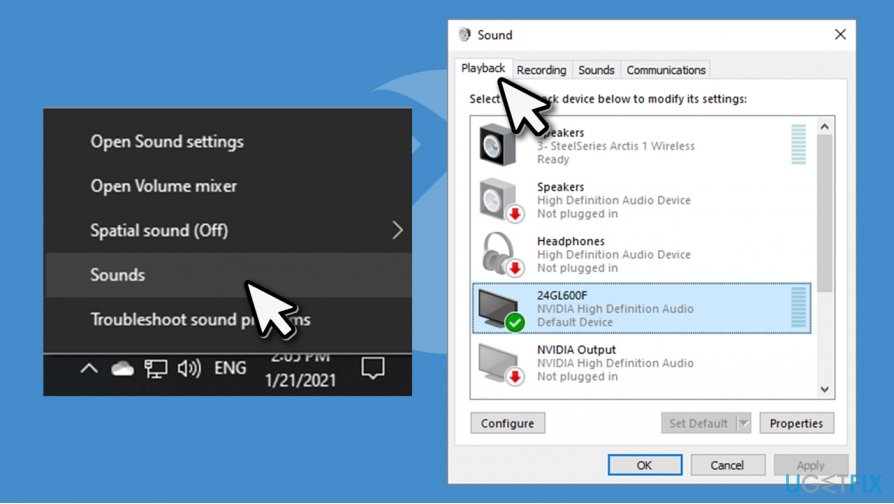
How to fix xbox game bar error cant hear anyone in party chat default playback - Now you have to find the device you would typically use to communicate. Note that headsets and microphones can be found under Speakers. If you are not sure what brand you are using, simply right-click on each of them and pick Test, and wait till you hear a sound
- Once you determined which device you use for communication, click on it once
- Now right-click on your headset/microphone and select Set as Default Communication Device
- Do it once again and pick Set as Default Device
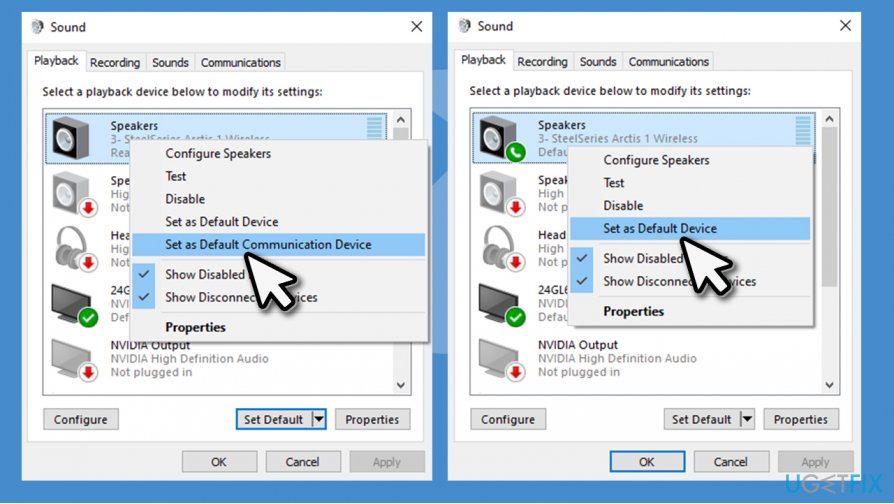
How to fix xbox game bar error cant hear anyone in party chat default playback2 - Go to Recording tab and talk to the microphone - see which bar is moving
- If it is not set as your default recording device switch it as explained above
- Finally, press Apply and OK.
Fix 2. Prevent applications from controlling your output device
- Right-click on Sound icon located in the system tray and press Sounds once again
- Right-click on your speaker/mic and pick Properties
- Go to Advanced tab
- In here, untick the Allow applications to take exclusive control of this device option.
- Click OK.
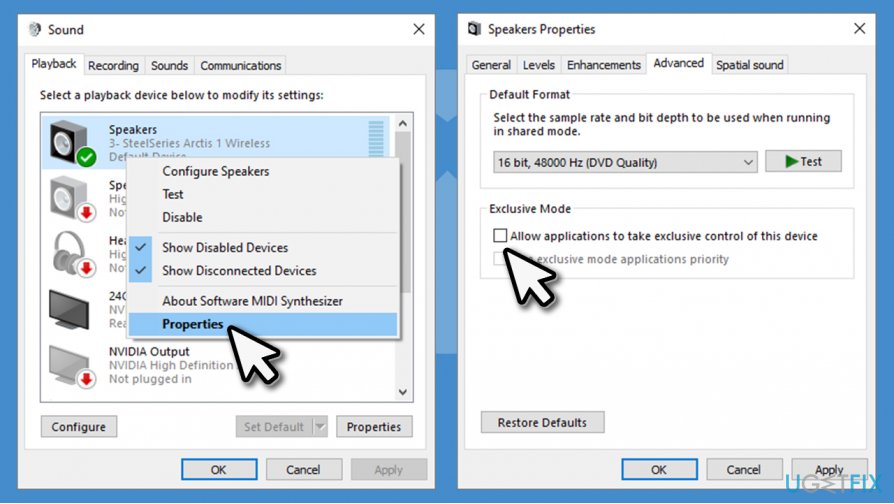
How to fix xbox game bar error cant hear anyone in party chat prevent other apps
Fix 3. Change input/output settings in Xbox Game Bar
- Type in Xbox Game Bar in Windows search and press Enter
- At the top of the screen, click the cogwheel (Settings)
- Go to Party chat section
- Under Audio output, select your headphones/mic
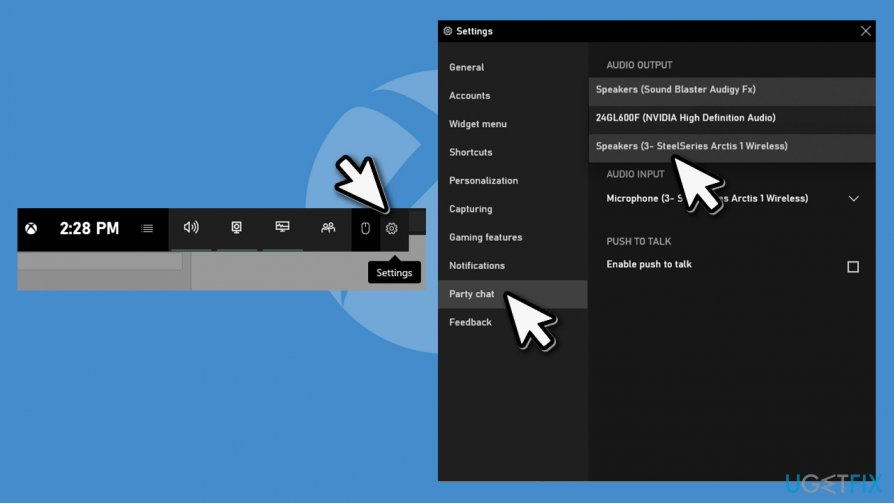
How to fix xbox game bar error cant hear anyone in party chat change output via app - Do the same for Audio input
- You should also see the Audio panel, among others (if not, press the speaker icon from the menu)
- From the drop-down menu (under MIX section), select your preferred device
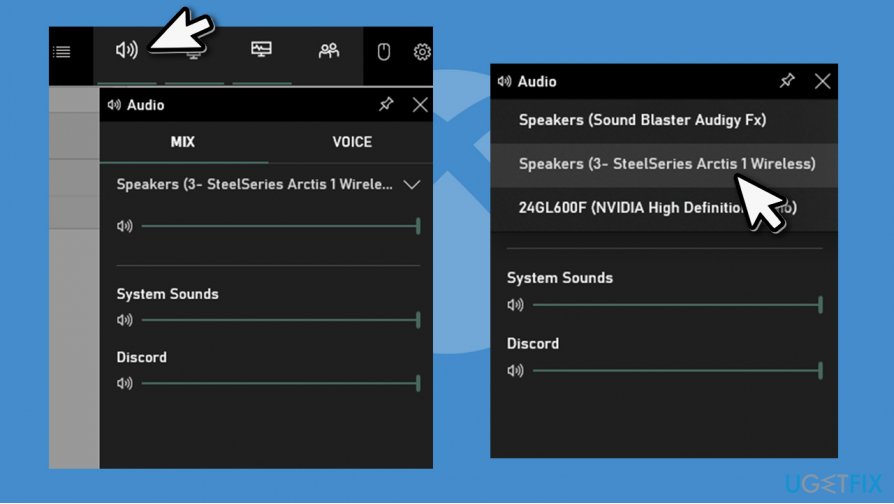
How to fix xbox game bar error cant hear anyone in party chat change output via app2 - Do the same for the VOICE section.
Note: under Settings > Party Chat, check if Push to talk is enabled. If you are not sure that your push to talk button is, simply disable the feature - it should fix Xbox Game Bar error for you.
Fix 4. Troubleshoot sound issues
Try running Windows Audio Troubleshooter:
- Right-click on Start and pick Settings
- Go to Update & Security
- On the left, pick Troubleshoot
- You should see all the troubleshooters listed on the right. If not, pick Additional troubleshooters option
- Click on Playing Audio and then select Run the troubleshooter.
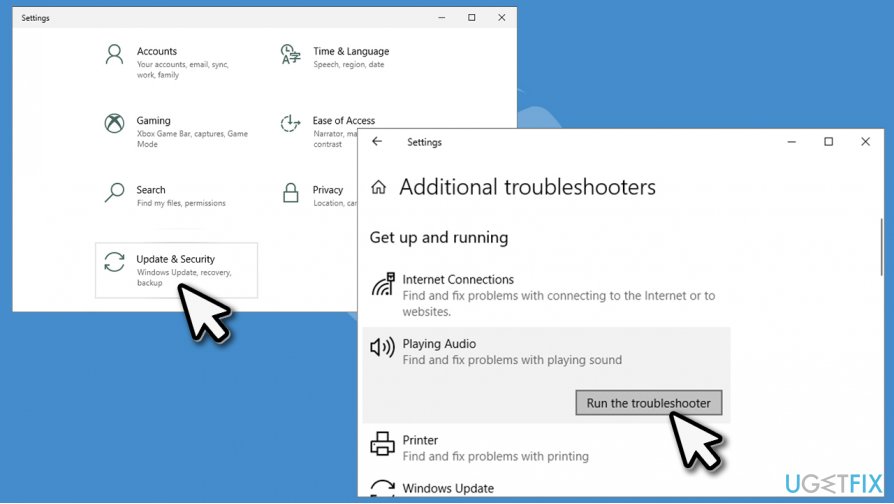
How to fix xbox game bar error cant hear anyone in party chat run troubleshooter
Fix 5. Repair/Reset Xbox Game Bar
You can try to repair or reset Xbox Game Bar:
- Right-click on Start and pick Settings
- Go to Apps
- Scroll down to locate Xbox Game Bar
- Click on it once and pick Advanced options
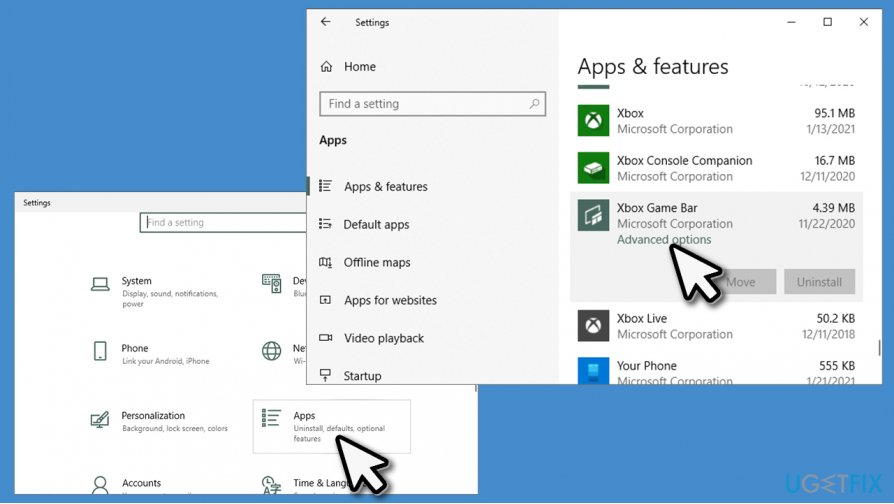
How to fix xbox game bar error cant hear anyone in party chat repair reset app - Scroll down until you find Repair option, click on it
- If that does not help, try using Reset.
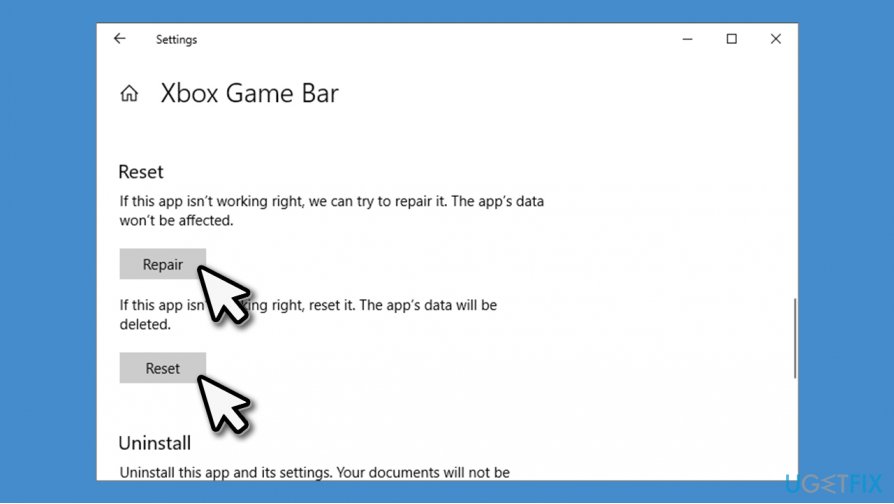
How to fix xbox game bar error cant hear anyone in party chat repair reset app2
Fix 6. Check time and date settings
- From system tray, right-click on your time/date
- Select Adjust time/date
- In the new window, ensure that Set time automatically and Set time zone automatically options are enabled.
- Reboot your device.
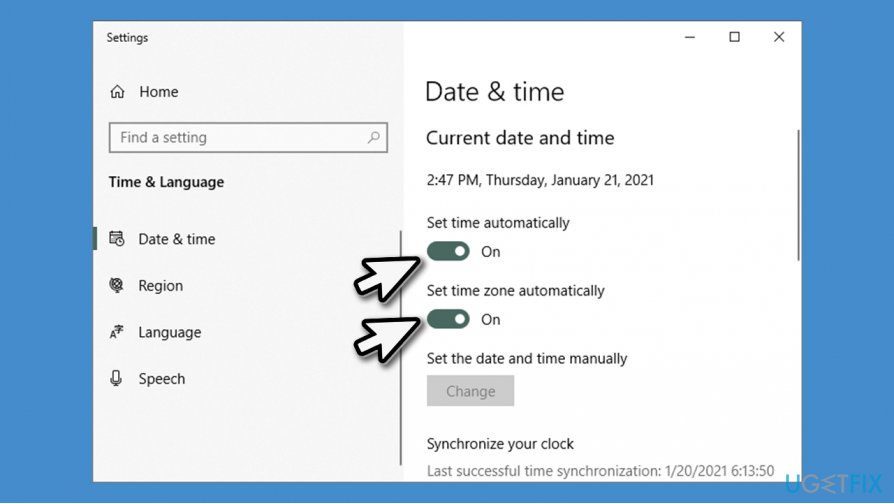
How to fix xbox game bar error cant hear anyone in party chat check time settings
Fix 7. Update your drivers
You can update your drivers via Windows Device Manager. However, this method might take a long time and might not always be effective. Therefore, we highly suggest you use [rev id="DriverFix"] for automatic driver updates. If you want to do it yourself, proceed with the following:
- Right-click on Start and pick Device Manager
- Expand the Sound/video and game controllers section
- Right-click on a device, and pick Update driver
- Select Search automatically for drivers
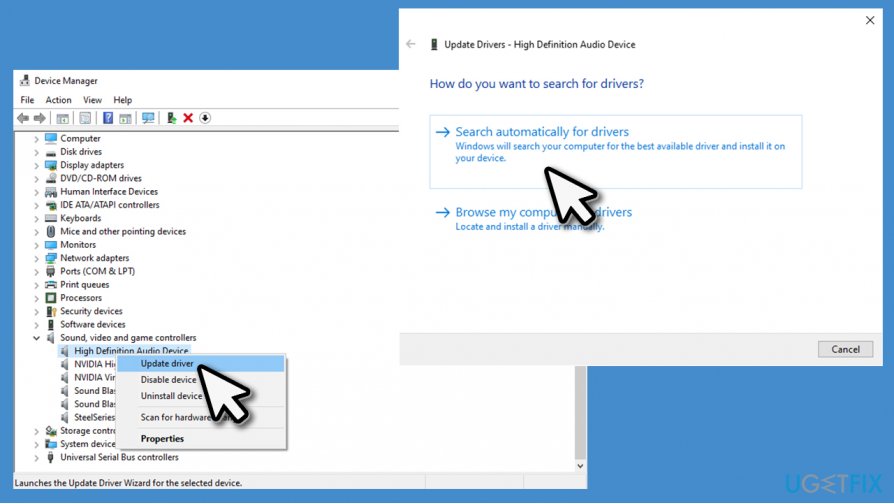
How to fix xbox game bar error cant hear anyone in party chat update drivers - Then repeat the process for all your sound devices. Network drivers should be updated as well.
Bottom line
To resolve the issue of not hearing party chat in Xbox Game Bar, you can try updating your audio drivers, checking your audio device settings, and ensuring that Xbox Game Bar is functioning correctly. If these solutions do not work, consider further troubleshooting steps or seeking additional support.
Frequently asked questions
Common reasons include incorrect audio settings, issues with the microphone or headset, or problems with the Xbox Game Bar itself. Ensure your audio devices are properly configured and set as default in Windows 10.
In Windows 11, go to Settings > System > Sound, then check the input and output device settings. Make sure the correct devices are selected for both your microphone and speakers.
If restarting the Xbox Game Bar doesn't help, try updating your audio drivers and ensure your Windows 10 or Windows 11 is fully updated. Additionally, check your privacy settings to allow apps to access the microphone.




Report an issue
What's wrong with this guide? We review every report and update or remove content.
Report received — thank you. We'll review and fix it.
You need a free account to submit a report.
Be the first to comment