How to fix
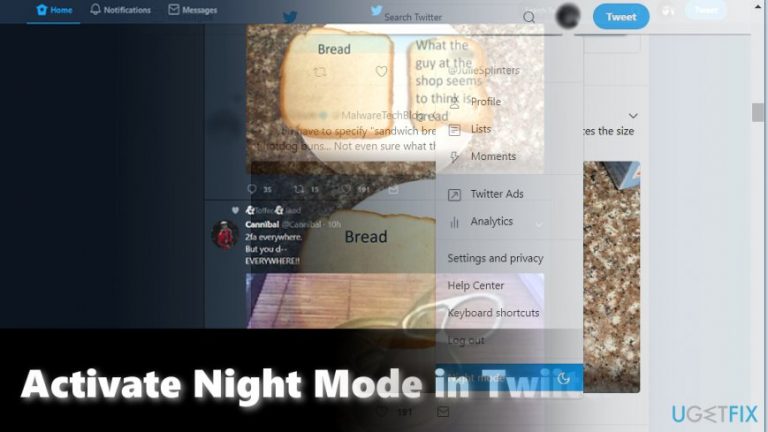
Activate Night Mode in Twitter
on Windows
Easily activate Night Mode in Twitter on Windows 10 or Windows 11 for a better viewing experience. Enjoy reduced eye strain with expert-tested tips.

Why does How to Activate Night Mode in Twitter occur?
- Bright background is uncomfortable in dim places
- Users prefer darker colors for a better experience
- Night Mode reduces eye strain at night
- Darker theme is less distracting for others nearby
- Night Mode enhances cinematic viewing experience
Repairs Windows system files, removes malware, and restores a clean OS state — without reinstalling.
I usually browse Twitter on my phone in dim places or at night. How can I switch from the usual bright background to a darker one?
Night Mode on Twitter is certainly the feature users preferring darker colors would appreciate. The feature comes in handy not only for those who browse the social network at night, but users who watch movies during a flight will like the new design as well. It grants more cinematic look as well as it is less annoying for neighbors sitting beside you.
This mode has been already available for mobile users[ref en-1] for a while already, but was introduced to standalone and laptop PC users only in the beginning of September[ref en-2]. You can switch to the new mode quite easily. Twitter developers join other popular apps and sites which already offers the dark mode.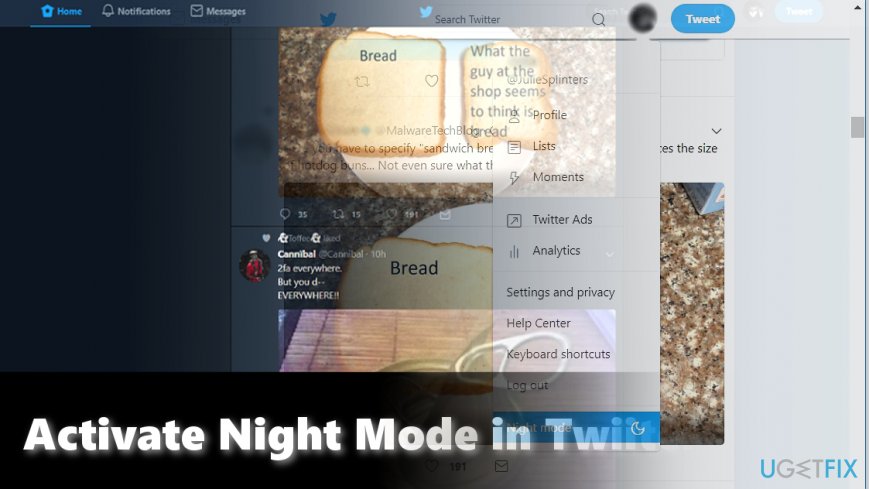
For instance, YouTubers can activate Dark Theme[ref en-3] simply. All they have to do is to click on their profile picture, find Dark Theme On/Off option in the list and move the bar depending whether they want to activate or turn off the mode. The Twitter community can switch to the night mode similarly. Here are detailed instructions.
Option 1. Activate Night Mode on PCs
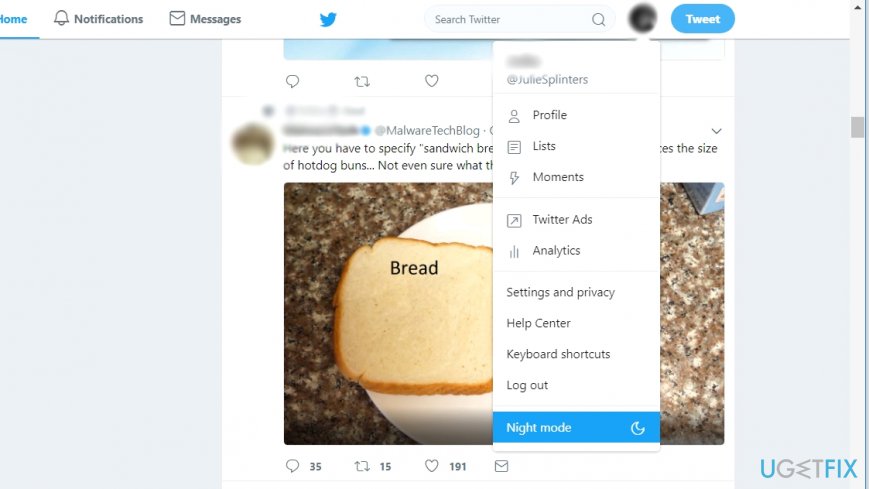
- Sign in to your Twitter account.
- Click on the profile icon in the top-right corner.
- Scroll down, and you will find Night Mode.
- Click it and the screen will revert to the dark theme.
Option 2. Switch to Night Mode on a mobile app
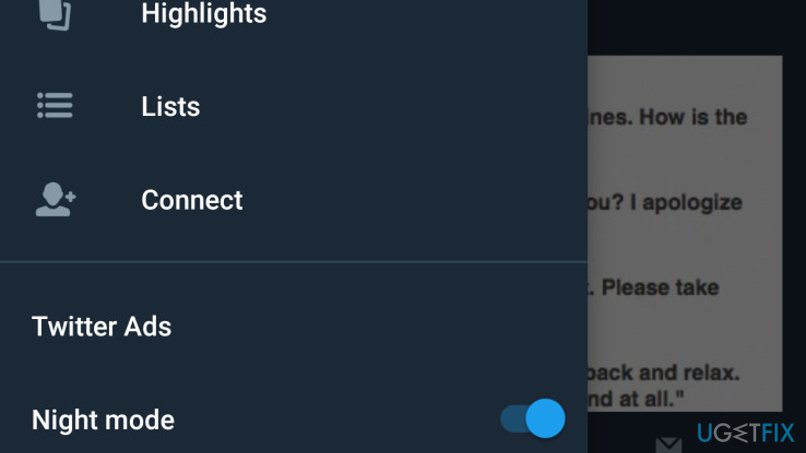
This mode functions in both, Android and iOS operating systems.
- Launch Twitter app.
- Click on the picture icon.
- Find the moon icon at the bottom of the list.
- Tap it and the white background will turn into the dark one.
- In order to deactivate the mode simply tap or click on the mode again.
Bottom line
To activate Night Mode on Twitter, you can either sign in on a PC and click the profile icon to find the Night Mode option, or use the mobile app by tapping the moon icon. If these methods do not work, consider checking for app updates or reinstalling the Twitter app.
Frequently asked questions
To activate Night Mode in Twitter on Windows 10, open the Twitter app or website, go to 'Settings and privacy', select 'Display', and toggle on 'Night Mode'.
Yes, Night Mode can be enabled on Twitter for Windows 11 by accessing 'Settings and privacy' and selecting the 'Display' option to switch it on.
Twitter does not currently support scheduling Night Mode directly, but you can manually toggle it in the app or web settings on both Windows 10 and Windows 11.




Report an issue
What's wrong with this guide? We review every report and update or remove content.
Report received — thank you. We'll review and fix it.
You need a free account to submit a report.
Be the first to comment