How to fix
Activate Windows after BIOS update
on Windows
Activate Windows 10 or 11 effortlessly after a BIOS update with our expert-tested guide. Get your system running smoothly in minutes!

Why does How to activate Windows after BIOS update occur?
- Windows activation is associated with specific hardware components.
- A BIOS update may cause Windows to perceive the system as a new computer.
- The BIOS update process can interfere with system files vital for Windows activation.
- A BIOS update might disrupt the data on the system, including stored Windows activation keys.
Repairs Windows system files, removes malware, and restores a clean OS state — without reinstalling.
I am unable to activate Windows 11 after updating my BIOS. This is so strange because I have not changed any hardware - my license should not be tied to the version of BIOS I'm running. Any tips on how to resolve this?
The Basic Input/Output System (BIOS) is a foundational software embedded in every Windows-based computer. It is responsible for managing the data flow between the computer's operating system and attached devices such as the hard disk, video adapter, keyboard, mouse, and printer. In essence, the BIOS is the initial software the computer loads, enabling all subsequent software to run.
Updating the BIOS is occasionally necessary. These updates are released to fix issues with the existing version, support new hardware components, or improve the computer's overall performance. By keeping the BIOS current, users ensure that their computer operates optimally.
However, a challenge some users face is the inability to activate Windows after a BIOS update. In theory, updating the BIOS and Windows activation should be separate and independent processes. Nevertheless, issues can emerge. For instance, Windows activation is often associated with specific hardware components of a machine.
A significant hardware change, such as a BIOS update, might cause Windows to perceive the system as a new or different computer, leading to activation challenges. Additionally, the BIOS update process can, at times, interfere with or modify system files vital for Windows activation. In rare scenarios, a BIOS update might even disrupt the data on the system, including stored Windows activation keys.
To address these issues, users can take several steps. Firstly, users can navigate to the activation settings and manually input their Windows product key. If this doesn't work, Windows provides an activation troubleshooter designed to detect and resolve common activation problems. If both these methods prove unfruitful, users are advised to contact Microsoft's support for specialized assistance.
For those seeking a comprehensive solution to diagnose and fix Windows issues promptly, the [d1] PC repair tool can be an invaluable resource.
Fix 1. Enter the product key manually
Sometimes, Windows may just need a gentle nudge in the form of re-entering your product key. This reminds the system of its licensed status.
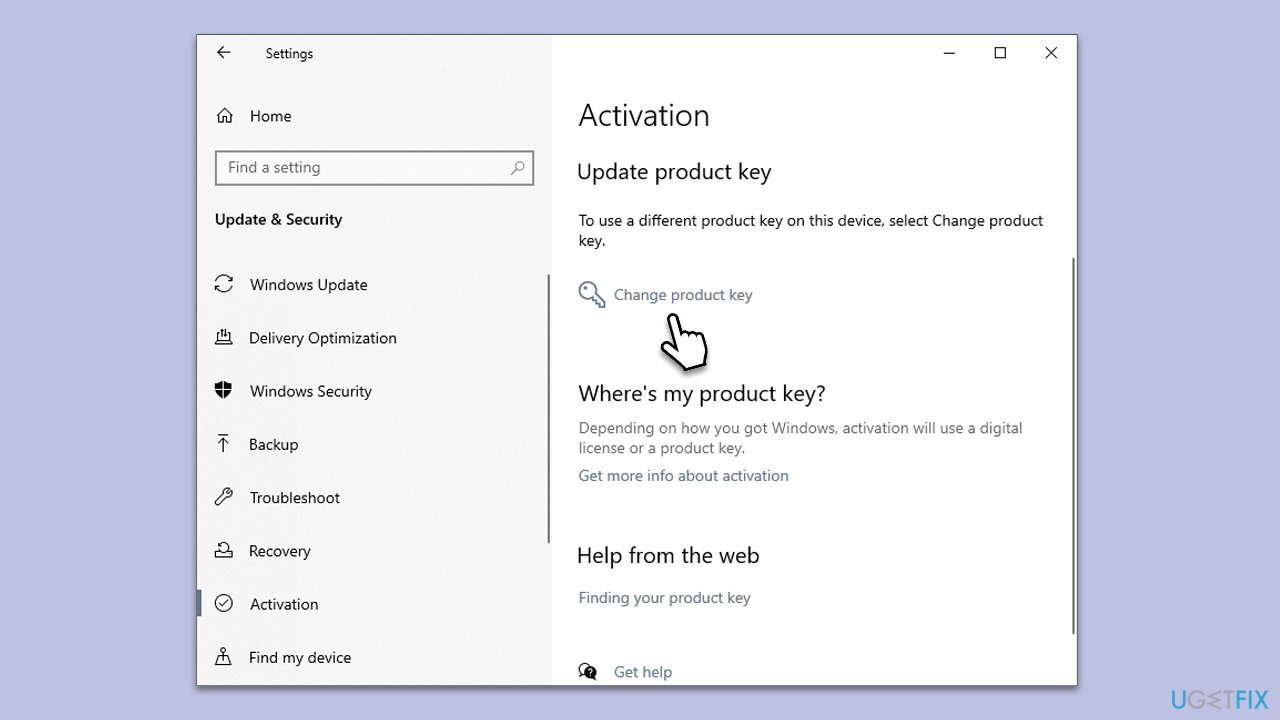
- Press the Win + I to open Settings.
- Navigate to Update & Security.
- Click on Activation on the left sidebar.
- Choose Change product key.
- Enter your Windows product key in the provided box.
- Follow the on-screen prompts to complete the process.
Fix 2. Use Activation troubleshooter
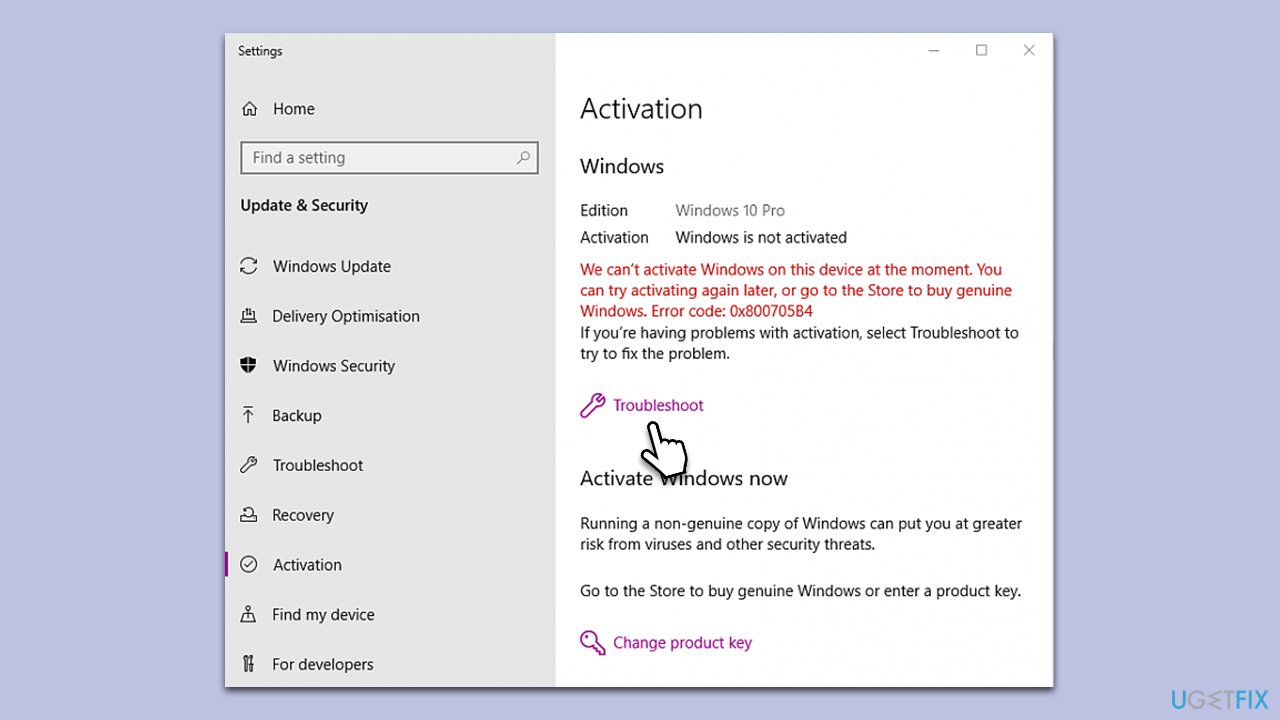
Windows comes with a built-in troubleshooter designed to identify and resolve common activation issues automatically.
- Right-click on Start and select Settings.
- Go to the Update & Security section.
- On the left side of the window, pick Activation.
- On the right side, you should see the error message, and below it - Troubleshoot.
- Click Troubleshoot and wait for the process to finish.
Fix 3. Check your internet connection
A stable internet connection is essential for the activation process, as Windows needs to communicate with Microsoft servers.
- Ensure your computer is connected to the internet.
- Try browsing a few websites to confirm the connection is stable.
- Restart your modem or router if necessary.
- Re-attempt Windows activation after ensuring connectivity.
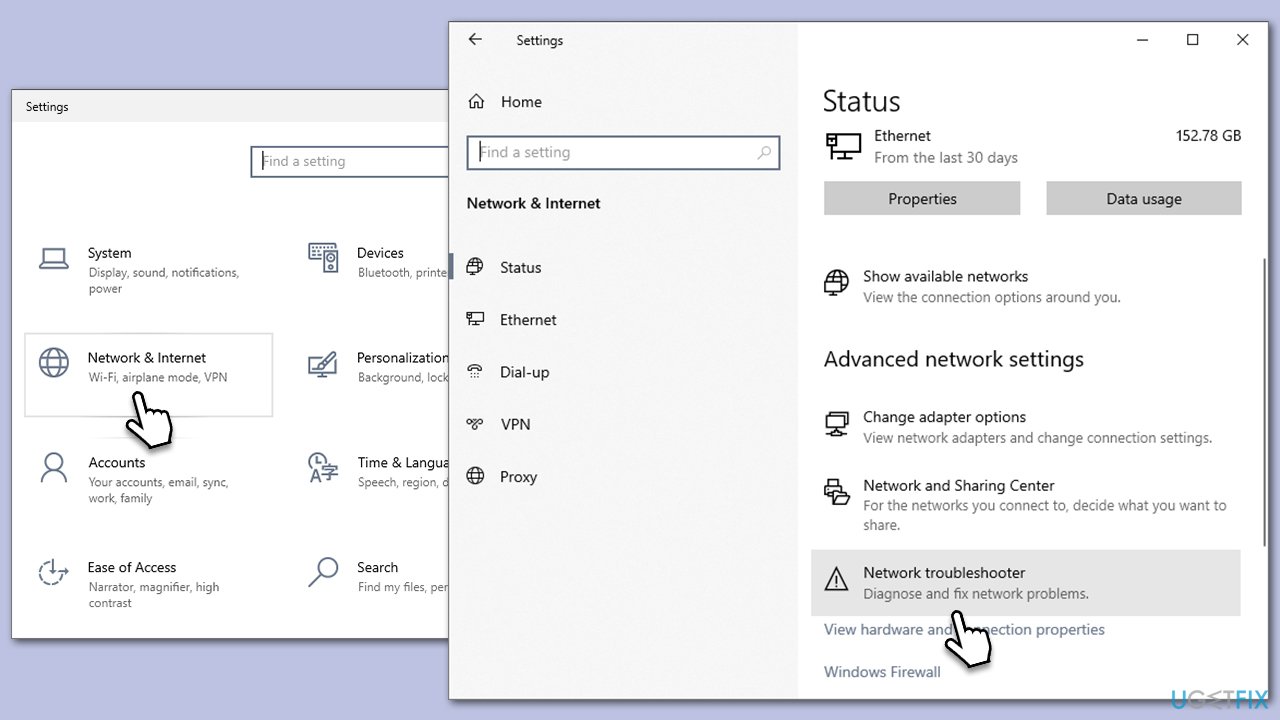
If that does not help, you could run a Network troubleshooter:
- Right-click on Start and pick Settings.
- Go to Network & Internet section.
- On the right side, find the Advanced network settings section.
- Click Network troubleshooter and wait.
- The fixes should be automatically applied.
Fix 4. Update Windows
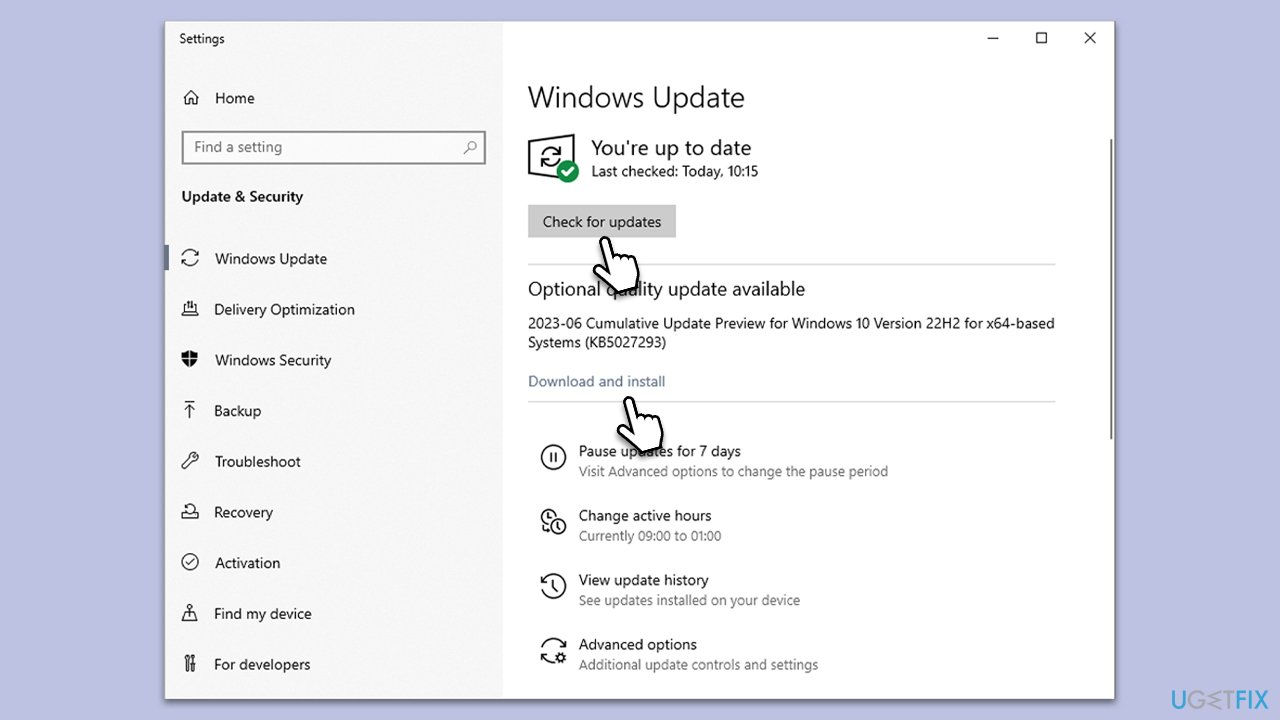
Ensuring that you have the latest Windows updates can help resolve activation-related bugs or glitches.
- Type Updates in Windows search and press Enter.
- Click Check for updates and wait.
- Install all the optional updates as well.
- Restart your system.
Fix 5. Activate by phone
Sometimes, only the experts can help. Microsoft's support team can assist with unique activation issues.
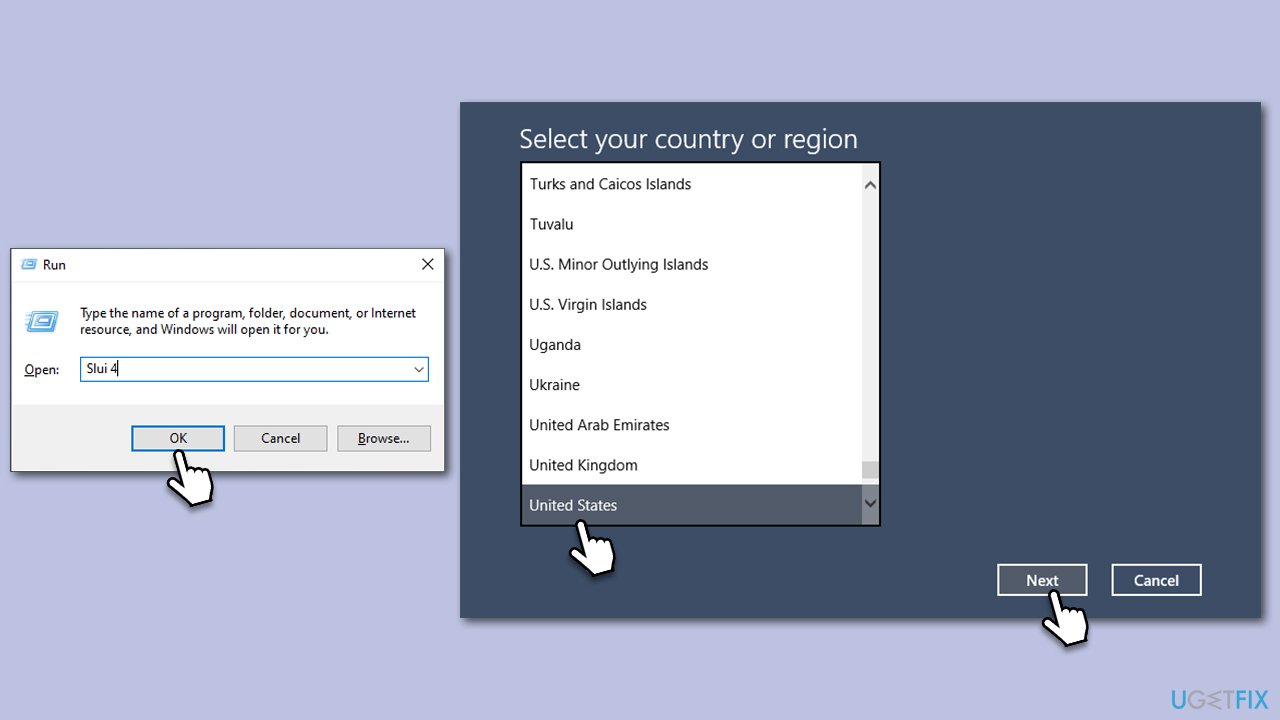
- Press Win + R on your keyboard and type slui 4, then press Enter.
- Select your country and click Next.
- Call the toll-free number provided.
- Follow the automated instructions or speak to a representative. Make sure you have your Windows product key/digital license number ready.
Fix 6. Reset your PC
As a last resort, resetting your PC can help clear any software conflicts causing activation issues. Make sure to back up important data first.
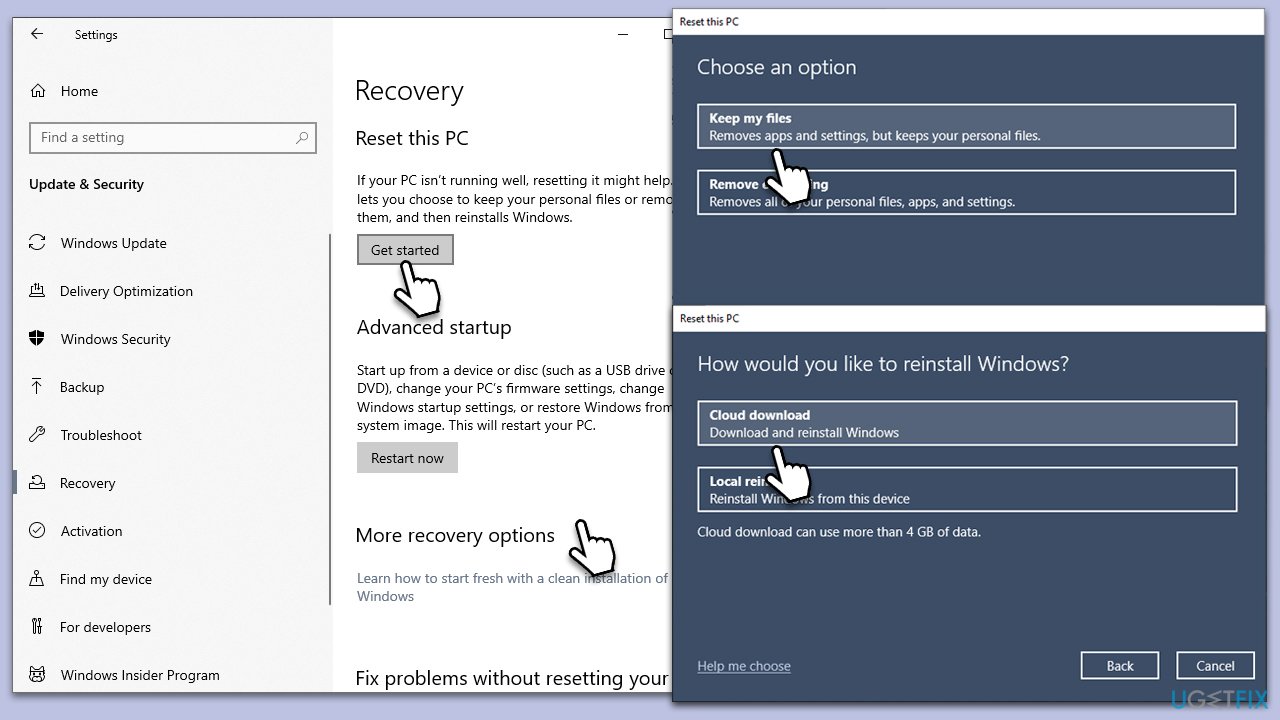
- Right-click on Start and then select Settings.
- Go to Update & Security and pick Recovery on the left side of the window.
- Find Reset this PC section and click Get Started.
- Select Keep my files and Cloud download.
- Next, pick whether you want to reinstall the apps.
- Click Reset.
- Your system will restart, and the process of Windows reset will begin.
Bottom line
To resolve activation issues after a BIOS update, users can manually enter their Windows product key or use the activation troubleshooter. If these methods do not work, contacting Microsoft's support for further assistance is recommended.
Frequently asked questions
After a BIOS update, go to Settings > Update & Security > Activation, and click on 'Activate' if your Windows 10 license is valid. If activation fails, you may need to re-enter your product key.
Yes, a BIOS update can sometimes lead to activation issues in Windows 11, but you can usually resolve this by reactivating it through the Activation settings.
If activation fails, try using the 'Troubleshoot' option in the Activation settings, or contact Microsoft support for further assistance.




Report an issue
What's wrong with this guide? We review every report and update or remove content.
Report received — thank you. We'll review and fix it.
You need a free account to submit a report.
Be the first to comment