How to fix
Add or remove Home button in Microsoft Edge
on Windows
Easily customize your Microsoft Edge browser by adding or removing the Home button in Windows 10 or Windows 11. Quick fixes, expert-tested.

Why does How to add or remove Home button in Microsoft Edge occur?
- Home button is disabled by default
- Users prefer a different search provider
- Customization options are limited
- Users are accustomed to having a Home button
- Bing is set as the default search engine
Repairs Windows system files, removes malware, and restores a clean OS state — without reinstalling.
Hi, I have recently decided to move to MS Edge (Chromium) browser from Chrome. I am, however, missing the Home button on it. It would be nice to see some more options for Edge available to me.
Microsoft Edge was released by Microsoft in 2015, along with the launch of Windows 10. The new browser was meant to replace the horrendous Internet Explorer - a browsing tool that has been plagued by vulnerabilities,[ref en-3] usability issues, and has since been regarded as the slowest browser in history.
Despite the best efforts of Microsoft, MS Edge did not receive the best ratings and made few people switch from the ever-popular Chrome or even the outdated Internet Explorer. With the release of Chromium Edge, the company is now back into the browser competition race. Thanks to its privacy-focused approach and lower resource consumption, many people decided to make a switch from Chrome or other browsers.
On desktops, MS Edge is now more prominent than Firefox in terms of market share.[ref en-1] Despite its popularity rising, there are still many questions that users have regarding its usability. One of such issues is that, by default, the home button on MS Edge is missing. The function of the button is very simple - once clicked, it redirects users to a predetermined URL.
The browser component is likely thought of as optional by the developer; however, many users are not fond of the default Bing search provider the browser offers, and, in order to change it, users need to have the home button active in certain situations. In other cases, people simply like their home button.
When it comes to more customization options, we have already talked about how to disable or enable Dark Mode and how to change the homepage/new tab function. In this article, we will explain several ways you can enable or disable the Home button on the Microsoft Edge Chromium browser.
If you are experiencing any issues with your computer, we strongly recommend you employ [d1] repair and maintenance utility to fix them automatically. The app is also capable of cleaning caches[ref en-2] of web browsers and the system, allowing the smooth and error-free operation of the device.
1. Use browser settings
The easiest way to enable or disable the Home button is via browser settings.
- Open MS Edge browser
- Go to Settings and more > Settings
- Go to Start, Home, and new tabs section (left side)
- Scroll down to the Home button section
- Click the Show home button on the toolbar to toggle the switch to the right (ON position)
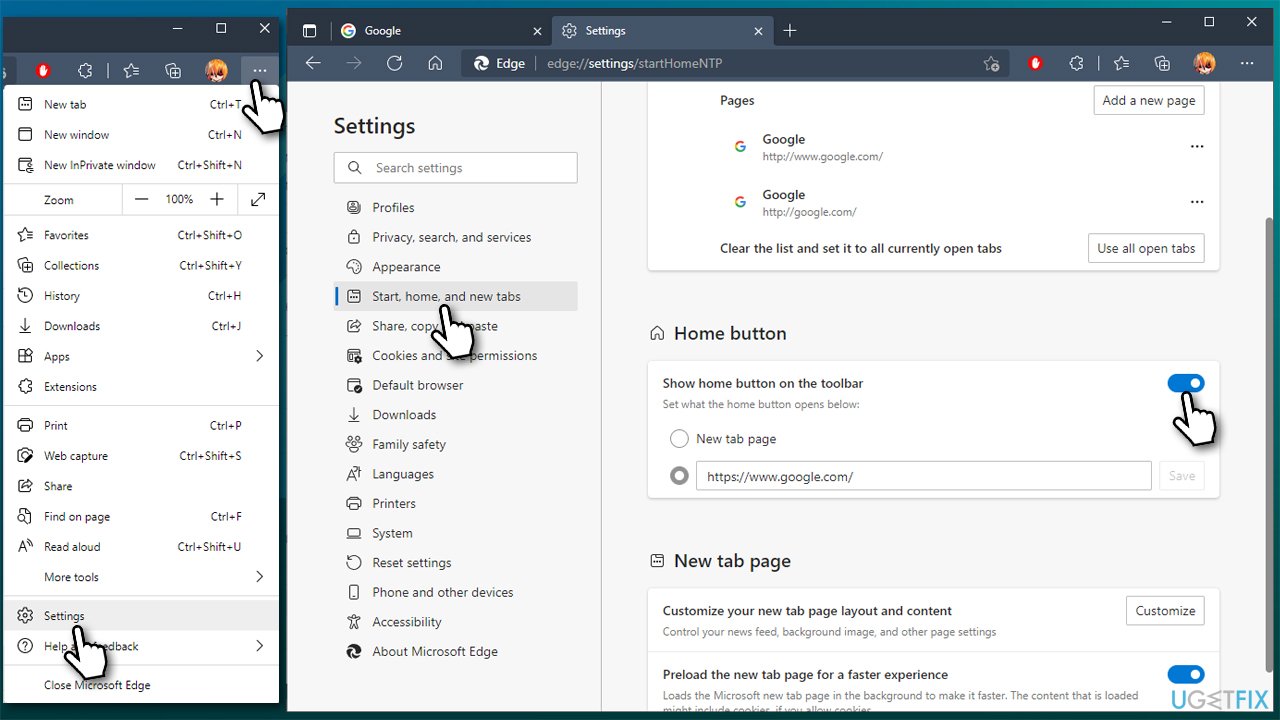
How to add or remove home button in microsoft edge use settings - Likewise, you can also configure the new tab page - you can either choose your preferred URL with the second option or choose the New tab page to leave it default.
2. Use the Registry editor
If for some reason you are unable to use browser settings, you can always rely on the Registry editor. Keep in mind that incorrectly using it and deleting useful files might cause serious system malfunction, so you should be very careful when editing it. Thus, to be on the safe side, we strongly recommend you backup your registry database before proceeding.
- Type in regedit in Windows search and press Enter
- If User Account Control (UAC) warning shows up, click Yes
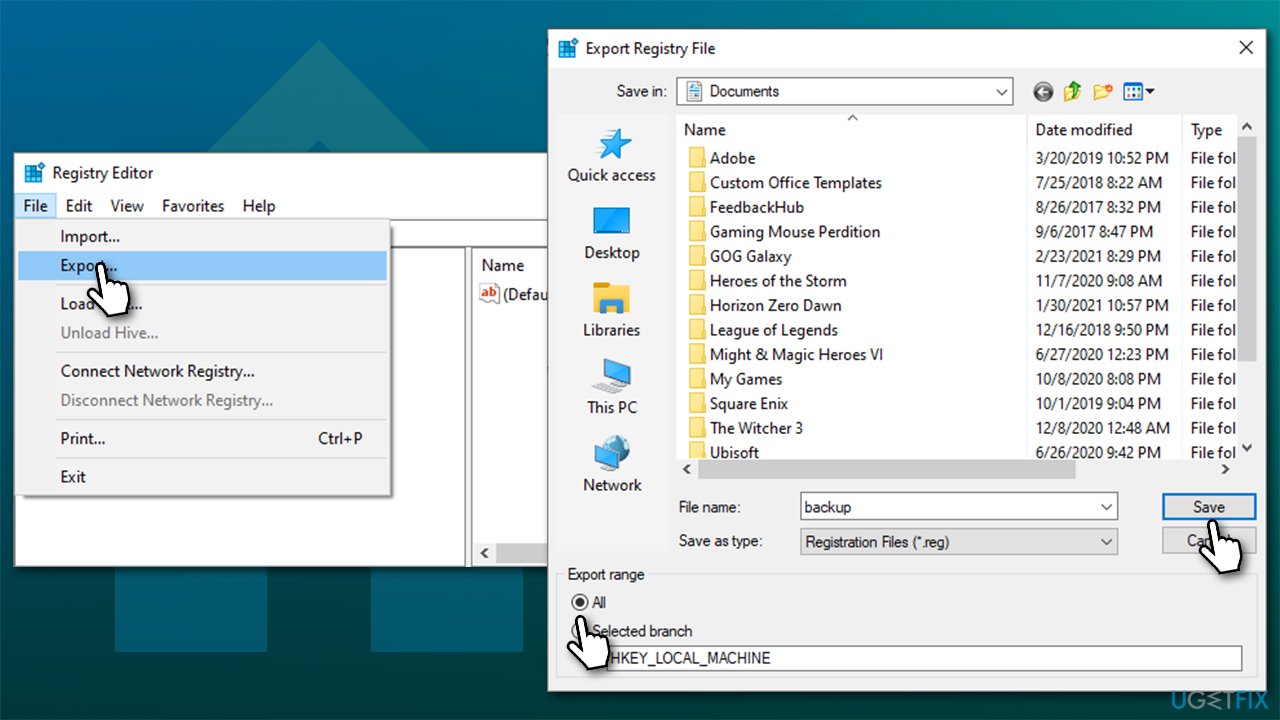
- Select File > Export…
- Once the new window opens, select All under Export range, name your backup and click Save.
How to add or remove home button in microsoft edge backup registry
Once the backup is ready, proceed with the following steps:
- Go back to Registry Editor
- Go to the following location:
HKEY_LOCAL_MACHINE\\SOFTWARE\\Policies\\Microsoft
- The Registry will likely not have the MS Edge entry, so you should create it (if the Edge key is indeed in there, skip the next step)
- Right-click on the Microsoft folder and select New > Key, name it Edge
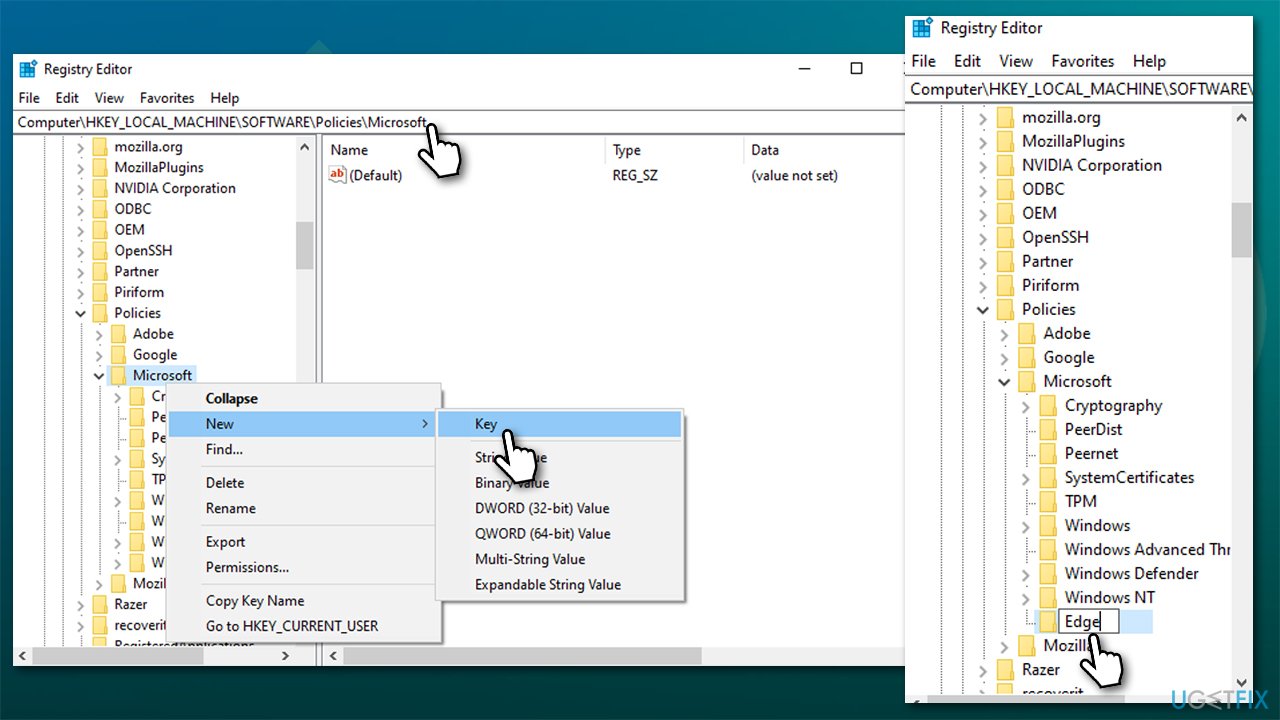
How to add or remove home button in microsoft edge create edge key - Select the Edge folder on the left by clicking it once
- On the right, right-click on empty space and select New > DWORD (32-bit) Value and name it ShowHomeButton
- Once done, double-click the newly-created key
- Set Value data to 0 and click OK to remove the Home button. Likewise, you can enable it by setting the value to 1.
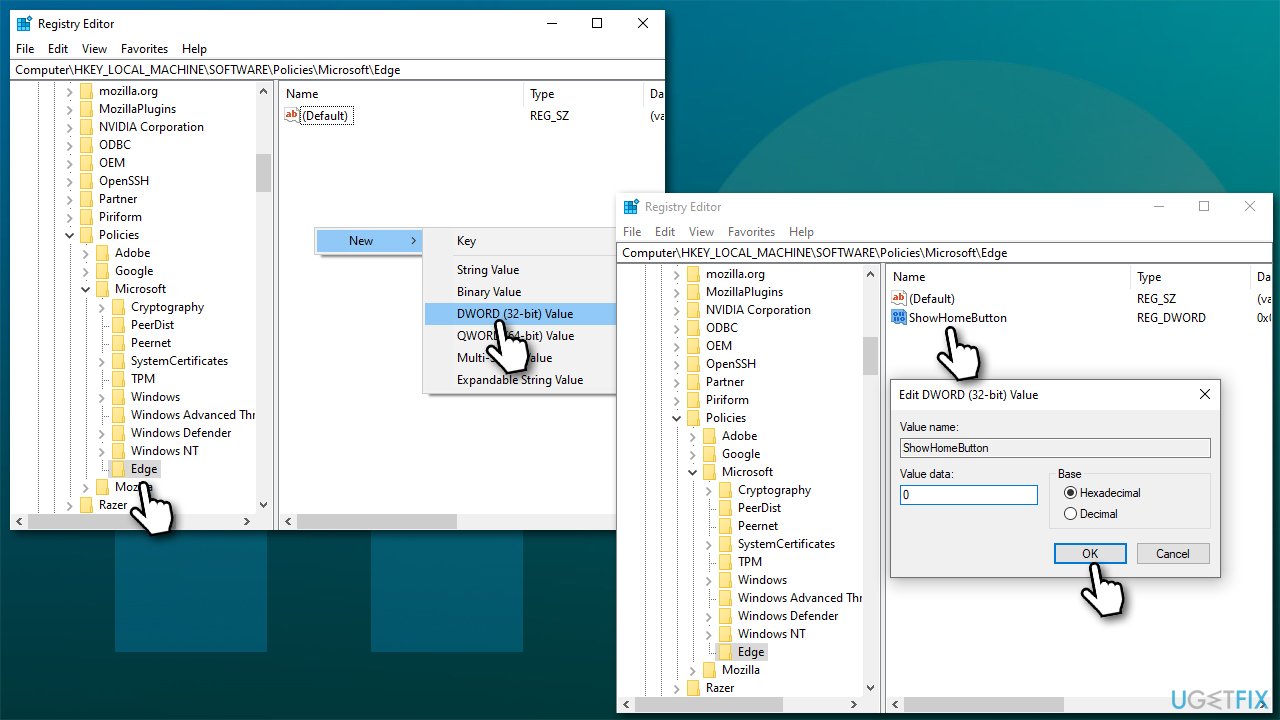
How to add or remove home button in microsoft edge set showhomebutton key
Bottom line
This article explains how to enable or disable the Home button in Microsoft Edge, addressing user preferences for customization and search settings. If you encounter issues, consider using repair and maintenance utilities to resolve them automatically.
Frequently asked questions
To add the Home button in Microsoft Edge on Windows 10, open the browser, click on the three-dot menu, select 'Settings', then under 'Appearance', toggle on the 'Show Home button' option.
Yes, you can customize the Home page in Microsoft Edge on Windows 11 by going to 'Settings', selecting 'On startup', and choosing 'Open a specific page or pages' to set your desired Home page.
To remove the Home button in Microsoft Edge on Windows 10, go to 'Settings', click on 'Appearance', and toggle off the 'Show Home button' option.




Report an issue
What's wrong with this guide? We review every report and update or remove content.
Report received — thank you. We'll review and fix it.
You need a free account to submit a report.
Be the first to comment