How to fix
Add User Accounts
on Windows
Discover the simplest way to manage user accounts on Windows 10 and Windows 11. Optimize your PC experience effortlessly, expert-tested.


Why does How to Add User Accounts on Mac occur?
- Creating a second administrator account may lead to mistakes
- Limited access rights prevent significant system changes
- Curious relatives may accidentally remove files or programs
- Parents may want to control online behavior of children
- Users may want personalized desktop settings
Repairs Windows system files, removes malware, and restores a clean OS state — without reinstalling.
I want to create an account for my mother on Mac. However, I don’t want to give her administrative rights. How to create a standard user account for her?
Creating another account for a family member is a smart action in order to protect your privacy from curious relatives and make sure that any useful files or programs won’t be (accidentally) removed. Adding new user accounts on Mac also allows each user to personalize the desktop picture, organize their files, bookmark necessary pages or using programs, such as iTunes.
Mac OS X has five versions of user accounts, which have different rights for the users:
- Administrator;
- Standard;
- Managed with Parental Controls;
- Sharing Only;
- Group.
The Administrator account is the primary account which allows a user (often Mac owner) to access secure System Preferences, install software, change permissions to folders and do whatever she or he likes. However, creating a second antivirus administrator account for a family member might be risky because that person might make some mistakes and cause problems.
To avoid possible harm, but allow their relatives to use a computer normally, users have to create a Standard account. It has limited access rights to the computer. Therefore, people won’t be able to do any significant or crucial changes to the system.
Talking about other types of user accounts on Mac, we can say that they are specific and provides only very limited access to the device. For instance, Sharing Only account allows only accessing particular files or folders that administrator wants to. Managed with Parental Controls user account allows parents to control their kids’ behavior online. For instance, they can block access to adult websites or other harmful content for children.

Add Standard User Account on Mac OS X
We assume that the majority of Mac users who want to add an additional account for their family members, want to create a Standard user account. Thus, below you can find the instructions how to give your mother, father or sister access to your Mac:
1. Click on System Preferences icon located in the Dock.
2. Open “Accounts” or “Users & Groups” option.
3. Click the lock icon at the left bottom corner of the window. Enter Administrator (your) account password and click OK.
4. Under the list of user accounts, there’s the + button. Click it to open New Account sheet.
5. From the drop-down menu choose the type of the account. Typically, the Standard account type is set as default. Thus, you may not need to do anything.
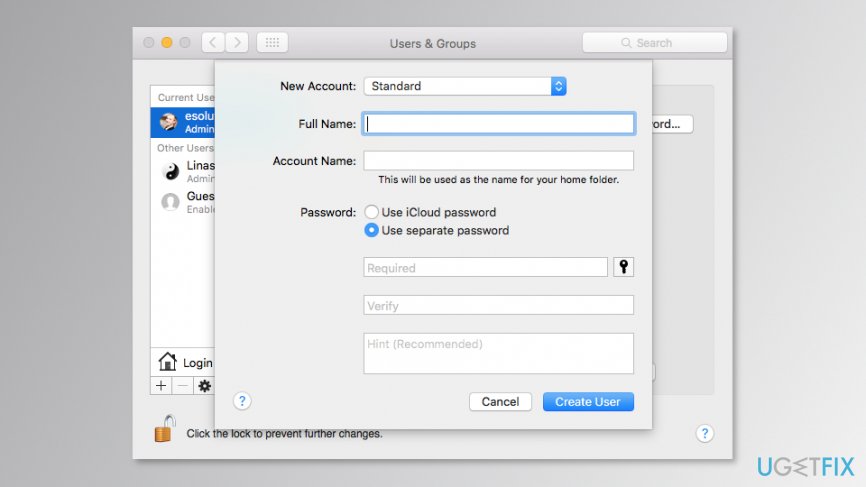
6. In the “Full Name” (or “Name”) field enter the name of the new account.
Hint: you can enter the full name of a person.
7. In the “Account Name” (or “Short Name”) field enter a nickname or short version of the names. Mac should suggest you the short name. However, if you do not like it, you can choose another one.
Note: You cannot use spaces or a special symbol, for instance, dollar sign.
8. In the “Password” field type the password.
Tip: you can use Password Assistant to create a unique password for the new account by clicking the key icon.
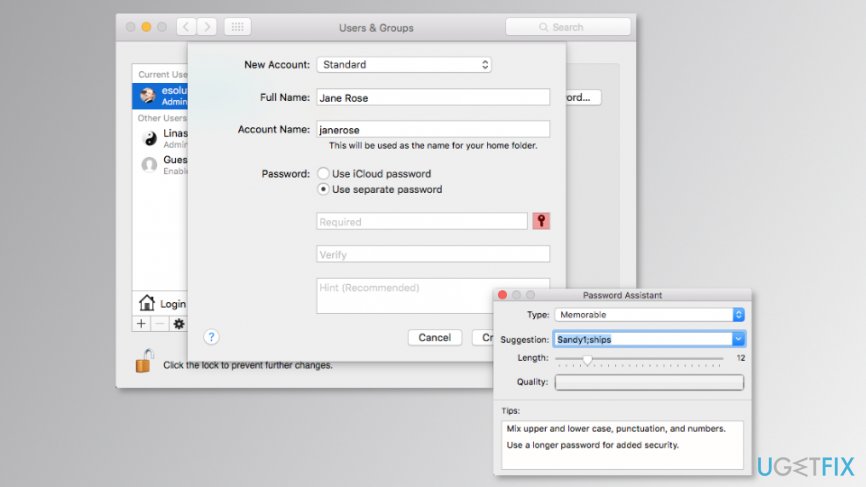
9. In the “Verify” field enter the same password again.
10. In the “Password Hint” field, enter a hint of the password in case you forget it.
Note: Do not enter the real password.
11. Once all necessary information is entered, click “Create Account” (or “Create User”) button to add Standard user account on Mac.
However, if you want to create another type of user account, you just need to choose another type of the account in the 5th step. Then enter all required information.
Bottom line
To add a Standard user account on Mac, you need to access System Preferences and open the Accounts section. This allows family members to use the computer without administrative rights. If these steps do not resolve your issue, consider seeking further assistance or consulting Apple's support resources.
Frequently asked questions
Yes, you can manage user accounts on Windows 10 by going to Settings > Accounts > Family & other users.
To add a new user account in Windows 11, navigate to Settings > Accounts > Family & other users and click on 'Add account' under 'Other users'.
Yes, you can set permissions for user accounts in Windows 10 by selecting the account type (Administrator or Standard) during the account creation process.




Report an issue
What's wrong with this guide? We review every report and update or remove content.
Report received — thank you. We'll review and fix it.
You need a free account to submit a report.
Be the first to comment