How to fix
Block ads
on Windows
Boost your Windows 10 or 11 experience by blocking unwanted ads on Android devices with DNS66. Enjoy seamless browsing, expert-tested tips included!

Why does How to block ads on Android devices using DNS66 occur?
- Annoying ads on Android smartphones
- Developers gain pay-per-click revenue
- Excessive advertising content in apps
- Malicious advertisements can install unwanted software
- Ads can redirect users to shady websites
Repairs Windows system files, removes malware, and restores a clean OS state — without reinstalling.
Hello. I am tired of the annoying ads on my Android smartphone. Is there any way how I could block all ads on Android devices without paying for a specific application? Please, help!
Ads on Android might be frustrating and annoying. Many users have reported that they have deleted multiple apps from their smartphones due to an excessive amount of advertising content in them. Although, advertisements can not only be irritating but dangerous as well[ref en-1].
Usually, developers of Android apps gain pay-per-click revenue which encourages them to infiltrate the apps with as many ads as possible. Besides, they do not take responsibility for the content of those advertisements which initially can be expensive, ineffective or even malicious products/software.
Moreover, not clicking on Android ads does not help either, since some of the sophisticated developers have designed their advertisements to automatically install potentially unwanted programs (PUPs)[ref en-2] or malware[ref en-3] without even clicking on them. Thus, by keeping numerous ads on your device, you risk being redirected to shady websites or instantly installing bogus software.
Fortunately, if you wonder how to stop ads on Android home screen, we have found a way. Additionally, keep in mind that popular applications which are designed to keep the ads away use a lot of your battery power. However, this software is completely free and uses DNS to stop advertisements instead.
Learn how to stop ads on Android phones
DNS66 software is designed to help you stop ads on Android phone and do not drain your battery life. Although, be aware that it requires the following permissions on your smartphone/tablet or another Android device:
- android.permission.READ_EXTERNAL_STORAGE
- android.permission.WRITE_EXTERNAL_STORAGE
- android.permission.ACCESS_NETWORK_STATE
- android.permission.INTERNET
- android.permission.RECEIVE_BOOT_COMPLETED
We want to warn you that any applications with the same or similar name which require other permissions might be malicious imposters. Likewise, pay extreme attention during the download/installation procedure when trying to block ads on Android devices.
Block ads on Android with DNS66
- Download the software directly from the smartphone here;
- Scroll to the end of the page and click on download.apk;
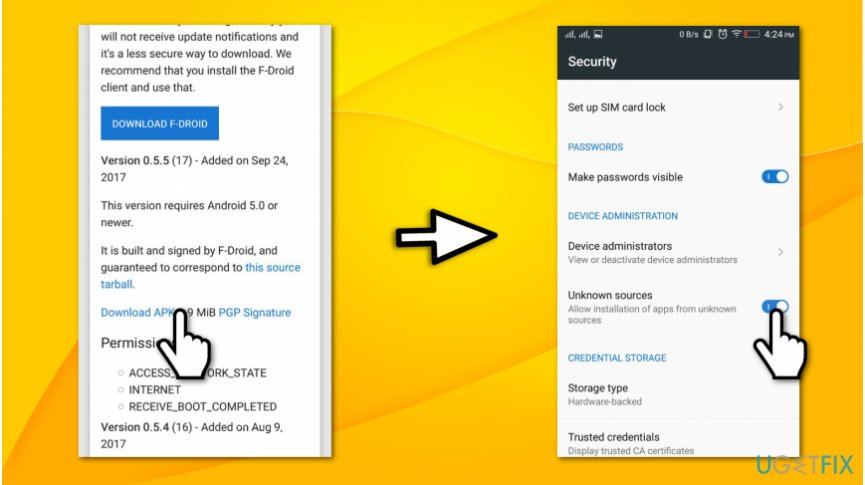
Download apk and allow installing apps from unknown sources - Go to Settings and open Security;
- Allow installation of apps from unknown sources;
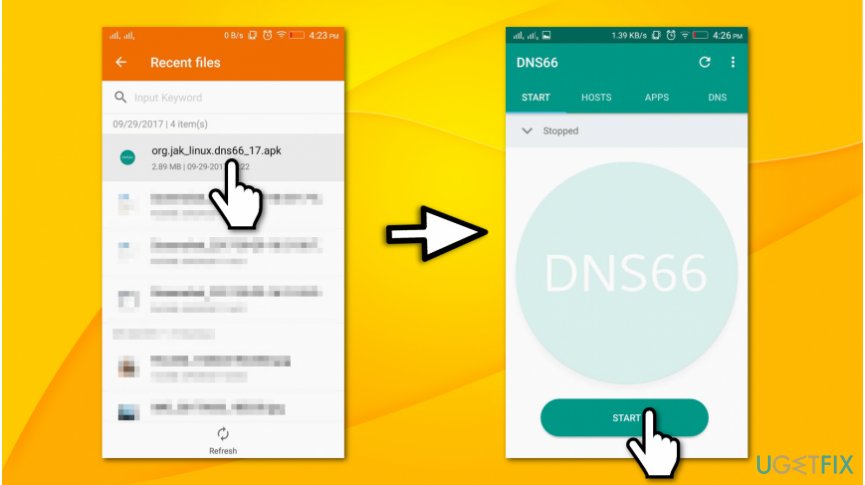
Run dns66 software to block ads - Find the downloaded file in your File Browser and open it;
- Click on the Start button and check if the app is working by locating a key icon on the top-left corner of your screen.
If you still feel that your device is not protected, you can get a professional system optimization software to help you feel secure. For that, we recommend using [rev id=”Reimage”].
Bottom line
To block ads on Android devices, you can use DNS66, which is a free software that utilizes DNS to stop advertisements without draining battery life. Ensure you grant the necessary permissions and be cautious of similar apps that may be malicious. If this method does not work, consider exploring other ad-blocking solutions.
Frequently asked questions
DNS66 is primarily designed for Android devices, so it cannot be directly used on Windows 10. However, you can achieve similar ad-blocking results by using DNS settings in Windows 10 or third-party software.
Yes, you can block ads on Windows 11 by using built-in features like Windows Firewall or by installing ad-blocking browser extensions.
Changing the DNS settings in Windows 10 can help block some ads, but it may not be as comprehensive as using an app like DNS66 on Android.




Report an issue
What's wrong with this guide? We review every report and update or remove content.
Report received — thank you. We'll review and fix it.
You need a free account to submit a report.
Be the first to comment