How to fix
Block spam on Outlook 2010
on Windows
Block spam in Outlook 2010 effortlessly with our expert tips and tricks. Keep your inbox clean and organized, updated 2025.

Why does How to block spam on Outlook 2010 occur?
- Receiving tons of junk email
- Unwanted emails mixed with important emails
- Missing options to block senders
- Changes in Outlook's interface and settings
- User frustration with new app features
Repairs Windows system files, removes malware, and restores a clean OS state — without reinstalling.
I have a question about email filter on Outlook. I receive tons of junk email, which occur in the same list as important emails. Could you please tell me how to block unwanted emails on Outlook Windows 10? Would highly appreciate your help!
Microsoft Outlook is a free email, which can be used for conversations and schedule management. The newest version of Outlook provides features of sweeping, unsubscribing, pinning, chatting, checking the weather forecast, using OneDrive, and much more. It may be accessed via web browser or Outlook app and supports devices including desktop PCs, laptops, tablets, and mobile devices. While Microsoft is moving on with its products and offer people a wide variety of services and innovations, many people are missing the good old Outlook with the simple service, interface, and settings.
These days Microsoft community is buzzing on the official Microsoft’s forum about spam or unwanted emails that appear on Outlook's incoming email list. Most of them express frustration in trying to block unwanted emails, senders, and spam. Outlook users miss the options when right-clicking on the email they could choose to “add sender to safe senders list,” “add sender to block senders list,” “Mark as junk,” and so on. Unfortunately, we have to get used to new apps and their settings available on Windows 10 even though it may be tough at first. While Microsoft is doing things with a purpose, we may expect that the missing functions in the new Microsoft Outlook will be re-added. If, however, they won’t be, we will try to explain how to block unwanted emails and spam on Outlook.
How to block unwanted emails on Outlook?
First of all, open https://outlook.com/ and log in to your account. NOTE: don’t use Outlook app in this case, but access the Outlook via your web browser. After that, try to do the following:
- Click on Gear icon (Settings) and select Options.
- Find Preventing Junk email and click Safe and blocked senders.
- Select Blocked Senders.
- To proceed further, you have to have the list of email IDs of the senders that you want to block. Type the email address that you want to block and select Add to list >>
NOTE: If the list of unwanted senders is long, this process may take some time. After that, you may set an automatic junk mail filtering:
- Log in to your account (either via the web browser or Outlook app).
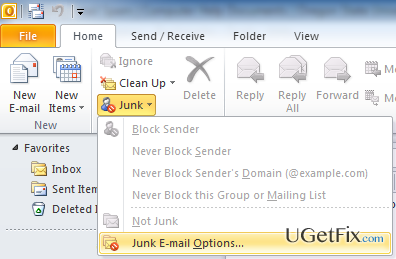
- Click the Junk icon and then Junk E-mail Options.
- You should see the option set as No Automatic Filtering. Reset the option to the appropriate level of filtering.
- Click OK.
NOTE: Safe List Only option may cause some legitimate emails to go to spam, and you may find it annoying as well. To prevent this from happening, do the following:
- Click on Safe Senders tab at the top of the window and click Add.
- Add email addresses that you are getting emails from to prevent emails from these senders from going to Junk Email folder.
- After that, mark Also trust email from my Contacts and Automatically add people I email to the Safe Senders list options.
- Click OK to save the changes.
Bottom line
To block unwanted emails on Outlook, access your account via a web browser, click on the Gear icon, select Options, and navigate to Preventing Junk email. From there, you can add email IDs to the Blocked Senders list. If these steps do not resolve the issue, consider seeking further assistance from Microsoft support.
Frequently asked questions
You can create rules by going to the 'Home' tab, selecting 'Rules', and then 'Manage Rules & Alerts' to specify criteria that will automatically move spam to a designated folder.
Yes, you can adjust the junk email filter by navigating to 'Home', clicking on 'Junk', and selecting 'Junk E-mail Options' to choose the level of protection you prefer.
To block specific email addresses, go to 'Home', click on 'Junk', and select 'Junk E-mail Options', then add the addresses to the 'Blocked Senders' list.




Report an issue
What's wrong with this guide? We review every report and update or remove content.
Report received — thank you. We'll review and fix it.
You need a free account to submit a report.
Be the first to comment