How to fix
Change file type
on Windows
Easily change file types on Windows 10 or 11 with our expert-tested tips. Optimize your settings for seamless file management, fixed in minutes.


Why does How to change file type on Windows occur?
- File extension not recognized by the program
- Need to convert to a more widely supported format
- Website or platform requires specific file formats
- File may be incompatible with certain devices or applications
- Risk of data corruption when changing file types
Repairs Windows system files, removes malware, and restores a clean OS state — without reinstalling.
Hello. I was wondering if I could change the file types on my Windows PC. If yes, what are the steps?
On a Windows computer, changing a file's type or extension is a somewhat simple process, but you should proceed with caution because even seemingly simple acts might have unexpected results. There are several situations in which changing the file extension may be required, so it's critical to comprehend the motivations behind such changes.
Receiving a file with an extension that their program or software does not recognize or cannot open is a regular scenario for users. In certain situations, modifying the file type may help them access and make use of the material. For example, a video file with a rare extension would need to be converted to a more widely supported format like ".mp4", or a document produced with the ".txt" suffix could need to be converted to ".docx" in order to be opened with Microsoft Word.
To maintain compatibility, there is still another reason to change the file type. Certain internet platforms, apps, and devices have format specifications. For example, only ".jpg" or ".png" type image files may be accepted by a website. In this instance, in order to comply with the platform's requirements, a picture with an incompatible extension must be converted to the necessary format.
It is crucial to remember that modifying the type of file should be done very carefully. A file with the wrong extension may not open or function. The file's data may get corrupted, rendering it unusable or unretrievable. As a result, before making any changes, users should think about backing up their files and be aware of any possible risks related to this process.
There are a few ways to modify a file's extension, however the precise procedures could differ based on the Windows version and the kind of file involved. Using software or online tools made for converting file formats, renaming the file and manually entering in the new extension, or even changing the file's associations and attributes through Windows settings are all possible options.
In this guide, you will find 2 ways you can change the file type on Windows. Follow the step-by-step instructions provided below.
Method 1. Change the File Type Directly
- Press the Windows key + R to open the Run dialog box.
- Type control folders in the box and press Enter.
- In the Folder Options screen, navigate to the View pane.
- Uncheck the Hide extensions for known file types box.
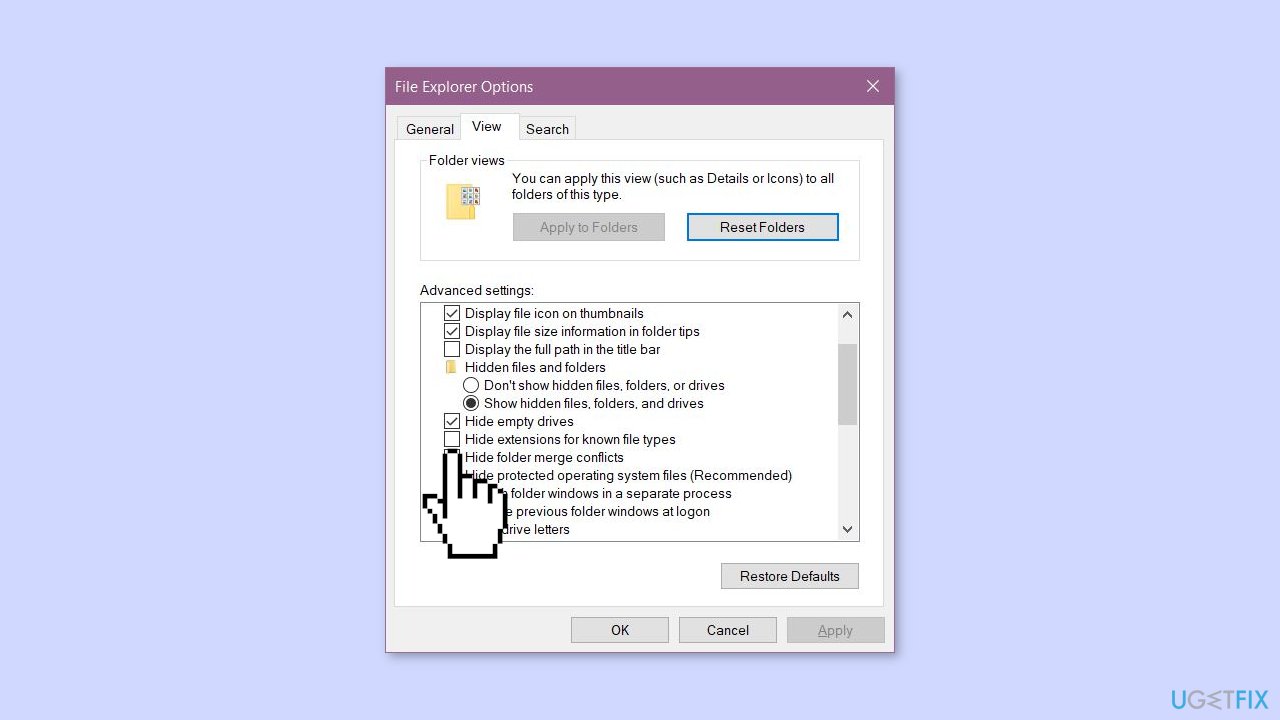
- Apply and then OK to save the changes.
- Open File Explorer.
- Navigate to the location of the file.
- Right-click the file and select Rename.
- Remove the file extension and replace it with the new extension.
- Press Enter to confirm the change.
- Disregard the warning message and click Yes.
Method 2. Use the Command Prompt
- Tap the Windows button to open the search box.
- Type command in the search bar.
- Right-click on Command Prompt and select Run as administrator.
- Use the cd command to navigate to the file's location, e.g., cd C:\Users\ugetfix\Downloads.
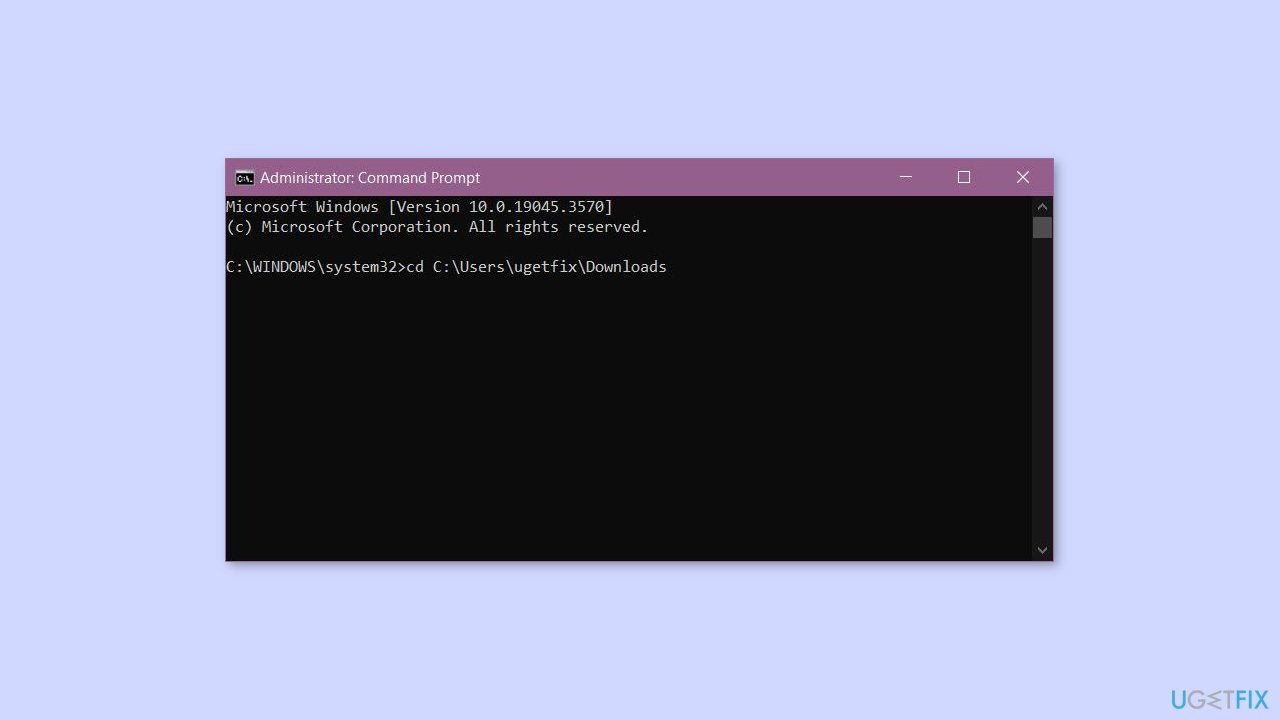
- To rename the file, use the rename code:
ren current name new name
- Replace current name with the file's current name and new name with the desired name including the new extension.
- For example, if the current name is Ugetfix.txt, the new name would be Ugetfix.exe.
Bottom line
To change a file type on Windows, you can rename the file and manually enter the new extension, use software or online tools for conversion, or adjust file associations through Windows settings. Always back up your files before making changes to avoid potential data loss. If none of these methods work, consider seeking professional assistance.
Frequently asked questions
You can select multiple files, right-click, and choose 'Rename' to change the file extensions simultaneously, ensuring they all share the same new extension.
Yes, you can right-click the file, select 'Properties', and then change the file type by modifying the extension in the 'General' tab.
Make sure you have the appropriate software installed that supports the new file type, as Windows 10 may not automatically associate it with an application.




Report an issue
What's wrong with this guide? We review every report and update or remove content.
Report received — thank you. We'll review and fix it.
You need a free account to submit a report.
Be the first to comment