How to fix
Change Folder Picture
on Windows
Easily customize your folders in Windows 10 with our simple guide. Transform your folder appearance today, expert-tested for optimal results!

Why does How to Change Folder Picture in Windows 10 occur?
- Windows 10 does not display folder pictures by default
- Users may not know how to change folder pictures
- File extensions may be hidden, causing confusion
- Folder pictures and folder icons are often confused
- Users may not have the correct image file format
Repairs Windows system files, removes malware, and restores a clean OS state — without reinstalling.
I’m a new Windows 10 user and have many questions regarding its customization. I used to change folder pictures on previous versions, so I would like to do the same in Windows 10. Is it possible?
In Windows 10, Microsoft left much space for people’s creativity by adding many customization options. For example, people can change Windows themes, customize start menu, change folder icons, and so on. Recently, we noticed several threads were people ask if it’s possible to change folder pictures.
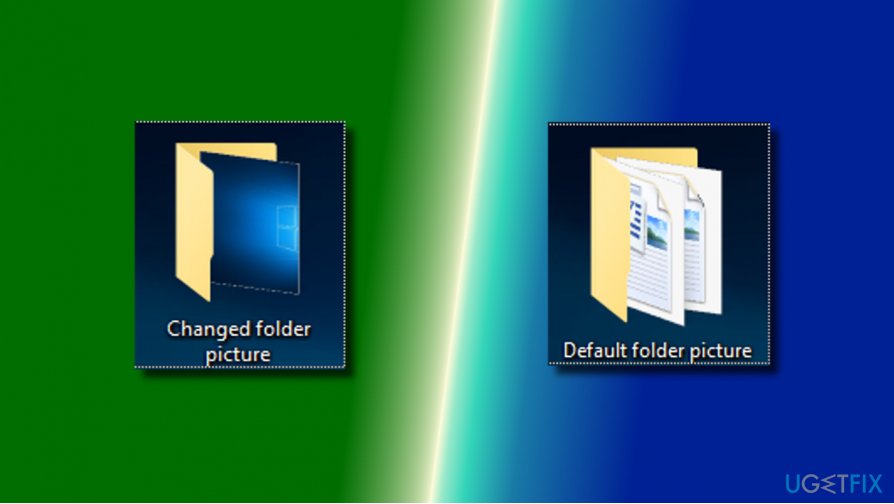
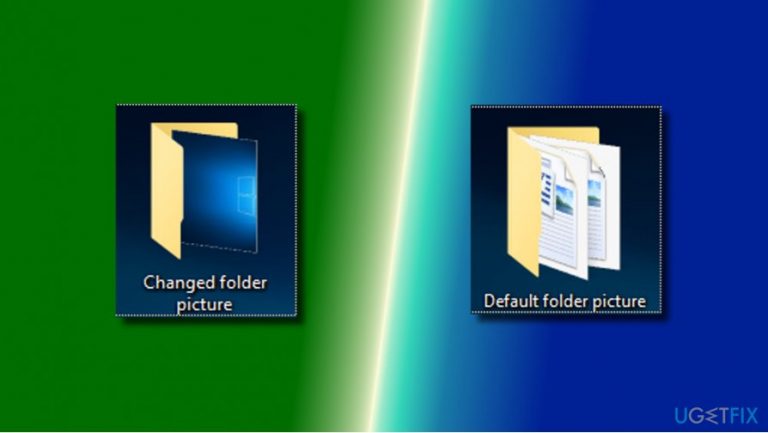
By default, Windows displays a thumbnail preview of the folder’s contents on the folder’s icon. One may not confuse the folder icon and folder picture because these two are not the same. Folder picture is seen on a folder when viewing the thumbnail views, while folder icon is automatically created by File Explorer (former Windows Explorer) for the thumbnail view rendering the first four pictures stored in the folder. Sometimes, to recognize the folder easier, people opt for changing folder picture, which is possible not only in Windows 10, but also in other Windows version. The following are the image file types that can be set as a Windows 10 folder picture: .jpg, .jpeg, .gif, .png, .tif, .tiff, .bmp, .ico, .wmf, .dib, .jfif, .jpe, .fpx, or .mix.
Changing Folder Picture in Windows 10
Although changing folder picture is as easy as a pie, many Windows enthusiasts don’t know the way how to do that up-till-now. So, here’s what you have to do:
- Find the folder for which you want to set a new folder picture and open it.
- If files do not exhibit the file extensions, click View.
- Mark the File name extensions check box.
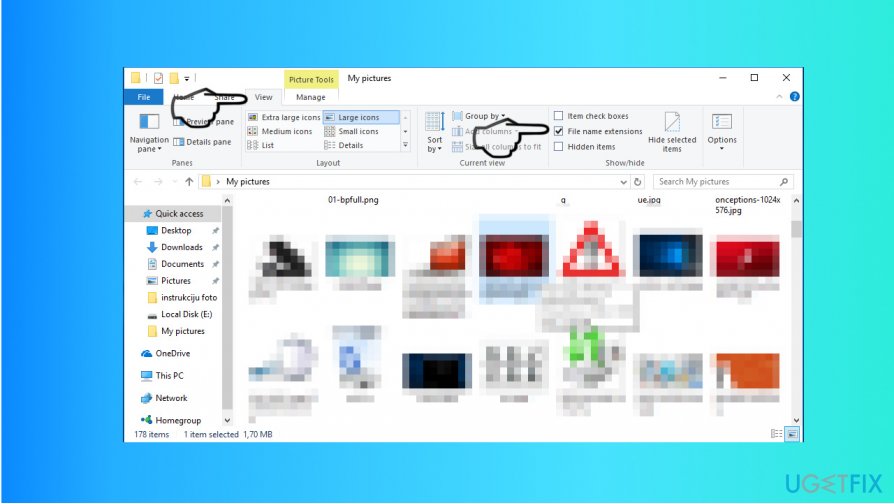
- Then find the file that you prefer to set as a folder picture and rename it to Folder.gif.
- When a confirmation window shows up, click Yes.
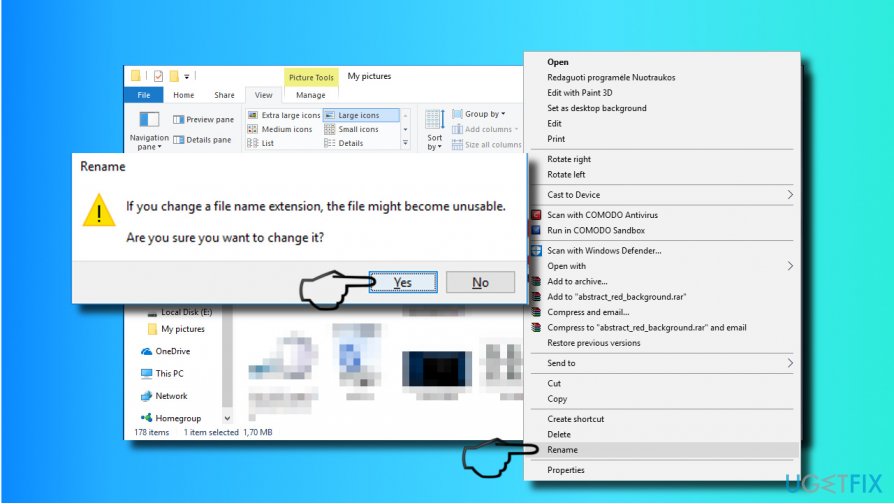
NOTE: if you cannot open the Folder.gif file after renaming it, rename it back to the original file extension.
Alternatively, folder picture can be changed by following these steps:
- Right-click on a folder for which you want to set a new folder picture.
- Click Properties and open Customize tab.
- Locate Folder picture section and click Choose file.
- Find the image that you want to set as folder picture, mark it, and click Open.
- Finally, click Apply button.
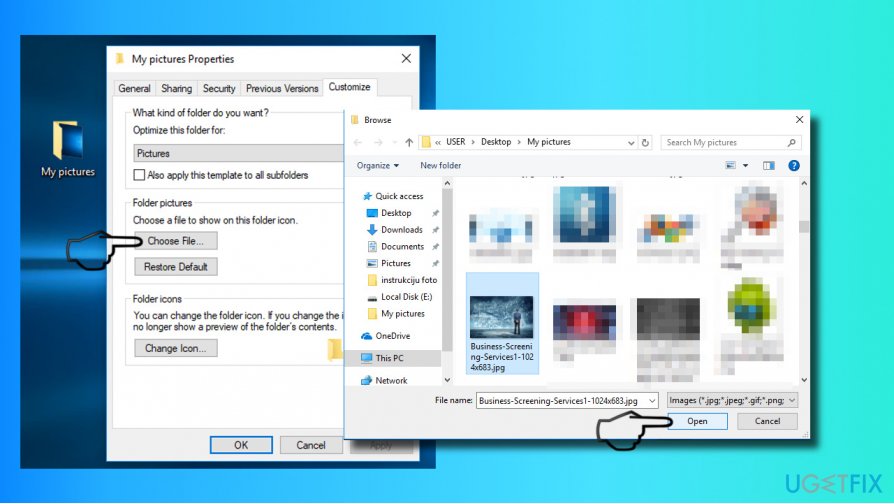
If, after all, you would like to restore the original folder picture, perform the steps given above to access Folder picture section and then select Restore Default button.
Bottom line
To change a folder picture in Windows 10, you can rename an image file to Folder.gif or right-click the folder and access its properties. If these methods do not work, ensure that the file extension is visible and that the image format is supported.
Frequently asked questions
Right-click the folder, select 'Properties', go to the 'Customize' tab, and click on 'Change Icon' to choose a new icon for your folder.
Yes, you can create a custom folder picture by saving your image as a .ico file and then setting it as the folder icon using the 'Change Icon' option in the folder's properties.
No, changing the folder picture only alters its appearance and does not impact the files or subfolders contained within.




Report an issue
What's wrong with this guide? We review every report and update or remove content.
Report received — thank you. We'll review and fix it.
You need a free account to submit a report.
Be the first to comment