How to fix
Change image thumbnail size
on Windows
Easily adjust image thumbnail sizes in Windows 10 and Windows 11 for a customized viewing experience. Expert-tested for optimal results!

Why does How to change image thumbnail size in Windows occur?
- Default thumbnail size may be too small for some users
- Users may have poor vision and need larger thumbnails
- Users want to preview image details better
- Users may prefer to see more files on the screen at once
- Thumbnail display problems may occur due to underlying system issues
Repairs Windows system files, removes malware, and restores a clean OS state — without reinstalling.
Hello, I have very poor vision as an older person, so I'd like to see the thumbnails of my photos better. Is there any way to enlarge them?
Thumbnails are small, scaled-down versions of images or videos that give users a quick preview of the content without having to open the file. They are incredibly useful in navigating through folders, as they allow you to quickly identify the images or videos you want to view or edit.
By default, Windows displays image thumbnails in a predetermined size, which works well for most users. However, some may find the default thumbnail size too small or too large for their preferences.
There are various reasons why users might want to change the size of image thumbnails. For instance, larger thumbnails can help users better preview the image's details, making it easier to locate specific files without opening them.
On the other hand, smaller thumbnails allow users to view more files on the screen at once, enhancing navigation efficiency. Regardless of the reason, adjusting thumbnail size can significantly improve your file browsing experience in Windows.
Windows allows users to change the size of image thumbnails with a few simple steps. However, the exact process may vary depending on the version of Windows you're using. To guide you through the process, we've provided specific instructions for changing the thumbnail size below this article - there are several ways you can do this.
Sometimes, users may encounter issues when attempting to change thumbnail size or view thumbnails in Windows. In such cases, it's essential to diagnose and repair any underlying problems to ensure a smooth and efficient user experience. One way to do this is by using a reliable PC repair tool, such as [d1]. This powerful software can automatically fix a wide range of common PC issues, including thumbnail display problems (if present), and optimize your system's performance.
Method 1. Use File Explorer
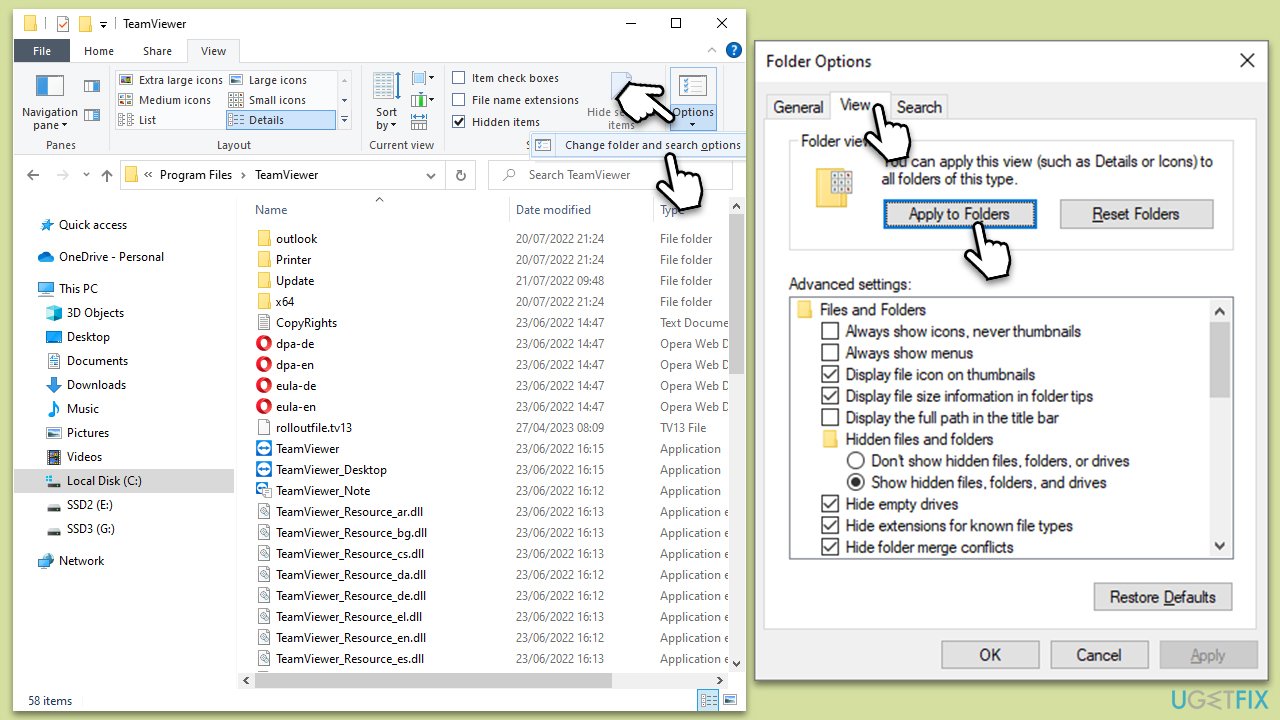
Changing the thumbnail size in File Explorer is a simple process that works across different versions of Windows. Follow these steps to adjust the size of image thumbnails in File Explorer:
Windows 10
- Press Win + E to open File Explorer.
- Navigate to your destination folder.
- At the top, select the View tab.
- Here, you can select from numerous options - pick the one you prefer:
Extra Large icons
Large icons
Medium icons
Small icons
List
Details
Tiles
Content - Once selected, this option will apply to all files in the selected directory.
Windows 11
- Press Win + E to open File Explorer.
- Go to the location you want to change the image preview size for.
- Click View at the top.
- You'll be able to select several options from the drop-down menu.
If you want these settings to be applied to all folders and files, follow these steps:
- In File Explorer, where you made the changes, go to the View tab again and select Options > Change folder and search options.
- In Windows 11, click the three horizontal dots and select Options.
- In the Folder Options, go to the View tab.
- Click Apply to Folders.
Method 2. Use the Registry Editor
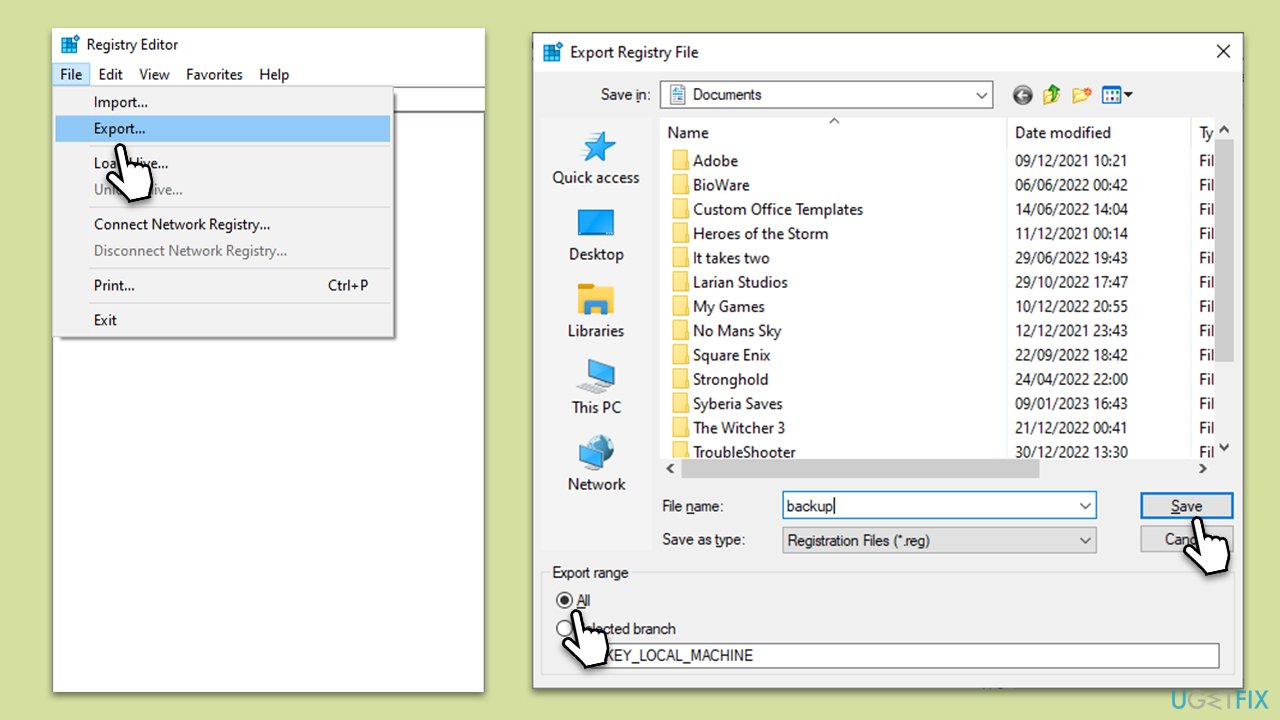
This solution is applicable to those who do not have access to changing their thumbnail sizes - this usually happens in older Windows versions. Before proceeding, we recommend you back up the Registry. Here's how:
- Type regedit in Windows search and press Enter. In the older Windows versions, you can press Win + R instead.
- User Account Control (UAC) will ask whether you want to make changes - click Yes.
- When Registry Editor opens, click File > Export.
- Under Export range, pick All.
- Name it and save it to the location of your preference.
Next, follow these steps to adjust thumbnail size:
- In Registry Editor, navigate to the following location:
Computer\HKEY_CURRENT_USER\Software\Microsoft\Windows\CurrentVersion\Explorer - In the right pane, right-click on empty space and select New > DWORD (32-bit) Value.
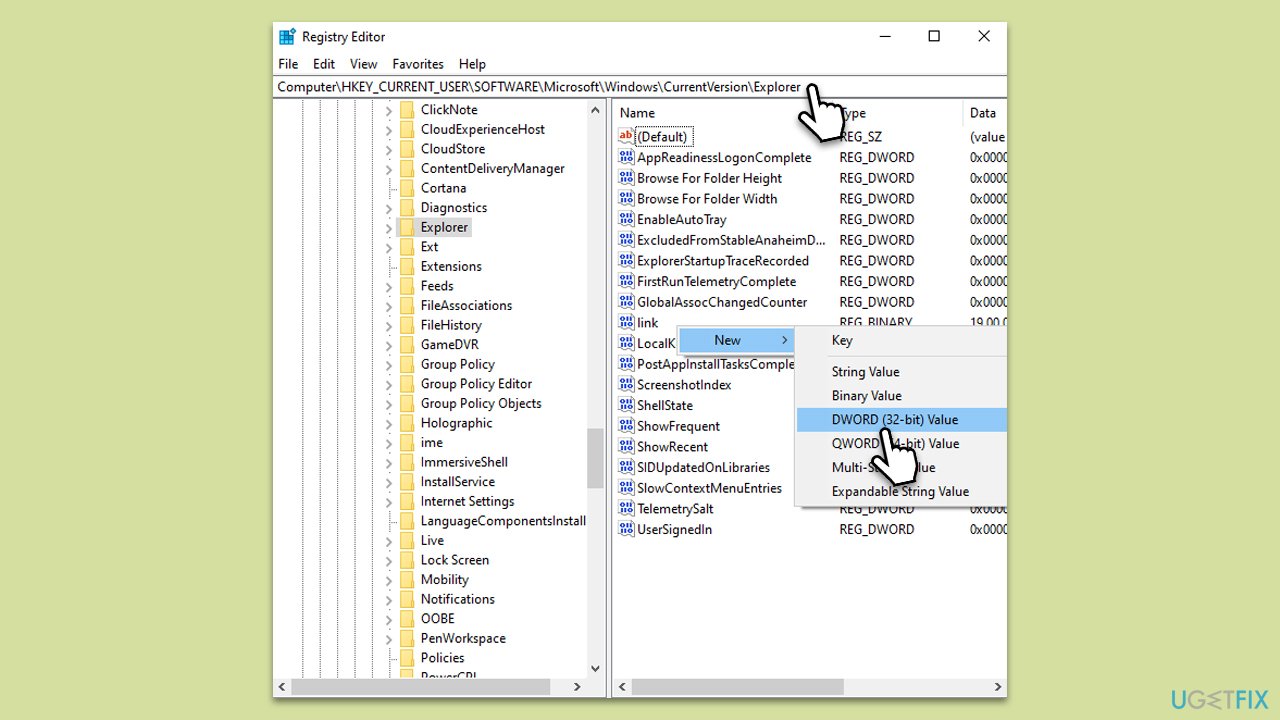
- Name it ThumbnailSize.
- Double-click the newly-created item - you can now change the size of the thumbnails by entering a value between 32 to 256. Of course, the smaller the number, the smaller the icons will be, and vice versa.
Bottom line
To change the thumbnail size in Windows, you can use File Explorer or other methods provided in the article. If you encounter issues, consider using a reliable PC repair tool to fix thumbnail display problems. If none of these solutions work, further diagnosis may be necessary.
Frequently asked questions
To change the thumbnail size in File Explorer on Windows 10, open any folder, then click on the 'View' tab and select 'Large icons' or 'Extra large icons' to increase the thumbnail size.
Windows 11 does not allow custom thumbnail sizes, but you can adjust the size by selecting 'Small', 'Medium', 'Large', or 'Extra large icons' in the 'View' menu of File Explorer.
If image thumbnails are not displaying correctly in Windows 10 or Windows 11, you can try clearing the thumbnail cache by going to Disk Cleanup, selecting 'Thumbnails', and clicking 'OK' to rebuild the cache.




Report an issue
What's wrong with this guide? We review every report and update or remove content.
Report received — thank you. We'll review and fix it.
You need a free account to submit a report.
Be the first to comment