How to fix
Change NAT type
on Windows
Optimize your gaming experience on Windows 10 and 11 by changing your NAT type easily. Expert-tested tips ensure a smooth connection with zero traces left.

Why does How to change NAT type on Windows occur?
- Strict NAT is the most secure but restrictive
- Moderate NAT balances security and connectivity
- Open NAT is least restrictive and ideal for hosting
- Router configurations determine the default NAT type
- Network-related issues like disconnections and lag can occur based on NAT type
Repairs Windows system files, removes malware, and restores a clean OS state — without reinstalling.
Hello. I was wondering how can I change the NAT type on Windows. Any tips would be appreciated.
Network Address Translation (NAT) is essential for managing data flow between devices in a home or office network and the wider internet. NAT basically acts as a middleman, translating private IPv4 addresses of local devices to the public IPv4 address assigned to the router by the Internet Service Provider (ISP) and vice versa. This mechanism aids in overcoming the global scarcity of public IPv4 addresses.
NAT types are used to describe the state of a network connection, and they have different implications for online gaming. Strict, Moderate, and Open NAT are the three types of NAT, each with its own set of characteristics and implications. Strict NAT is the most secure, but it is also the most restrictive. Users with Strict NAT may encounter difficulties connecting to multiplayer games, particularly when attempting to join games hosted by Open NAT systems. Furthermore, if a system with Moderate NAT enters the same gaming session, the connection may be disrupted.
The moderate NAT type balances security and connectivity. It opens a few ports, allowing systems with Moderate NAT to connect to other systems with Moderate or Open NAT. While more adaptable than Strict NAT, it may still present difficulties in certain multiplayer scenarios.
The least restrictive type of NAT is open NAT, which is ideal for users who want to host matches. Data transfer between devices occurs without interruption, regardless of NAT type or firewall configuration. Router configurations determine the default NAT type, and users may experience network-related issues such as disconnections and lag depending on their NAT type.
Changing the NAT type from Strict or Moderate to Open may be a viable solution for users experiencing connectivity issues while playing multiplayer games. However, you should proceed with caution because opening up your NAT type to improve connectivity may introduce security risks. Users should be aware of the potential consequences of changing their NAT type to Open and weigh the benefits against the security risks associated with such changes.
In this guide, you will find 3 steps that should help you easily change NAT type on Windows. Follow the step-by-step instructions provided below.
Set a Static Private IP Address
- Press the Windows key + R to open Run.
- Type cmd and click OK to open Command Prompt.
- In Command Prompt, type ipconfig and press Enter to view your network information.
- Scroll down to the Ethernet adapter section and note down the IPv4 Address, Subnet Mask, and Default Gateway.
- Press the Windows key + I to open Settings.
- Go to Network & internet, and click on Ethernet to open the Ethernet adapter properties.
- Click the Edit button beside IP assignment.
- Select the Automatic (DCHP) drop-down and choose Manual.
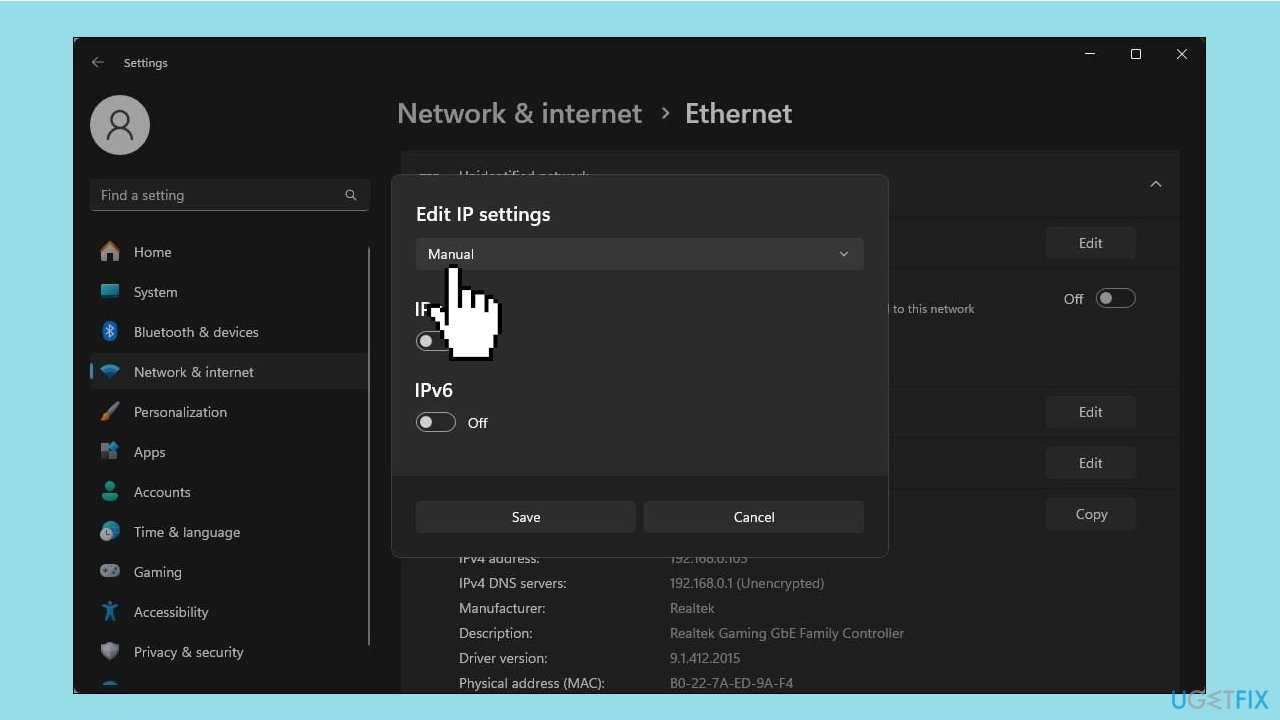
- Toggle the switch to enable IPv4.
- Enter the IP address, ensuring the first three octets match the IPv4 address obtained using the ipconfig command (e.g., type 192.168.0.200).
- Enter the Subnet mask and Default gateway address for the Ethernet adapter obtained using the ipconfig command.
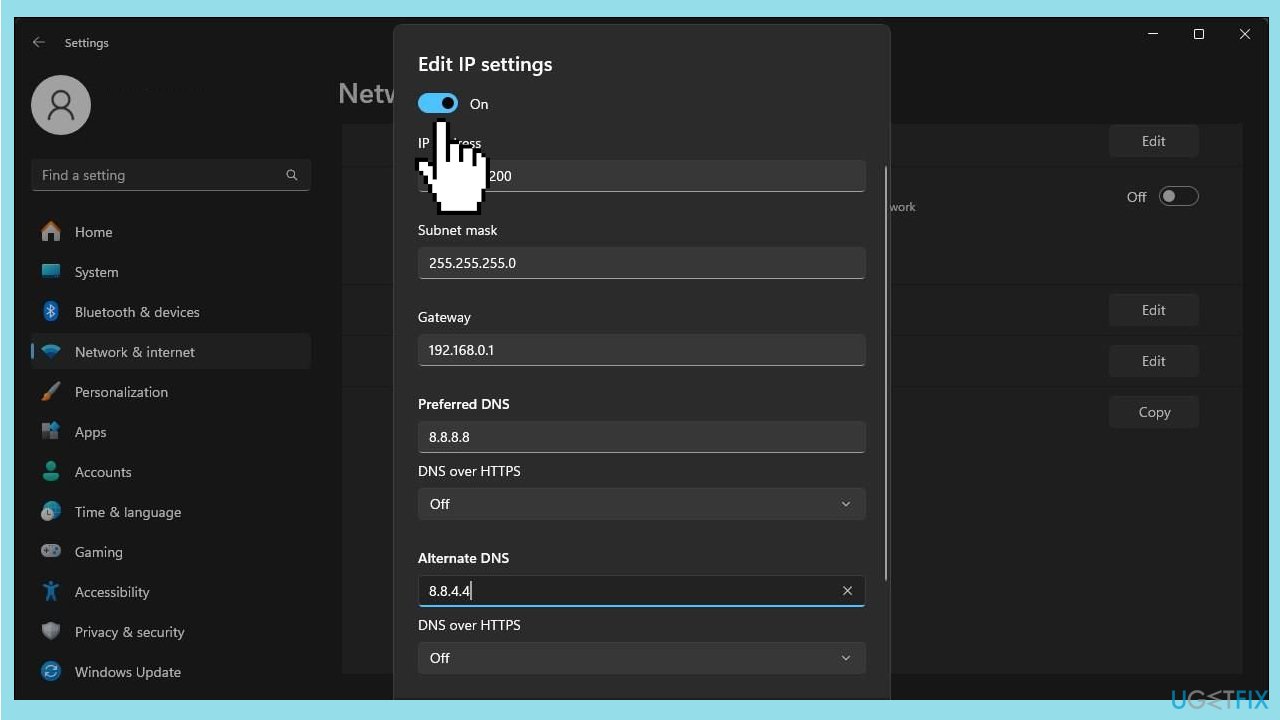
- In the Preferred DNS field, enter 8.8.8.8; for Alternate DNS, enter 8.8.4.4 (Google's public DNS server).
- Leave other settings as default and click Save to set up your static IP address for the device.
- Once you have a static IP, follow the steps below to change the NAT type on your Windows computer.
Solution 1. Enable Discovery Mode
- Press the Windows key + I to open Settings.
- Open the Network & internet tab in the left pane.
- Click on Advanced network settings.
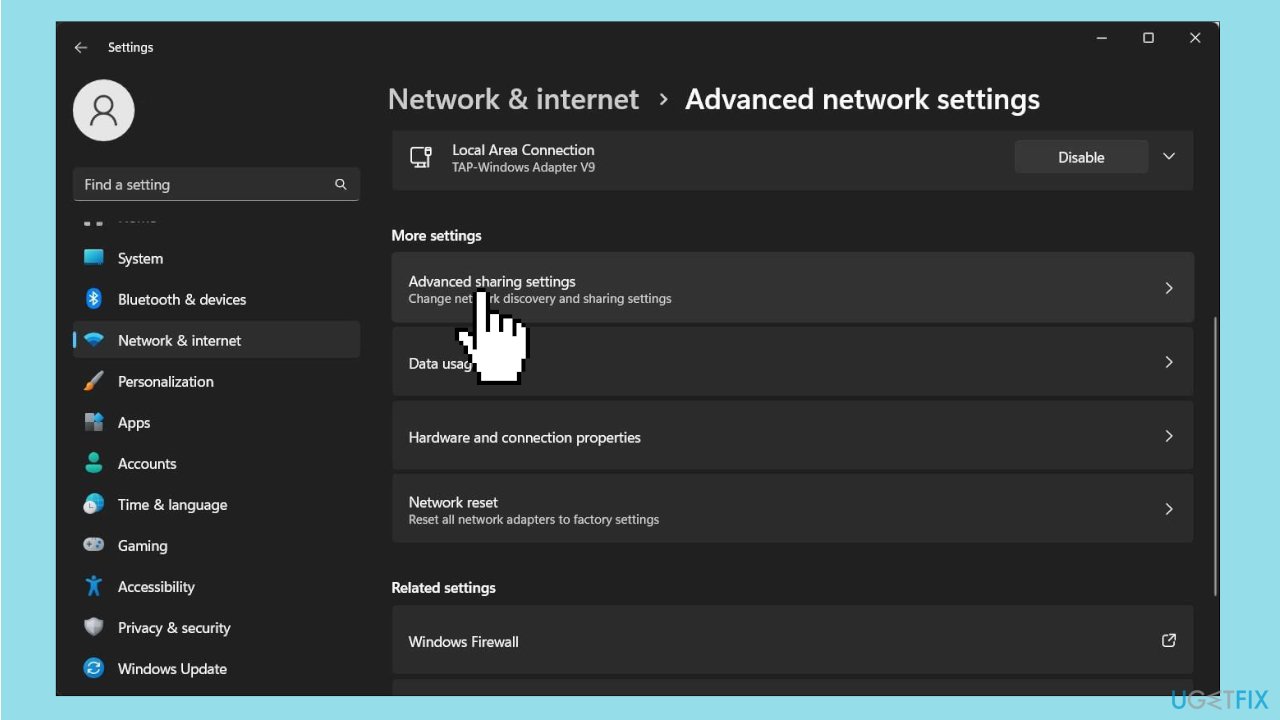
- Scroll down and click Advanced sharing settings under the More settings section.
- Toggle the switch for Network Discovery to turn it on for public networks.
Solution 2. Enable UPnP
- Log in to your router's web-based utility by entering the default gateway address (e.g., http://192.168.0.1) in the search bar and pressing Enter. If you don't know the default gateway, find your router's IP address using the provided instructions.
- On the router dashboard, navigate to the Advanced tab.
- Click to expand NAT Forwarding in the left pane.
- Open the UPnP tab under NAT Forwarding.
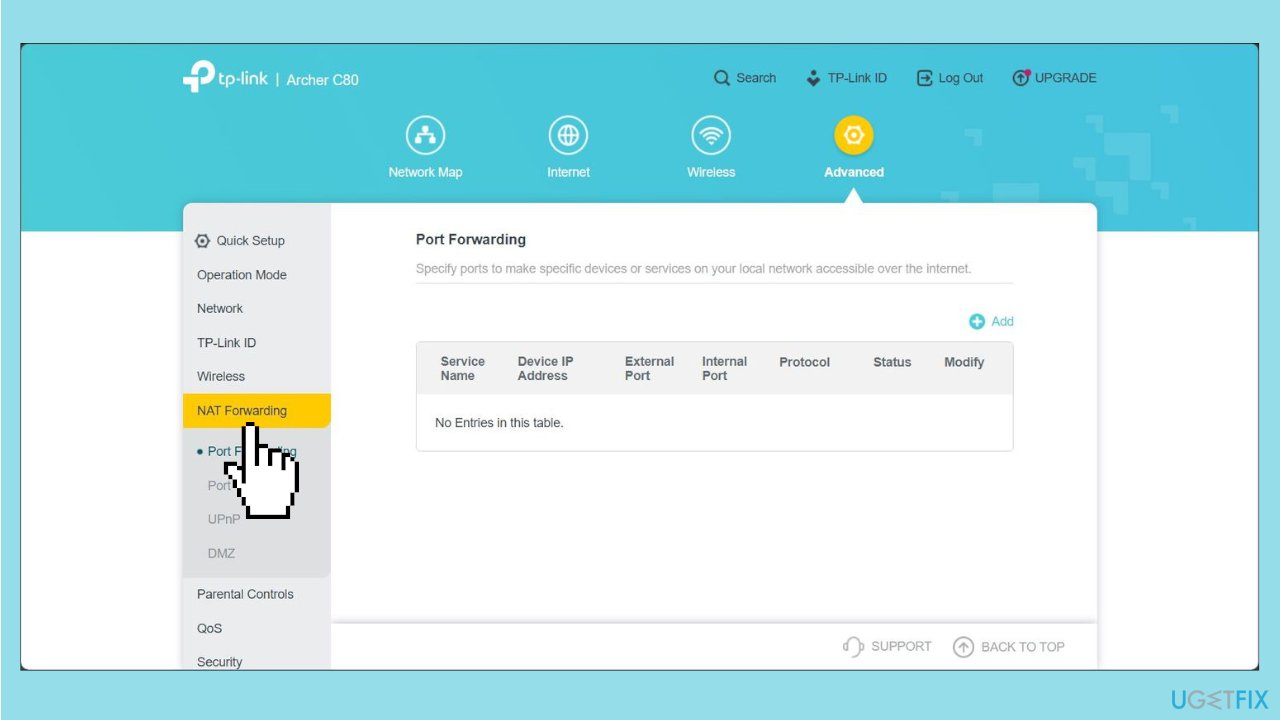
- Toggle the switch to enable UPnP.
- Close your router's web-based utility and check for any improvements in your network connectivity.
Solution 3. Use Port Forwarding
- Obtain the TCP and UDP ports used by your specific game; for instance, Call of Duty: Black Ops Cold War uses TCP ports 3074 and 27014-27050, and UDP ports 3074-3079.
- Search for your game title along with "port forwarding" on the web to find the necessary UDP and TCP port information, often provided by the game developers on their website.
To change NAT type using Port Forwarding:
- Log in to your router's web app, using TP-Link's web-based utility in this example.
- Open the Advanced tab.
- In the left pane, expand NAT Forwarding and open the Port Forwarding tab.
- Click the + Add icon in the top right corner to create a new port forwarding entry.
- In the Add a Port Forwarding Entry dialog:
- Type a name for Service Name to easily identify this port forwarding entry in the future.
- In Device IP Address, enter your computer's static IP address for Ethernet or Wi-Fi.
- Type the game's port number in both the External and Internet Port fields, using either UDP or TCP ports.
- Set the Protocol field to All.
- Click Save to save the port forwarding entry, and it will be stored in the Port Forwarding table.
- You can enable or disable the entry using the Status toggle switch as needed.
Bottom line
To change your NAT type, consider adjusting your router settings to open specific ports or enable UPnP. Be cautious, as changing to an Open NAT type may introduce security risks. If these solutions do not work, further troubleshooting may be necessary.
Frequently asked questions
To change your NAT type, you can adjust your router settings for port forwarding or enable UPnP, which can be accessed through your router's web interface.
Yes, changing to an open NAT type can reduce lag and improve connectivity with other players while gaming on Windows 10 or Windows 11.
If your NAT type remains strict, ensure that your firewall settings allow the necessary ports for your games or applications, and consider contacting your ISP for further assistance.




Report an issue
What's wrong with this guide? We review every report and update or remove content.
Report received — thank you. We'll review and fix it.
You need a free account to submit a report.
Be the first to comment