How to fix
Change Task Manager’s Real-time update speed
on Windows
5 minutes Windows 11 Hello. I was wondering how I can change the update speed of Task Manager in Windows 11. Would appreciate any tips. Task Manager is a built-in tool in Windows that provides users with real-time information about their computer's performance and allows them to manage and end-running processes and applications. It was…


Why does How to change Task Manager’s Real-time update speed in Windows 11 occur?
- Default update speed is set to once per second
- High resource applications require more frequent updates
- Users may want to focus on specific processes
- Slower update speed is useful for screenshots or video recording
Repairs Windows system files, removes malware, and restores a clean OS state — without reinstalling.
Hello. I was wondering how I can change the update speed of Task Manager in Windows 11. Would appreciate any tips.
Task Manager is a built-in tool in Windows that provides users with real-time information about their computer's performance and allows them to manage and end-running processes and applications. It was first introduced in Windows NT 3.5.[ref en-1] Task Manager can be used to monitor and manage system performance, including CPU[ref en-2] and memory usage, running processes, and network usage.
It also provides information about the services running on a computer, as well as the users who are currently logged on. The "Real-time update speed" or "Real-time performance update" in Task Manager is a feature that allows users to change the rate at which the Task Manager updates the performance data. By default, the Task Manager updates performance data once per second, but users can change this to update more or less frequently depending on their needs.
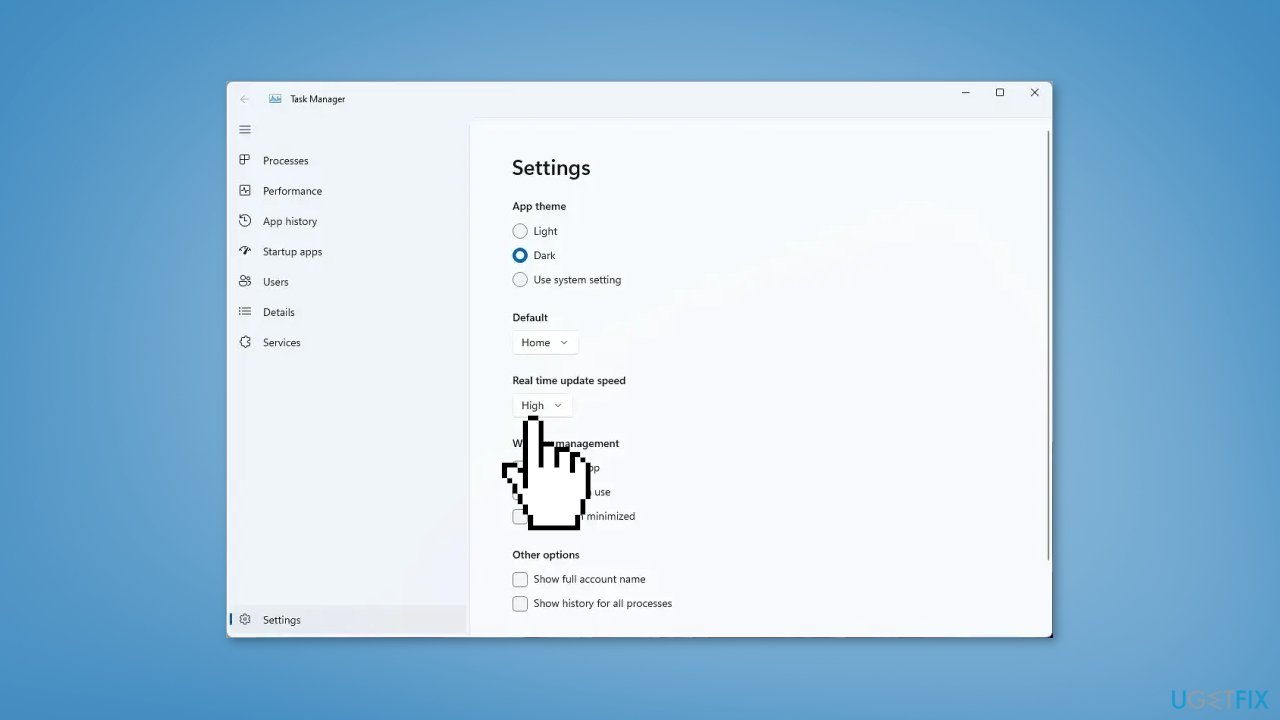
The Real-time update speed drop-down menu has 4 options to choose from:
- High: ideal for monitoring resource-hungry applications such as games, and photo and video editing software. As these applications consume a lot of resources, it is important to be able to monitor their usage in real time. By selecting the High option, the Task Manager will update the usage percentages every half-second, providing you with a very precise view of the resources being consumed by these applications.
- Normal: the default setting in the Windows Task Manager. It updates the percentages once every second, providing a balance between performance and resource consumption. This option is suitable for most users and is a good starting point if you're not sure which option to choose.
- Low: slows down the updating to once every 4 seconds. This is the best option if the percentage changes too often and you want to focus on the resource usage of a particular process or group of processes. It is also useful if you want to take a screenshot or record a video of the Task Manager, as it will reduce the amount of data that is captured and make it easier to focus on specific processes.
- Paused: will freeze everything on the Processes tab and the Performance tab until you change it to other options. It is also useful if you want to take a screenshot or record a video of the Task Manager.
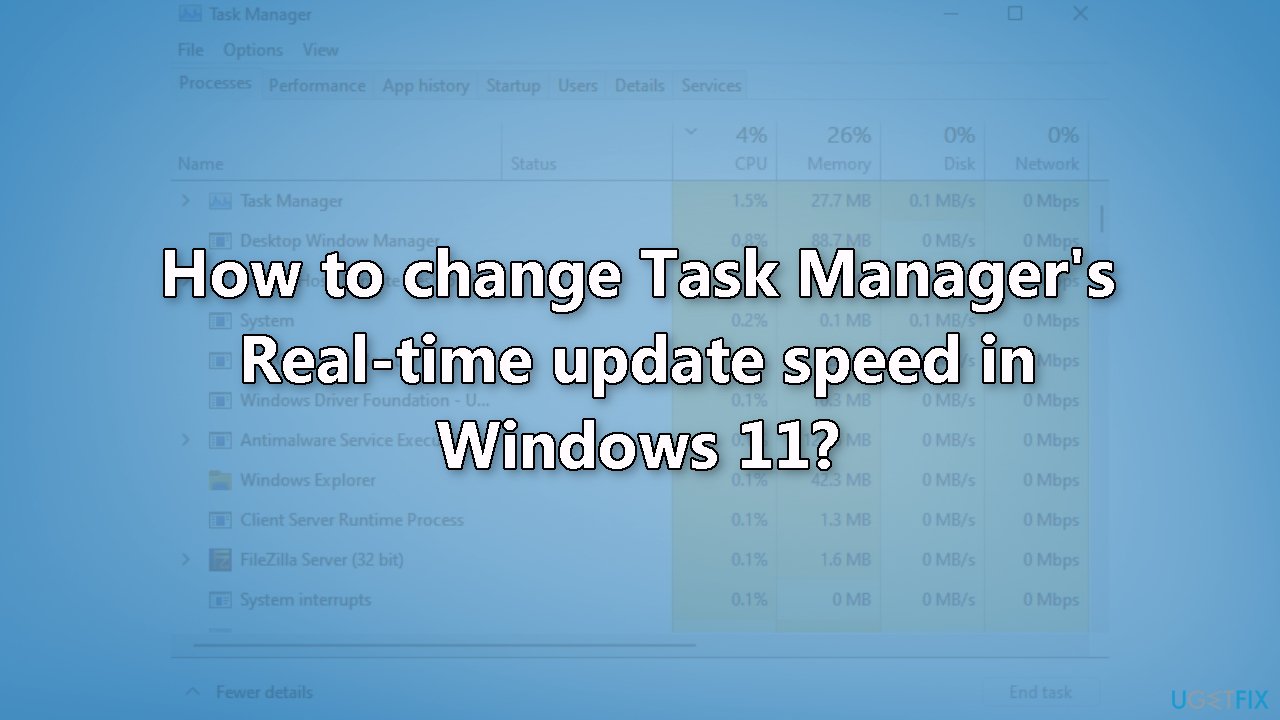
In conclusion, the Task Manager in Windows 11 is an extremely useful tool that provides real-time information about the performance of your computer. The Real-time update speed feature allows you to change the rate at which the Task Manager updates the performance data, making it more customizable to your needs. Adjusting the data update speed is a simple process, and by following the steps mentioned below, you can easily change the update speed to suit your needs.
Change Real Time Update Speed in Task Manager
- Right-click on the Taskbar or the Start button (depending on your Windows 11 version)
- Select Task Manager
- Click the Settings icon
- Click on the drop-down menu under Real-time update speed
- Choose between High, Normal, Low, or Paused options depending on your need
Bottom line
To change the Task Manager's update speed, you can select from options such as High, Normal, or Low based on your needs. If the default settings do not meet your requirements, consider adjusting the update speed to better monitor resource usage. If none of these options work for you, further troubleshooting may be necessary.
Frequently asked questions
To change the update speed, open Task Manager, right-click on the graph area, select 'Update speed,' and choose your preferred rate: High, Normal, or Low.
Yes, you can set it to real-time by selecting 'High' under the 'Update speed' options in the Task Manager.
Changing the update speed affects how frequently the data refreshes, with higher speeds providing more current information at the cost of increased CPU usage.




Report an issue
What's wrong with this guide? We review every report and update or remove content.
Report received — thank you. We'll review and fix it.
You need a free account to submit a report.
Be the first to comment