How to fix
Change the default location of User profile folders
on Windows
Easily change the default location of User profile folders in Windows 11 to optimize your system. Expert-tested solutions ensure flawless results.

Why does How to change the default location of User profile folders in Windows 11 occur?
- Limited space on the system drive
- Desire to organize data storage
- Need to segregate personal files from system files
- Complexity of moving the entire %USERPROFILE% directory
- Restrictions in certain Windows editions
Repairs Windows system files, removes malware, and restores a clean OS state — without reinstalling.
Hello. I would like to know how to move my default user folder to another location so that all the temp and other data would accumulate in the new location instead.
In Windows 11, each user account has a set of default folders where personal files are stored. These folders include Documents, Music, Downloads, Pictures, and Videos, among others. Typically, these folders are located on the system drive, usually the C: drive, under the User profile directory. This setup ensures that personal data is organized and accessible but uses space on the primary system drive, which can be limited.
You may wish to change the location of these User folders to another drive, such as the D: drive. This adjustment would redirect the default storage of files from the system drive to a secondary drive, potentially freeing up space and segregating data storage from system files.
The simplest way to relocate these folders is through the "Where content is saved" option in the Storage settings of Windows 11. However, alternatives exist, such as modifying folder properties directly to point to a new location.
It's important to note that while it is possible to redirect folders like Music, Downloads, and Pictures, you cannot move the entire %USERPROFILE% directory. This directory includes critical folders like OneDrive and AppData. Moving %USERPROFILE% to a different drive requires a more complex setup available only in specific Windows editions, such as Windows Enterprise LTSC, which supports such configurations.
For issues related to these procedures or other Windows problems, a PC repair app [d1] can be an effective solution. This software can automatically diagnose and fix underlying system errors, streamlining the performance and stability of your computer.
Solution 1. Move User folders using Settings
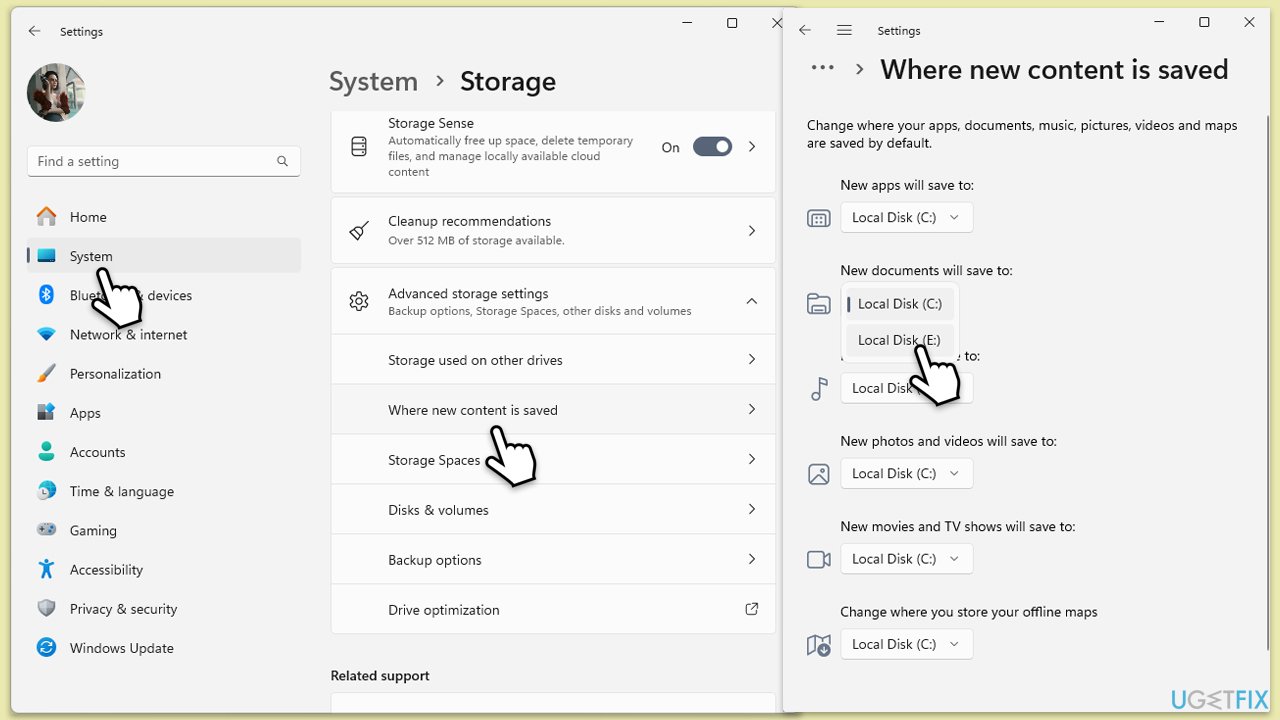
This method allows you to change the default save location for your personal folders such as Documents, Pictures, and Music directly within Windows Settings. It is a user-friendly option that does not involve complex configurations.
- Open the Settings app by pressing Win + I.
- Click on System, then select Storage.
- Scroll down and click on Advanced storage settings.
- Select Where new content is saved.
- Click on the dropdown menu next to each content type you wish to move (e.g., New documents will save to) and choose the new drive, such as D: or F:.
- Repeat this step for each content type you want to move.
- Close the Settings app to complete the changes.
Solution 2. Move User folders using Folder Properties
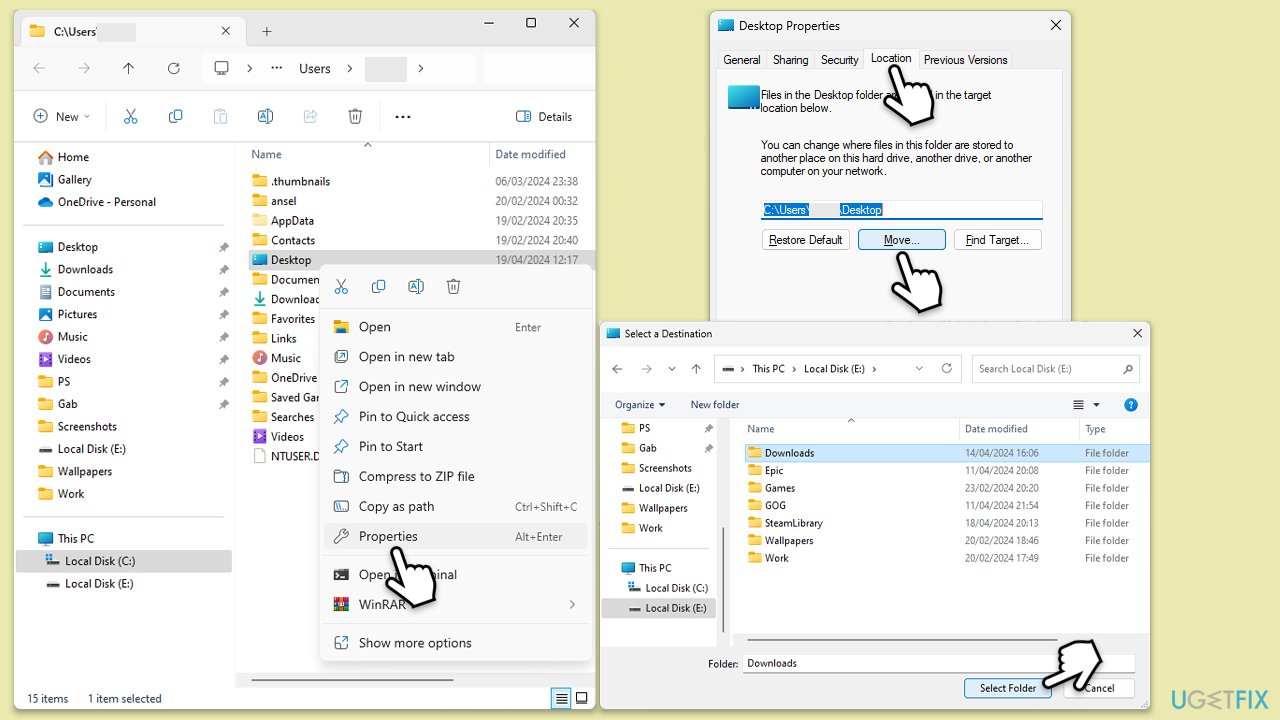
This fix involves changing the path of individual User folders by modifying their properties. It's a straightforward method that lets you specify an exact new location for each folder.
- Open File Explorer by pressing Win + E.
- Navigate to This PC and then to your User folder (usually under C: drive).
- Right-click on the folder you wish to move (e.g., Documents) and select Properties.
- Go to the Location tab.
- Click on Move.
- Browse to the new location where you want the folder to reside. Select it and click Select Folder.
- Click Apply, then OK to save the changes.
- Repeat these steps for other folders as necessary.
Fix 3. Create symbolic links for User folders
Symbolic links create a bridge from the original folder location to a new one on a different drive, allowing the system to treat the link as though it were the original path.
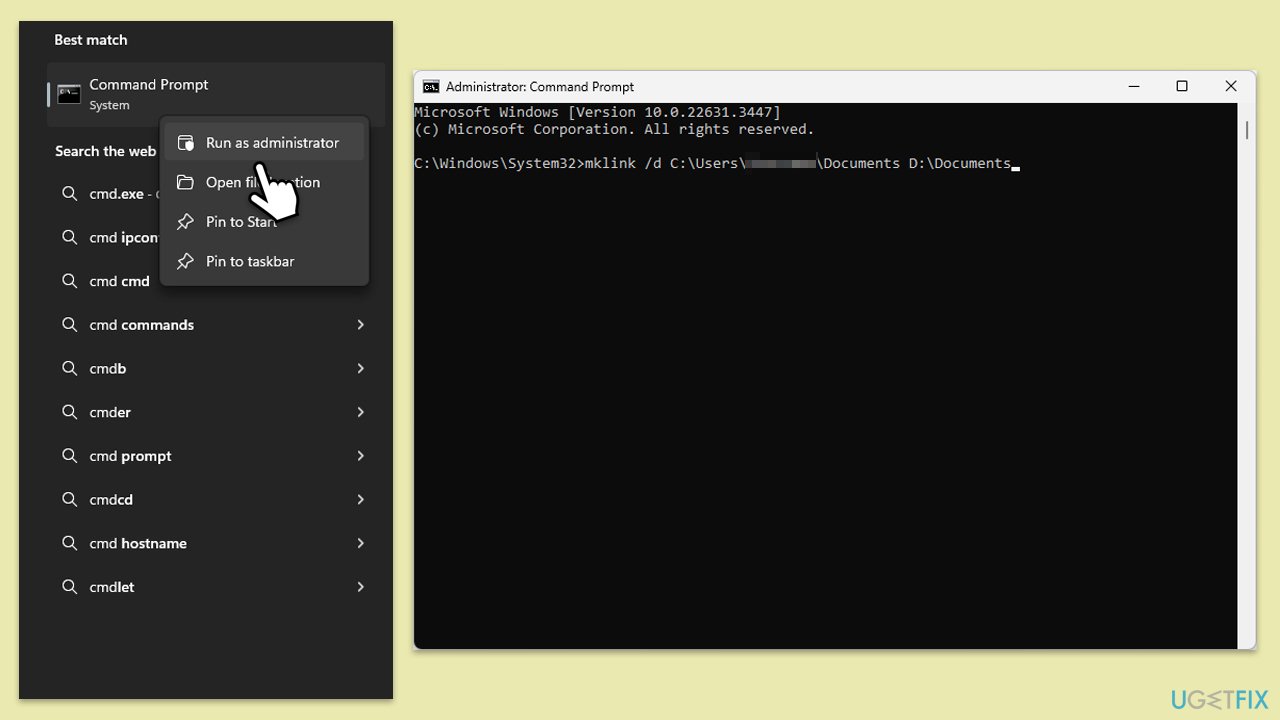
- Type cmd in Windows search.
- Right-click on Command Prompt and click Run as administrator.
- User Account Control will pop up and ask whether you want to allow changes - click Yes.
- Open Command Prompt as an administrator.
- To create a symbolic link, type mklink /d "Link" "Target" where "Link" is the path to the original folder and "Target" is the path to the new folder location.
- Example: mklink /d C:\Users\Username\Documents D:\Documents
- Press Enter to create the link.
- Do this for each folder you wish to redirect.
- Close down the Command Prompt once finished.
Bottom line
To change the default location of user profile folders in Windows 11, you can use the 'Where content is saved' option in Storage settings or modify folder properties directly. If these methods do not resolve your issue, consider using a PC repair app to diagnose and fix underlying system errors.
Frequently asked questions
Right-click the Documents folder, select 'Properties', go to the 'Location' tab, and click 'Move' to choose a new location.
Yes, some applications may not recognize the new folder location, so it's important to check their settings after making changes.
Yes, you can safely change the Desktop folder location, but ensure you back up important files before doing so.




Report an issue
What's wrong with this guide? We review every report and update or remove content.
Report received — thank you. We'll review and fix it.
You need a free account to submit a report.
Be the first to comment