How to fix
Change the Subnet Mask
on Windows
Easily adjust your Subnet Mask in Windows 10 or 11 for better network performance. Follow our expert-tested guide and optimize your settings today!

Why does How to change the Subnet Mask in Windows occur?
- Need to create smaller subnets
- Expanding the network with more devices
- Improper initial subnet mask configuration
- Desire for better network organization
- Requirement for specific network configurations
Repairs Windows system files, removes malware, and restores a clean OS state — without reinstalling.
Hello. How can I change the Subnet Mask in Windows to configure my network?
A Subnet Mask[ref en-1] is a number that is used to separate the IP address of a device into two parts: the network address[ref en-2] and the host address.[ref en-3] This is done so that devices on the same network can communicate with each other, while devices on different networks are isolated from one another. It is also used to determine which portion of the IP address belongs to the network address, and which portion belongs to the host address.
In a Windows environment, the Subnet Mask is typically set to 255.255.255.0, which is a standard setting for most home networks. However, in some cases, people may need to change the subnet mask to better suit their network's needs. For example, if a user wants to create smaller subnets within their network, they may need to change the Subnet Mask to a smaller number. This will allow them to create more subnets, each with fewer hosts.
Additionally, if a user is expanding their network and adding more devices, they may need to change the subnet mask to a larger number to accommodate the additional devices. There are several ways to change the Subnet Mask in Windows. One way is through the Control Panel, where users can access the Network and Sharing Center and make changes to the IP version they are using.
It's important to note that changing it can have a significant impact on the functionality of your network. Before making any changes, it's important to have a good understanding of how your network is configured and what the changes will do. Additionally, it's also important to make sure that all of your devices are configured with the new Subnet Mask before making the change. Follow the step-by-step instructions below.
Find the Subnet Mask
- Press the Windows key to open the Start Menu
- In the search bar, type Command Prompt
- Select Run as administrator option from the right pane
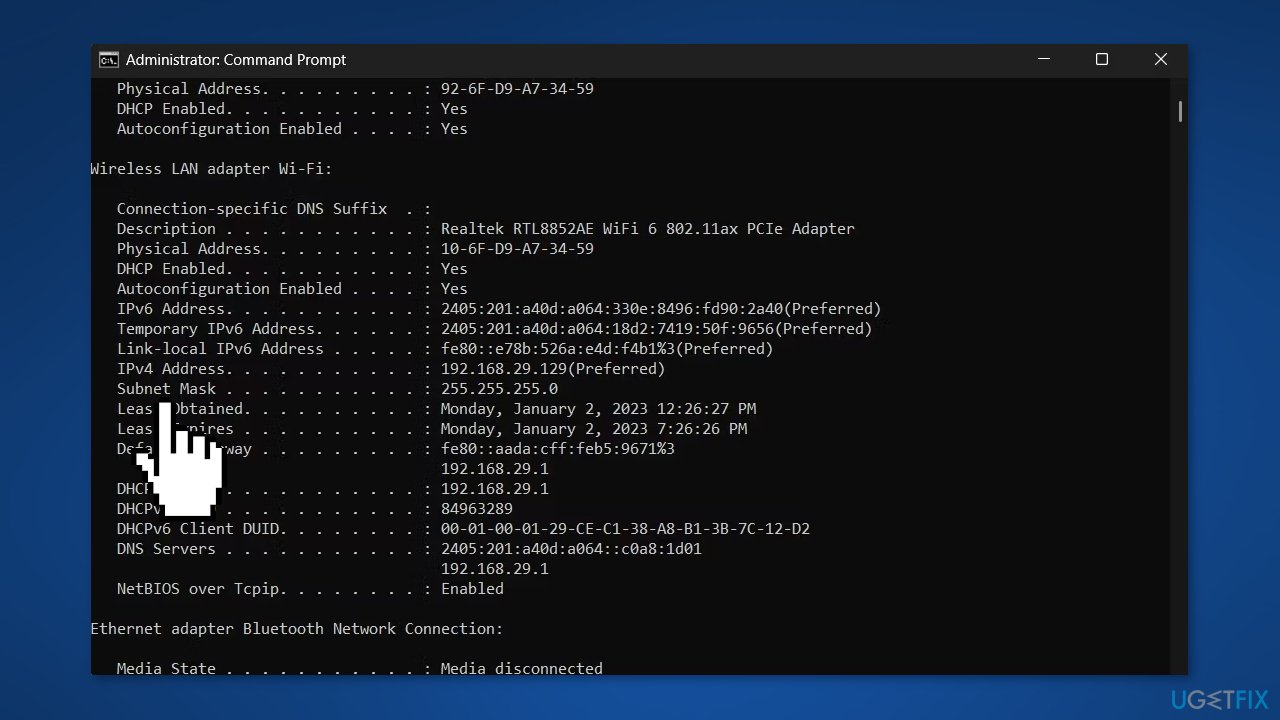
- In the elevated Command Prompt window, type ipconfig /all and press Enter
- Scroll through the output and look for Subnet Mask under the Wireless LAN adapter Wi-Fi section
Method 1. Use Windows Settings
- Open the Windows Systems Settings menu
- Select Network & internet from the left panel
- Select Wi-Fi and then choose your network
- Click the Edit button next to the IP assignment option
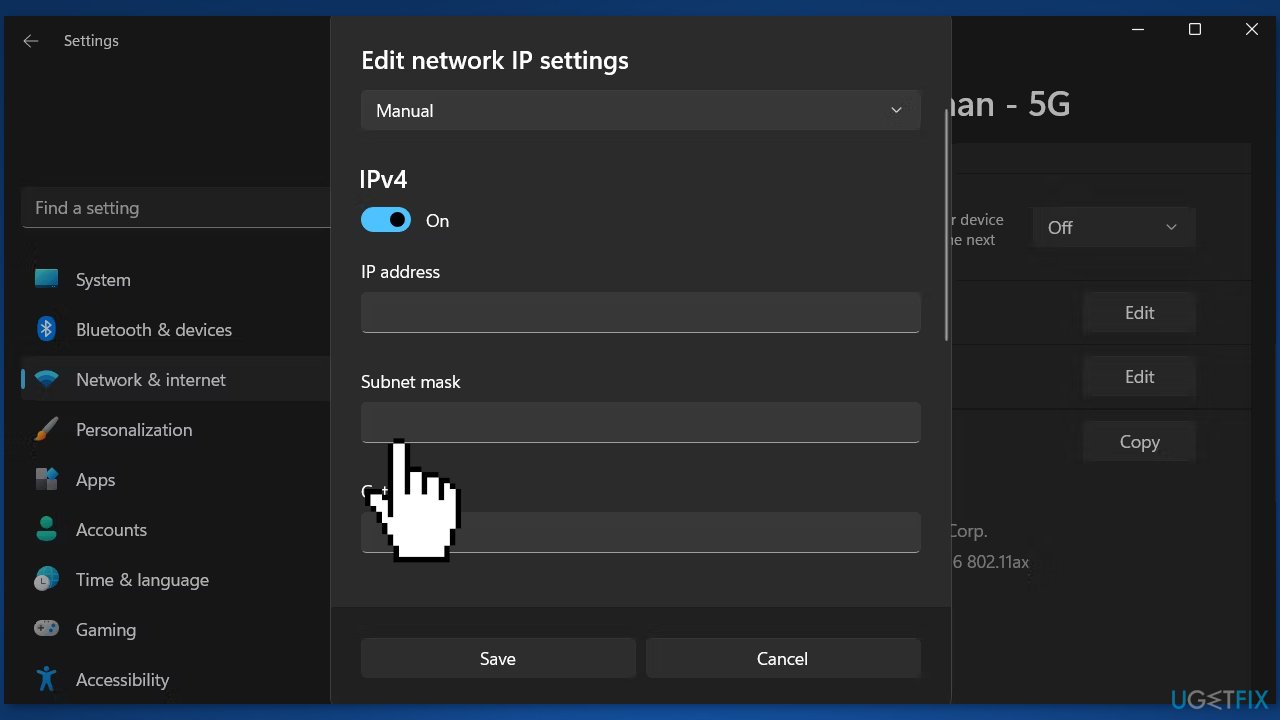
- In the prompt that appears, click on the drop-down icon and choose Manual
- Enable the toggle next to the IP version you are using
- Enter the details, including the Subnet Mask, and click Save
Method 2. Use the Control Panel
- Press the Windows key to open the Search menu
- Type Control Panel in the search bar and press Enter
- Click the drop-down icon next to View by and choose Large icons
- Choose Network and Internet and then select Network and Sharing Center
- Click on your network next to Connections
- Choose Properties from the window that appears
- Select the IP version you are using (e.g Internet Protocol Version 4 (TCP/IPv4))
- Click the Properties button, select Use the following address option and enter the details
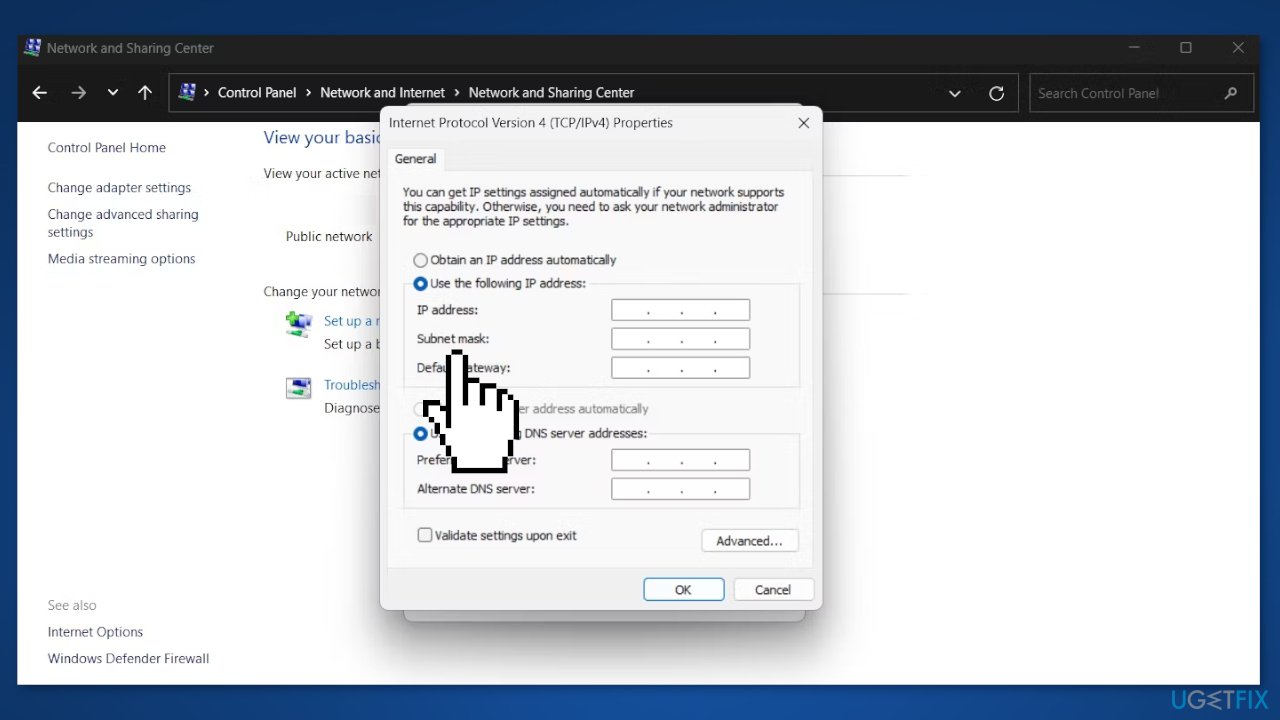
- Click OK to save the changes
Method 3. Use Windows PowerShell
- Open the Windows PowerShell with administrator rights
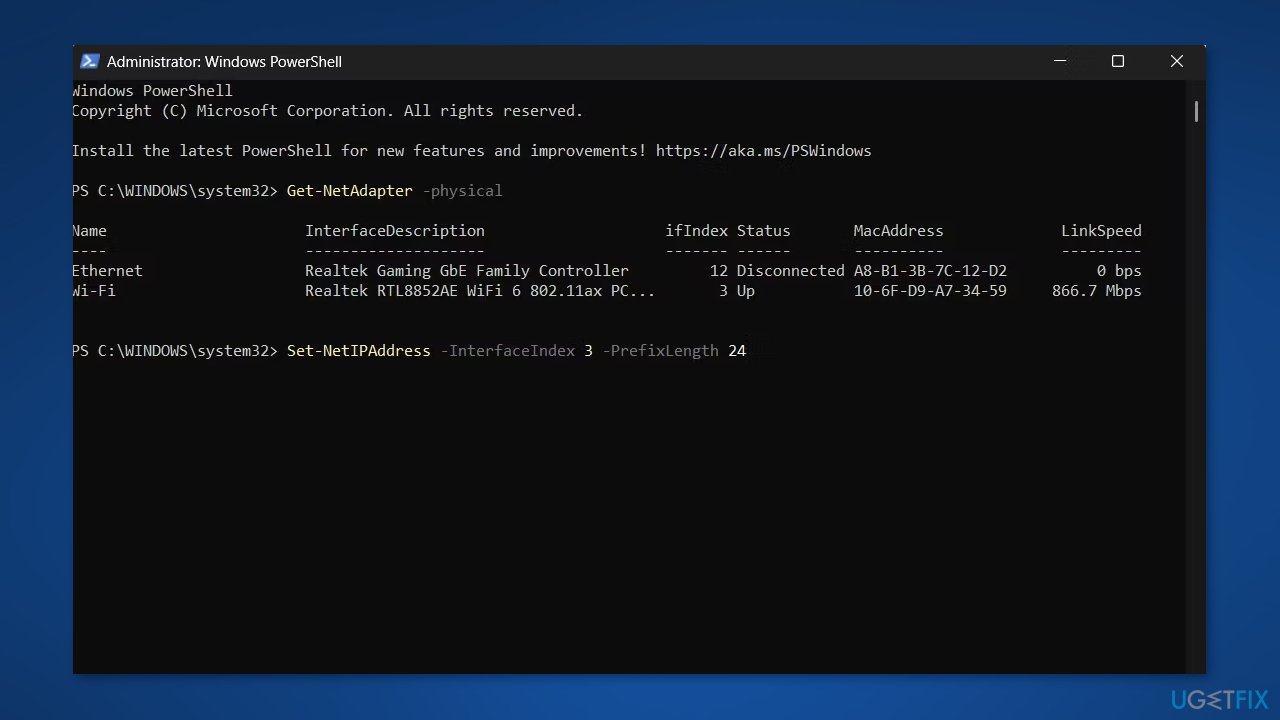
- Type the following command and press Enter to display all the network adapters installed on your device:
Get-NetAdapter -physical
- To change the Subnet Mask, type the following command and press Enter:
Set-NetIPAddress -InterfaceIndex (ifIndex Number) -PrefixLength (subnet prefix length)
- Replace the ifIndex Number with the number associated with the network adapter whose Subnet Mask you want to change
- Replace subnet prefix length with the new subnet prefix length you want
- For instance, if the ifIndex Number is 3 and the new subnet prefix length you want is 24, then the command will be:
Set-NetIPAddress -InterfaceIndex 3 -PrefixLength 24
Bottom line
To change the Subnet Mask in Windows, users can access the Control Panel and the Network and Sharing Center, or use the Command Prompt. It's crucial to understand the network configuration before making changes and ensure all devices are updated with the new Subnet Mask. If these steps do not resolve the issue, further troubleshooting may be necessary.
Frequently asked questions
To access the subnet mask settings in Windows 10, go to Settings > Network & Internet > Status, then click on 'Change adapter options', right-click your network connection, and select 'Properties'. In the properties window, select 'Internet Protocol Version 4 (TCP/IPv4)' and click 'Properties' to change the subnet mask.
Yes, you can change the subnet mask in Windows 11 using the same method as in Windows 10 by navigating to Settings > Network & Internet > Advanced network settings > More network adapter options.
The default subnet mask for a typical home network using Windows 10 or Windows 11 is usually 255.255.255.0, which supports up to 256 IP addresses.




Report an issue
What's wrong with this guide? We review every report and update or remove content.
Report received — thank you. We'll review and fix it.
You need a free account to submit a report.
Be the first to comment