How to fix
Check if your PC can run Windows 11
on Windows
Ensure your PC meets Windows 11 requirements effortlessly. Get expert-tested tips and tools for a smooth upgrade experience. Fixed in minutes!

Why does How to check if your PC can run Windows 11 occur?
- Too-small hard drive (HDD)
- Insufficient RAM
- Incompatible processor
- Non-patched Windows 10 system
- Malware infections
- Software conflicts
Repairs Windows system files, removes malware, and restores a clean OS state — without reinstalling.
Hello. I am using Windows 7 currently, and I know it is not optimal, but I simply got used to it over the years. Now I think it's time to move on and, with Windows 11 being released soon, I was thinking about whether or not my laptop can run it. Do you have any advice on how to check if my PC can run Windows 11?
Windows operating system has a long history behind it. First released by Microsoft in 1985 as an extension to the existing MS-DOS,[ref en-1] it became the most popular OS of all time and continues to be just that. There were plenty of iterations and changes implemented over the years in the new versions of Windows, such as the File Manager, Program Manager, and more user-friendly UI.
While each of the Windows versions was released with major improvements, there were flops as well - Vista is a prime example of that. It gained a reputation as a resource-consuming and slow product and became regarded as one of the worst releases in Microsoft's history.
With Windows 10, Microsoft stepped up their game, and to this date, it is considered one of the safest, feature-packed, and stable releases. It is not surprising that users now have very high expectations for Windows 11 - a new OS version that was first announced in June 2021 and set to release on October 5.[ref en-3]
As evident, there are certain requirements to be met in order for the new version to be even installed, let alone run. Even issues such as a too-small hard drive (HDD) might be one of the issues users would not be able to upgrade. There are also requirements for RAM,[ref en-2] processor, etc.
Software running on the system is also important, as upgrading from older Windows versions won't be possible. In fact, even non-patched Windows 10 systems won't be eligible for an upgrade.
Nonetheless, besides the technical requirements, you should also ensure that there are no underlying issues on your system - malware infections, software conflicts, system errors, and more. In order to find and fix these underlying issues, we strongly recommend running a PC repair and maintenance tool [d1].
1. Check hardware requirements
Hardware in your computer defines how it works and what it is capable of. PCs are highly customizable, which means that they can be built in a way to cater to whatever purpose it is going to be used for. For example, for graphics-intensive tasks such as 3D modeling or gaming, a decent graphics card is required. At the same time, users who only use the computer to work on Excel spreadsheets might never need such graphical power.
Without a doubt, computer components are expensive, and the better they are, the more their cost. Unfortunately, Windows 11 now also has strict requirements for it to run properly. If you do not meet the criteria listed below, you might want to consider replacing older parts or buy a new machine altogether. Here's what you need:
| OS version | Windows 10, version 2004 as a minimum |
| RAM | 4 GB |
| Processor | 1 GHz, at least 2-cores, 64-bit-compatible processor |
| Graphics card | DirectX 12 with WDDM 2.0 driver |
| Storage | At least 64GB of free space |
| Firmware | UEFI, Secure Boot capable |
| TPM | Trusted Platform Module (TPM) version 2.0 |
| Display | 720p High definition display |
| Other | Internet connectivity + Microsoft account (Home editions) |
Keep in mind that these requirements can still change leading to the day of release, although it can serve as a good indication of what you might need before you can upgrade to Windows 11.
2. Use Microsoft's PC Health Check
System requirements might be quite confusing to some people, especially those who are less experienced with PCs. In other words, there are plenty of people who might not what firmware their PCs are running or whether or not they even have a graphics card.
To make this process easier, Microsoft released a special tool called PC Health Check. While it was temporarily removed just after a few days of its release (Microsoft claimed it was not working accurately), it was returned sometime later, and users can now employ it to check whether their PCs are capable of running Windows 11.
If you want to quickly check if your PC can run Windows 11, you can employ PC Health Check.
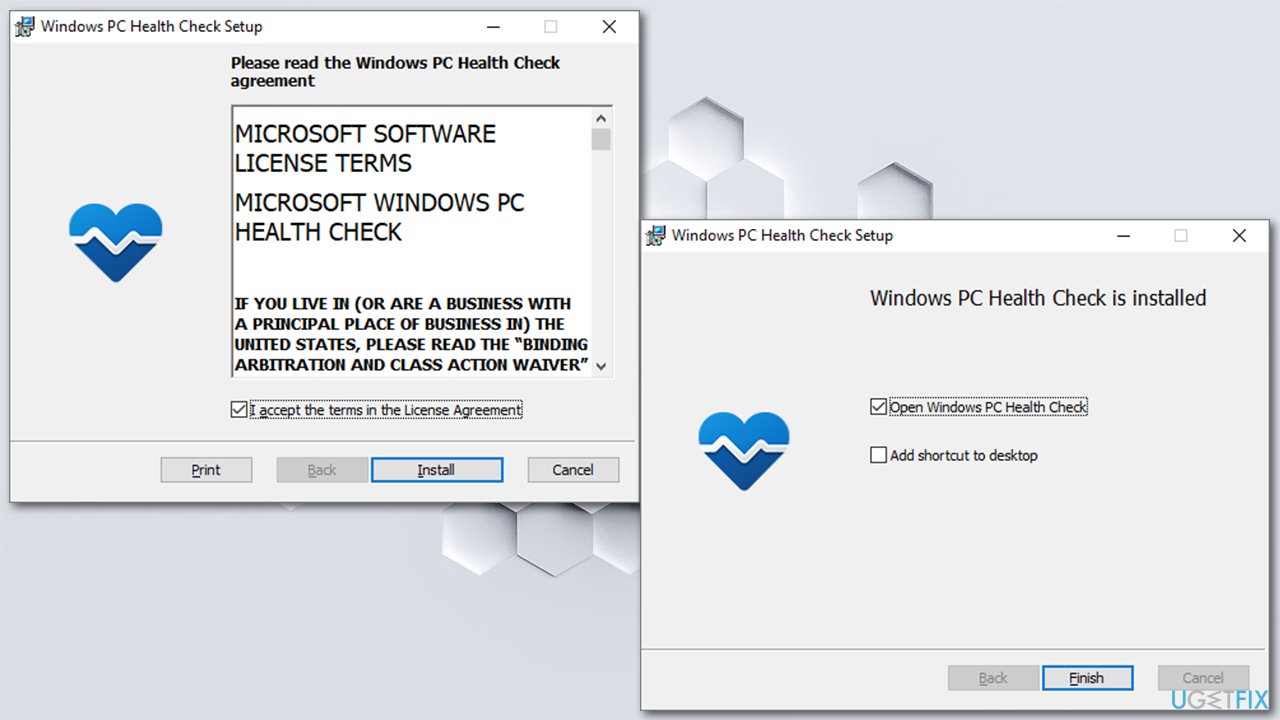
- Open your browser and download the PC Health Check app from the official Microsoft website
- After it's downloaded, click the prompt within your browser to start the installation process
- Agree to terms and click Install
- In a few seconds, the app should be installed - click Finish
How to check if your pc can run windows 11 install pc health check - Under Introducing Windows 11, click Check now

How to check if your pc can run windows 11 install pc health check check now - At this point, you can get one of the three answers:
This PC meets Windows 11 requirements
This PC doesn't currently meet Windows 11 system requirements
Your organization manages updates on this PC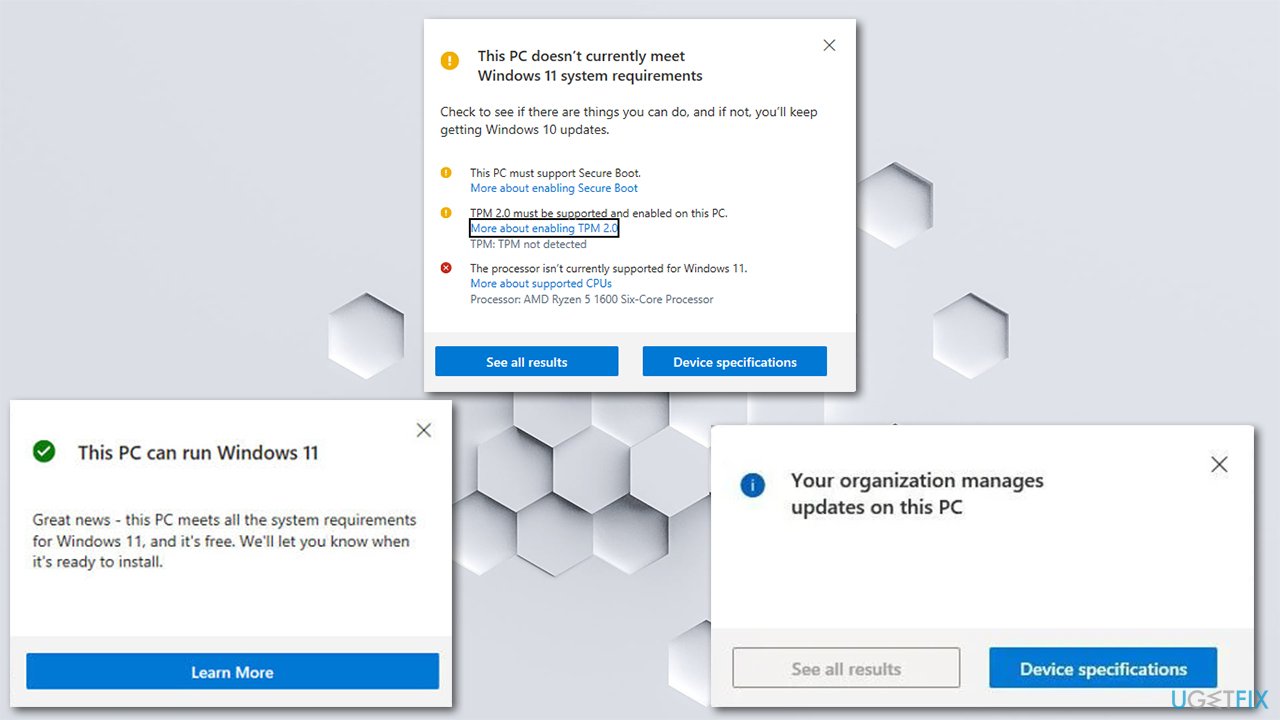
How to check if your pc can run windows 11 pc health check results - You can also click on the More details button to see more information.
3. Enable TPM
Additionally, you could also be presented with yellow exclamation points - it means that some of the requirements can be fulfilled but are not currently enabled. For example, TPM 2.0 is not enabled on most of the machines. If that is the case, you can proceed with the following to enable it:
- Right-click on Start and pick Settings
- Go to the Update & Security section
- Pick Windows security on the left side
- If you can't see the Security processor option on the list, the TPM might be disabled
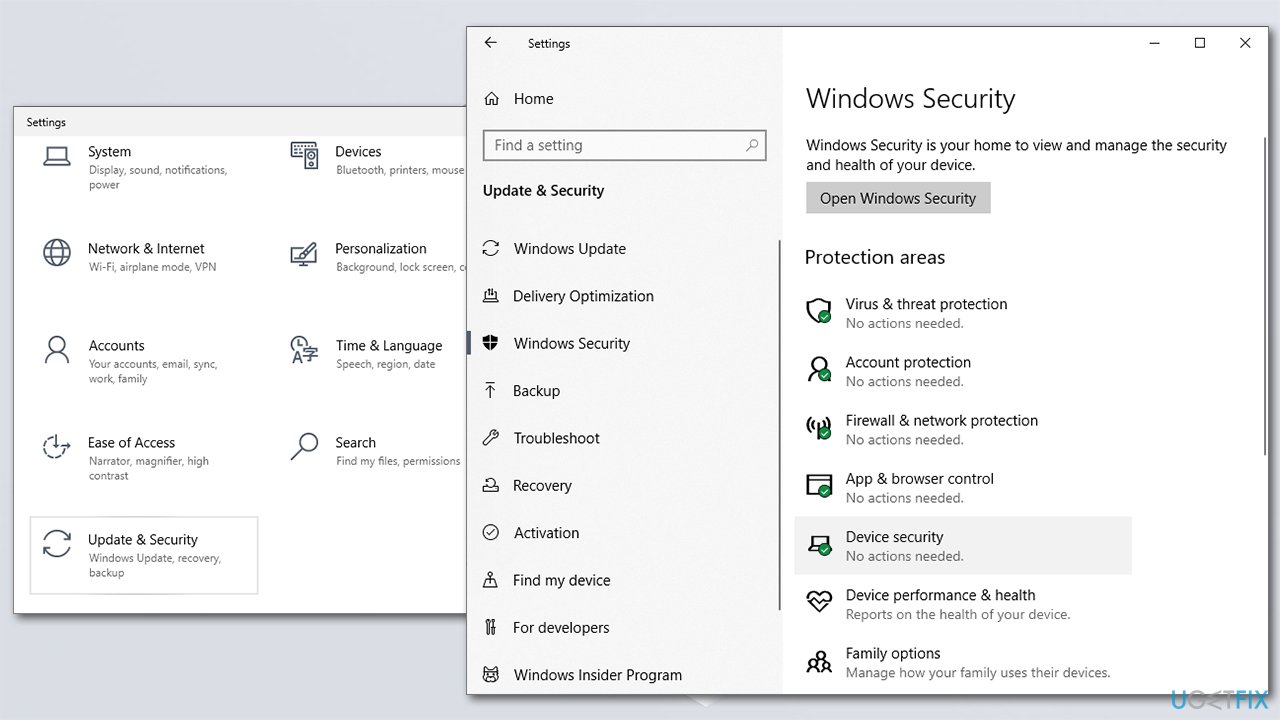
How to check if your pc can run windows 11 enable tpm - To enable it, you should go to Settings > Update & Security > Recovery > Advanced Startup > Restart now
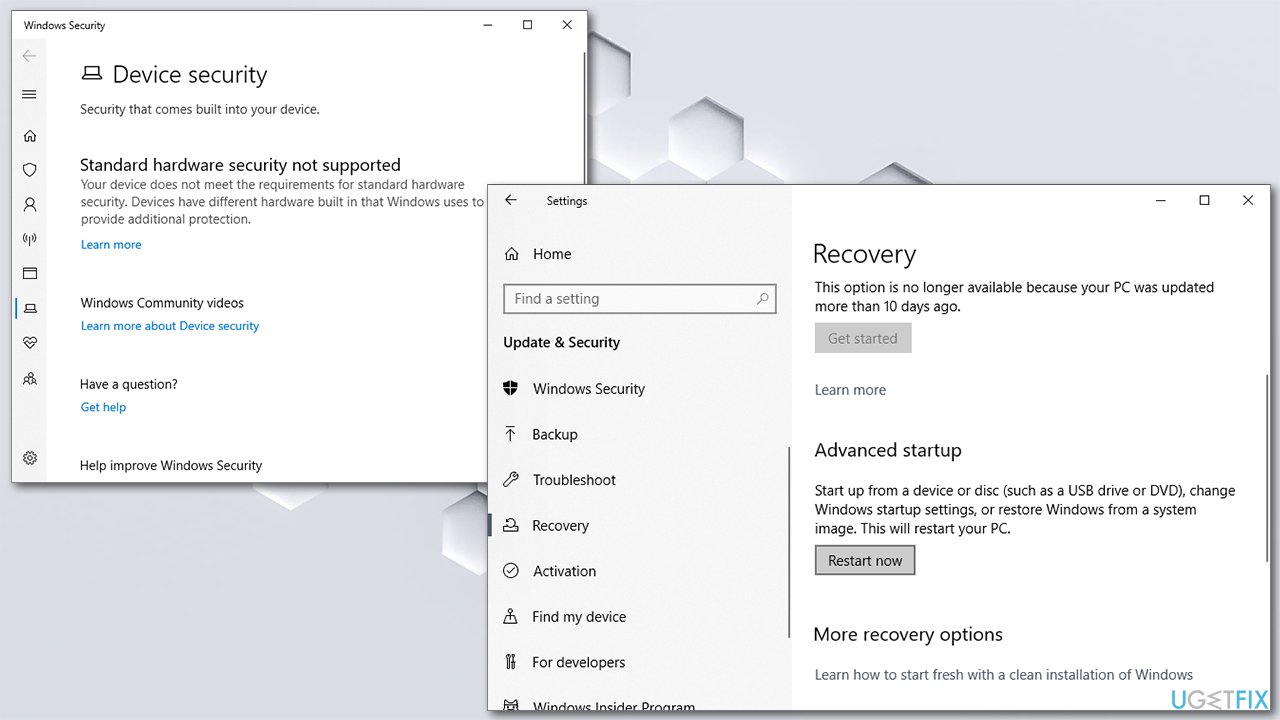
How to check if your pc can run windows 11 enable tpm2 - After a restart go to Troubleshoot > Advanced options > UEFI Firmware Settings > Restart
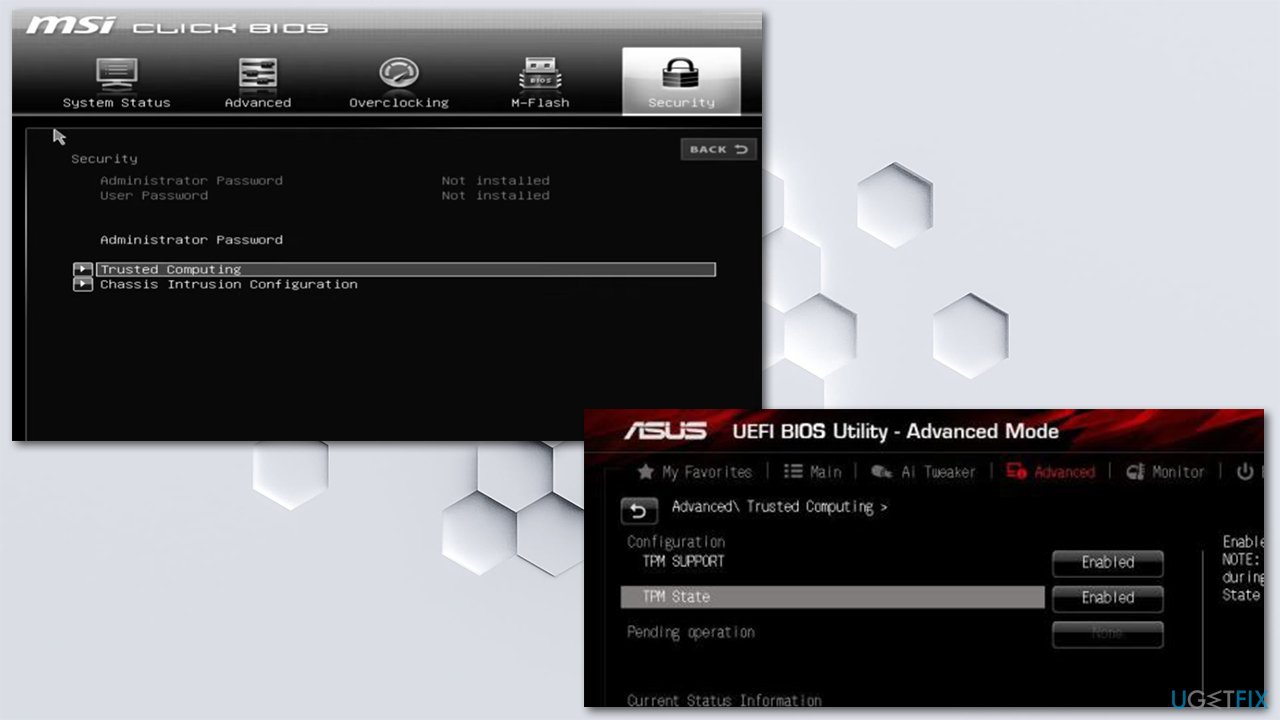
- These settings can also be found in the submenu in BIOS under Advanced, Trusted Computing, or Security sections
- Look through the options and enable TPM.
How to check if your pc can run windows 11 enable tpm3
Bottom line
To check if your PC can run Windows 11, ensure that your hard drive, RAM, and processor meet the minimum requirements. Additionally, make sure your current Windows version is patched and free of malware or software conflicts. If none of these solutions work, consider consulting a professional for further assistance.
Frequently asked questions
To run Windows 11, your PC must have at least a 1 GHz processor with 2 or more cores, 4 GB of RAM, and 64 GB of storage. Additionally, it requires a DirectX 12 compatible graphics card and TPM version 2.0.
You can download the PC Health Check tool from Microsoft’s website, install it, and run the app to get a report on whether your PC meets the requirements for Windows 11. The tool will highlight any issues that may prevent installation.
Yes, ensure that Secure Boot and TPM 2.0 are enabled in your BIOS settings, as these features are essential for Windows 11. You can usually access BIOS by pressing a specific key during startup, such as F2, Delete, or Esc.




Report an issue
What's wrong with this guide? We review every report and update or remove content.
Report received — thank you. We'll review and fix it.
You need a free account to submit a report.
Be the first to comment