How to fix
Check which Windows version was installed before
on Windows
Discover how to uncover your previous Windows version effortlessly on Windows 10 or 11. Expert-tested methods ensure you're informed in no time.


Why does How to check which Windows version was installed before occur?
- Previous version of Windows may have been uninstalled
- Windows.old folder may have been deleted
- Upgrade path from Windows 7 or Windows 8 to Windows 10
- Registry settings may indicate installation type
- Lack of administrative privileges to access certain information
Repairs Windows system files, removes malware, and restores a clean OS state — without reinstalling.
Hello. Is it possible to find out which version of Windows was previously installed on my PC? Any tips would be appreciated.
Knowing what version of Windows was previously installed on a device is useful for a variety of reasons. For example, if you're having problems with your current version of Windows, you might need to know which version was previously installed to help you troubleshoot the issue. Furthermore, if you need to reinstall Windows, you may need to know which version was previously installed in order to ensure that you have the correct product key and license.
Windows 10 was available for free to users who already had Windows 7 or Windows 8 installed on their devices. Microsoft provided a one-year free upgrade to Windows 10 following its release. However, following the release of the Anniversary Update, the free offer was withdrawn, and users were required to purchase Windows 10 in order to upgrade from an earlier version of Windows. This meant they'd get a new product key for the license they purchased.
Users who upgraded from an earlier Windows version could use their old Windows 7 or Windows 8 license. There is, however, no easy way to tell whether a Windows 10 installation is an upgrade or a fresh install. Even if you have a Windows.old folder on your C Drive, it vanishes one month after the upgrade, leaving you unsure whether the installation was an upgrade or a fresh install.
Fortunately, it is possible to determine whether a Windows 10 installation is an upgrade or a new installation. You can tell whether the installation was an upgrade or a fresh install by looking in the Windows Registry. Checking the Windows Registry does not require administrative privileges.
Follow these steps to determine whether Windows 10 is a fresh install or an upgrade:
- Open the Windows Registry Editor. You can do this by typing regedit in the search bar or in the Run dialog box (accessible via the Windows Key + R shortcut) and hitting Enter.
- In the Windows Registry Editor, navigate to the following location: HKEY_LOCAL_MACHINE\SYSTEM\Setup
- Check if there is an Upgrade key present under Setup. If the Upgrade key is present, this indicates that the current installation of Windows 10 was an upgrade from a previous version of Windows. If the Upgrade key is absent, this indicates that Windows 10 was installed as a fresh install.
If your current Windows 10 installation was an upgrade, you can determine which version of Windows was used by looking at the same "Setup" key in the Registry:
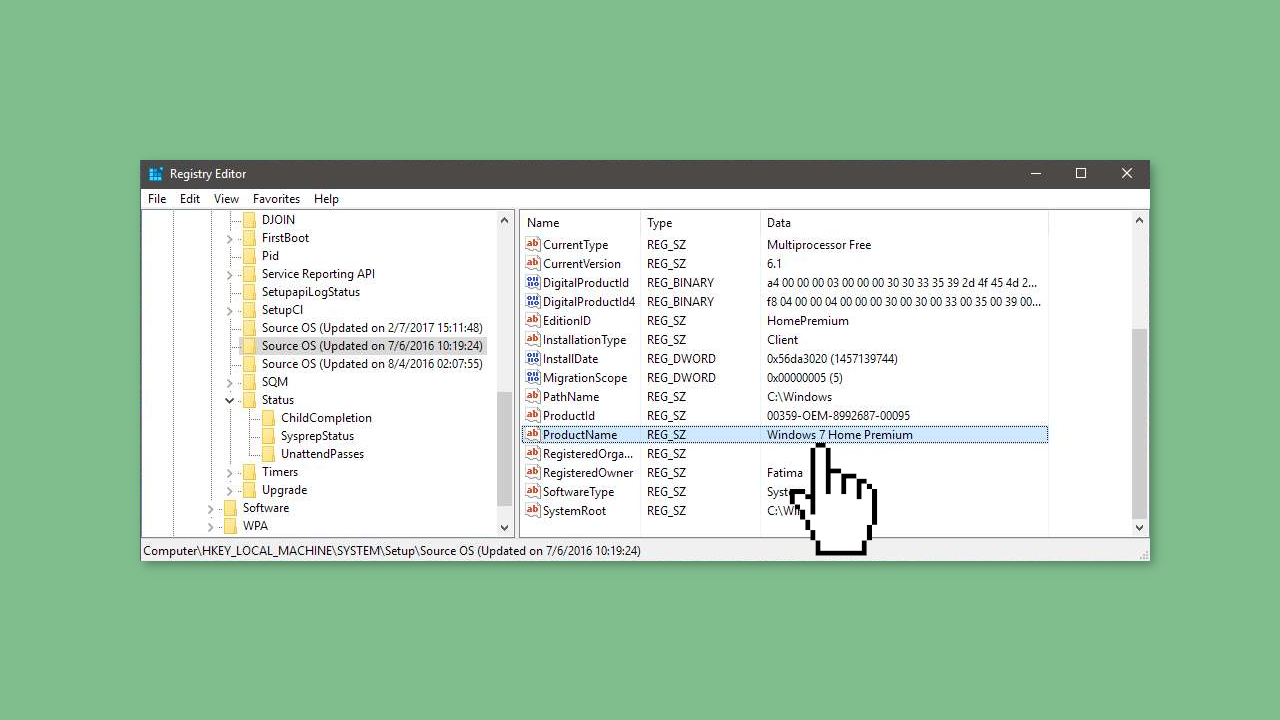
- In the Setup key, look for three subkeys labeled Source OS. These correspond to every major update to the current operating system. You may not see all three if your computer has not received all the major updates.
- The earliest-dated Source OS key is the one you need to look at. Look for a DWORD entry called ProductName and its value will tell you which version of Windows the current Windows 10 installation was upgraded from.
Note: This information can be falsified, so you should use it as a reference only. However, it can be helpful if you need to know which product key to use for a software installation or if you need to troubleshoot a compatibility issue.
Bottom line
To check which version of Windows was previously installed, you can look in the Windows Registry. This process does not require administrative privileges and can help determine if the installation was an upgrade or a fresh install. If these steps do not resolve your issue, consider seeking additional technical support.
Frequently asked questions
You can check the previous Windows version by opening the Command Prompt and typing 'wmic os get version' to see the current version, and then checking the 'C:\Windows\Panther\Unattend.xml' file for installation history.
Yes, you can view the Windows version history by navigating to Settings > Update & Security > Windows Update > Update history, where it lists previous updates and versions.
Absolutely, open Event Viewer, go to Windows Logs > System, and look for events related to the upgrade process to see details about previous Windows versions.




Report an issue
What's wrong with this guide? We review every report and update or remove content.
Report received — thank you. We'll review and fix it.
You need a free account to submit a report.
Be the first to comment