How to fix
Clear Quick Access History
on Windows
Easily clear Quick Access history in Windows 10 to enhance privacy and optimize your system. Expert-tested with screenshots for your convenience.

Why does How to Clear Quick Access History in Windows 10 occur?
- Recent files are automatically added to Quick Access
- Users may want to maintain privacy
- Frequent access to certain files or folders
- Accidental addition of unwanted files/folders
Repairs Windows system files, removes malware, and restores a clean OS state — without reinstalling.
Is it possible to remove folders that I’ve recently entered from the Quick Access list? Thanks for the answer!
Windows 10 brought many innovations in terms of apps, design, and services. The latest Windows version already counts the third year of existence, so the bulk of its users have already got accustomed to most of the innovations. However, those who have upgraded to Windows 10 or don’t have enough knowledge in the field of technologies are still having some troubles when mastering Windows 10 and its peculiarities. Recently, we received a question of one concerned Windows 10 user who can’t figure out how to clear recent files from quick access list.
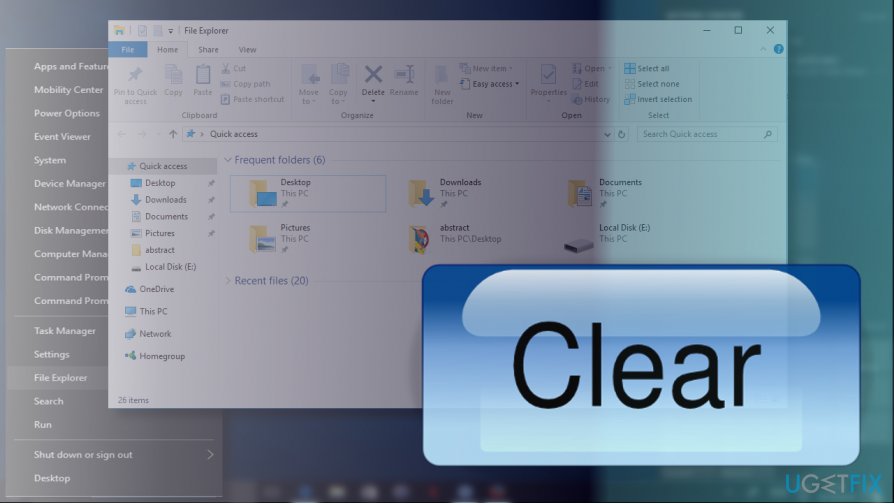
In short, Quick Access is a feature represented in Windows 10 File Explorer. It replaced the Favorites feature that is available in older Windows versions. Quick Access allows users to easily access files and folders that they are accessing most frequently. Therefore, instead of navigating to a file or folder that is placed deep inside the file system, people can find the link to the needed location in Quick Access menu. To add a file or folder to Quick Access, one simply has to find the needed file/folder, right-click it, and select Pin to Quick Access. Alternatively, the required files can be dragged and dropped to the Quick Access folder. However, removal of Quick Access history is a little bit complicated, so we’ll explain that in details.
Removing Quick Access History in Windows 10
Windows 10 users may want to remove recently accessed files and folders for maintaining privacy or some other reasons. If you don’t know how to do, the following instructions will explain how to delete Quick Access content periodically:
Quick Access list opens by default when you open File Explorer. It contains up to ten folders or files that you have opened recently. Luckily, it’s not difficult to remove Quick Access content.
Clear individual items from Quick Access
- Right-click Windows key and select File Explorer. This will open Quick Access by default.
- In the Quick Access folder list, find the file/folder that you want to remove and right-click it.
- Click Remove from Quick Access option.
Clear all files from Quick Access
- Right-click Windows key and select File Explorer. This will open Quick Access by default.
- Click File at the top-right corner of the File Explorer.
- Select Options or Change folder and search options.
- Open General tab and find the Privacy section at the bottom of the screen.
- Locate the Clear File Explorer history and click Clear button next to it.
- If you want to remove only the files that you have recently opened, unmark the Show recently used files in Quick Access box.
- Click Apply to save the changes.
- After that, mark the Show recently used files in Quick Access box and click Apply again.
Bottom line
To clear Quick Access history in Windows 10, users can right-click on individual items in the Quick Access list and select the option to remove them. If you want to clear all recent files, you can adjust the settings in File Explorer options. If none of these methods work, consider checking for updates or seeking further assistance.
Frequently asked questions
To clear Quick Access history, open File Explorer, click on the 'View' tab, select 'Options', and under the 'General' tab, click 'Clear' next to 'Clear File Explorer history.'
No, clearing Quick Access history will not affect the folders you have pinned; it only removes the recent files and folders list.
Yes, you can disable Quick Access history by going to File Explorer Options, selecting 'This PC' under 'Open File Explorer to,' and unchecking 'Show recently used files' and 'Show frequently used folders'.




Report an issue
What's wrong with this guide? We review every report and update or remove content.
Report received — thank you. We'll review and fix it.
You need a free account to submit a report.
Be the first to comment