How to fix
Delete all files on Google Drive
on Windows
Free up space on your Google Drive effortlessly while optimizing Windows 10 or 11 settings. Expert-tested tips for fast and safe file deletion, fixed in…

Why does How to delete all files on Google Drive occur?
- Files are stored on Google Drive and can accumulate over time.
- Users may not be aware of how to delete files effectively.
- Shared files can clutter the user's Drive.
- Temporary files and cache may take up unnecessary space.
- Users may have multiple versions of files that need to be deleted.
Repairs Windows system files, removes malware, and restores a clean OS state — without reinstalling.
Hello. I was wondering how could I delete all files stored in my Google Drive account.
Google Drive is a file storage and synchronization service developed by Google. It allows users to store files on Google's servers, synchronize them across multiple devices, and share them with other people. Google users get 15 GB of free storage. They can also choose from paid plans that offer 100 GB, 200 GB, 2 TB, and all the way up to 30 TB of space in the cloud.[ref en-1]
Google Drive quickly became popular upon its release in 2012. As of July 2018, it had over one billion active users, and one million organizational paying users. As of May 2017, there were over two trillion files stored on the service. Its success mostly lies in the easy-to-use interface, and the storage offered for free which many home users take advantage of.
People can use the Google Drive app or website to sort their data how they seem fit - put them into different folders. They can also easily access files that have been shared by other people or just recently uploaded. Google Docs, Google Sheets, and Google Slides are integrated into the service as well.
However, many Google Drive users wonder what are the different ways they can easily delete files. In this guide, you will learn 4 methods that will teach you how you can delete files one-by-one, or delete them all at once. Follow the step-by-step instructions below.
You can use a maintenance tool like [d1] to clear unnecessary files in your system. It can also fix various system errors, BSODs,[ref en-2] corrupted files, and registry[ref en-3] issues. Additionally, this powerful software can automatically get rid of cookies and cache which are the culprits of many malfunctions.
1. Delete a single file
- Open the browser that you normally use and navigate to drive.google.com
- Sign in to your Google Drive account
- You should now see a list of all your files
- Locate the one you want to delete and right-click on it
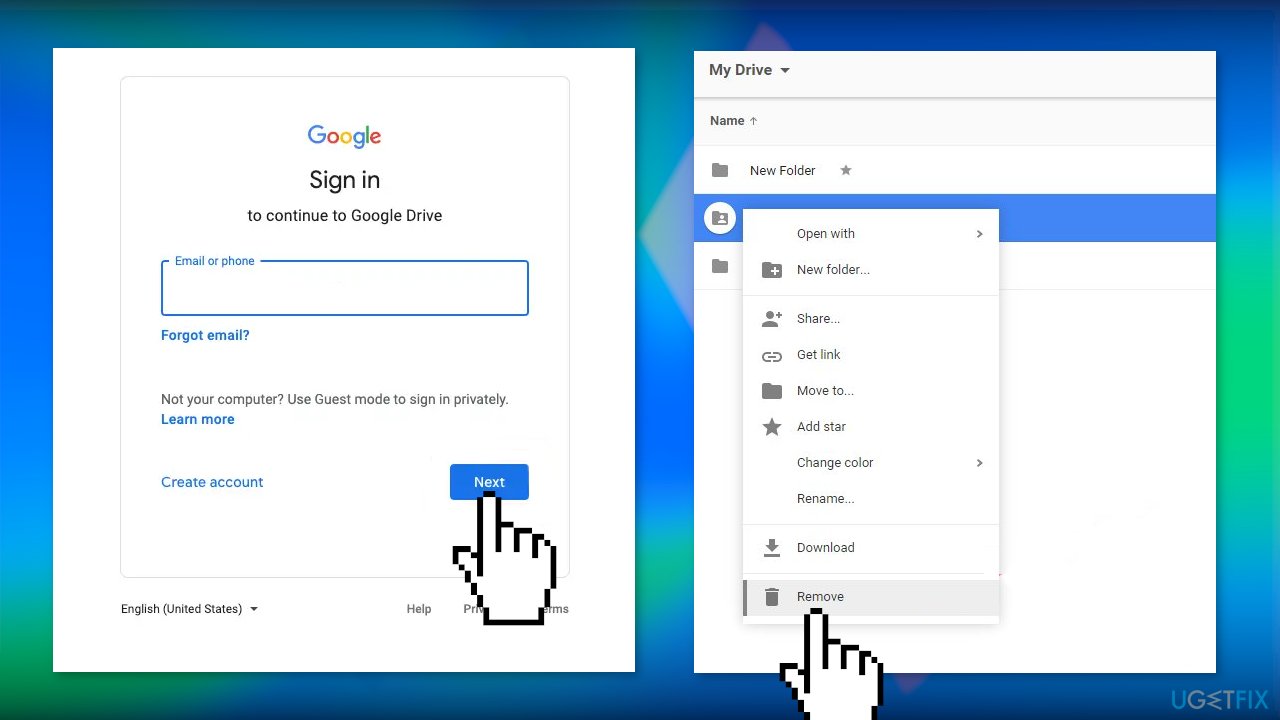
- Select Remove
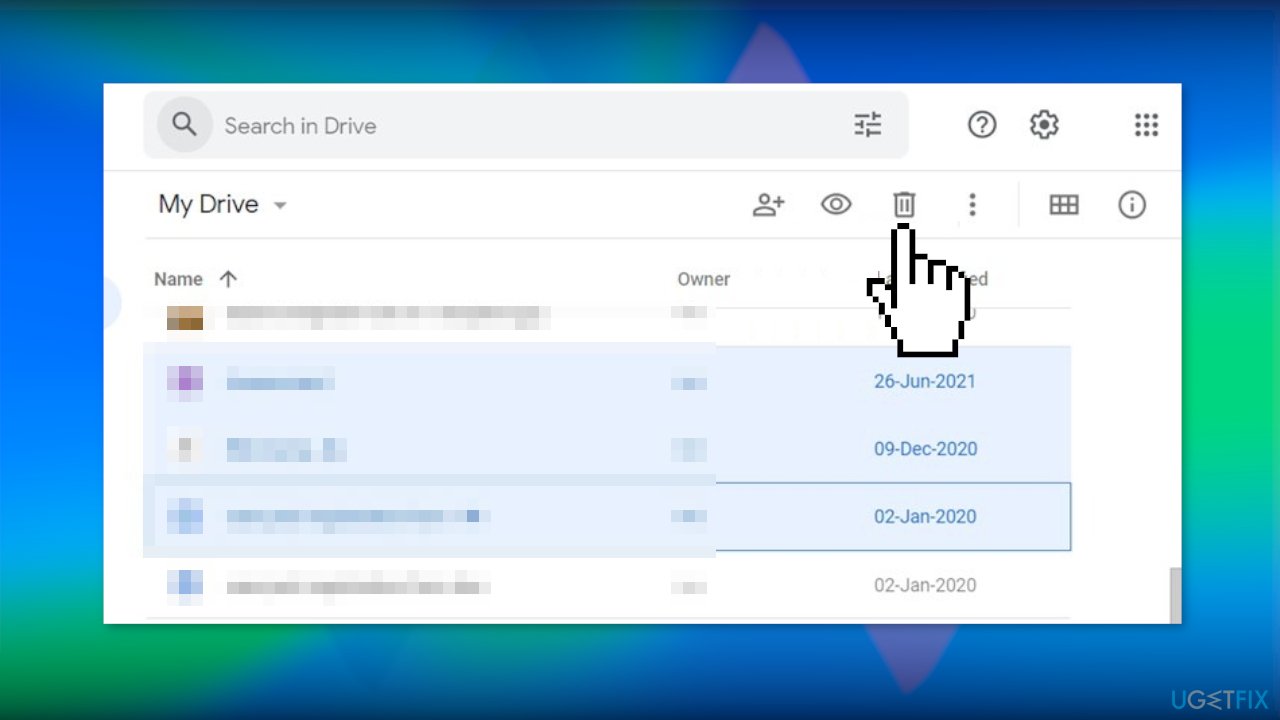
2. Delete multiple files
- Press and hold the CTRL key
- Left mouse click on the files you want to delete
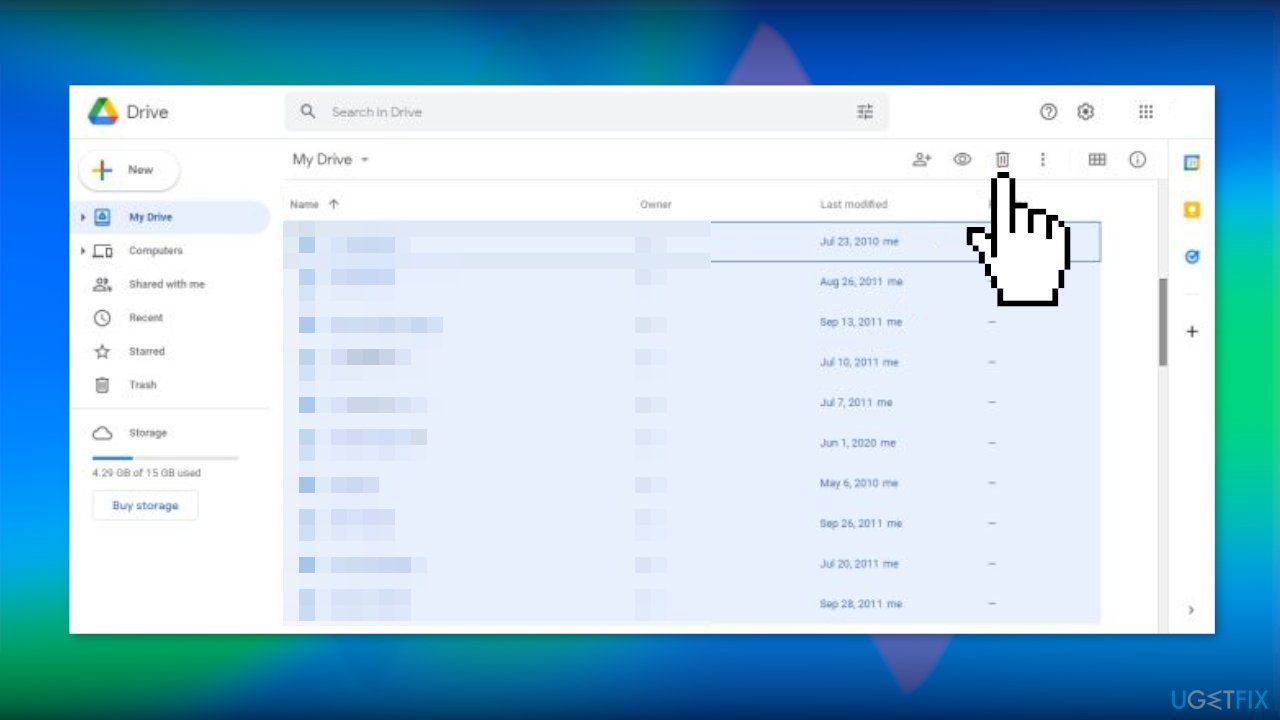
- Click the Trash button to delete the selected files
3. Delete all files
- Navigate to drive.google.com
- Click on Storage
- You should now see a list of files
- Scroll down until you have loaded every single file
- Press Ctrl + A to select all files
- Hit the Trash icon to remove all files from Google Drive
4. Delete files permanently
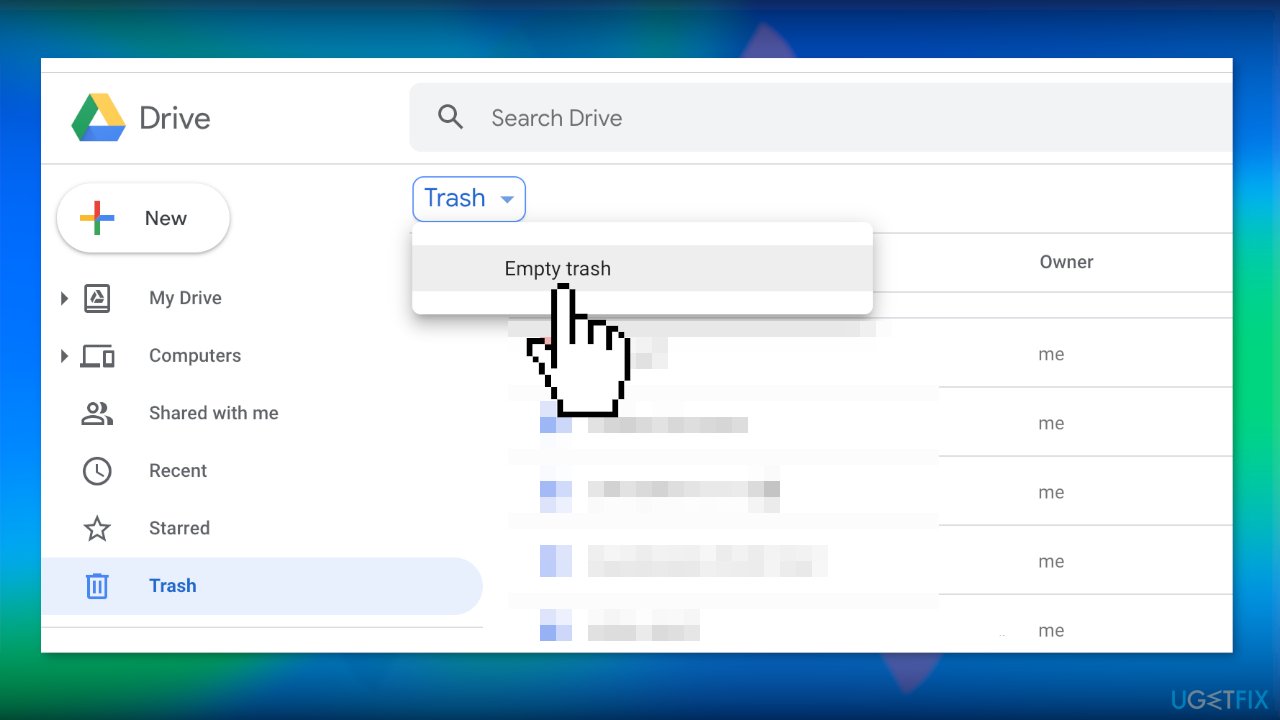
- Look to the left to find Trash and click on it
- Click on the Empty Trash button
Bottom line
In this guide, you will learn how to delete files one-by-one or all at once using various methods. If you encounter issues, consider using a maintenance tool to clear unnecessary files and fix system errors. If none of these methods work, check Google Drive's support for further assistance.
Frequently asked questions
You can access Google Drive by opening a web browser and navigating to drive.google.com, where you can log in and manage your files directly from the cloud.
No, Google Drive files stored in the cloud cannot be directly managed through Windows File Explorer, but you can use the Google Drive app to sync and delete files.
Deleting files from Google Drive will remove them from your account, and they will also be moved to the Trash, where they can be permanently deleted after 30 days.




Report an issue
What's wrong with this guide? We review every report and update or remove content.
Report received — thank you. We'll review and fix it.
You need a free account to submit a report.
Be the first to comment