How to fix
Delete cookies from browsers
on Windows
Easily delete cookies from your browsers on Windows 10 or Windows 11 for optimized performance. Get expert-tested tips for a smoother experience.

Why does How to delete cookies from browsers occur?
- Cookies store personal information like login credentials and site preferences.
- Cookies can track sensitive details such as names and addresses.
- Some cookies may lead to security and privacy issues.
- Malicious advertisers and third-parties can access tracked activities.
- Deleting cookies can remove convenience for auto-filling information.
Repairs Windows system files, removes malware, and restores a clean OS state — without reinstalling.
Hey. I would like to clear cookies on all my browsers on every device I own. I want to take care of the privacy and all these shady activities are scaring me. However, it does not seem easy or quick to clear those cookies. It takes time definitely, but can I do that easier than manually going through every browser? Maybe that is not needed in the first place?
Cookies are useful for various reasons because they keep track of items in the cart while you shop online and save other personal information like login credentials, site preferences. These little pieces are convenient since you do not have to enter the information every time you visit the page, logging to your accounts becomes easy and quick.[ref en-1]
However, cookies have some privacy issues since there are various details they can track and store.[ref en-2] The information cookies can record includes names, addresses, account logins, other sensitive details. This is why one would want to delete them, but doing so also means that your information is no longer going to automatically occur in those fields.
Cookies get stored on your device when you use the web browser to surf online, so the cookie file is read by the server controlling the connection. In most cases, cookies are a good thing and useful for the service provider and the user, but some of these pieces can lead to issues regarding the security and privacy of the machine and internet connection. You should read more about them and all the functions, hidden purposes in order to understand what cookies are.
Managing cookies is important for tracking issues and controlling the fact that your activities might be accessible for malicious advertisers and other third-parties. Personalized information shouldn't be tracked or recorded in any way, so your identity is safe. However, deleting or at least managing cookies is important as well as keeping your device safe to avoid compromising malware.[ref en-3]
How to delete cookies from browsers
You can take care of those cookies by allowing some sites to keep track of you and block cookie activity on some of the websites. Buil-in-controls in some of the browsers limit those cookies that you receive, and blocking advertising cookies can help you to keep annoying PUPs and intrusive marketing campaigns away.
If you ask yourself "Should I delete cookies from my Mac?" the answer is yes because Mac is not a system immune to malware. The operating system cannot control these third-party activities, so cookies - the problem of various systems and devices. You can clear them on or iOS machine, Android phone, or macOS and Windows computer. Everything happens in the browser because cookies get stored there.
Generally speaking, you need to find options under the privacy section in the settings and select particular options of deleting them or fully resetting the browser. You can clear history and cookies, other data altogether or change other settings regarding similar activities. Particular steps vary throughout devices and operating systems, web browsers. You can also use Incognito mode or InPrivate mode on some of the browsers that ensure that cookies are not collected, and other data gets deleted after sessions.
Delete cookies from Google Chrome on Windows
- Go to the main Chrome menu and click More Tool to find the Clear Browsing Data option.
- You need to select particular items to delete and choose the time period.
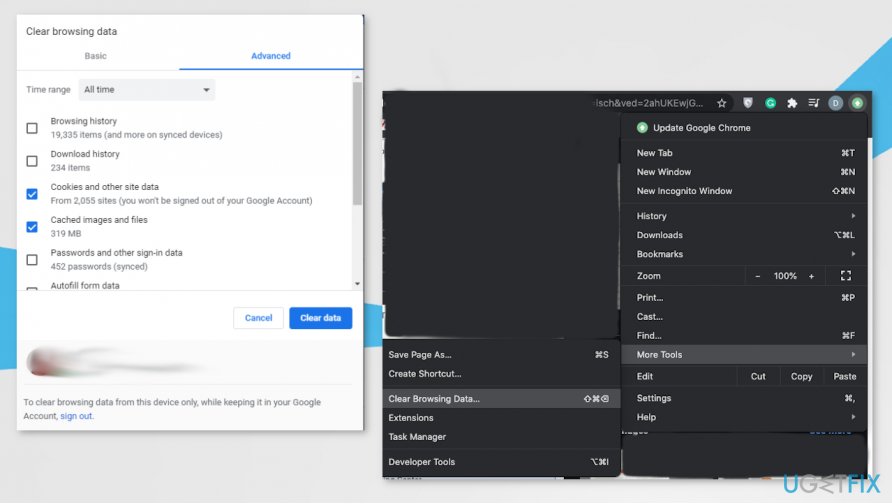
How to delete cookies from browsers chrome - Click Clear Browsing Data to ensure that it is started.
Delete cookies from Internet Explorer
- Find Settings and expand Options.
- Under the History section, click Select and choose cookies.
- Then click Delete.
Delete cookies from Firefox Browser
- Open the menu from the three horizontal bars at the corner.
- Select Options and find Privacy & Security.
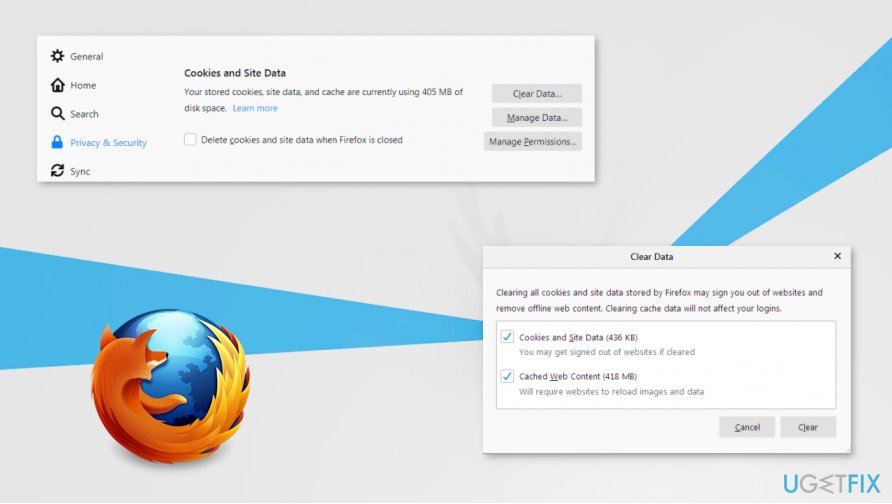
How to delete cookies from browsers fox - The section Cookies and Site Data should have the Clear Data option. Choose that.
- Then click Clear.
Delete cookies from Microsoft Edge
- Press Alt and F keys.
- Select Settings.
- Find Privacy and Services on the list.
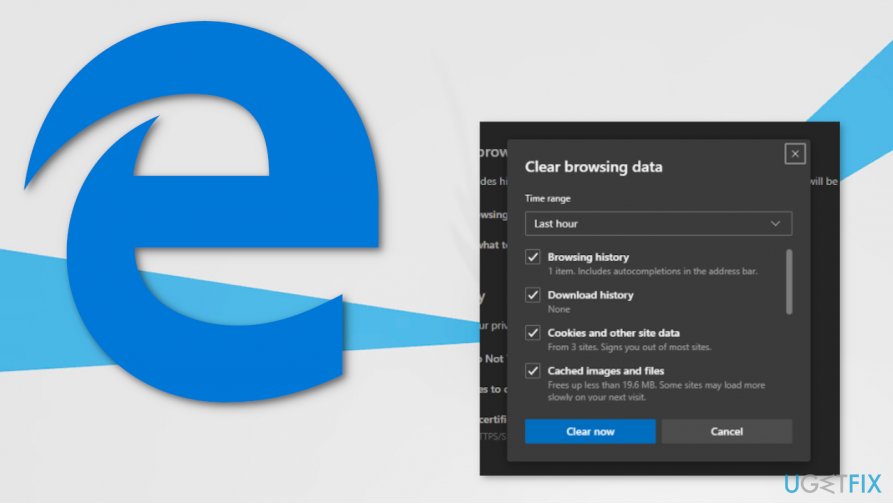
How to delete cookies from browsers edge - Select choose what to clear in the Clear browsing data section.
- Make sure to check Cookies and other site data, and other pieces you want to clear.
- Click Clear now.
Delete cookies from Safari
- Open the Safari browser and then go to Preferences.
- Select the Privacy section and choose Manage Website data.
- Choose particular cookies to delete and click Remove. Or choose to Remove All.
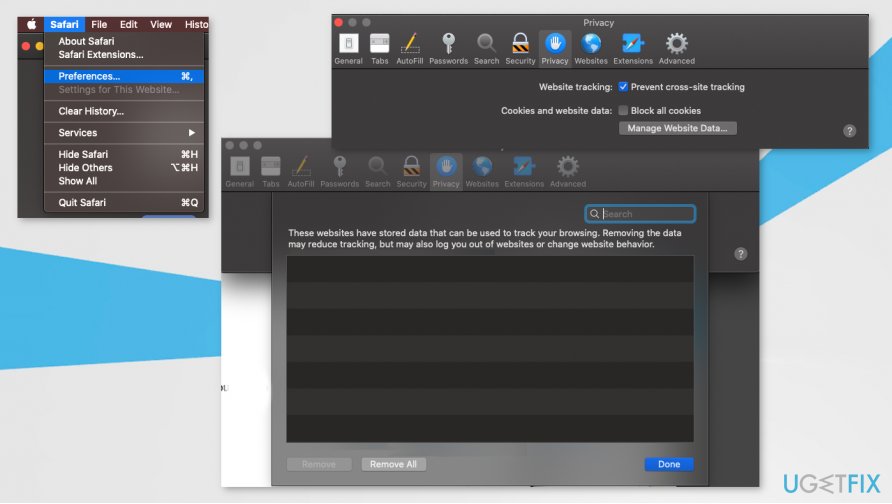
How to delete cookies from browsers safari - Confirm with Remove Now button.
Bottom line
To delete cookies from browsers, you can manage cookie settings and selectively allow or block sites from tracking you. If these methods do not work, consider using privacy-focused browser extensions or clearing cookies manually on each browser.
Frequently asked questions
To delete cookies in Microsoft Edge on Windows 10, open Edge, click on the three-dot menu, select 'Settings', then go to 'Privacy, search, and services'. Under 'Clear browsing data', click 'Choose what to clear', select 'Cookies and other site data', and click 'Clear now'.
In Google Chrome on Windows 11, click on the three vertical dots in the upper right corner, select 'Settings', then go to 'Privacy and security'. Click on 'Clear browsing data', select 'Cookies and other site data', and hit 'Clear data'.
Yes, in Firefox on both Windows 10 and Windows 11, click the hamburger menu, choose 'Options', then 'Privacy & Security'. Under 'Cookies and Site Data', click 'Manage Data', select the cookies you want to remove, and click 'Remove Selected'.




Report an issue
What's wrong with this guide? We review every report and update or remove content.
Report received — thank you. We'll review and fix it.
You need a free account to submit a report.
Be the first to comment