How to fix
Disable a laptop’s keyboard
on Windows
Easily disable your laptop's keyboard on Windows 10 or 11 for a cleaner setup. Follow our expert-tested guide for effective results in minutes!


Why does How to disable a laptop’s keyboard on Windows occur?
- Built-in keyboard is hardwired into the laptop
- Replacing a laptop keyboard is expensive
- Accidental keystrokes from the built-in keyboard
- Difficulty in disabling the keyboard
- Users prefer using an external keyboard
Repairs Windows system files, removes malware, and restores a clean OS state — without reinstalling.
Hello. I want to disable the keyboard on my Windows laptop. How do I do this?
A laptop already has all the accessories needed to use it built-in. Like a mouse (touchpad), monitor, and keyboard. However, this makes replacing these parts much more difficult as they are hardwired into the laptop. Laptops are different from desktop computers that can make replacing parts as simple as disconnecting a cord.
Replacing a laptop keyboard can get pretty expensive, as you cannot simply disconnect it and connect a new one. You will most likely have to take it to a repair shop where they would have to open the laptop's hood to replace the entire built-in keyboard.
That is why many people choose not to replace the built-in laptop keyboard but to connect an external one instead. In this case, users should consider disabling the keyboard altogether to avoid accidental keystrokes. Unfortunately, turning off the laptop's keyboard is probably more difficult than it should be but in this guide, we will show you how to do it using 4 different methods.
To maintain your Windows computer, we recommend using a repair tool like [d1]. It can fix various system errors, BSODs,[ref en-1] corrupted files, and registry[ref en-2] issues automatically. It can also clear cookies and cache[ref en-3] which are often the culprits behind many malfunctions.
Solution 1. Disable the Laptop Keyboard Driver
- Press the Windows key + R to open up a Run box
- Type devmgmt.msc and press Enter to launch the Device Manager
- Locate and double-click on the Keyboards section
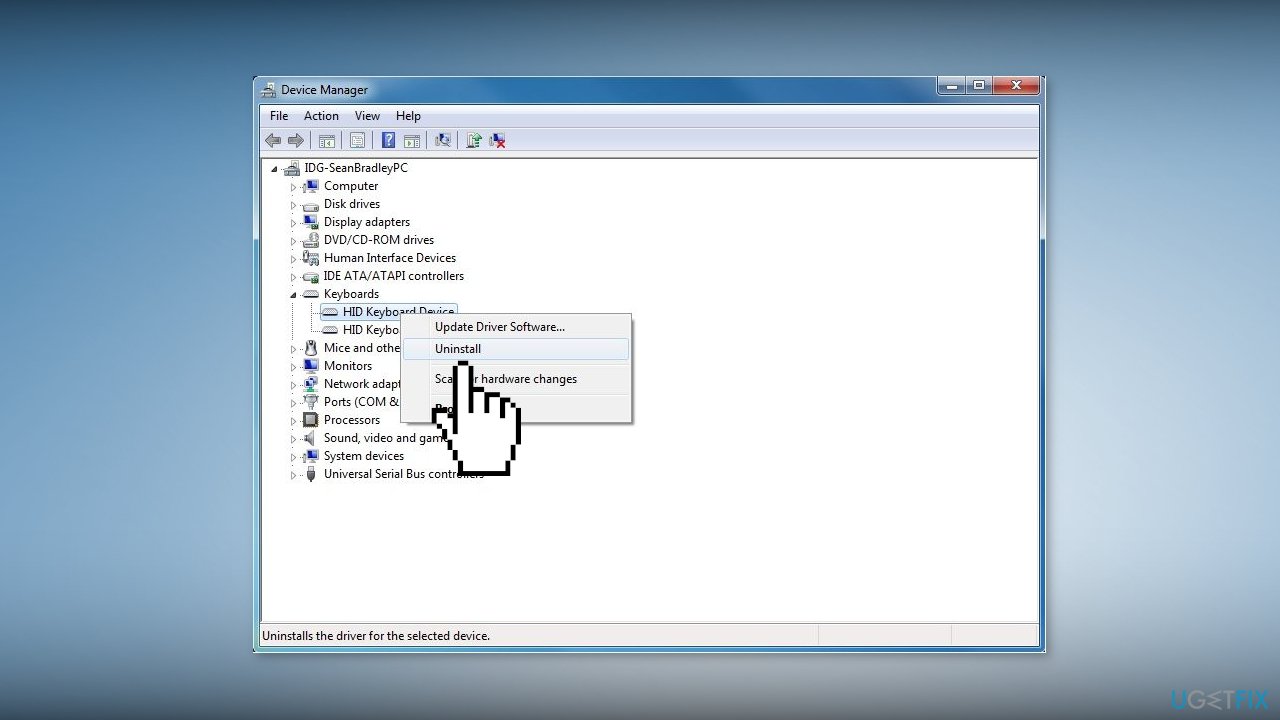
- Locate the listing for the laptop’s built-in keyboard, and right-click on it
- Click on Disable and Yes to confirm the action
- If you don’t see a Disable option, you will see an Uninstall option, and you can click on it to uninstall the drivers for the built-in keyboard
Solution 2. Disable via Command Prompt
- Click on the Search bar and search for Command Prompt then click Run as administrator
- Type the following command and press Enter:
sc config i8042prt start= disabled
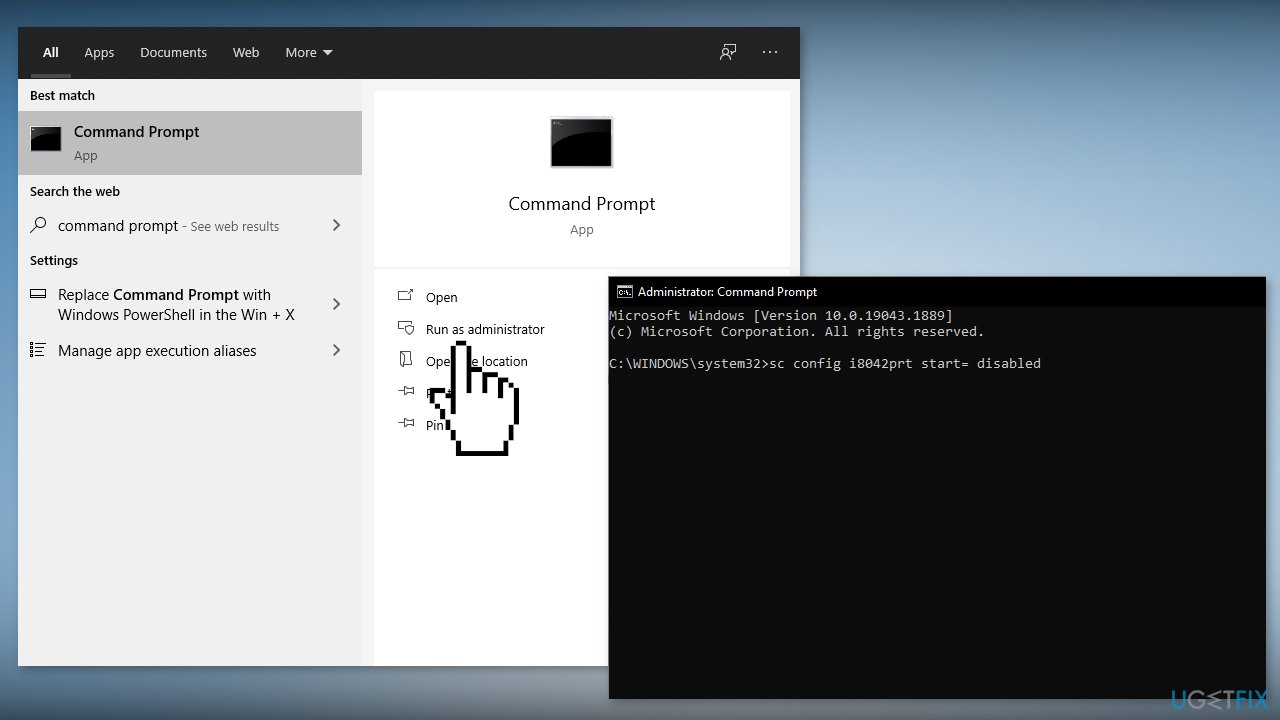
- Restart your computer and your laptop keyboard should not work
- If you want to re-enable the keyboard in the future you can use the following command:
sc config i8042prt start= auto
Solution 3. Stop the Keyboard From Installing With Group Policy Editor
- Press the Windows key + X and then select Device Manager
- Expand Keyboards
- Right-click Standard PS/2 Keyboard and choose Properties
- Go to the Details tab and change the Property drop-down option to Hardware Ids
- Open the Run dialog box with the Windows key + R
- Type in gpedit.msc and press Enter
- Under Computer Configuration, navigate to Administrative Templates > System > Device Installation > Device Installation Restrictions
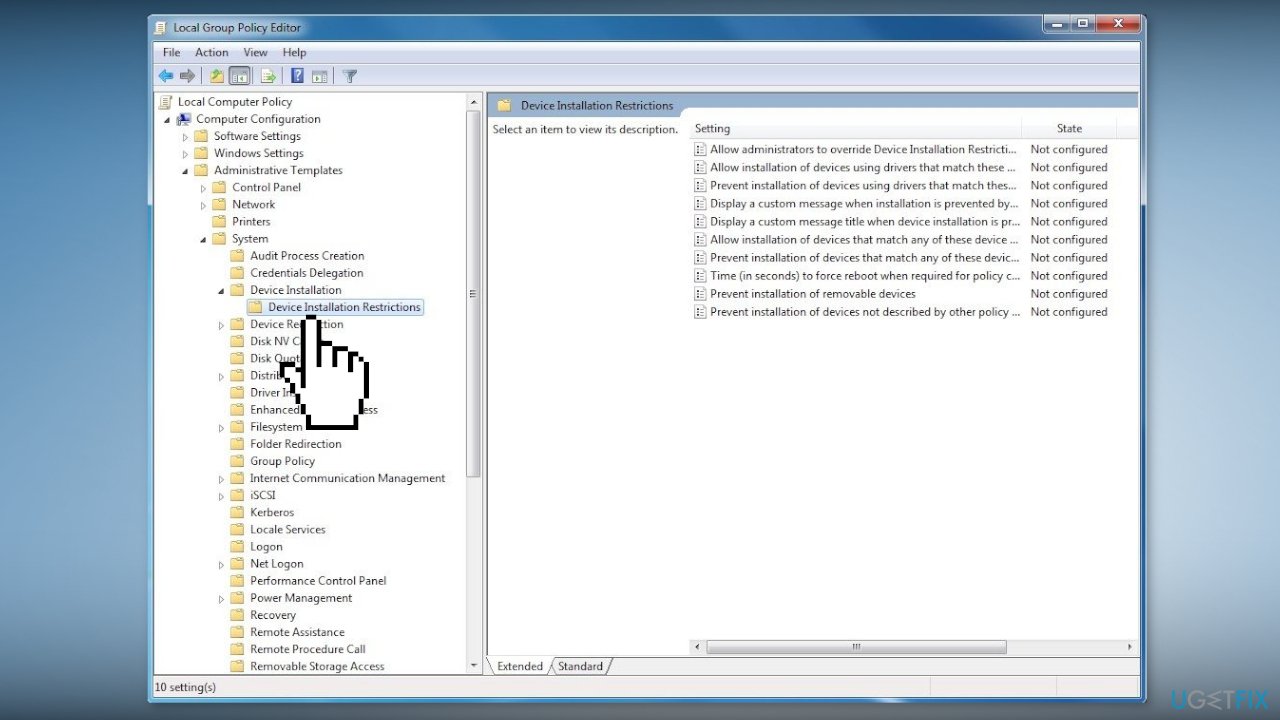
- Right-click Prevent installation of devices that match any of these device instance IDs, and select Edit
- Select Enabled in the upper-left portion of the Prevent installation of devices that match any of these device instance IDs window, and then choose Show
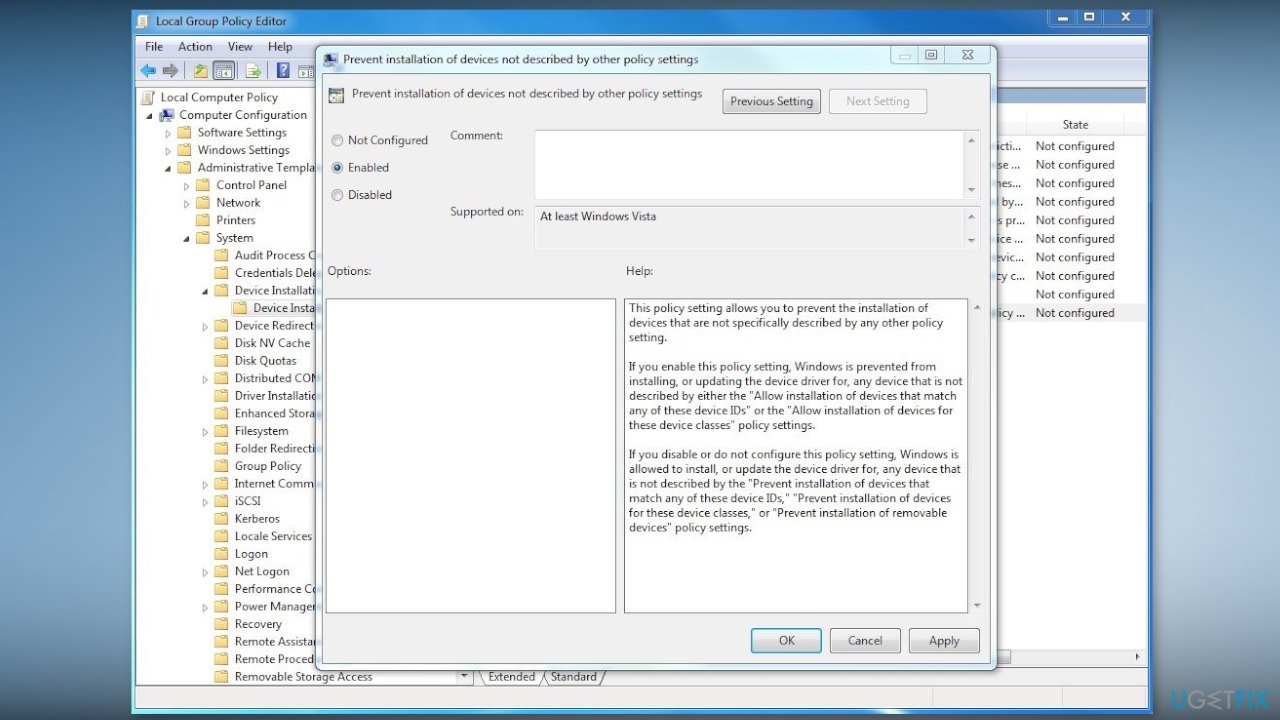
- Return to Device Manager in Step
- Right-click the first entry in the list, and choose Copy
- Go back to the policy you opened and double-click the space under Value, and then paste the copied ID into that box
- Choose OK on both screens
- Find the device again in Device Manager, right-click it, and choose Uninstall device
- Restart the computer to permanently disable the laptop keyboard
Solution 4. Use an Incorrect Driver
This method forces the keyboard to use a device driver that it cannot use.
- Open Device Manager, expand Keyboards, right-click Standard PS/2 Keyboard, and select Update driver
- Select Browse my computer for driver software
- Select Let me pick from a list of available drivers on my computer
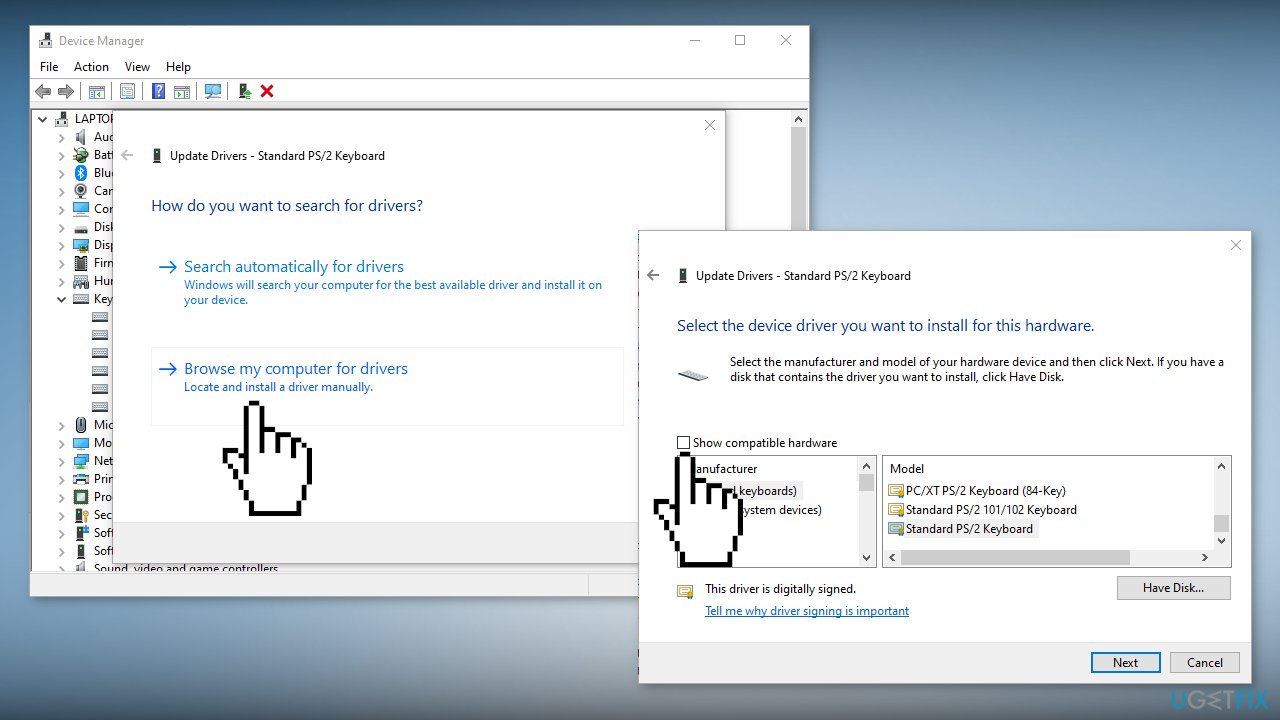
- Clear the Show compatible hardware check box
- Scroll through and select a manufacturer (different than your standard keyboard), select a model, and then choose Next
- Select Yes and Close once the driver is updated
- Restart the computer
Bottom line
This guide covers methods to disable the laptop keyboard driver through Device Manager and Command Prompt. If these methods do not work, consider using a repair tool to address potential system errors.
Frequently asked questions
To disable your laptop's keyboard in Windows 10, go to Device Manager, find the keyboard section, right-click on your keyboard device, and select 'Disable device'.
Yes, you can temporarily disable the keyboard on Windows 11 by using a third-party software that allows for keyboard locking or by following the Device Manager method.
If the keyboard doesn't disable, ensure you have administrative privileges and that no software is preventing the change, then try restarting your device.




Report an issue
What's wrong with this guide? We review every report and update or remove content.
Report received — thank you. We'll review and fix it.
You need a free account to submit a report.
Be the first to comment