How to fix
Disable Ads
on Windows
Discover effective ways to disable intrusive ads on Windows 10 and Windows 11 for a smoother experience. Expert-tested tips included!

Why does How to Disable Ads on Mac occur?
- Ads generate pay-per-click revenue for developers
- Advertisements often mimic well-known companies to appear genuine
- Ads can make browsing experience unbearable and intrusive
- Closing ads may cause the computer to freeze or become sluggish
- Clicking on ads can redirect to suspicious pages or install malware
Repairs Windows system files, removes malware, and restores a clean OS state — without reinstalling.
Hello. I'm tired of ads which continuously pop-up on my Mac. Is there any way I could disable them without downloading an additional application? Thanks!
Pop-up ads on Mac can be definitely annoying! Developers usually generate pay-per-click revenue and try their best to lure the computer user into clicking on them[ref en-1]. The most common tactic is to make the advertisements look genuine even try to mimic well-known companies.
We understand that ads can make your browsing experience unbearable and and appear as intrusive pop-ups[ref en-2]. You can also face some difficulties once trying to close them since it might make your computer to freeze or become sluggish.
However, note that you should not click on the displayed ads under any circumstances since they might redirect you to highly suspicious pages and infiltrate malware[ref en-3]. Additionally, note that even if you click on them accidentally by trying to close them it also might trigger the installation of dangerous PC threats.
We recommend you to scan your computer with [rev id=”MacKeeper”] to remove all potentially unwanted programs which might be flooding you with an extensive amount of annoying ads. Afterward, you can block ads on Mac without downloading any additional third-party application.
The guide below will explain you how to disable ads on Safari and Chrome. Note that you can apply the instructions provided below to other popular browsers such as Mozilla Firefox and Internet Explorer as well.
Disable ads on Mac without an additional software
There are two ways how you can get rid of the intrusive advertisers on Safari — using settings or reader view function. The in-built Reader is a great way to block the ads. However, it removes the whole graphical content from the website as well. Therefore, if you want to still leave social tags and other potentially not dangerous content, you should opt for the first technique.
Disable ads on Safari
Method 1. Block advertisements using Safari settings
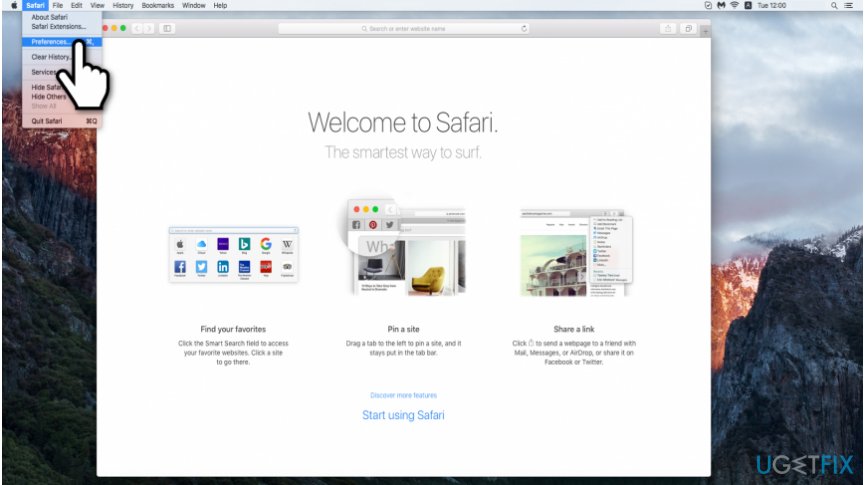
- Open Safari and navigate to the top-left corner of your screen;
- Click on Safari and select Settings.
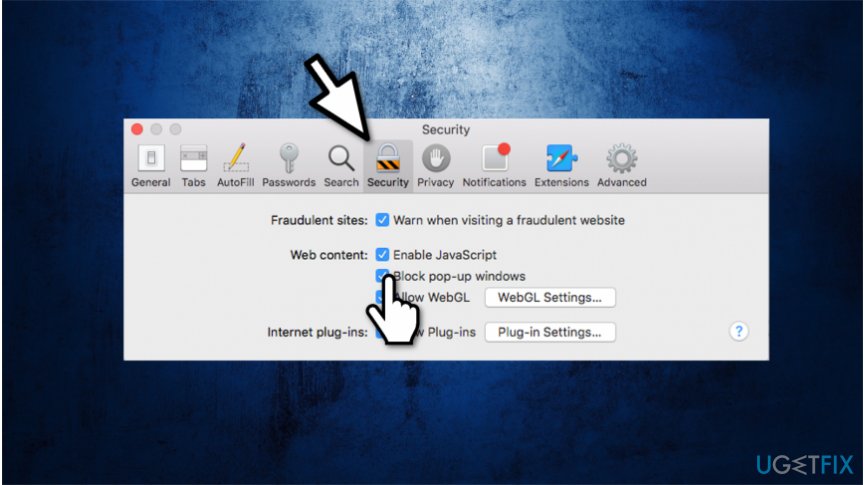
Block popups on safari - Open Security tab and tick the Block pop-up windows mark.
Method 2. Use Reader function to remove ads on Safari
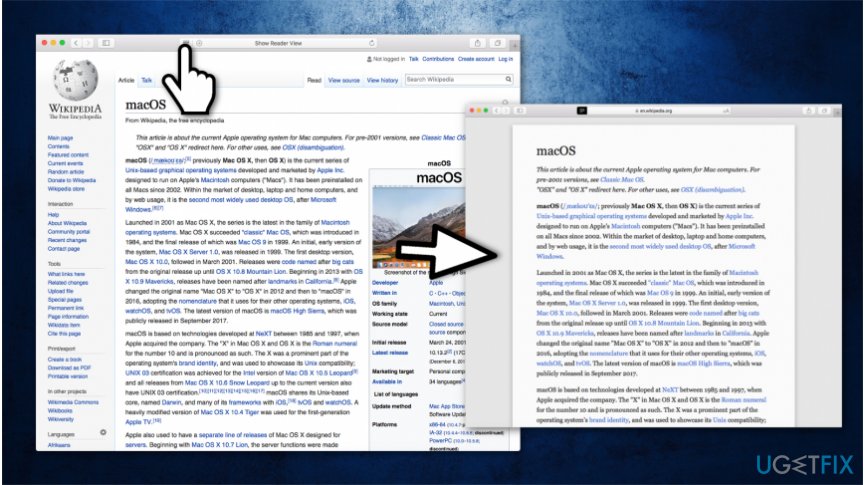
- Navigate to the top of the window;
- Select Show Reader View.
NOTE: You can also reach the Reader function by simply pressing Command + Shift + R at once.
Block ads on Chrome
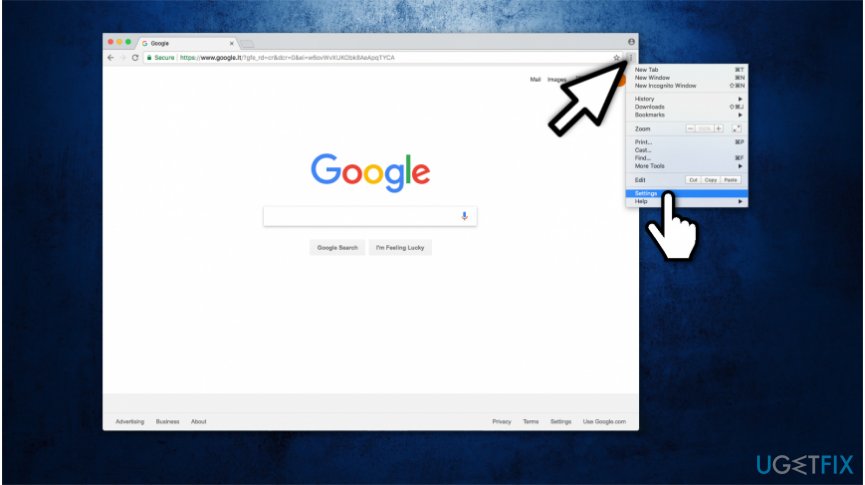
- Open Chrome and click on the three vertical dots in the top-right corner of the window;
- Select Settings.
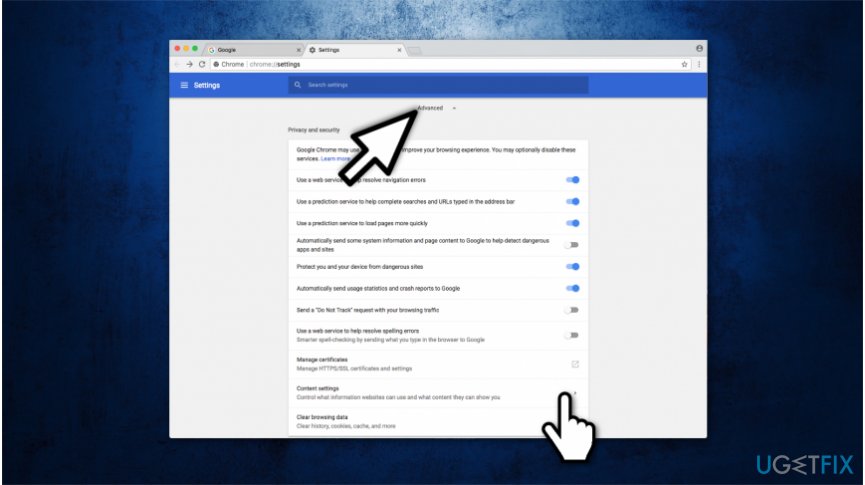
Open content settings on chrome - Scroll down and click on Advanced button;
- Search for the Content Settings and open them.
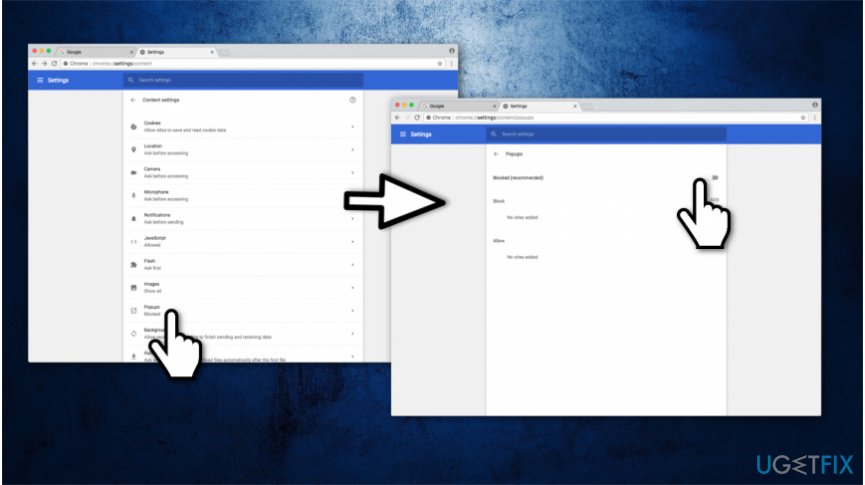
Do not allow to show ads on chrome - Select Popups and block them.
Bottom line
To disable ads on your Mac, you can adjust Safari settings to block pop-up windows or use the Reader view function. If these methods do not work, consider scanning your computer for potentially unwanted programs.
Frequently asked questions
Yes, you can disable ads on Windows 10 by adjusting the settings in the emulator's configuration, ensuring ad-blocking features are enabled.
In Windows 11, you can manage privacy settings to limit personalized ads from applications by going to Settings > Privacy & security > General.
To block ads on Windows 10 while using a Mac, you can install ad-blocking extensions in your browser or use privacy-focused browsers that have built-in ad-blocking features.




Report an issue
What's wrong with this guide? We review every report and update or remove content.
Report received — thank you. We'll review and fix it.
You need a free account to submit a report.
Be the first to comment