How to fix
Disable Bing Chat AI
on Windows
Easily disable Bing Chat AI in Windows 10 and 11 search for a more streamlined experience. Enjoy expert-tested tips for optimal settings today!

Why does How to disable Bing Chat AI in Windows search occur?
- Inaccuracy in AI-generated responses
- Privacy concerns regarding search queries
- Unwanted distraction from practical tasks
- Lack of control over Bing AI Chat options
Repairs Windows system files, removes malware, and restores a clean OS state — without reinstalling.
Hello. I cannot find a way to disable Bing AI in Windows search. Please help. Any suggestions would be appreciated.
You must deactivate a function that offers AI-driven conversation ideas and results when you conduct a search using Windows search in order to disable Bing Chat AI. In essence, Bing AI Chat is a function that incorporates AI-generated chat recommendations and responses into the search experience. Users who look for help or information might get recommendations or links to AI-generated chat dialogues that could answer their questions or engage in a chat-like topic. For a variety of reasons, a lot of users have reported annoyance with Bing AI Chat:
- Inaccuracy: Bing AI Chat may provide inaccurate or irrelevant information, leading to confusion and frustration for users seeking specific answers or assistance. The quality of responses can vary widely, and the AI may not always understand the context of the user's query.
- Privacy concerns: Some users are concerned about the privacy implications of using Bing AI Chat. They worry that their search queries and interactions with the AI chatbot may be logged or used for other purposes, raising privacy issues.
- Unwanted distraction: For users who primarily use Windows search for practical tasks, Bing AI Chat can be seen as an unwanted distraction. It can clutter search results and make it harder to find what they're looking for quickly.
- Lack of control: Users have expressed frustration with the lack of control over Bing AI Chat. They may want to disable it or have more granular control over its behavior, which has not always been readily available.
Providing users with stronger control options to enable or disable Bing AI Chat, enhancing the precision of chatbot responses, and explicitly outlining the privacy standards associated with the tool are potential remedies to these complaints. In addition, giving users the option to opt in or opt out at initial setup could enable them to decide whether they want to use Bing AI Chat for Windows search.
In this guide, you will find 3 steps that should help you disable Bing Chat AI in Windows search. If you experience any OS issues, use a system repair tool like [d1]. It can fix most system errors, BSODs, corrupted files, and registry issues. Otherwise, follow the step-by-step instructions below.
Solution 1. Disable Bing AI Chat in Windows Search
- Click the search box or button and then click the Options showing next to your profile icon.
- This will open Settings app and scroll down on the page.
- Find the Cloud content search heading and disable the Microsoft account option under that section.
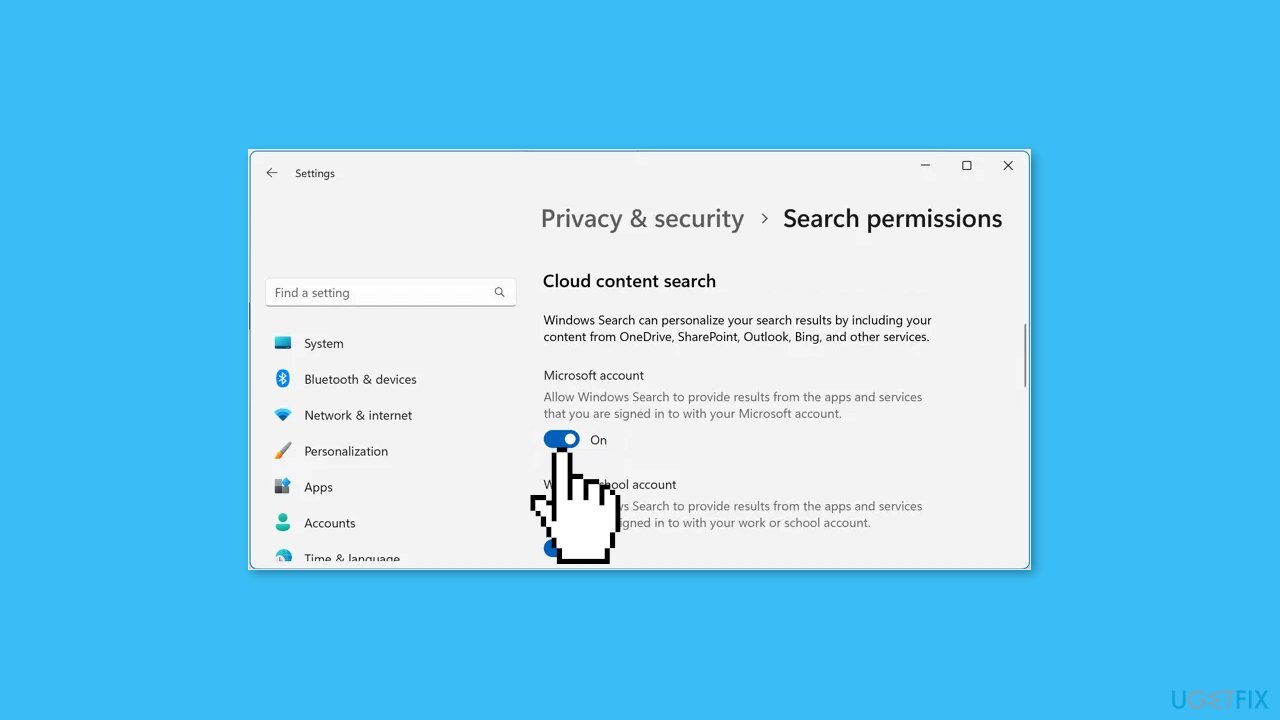
- Now, click the Windows search button and you will not see the Bing AI chat icon anymore. This will also remove the Chat filter that appears whenever you type and search.
Solution 2. Disable Bing Web Search Results
- Click the search box and then click on Options (three dots icon).
- This time you will see a few additional options for enabling cloud search and adding your account. Again, go to Search settings option.
- Scroll down to the bottom of the settings page and disable the Show search highlights option under More settings section.
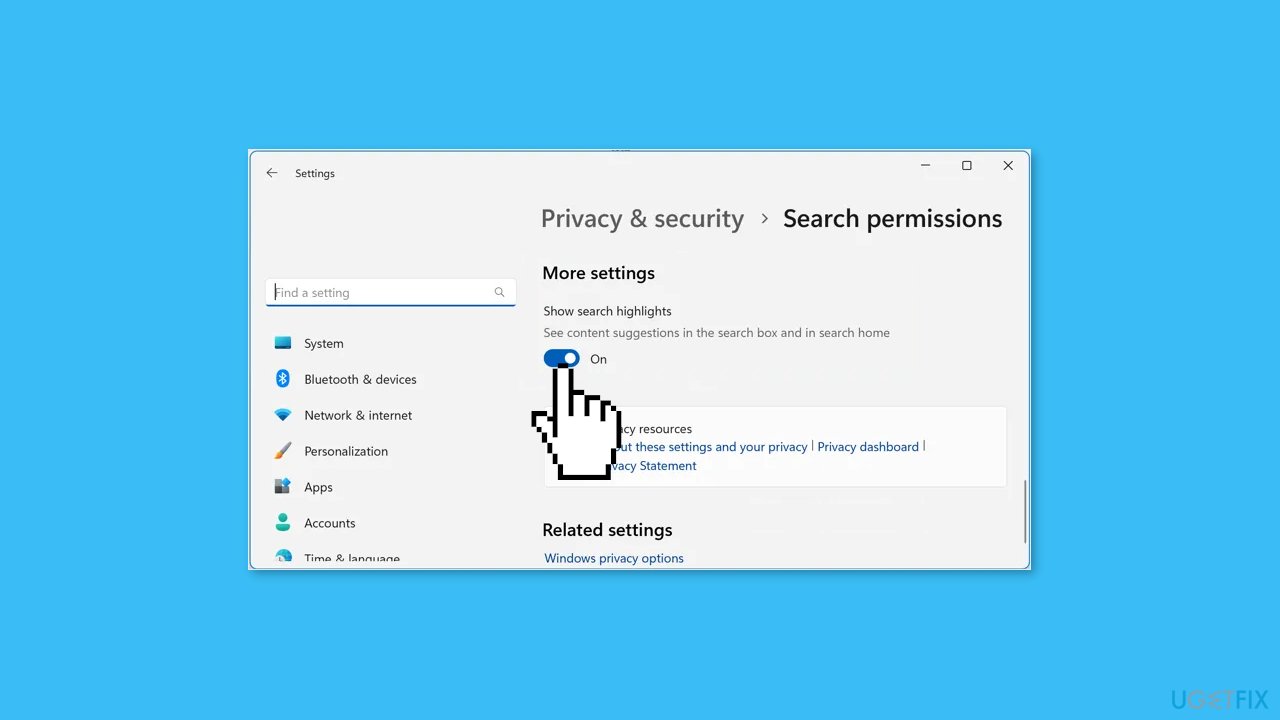
- Click the search box and you will not see Bing discovered webpages in the search results.
Solution 3. Disable Web Search in Group Policy Editor
- Open the Group Policy editor (Go to Windows search and type: gpedit.msc and it will open up).
- Then, go to User Configuration > Administrative Templates > Windows Components > File Explorer.
- Open and enable the Turn off display of recent search entries in the File Explorer search box policy.
Bottom line
To disable Bing Chat AI in Windows search, you need to deactivate the function that offers AI-driven conversation ideas and results. This guide provides steps to enhance control over Bing AI Chat and improve the relevance of responses. If these steps do not resolve the issue, consider seeking further assistance or exploring additional settings.
Frequently asked questions
To disable Bing Chat AI in Windows 10, go to Settings > Search > Permissions & History, and toggle off the option for 'Show suggestions from Bing.'
Yes, in Windows 11, navigate to Settings > Privacy & security > Search permissions, and disable 'Show web results' to turn off Bing Chat AI.
Disabling Bing Chat AI will limit web-based suggestions in your search results, but local file and app searches will remain unaffected in both Windows 10 and Windows 11.




Report an issue
What's wrong with this guide? We review every report and update or remove content.
Report received — thank you. We'll review and fix it.
You need a free account to submit a report.
Be the first to comment