How to fix
Disable Caps Lock notification
on Windows
Easily disable Caps Lock notifications in Windows 10 or 11 for a smoother typing experience. Expert-tested tips ensure zero distractions.


Why does How to disable Caps Lock notification in Windows occur?
- Caps Lock key toggles capitalization without holding Shift
- Laptops may lack a physical indicator light for Caps Lock
- Notifications are intended to provide visual feedback
- Manufacturer software generates on-screen notifications
- Disruptive notifications can interrupt immersive experiences
Repairs Windows system files, removes malware, and restores a clean OS state — without reinstalling.
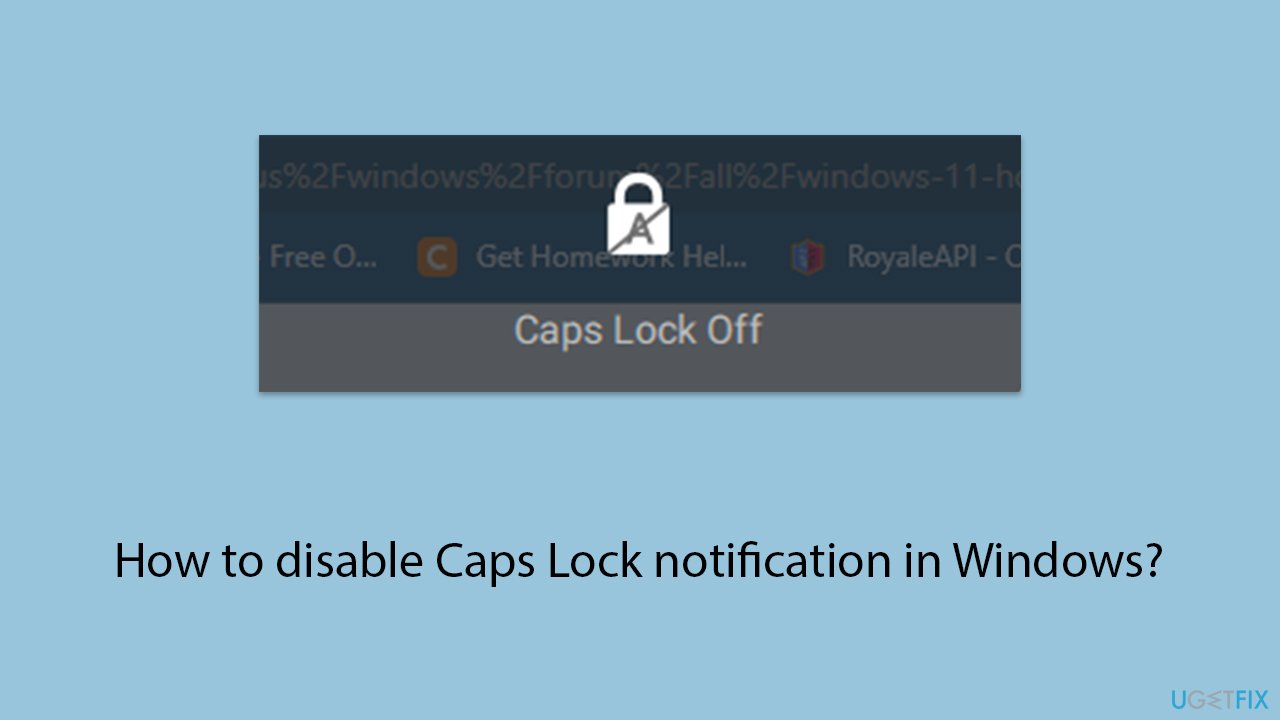
Hello. Whenever I play a game, sometimes when I press a shortcut accidentally, I receive a "Caps Lock Off" notification in the middle of my screen, which takes me out of the game and it's really annoying. How can I disable this?
The Caps Lock key on a keyboard is a tool designed to enable or disable the capitalization of letters without holding down the Shift key. Traditionally used for typing in all capitals for emphasis or specific formatting requirements, it offers a convenient way to switch between capital and lowercase letters.
Activation and deactivation are simple: press the Caps Lock key to toggle this function on and off. Typically, the status of the Caps Lock is indicated by a light on the keyboard, providing immediate visual feedback without interrupting the screen's display.
However, when it comes to laptops from various manufacturers like Dell, Asus, and Lenovo, there's an additional indicator. When you toggle the Caps Lock on these devices, a notification may appear on your screen to show the change in status.
While intended to be helpful, especially when the physical indicator light is missing, this feature can be disruptive. It has the potential to pull you out of immersive experiences such as watching videos or playing games by overlaying an unsolicited notification directly onto the content you are engaged with.
If you find this feature more intrusive than useful, there are several methods to disable the Caps Lock notification in Windows. The approach varies based on the laptop's brand and the specific software it uses to manage keyboard inputs.
First, you can try adjusting the settings in the laptop's pre-installed manufacturer software. In other cases, you might need to uninstall the software responsible for generating these notifications. Alternatively, disabling certain services through the Windows Service Manager can stop these notifications from appearing.
Before proceeding, we recommend trying a powerful PC repair application [d1], which can easily fix any underlying Windows issues automatically and perform full maintenance on the system, allowing it to run smoothly.
Method 1. Adjusting manufacturer software settings
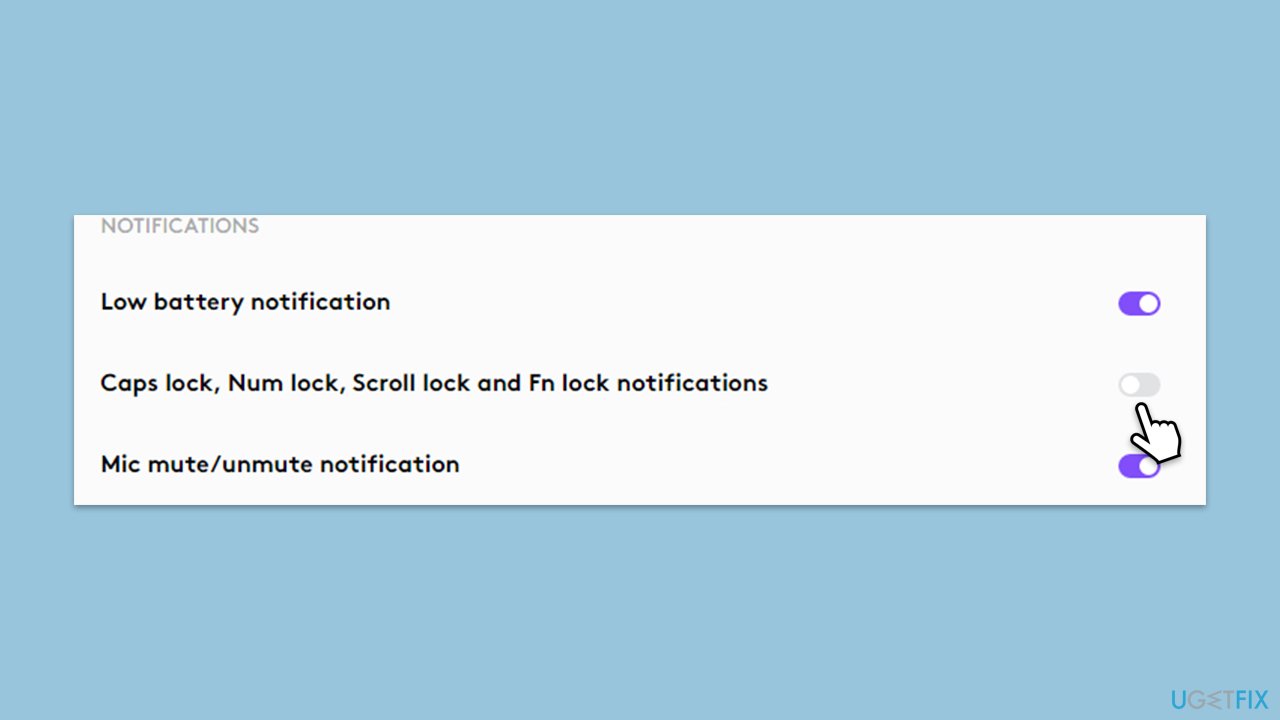
Many laptop manufacturers include proprietary software that controls various hardware functionalities, including keyboard features. This software often has settings to enable or disable Caps Lock notifications. The solution involves navigating this software to find the keyboard settings section and adjusting the notification preferences.
- Open the Start menu and locate the manufacturer's software application. The names might vary depending on the manufacturer - for example, Logitech's Logi Options.
- Launch the application and navigate to the settings or configuration section.
- Look for a tab or option labeled Keyboard or Input Devices.
- Find the setting for Caps Lock notification and disable it.
- Save changes and exit the application.
Method 2. Disabling specific services
Windows Services are background processes that the operating system uses to manage system functions. Disabling a service related to keyboard notifications can stop the Caps Lock alert from appearing.
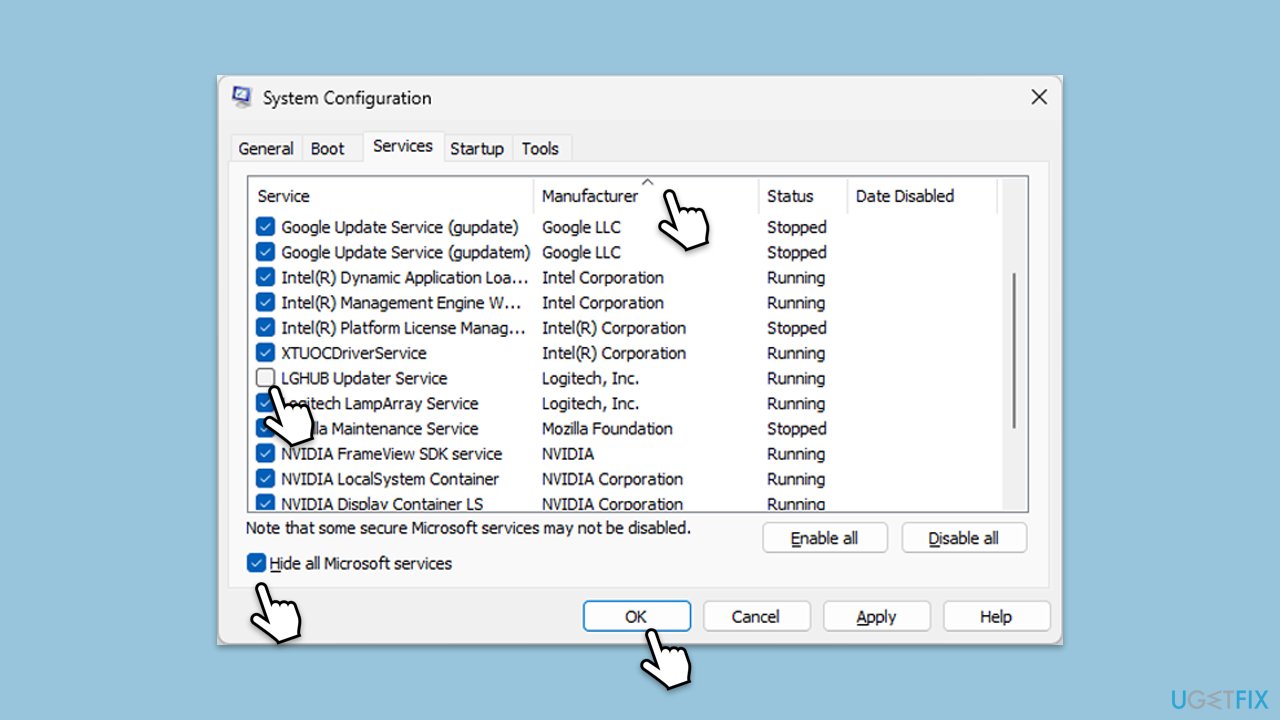
- Type msconfig in Windows search and hit Enter.
- Go to the Services tab and tick the Hide all Microsoft services checkbox.
- Sort the services by Manufacturer.
- Disable services related to your device manufacturer, for example, Acer's Quick Access Service.
- Click OK and restart your computer.
If you are unsure which service is causing Caps Lock notification to show up, you can always try using Clean Boot. There, you can enable half of the services and see if the problem persists - or you can also do it one by one. Here's how to access Clean Boot:
- Type msconfig in Windows search and hit Enter.
- Go to the Services tab and tick the Hide all Microsoft services checkbox.
- Select Disable all.
- Go to the Startup tab and click Open Task Manager.
- Here, right-click on each of the non-Windows entries and select Disable.
- Close down the Task Manager.
- Go to the Boot tab and tick the Safe boot option.
- Click OK and restart your computer.
Method 3. Checking Ease of Access
Sometimes, Ease of Access might be at fault. In Windows, it offers various settings to improve the computer's usability for those with different needs. Among these settings, you can adjust how notifications and alerts are displayed.
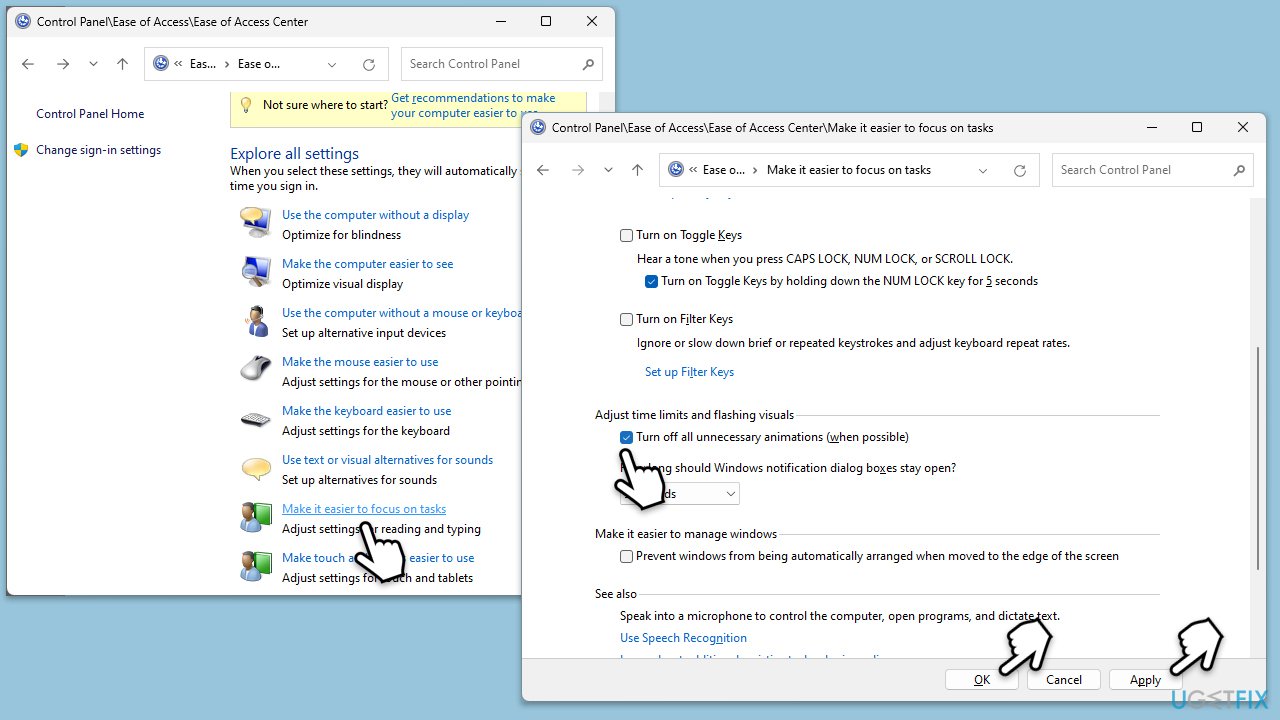
- Type Control Panel in Windows search and press Enter.
- Select Ease of Acess.
- Scroll down and click on Make it easer to focus on tasks.
- Scroll down again to find the Adjust time limits and flashing visuals section.
- Mark the Turn off all unnecessary animations (when possible) checkbox.
- Click Apply and OK.
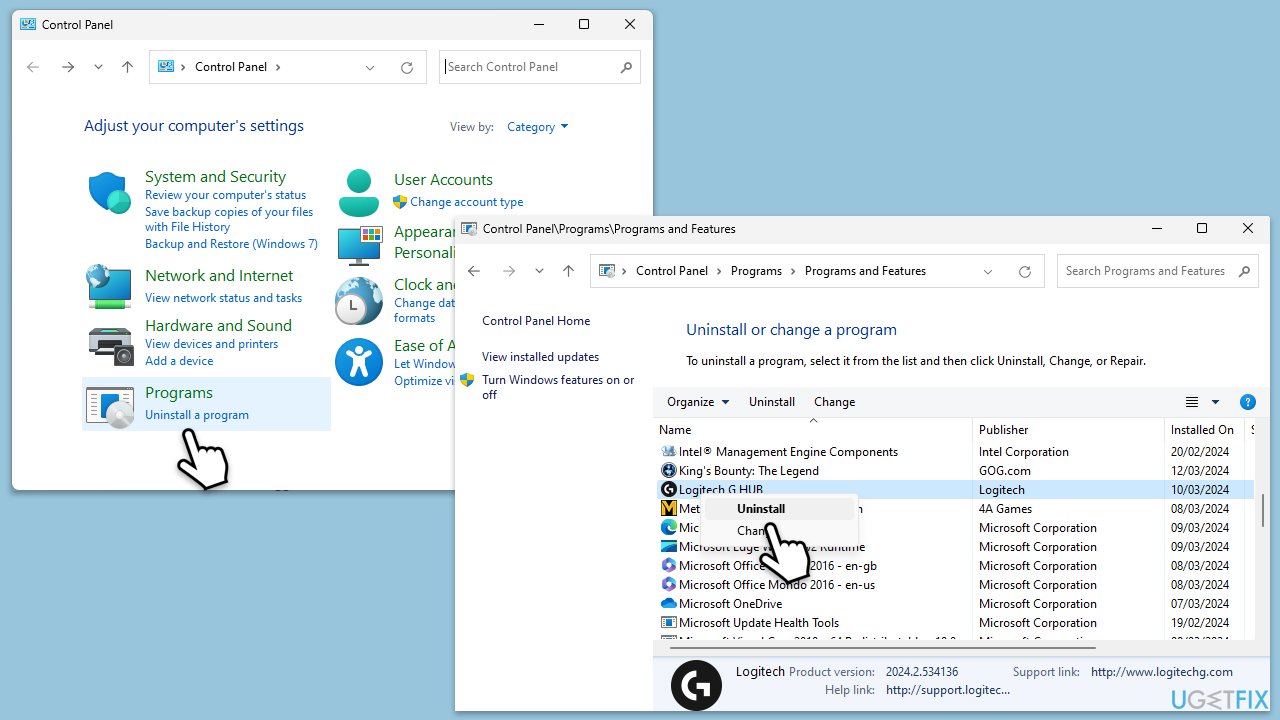
Method 4. Uninstalling third-party software
Services are background processes that the operating system uses to manage system functions. Disabling a service related to keyboard notifications can stop the Caps Lock alert from appearing.
- Type Control Panel in Windows search and press Enter.
- Go to Programs > Uninstall a program.
- From the list, select the app from your laptop's manufacturer.
- Right-click and select Uninstall, then follow the on-screen instructions.
- When done, restart your PC.
Bottom line
To disable the Caps Lock notification in Windows, you can adjust settings in the manufacturer software, uninstall the software responsible for the notifications, or disable certain services through the Windows Service Manager. If these methods do not resolve the issue, consider using a powerful PC repair application to fix underlying Windows problems.
Frequently asked questions
To disable the Caps Lock notification in Windows 10, go to Settings > Ease of Access > Keyboard, and toggle off the 'Toggle Keys' option.
Yes, in Windows 11, you can disable the Caps Lock notification by navigating to Settings > Accessibility > Keyboard, and turning off the 'Toggle Keys' feature.
No, turning off the Caps Lock notification will only disable that specific alert and will not affect other keyboard notifications in Windows 10 or Windows 11.




Report an issue
What's wrong with this guide? We review every report and update or remove content.
Report received — thank you. We'll review and fix it.
You need a free account to submit a report.
Be the first to comment