How to fix
Disable ChatGPT memory
on Windows
Easily disable ChatGPT memory on Windows 10 or Windows 11 to enhance your privacy and control settings. Expert-tested solutions for your peace of mind.

Why does How to disable ChatGPT memory occur?
- Concern about personal information being used for AI training
- Desire for greater privacy and data control
- Unease about sensitive details being retained
- Potential unintentional data synchronization across devices
- Need for a fresh start with each session
Repairs Windows system files, removes malware, and restores a clean OS state — without reinstalling.
I often use ChatGPT for work - and not only that, and I think it's great. However, I am a bit worried about personal information being used by AI for training, especially now that the ChatGPT Memory is a thing. Is there a way to disable this feature somehow?
Understanding the ChatGPT Memory feature
The ChatGPT memory feature is designed to enhance your experience by retaining the information you share during conversations. This allows the system to remember details, preferences, and recurring queries, making interactions more personalized and seamless. While the memory functionality can improve usability, it also means that certain data remains stored for future reference, providing a tailored response each time you engage with the platform.
Reasons to disable ChatGPT Memory
While the memory feature offers convenience, you might prefer to disable it for several reasons, particularly when privacy and data control are priorities. Retaining information could make you feel uneasy if sensitive details were shared during conversations, as this data might remain accessible until deleted or forgotten.
Additionally, if you use ChatGPT across different devices or accounts, enabling memory could lead to unintentional data synchronization, potentially causing concerns about where and how your information is stored. Turning off this feature can give you greater confidence in the privacy of your interactions and ensure a fresh start with each session.
Disabling ChatGPT Memory
Disabling the ChatGPT memory feature involves navigating settings to adjust preferences, ensuring that no information is retained beyond the current conversation. The steps to achieve this may vary depending on whether you are using the desktop version or the mobile app.
Generally, the process includes accessing privacy settings and either clearing the memory or turning it off entirely. While the specific options available might differ slightly, the goal remains the same—preventing stored data from being used in future interactions, thereby aligning the tool’s behavior with your preferences.
For addressing potential underlying issues in Windows systems, consider using [d1] PC repair tool, which can fix problems automatically.

Disable ChatGPT memory
Method 1. Remove via desktop
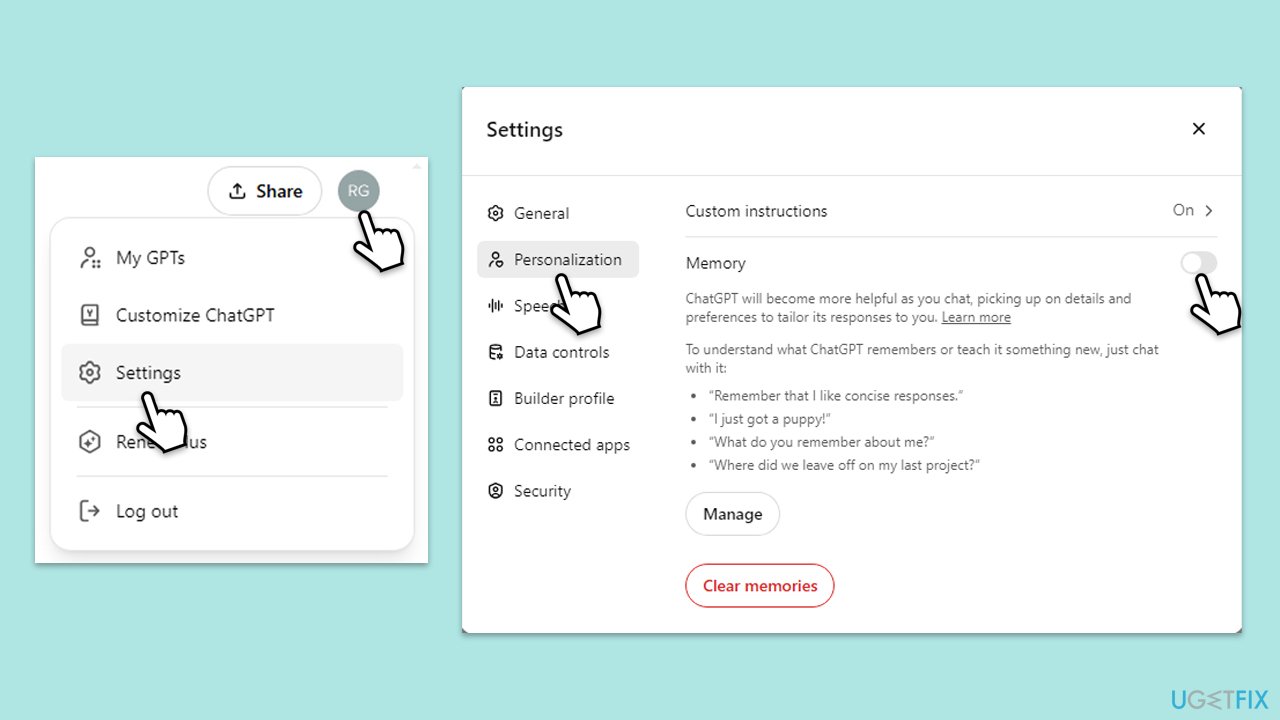
To disable ChatGPT memory on your desktop, follow these steps:
- Open ChatGPT in your preferred web browser and log in to your account.
- Click on your profile picture or name in the top-right corner to access the menu.
- Select Settings and then go to the Personalization section.
- Find the Memory section - there should be a toggle switch next to it.
- Disable the Memory feature by clicking on the switch, to the Off position.
Method 2. Remove on Android and iOS
If you access ChatGPT through a desktop browser or desktop app, follow these steps to remove memory:
- Open ChatGPT and log in to your account.
- Click on two lines, which can be found in the top-left corner.
- Select Settings.
- Here, you can find numerous settings - locate and click on Personalization.
- Tap the toggle switch to the Off position.

Delete ChatGPT Memory history
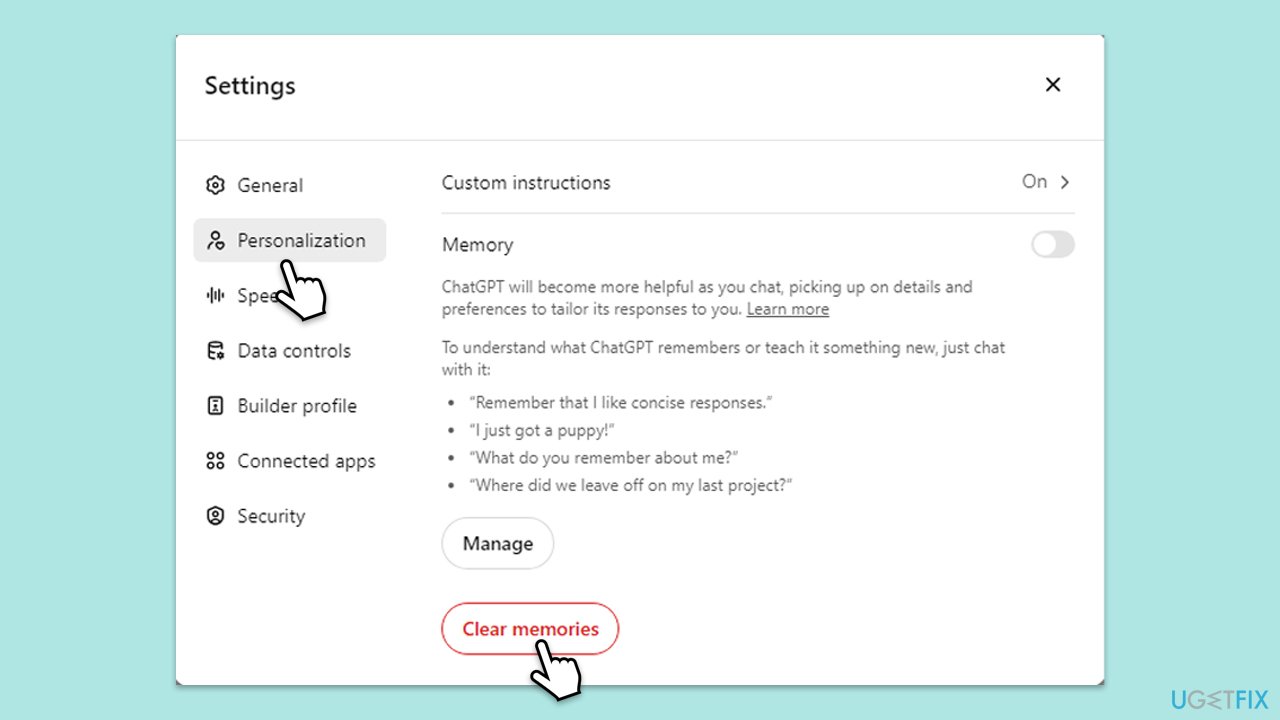
Method 1. Delete on desktop
- Open ChatGPT in your preferred web browser and log in to your account.
- Click on your profile picture or name in the top-right corner to access the menu.
- Select Settings and then go to the Personalization section.
- Scroll down to the Clear ChatGPT's memory section and click the button.
- When the confirmation prompt shows up, click Yes.
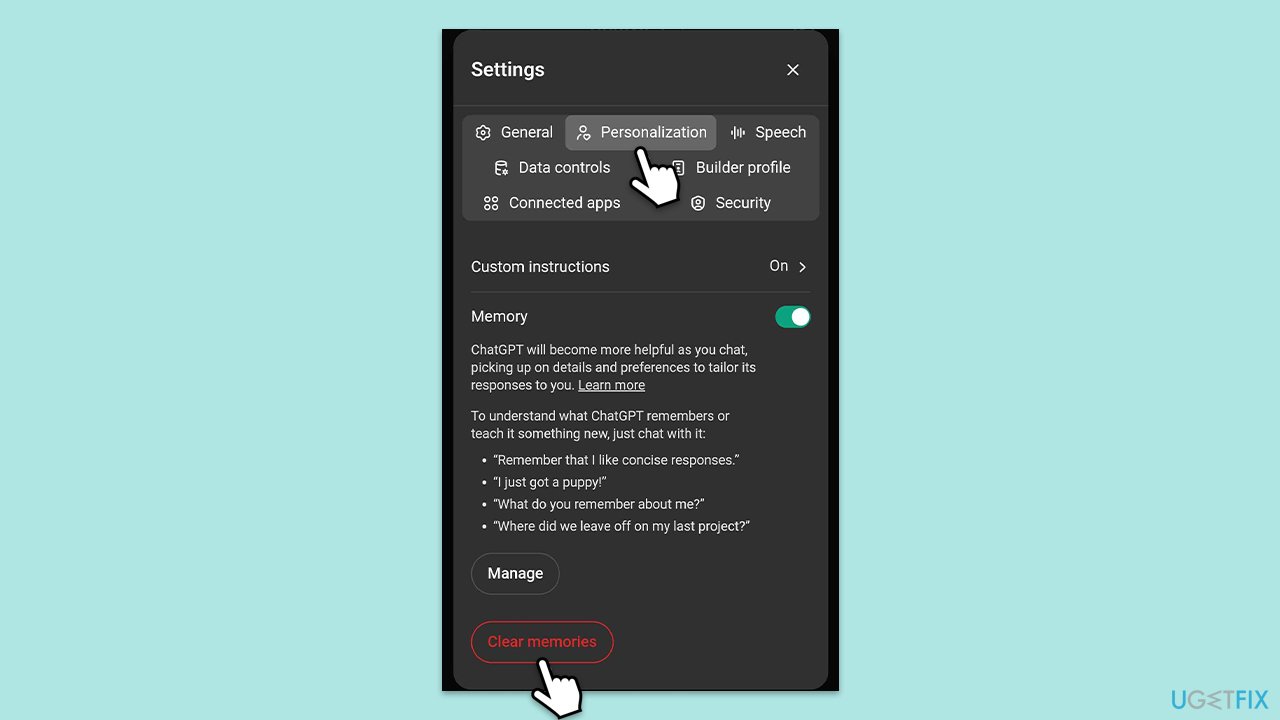
Method 2. Delete on mobile
- Open ChatGPT and log in to your account.
- Click on two lines, which can be found in the top-left corner.
- Select Settings and go to the Personalization section.
- Tap on Clear ChatGPT's Memory.
Bottom line
To disable ChatGPT memory, you can navigate to the privacy settings and either clear the memory or turn it off entirely. This process may vary between the desktop version and the mobile app. If these steps do not resolve your concerns, consider exploring additional privacy tools or settings.
Frequently asked questions
To disable ChatGPT memory on Windows 10, navigate to the settings within the ChatGPT interface and turn off the memory feature. This will prevent the application from retaining any previous conversations.
Yes, in Windows 11, you can manage ChatGPT memory settings by accessing the app's settings and toggling the memory option to off, ensuring that no data is stored between sessions.
Disabling memory in ChatGPT on any Windows version means the app will not remember past interactions, which can enhance privacy but may limit personalized responses.




Report an issue
What's wrong with this guide? We review every report and update or remove content.
Report received — thank you. We'll review and fix it.
You need a free account to submit a report.
Be the first to comment